Opening URL links in Web Applications
You can open URL links from TGML graphics.
While you can add a URL link to any TGML component, in this example a button component is created and then linked to a URL. When the button is clicked in Web Applications, the URL displays.
To open URL links in Web Applications:
-
Open the Graphics Editor from this location C:\Users\Public\Desktop\Power Operation by clicking on the Graphics Editor Icon.
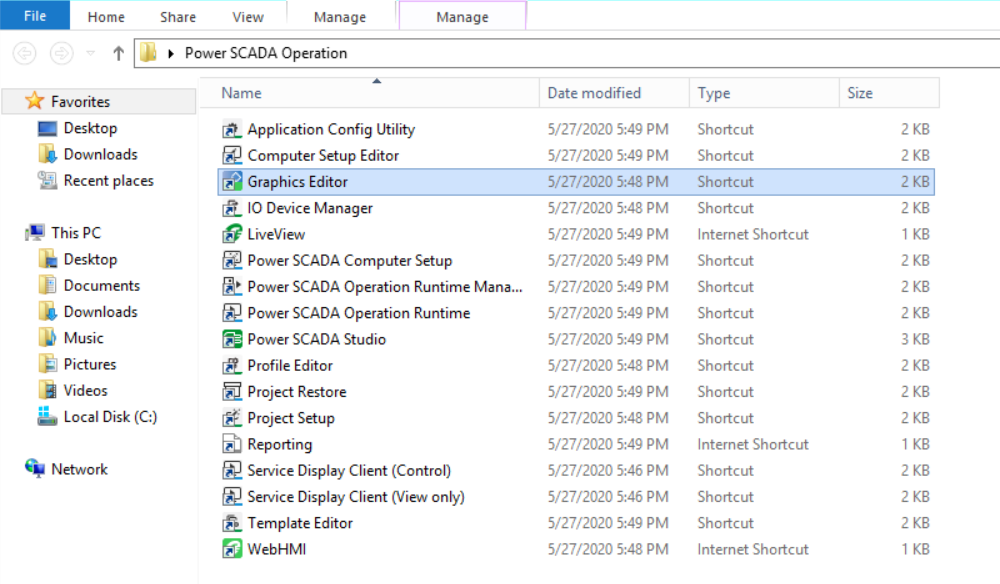
The following screen is displayed:
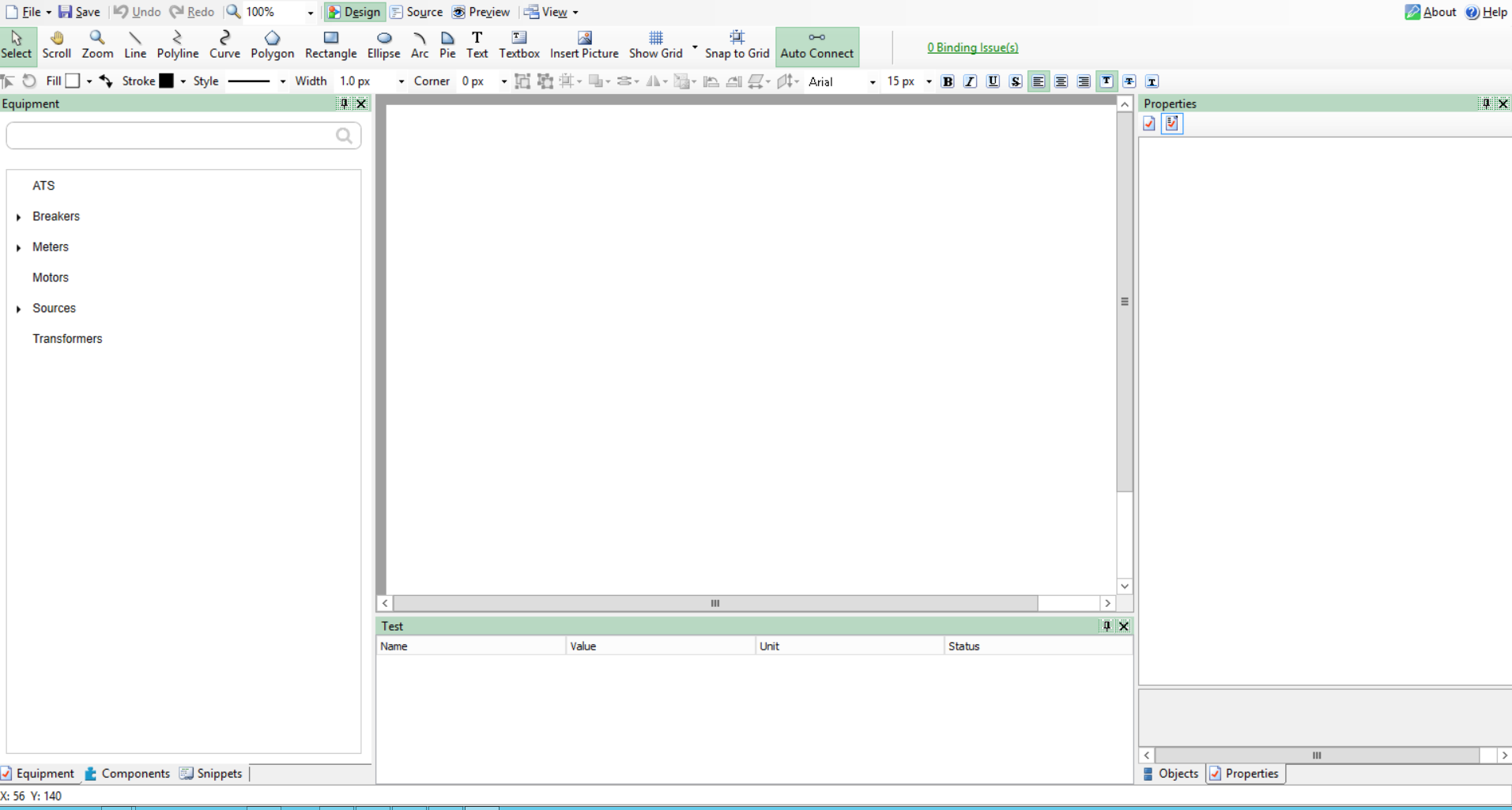
-
In the bottom left corner, click Components:
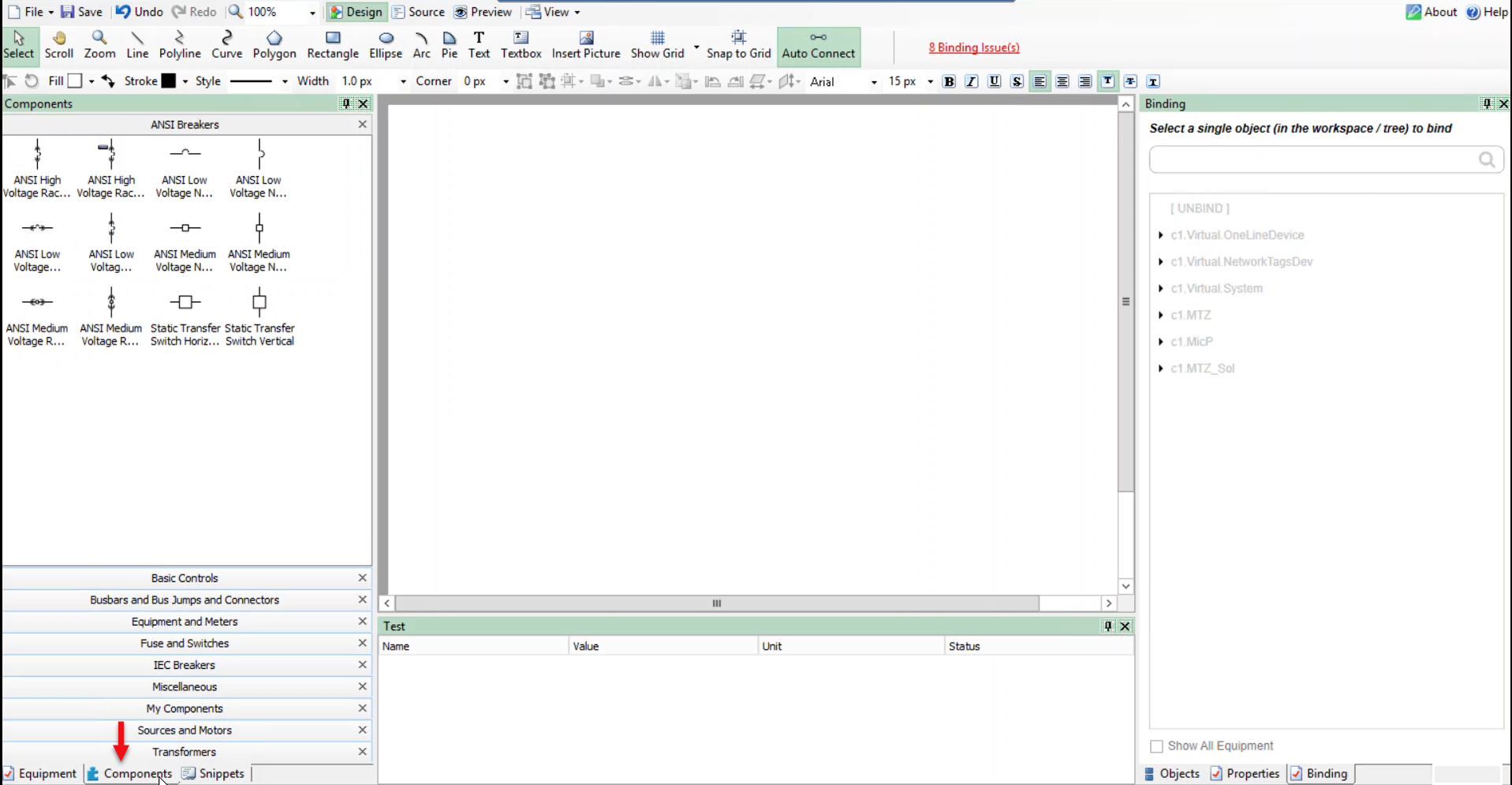
-
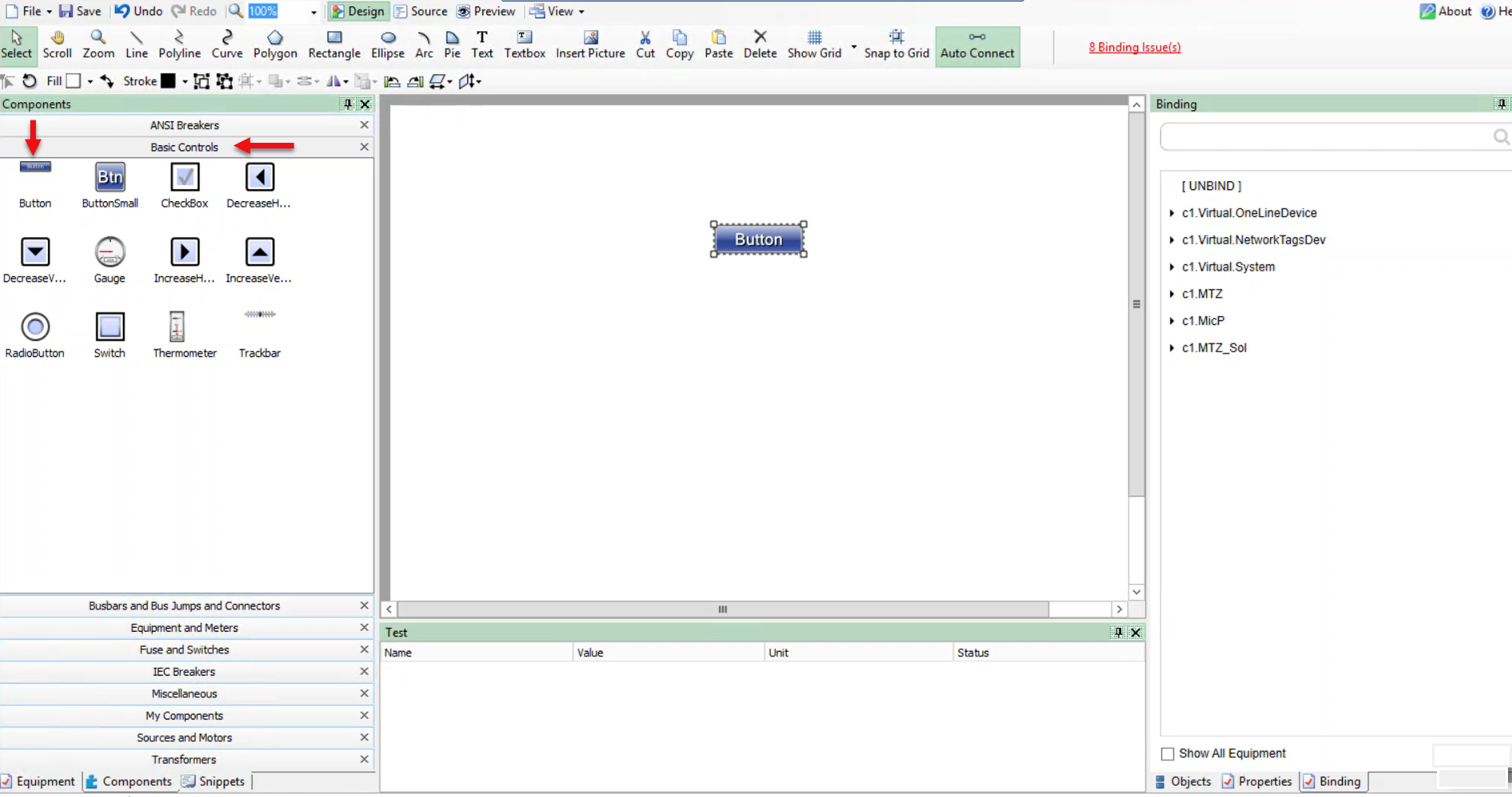
Click Basic Controls:
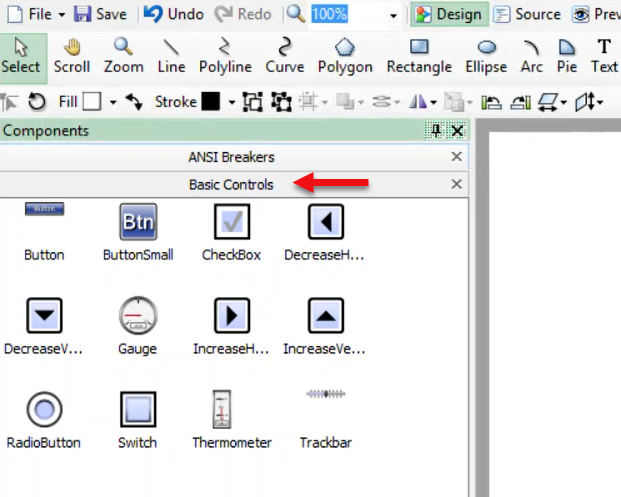
-
Drag and drop a Button component to the workspace:
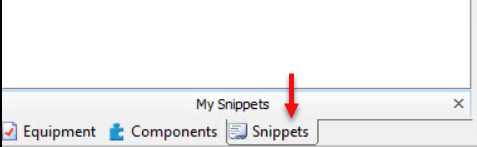
- Click Snippets:
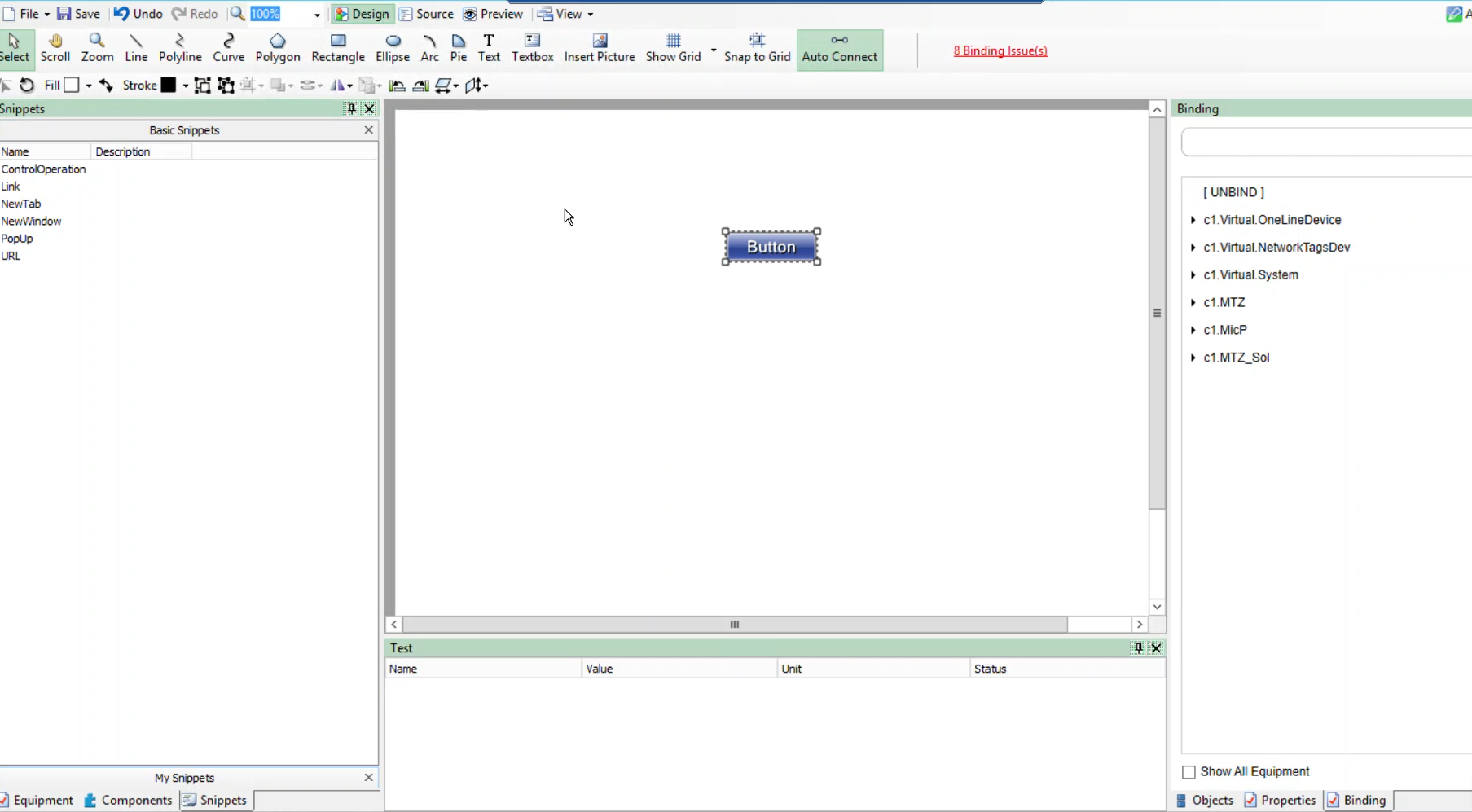
The following screen is displayed:
-
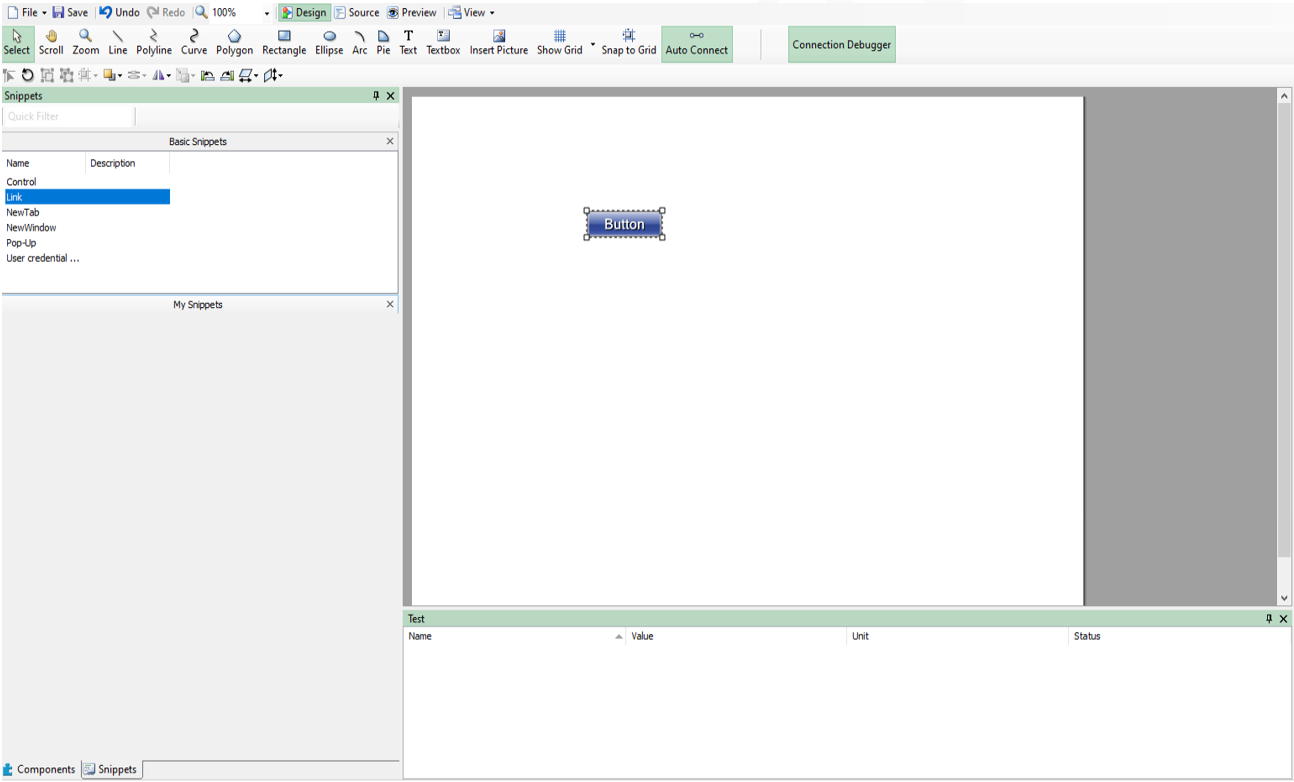
Drag and drop Link onto the Button component in the workspace.
-
In the bottom right corner, click Objects:
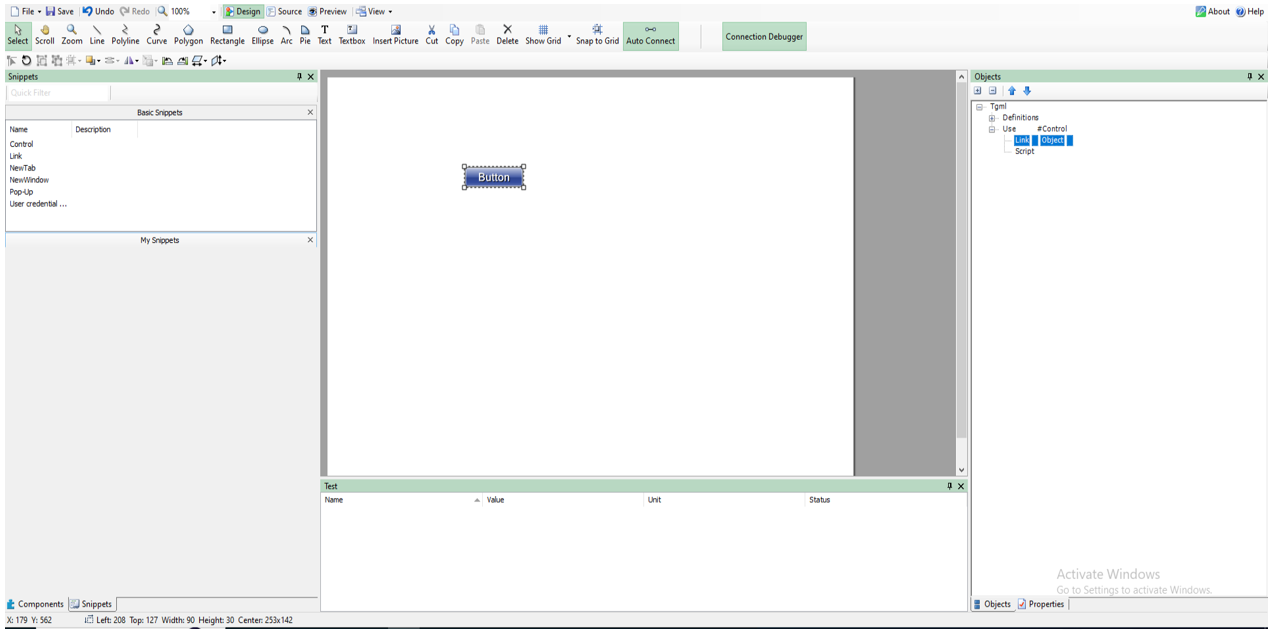
The following screen is displayed:
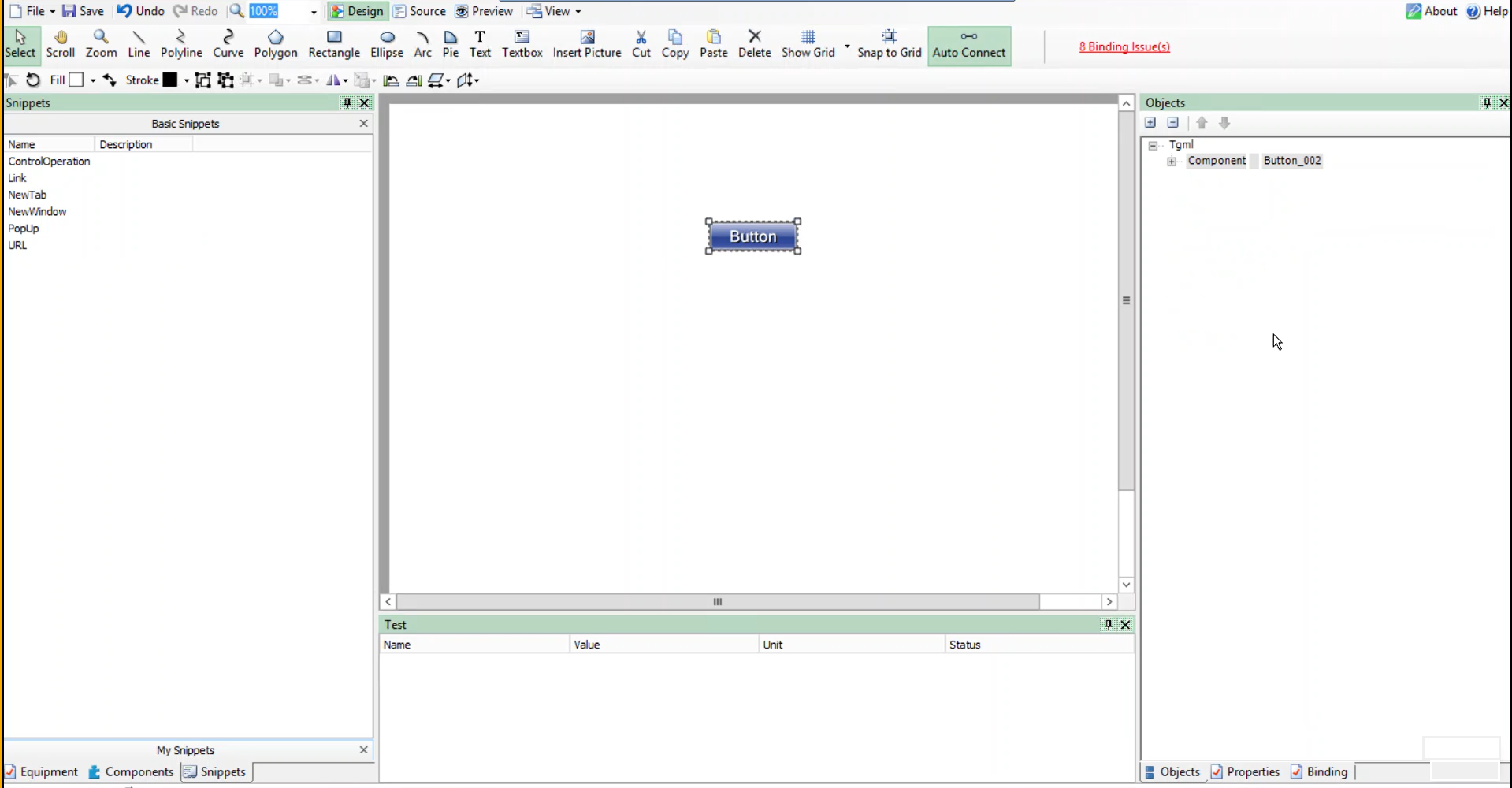
-
Set the Link attribute value:
- Expand the Use plus box to find the Link attribute within the button:
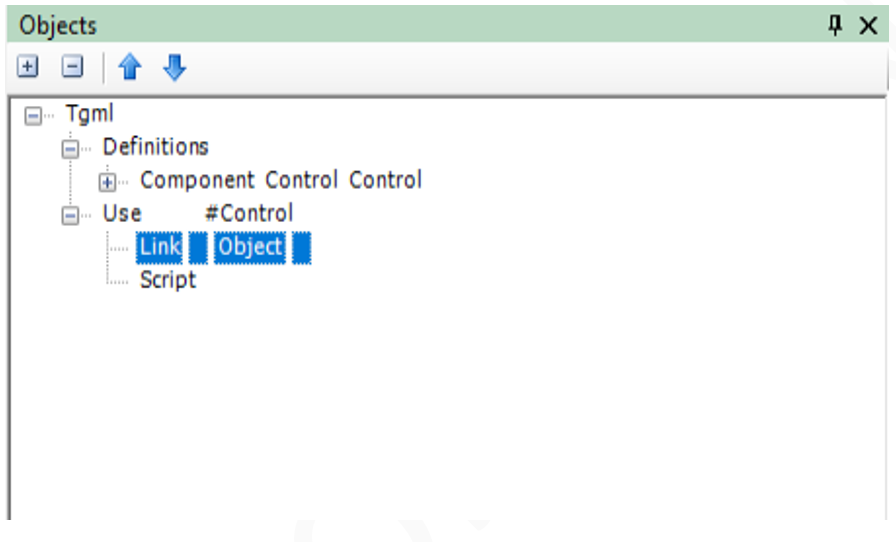
- Log in to PO Web Applications (https://localhost/webhmi or https://ipaddress/webhmi).
- Go back to Graphics Editor TGML page, double-click on Link > Object, and then paste the copied URL:
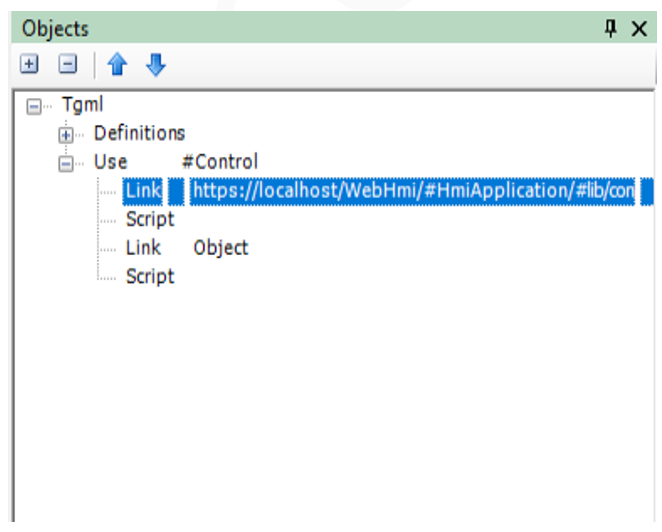
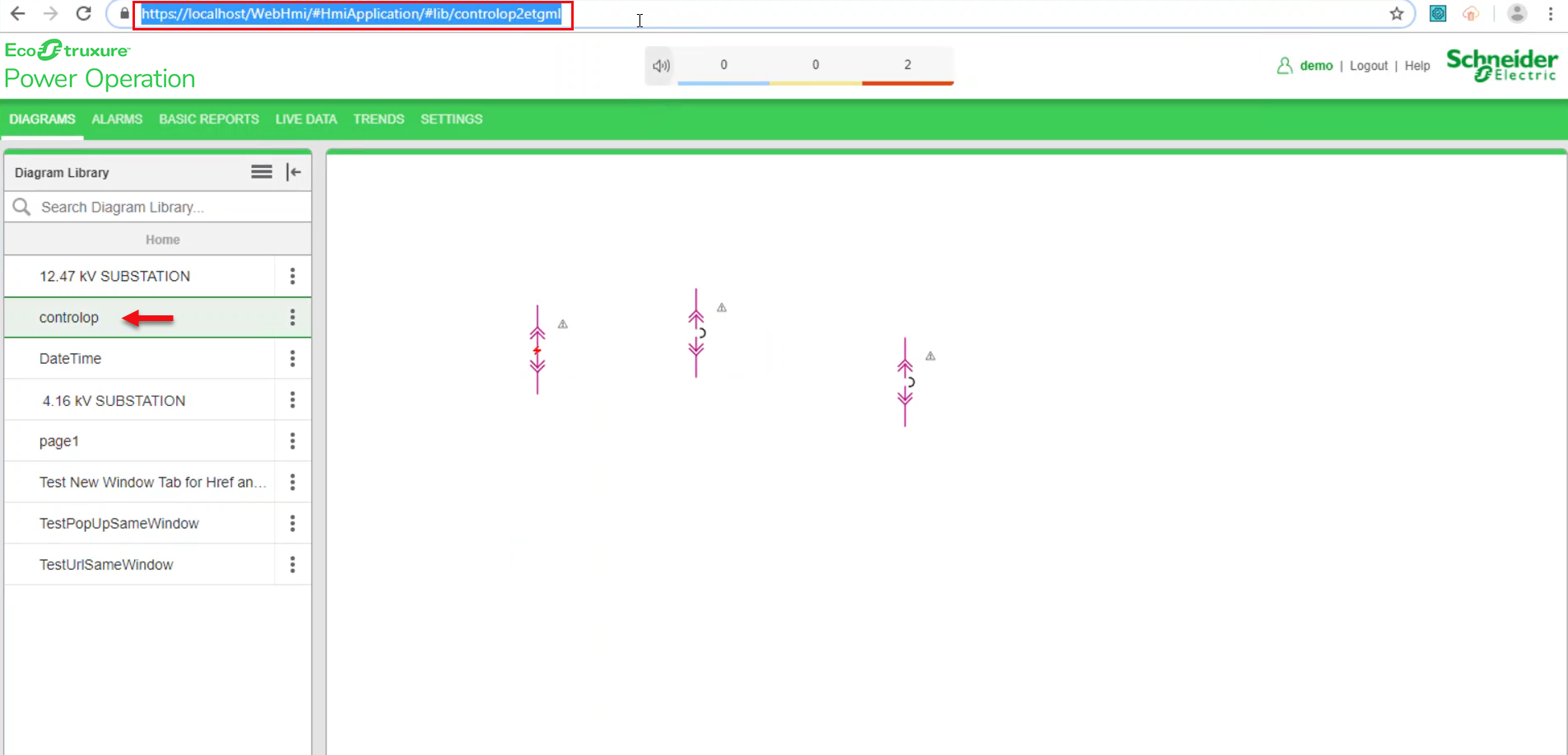
For example, click on controlop in Diagram Library menu, and then copy the highlighted URL:
- Expand the Use plus box to find the Link attribute within the button:
-
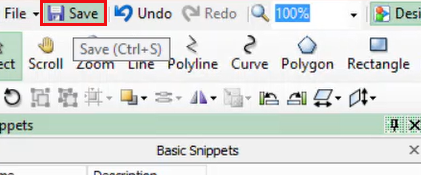
Click Save to save the TGML file. For example: URL
Test the changes:
- Log in to PO Web Applications (https://localhost/webhmi or https://ipaddress/webhmi).
-
Go back to Graphics Editor TGML page, double-click on Link > Object, and then paste the copied URL.
-
Click Save to save the TGML file. For example: URL
-
Go back to PO Web Applications page which was already open, and then refresh the page.
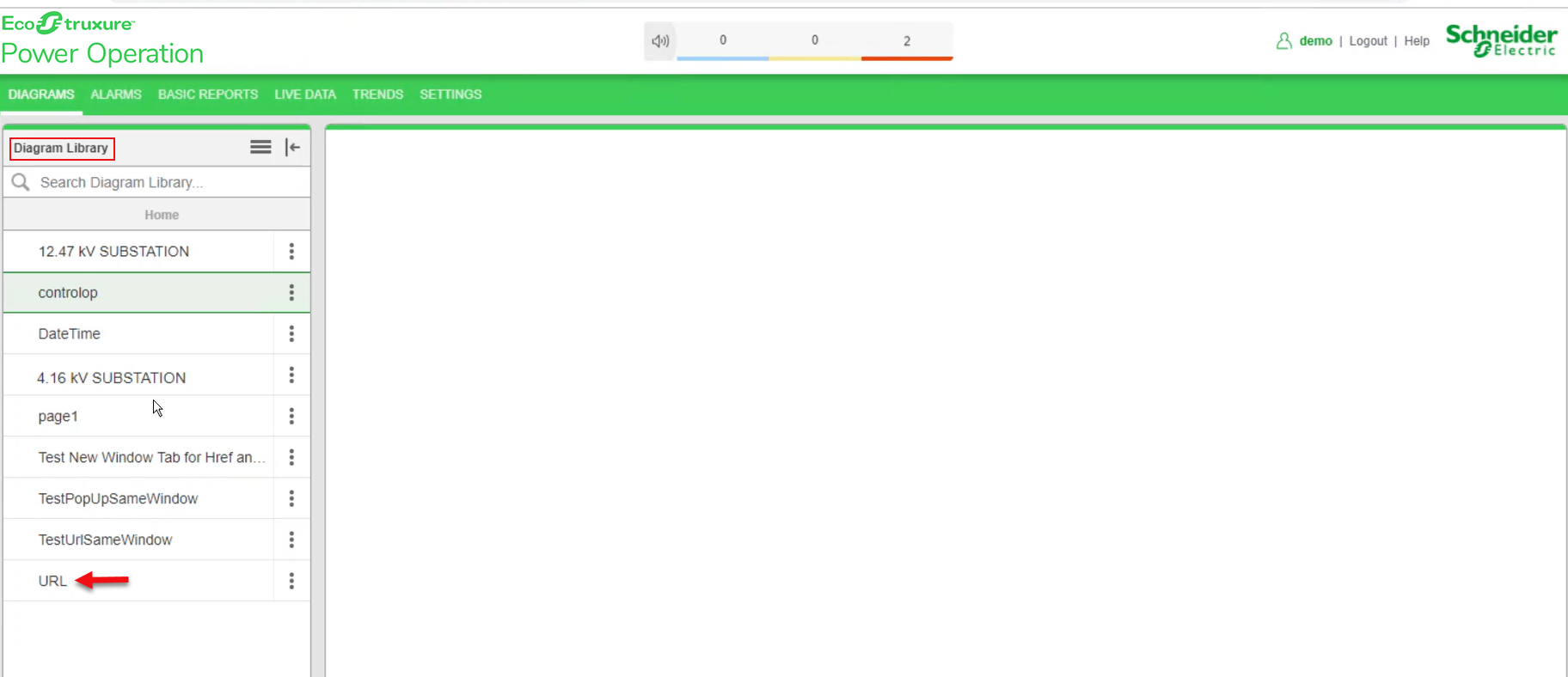
URL saved graphic file name is displayed in the Diagram Library menu.
-
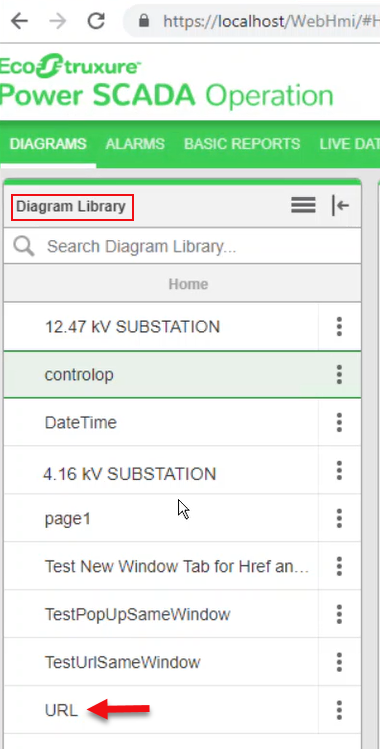
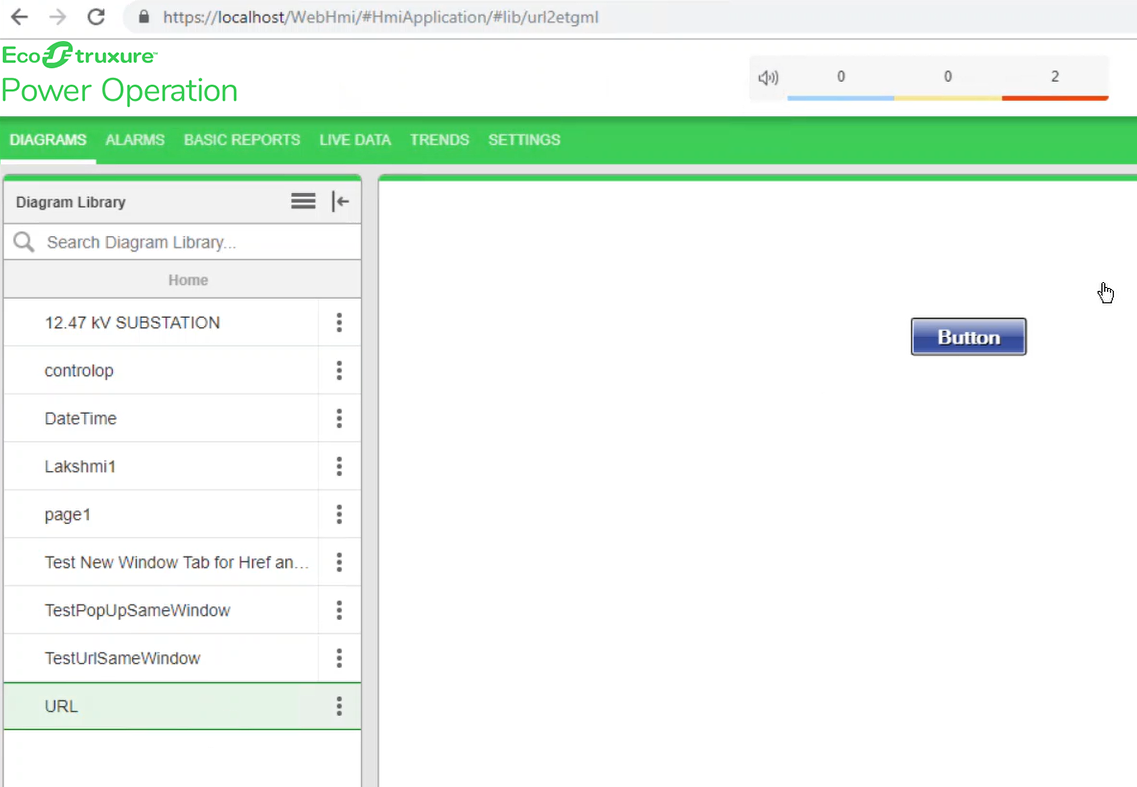
In the Diagram Library menu, click URL:
The following screen is displayed:
-
Click the Button:
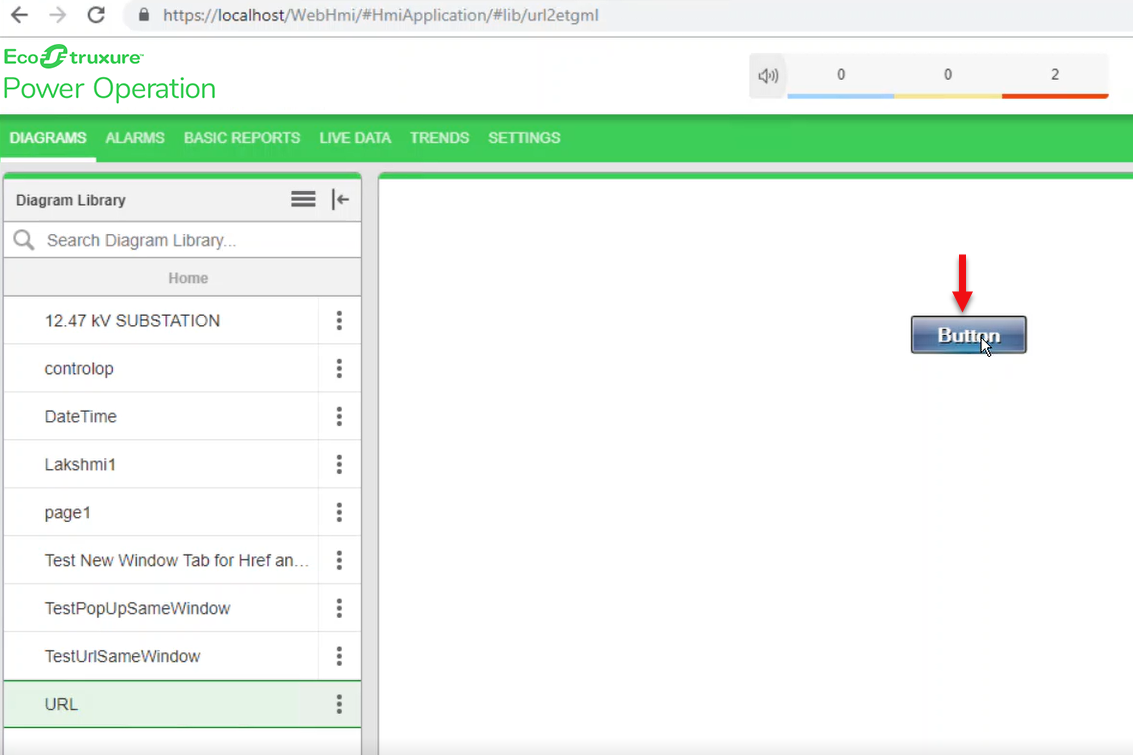
The following output screen is displayed with the linked URL of controlop in new tab.
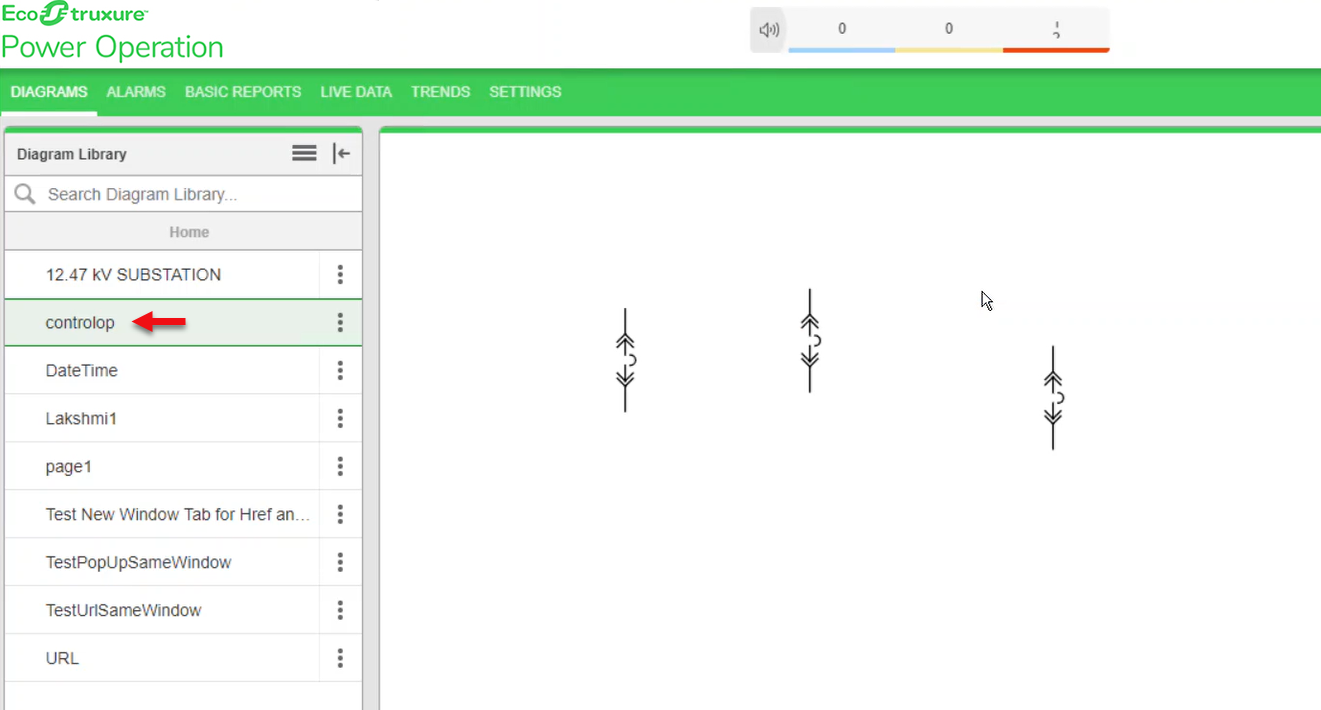
For example, click on controlop in Diagram Library menu, and then copy the highlighted URL.