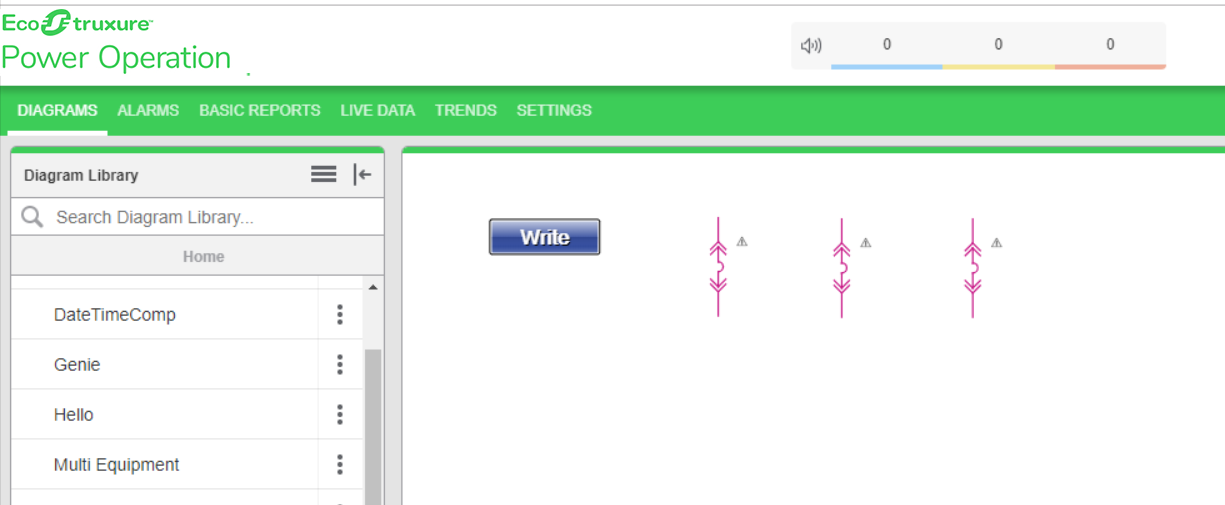
Single or Multiple DataPoint Write
Use the Single or Multiple DataPoint Write component to perform generic write operations for a single or block write. It can be used to write multiple set-points at once, setting up tariff and command write.
To write single or multiple DataPoint:
-
In the Graphics Editor, create a new graphics file:
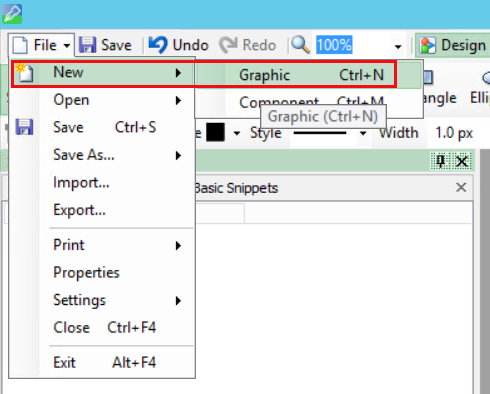
-
In the bottom right corner, go to Components:
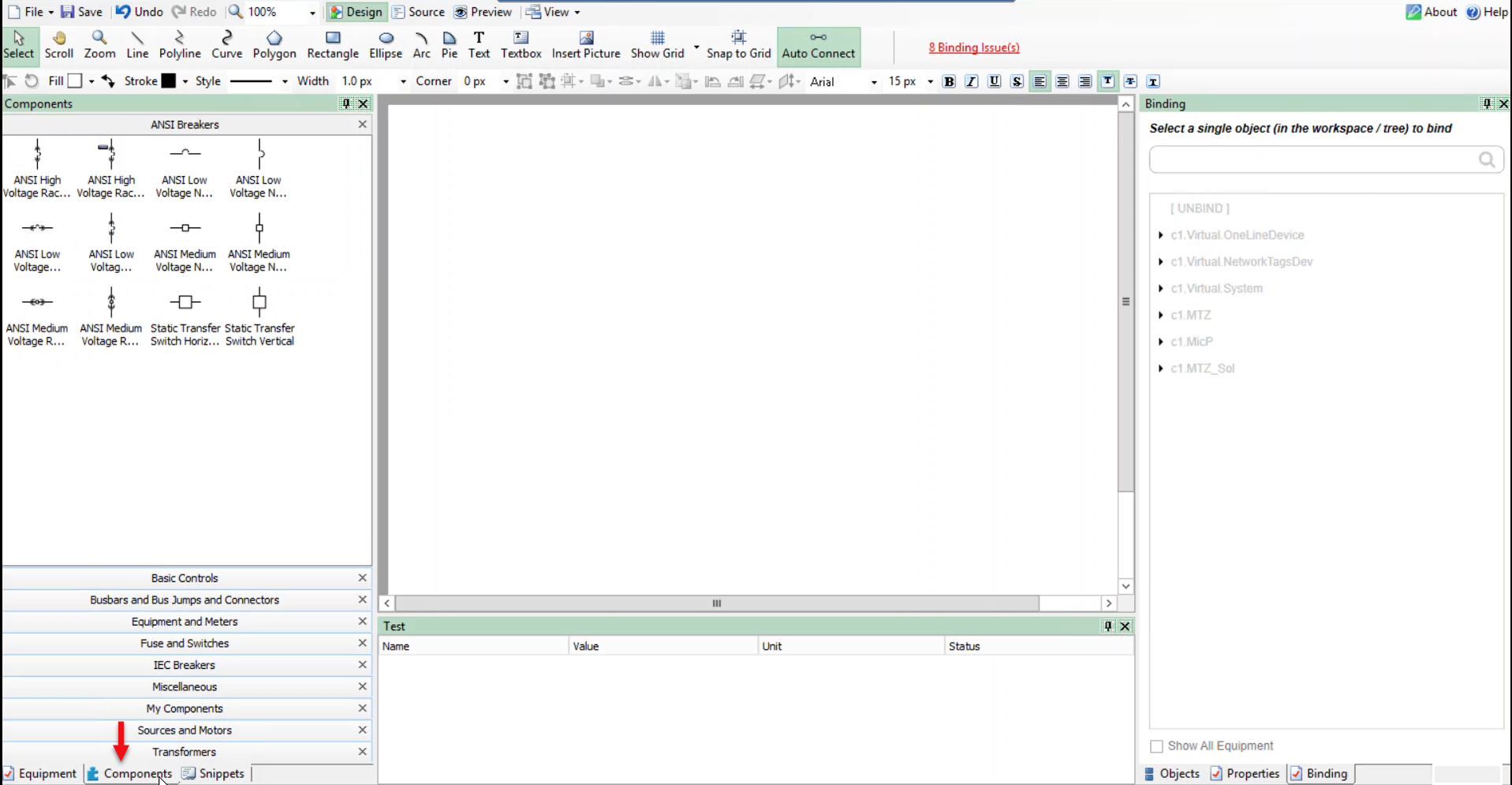
-
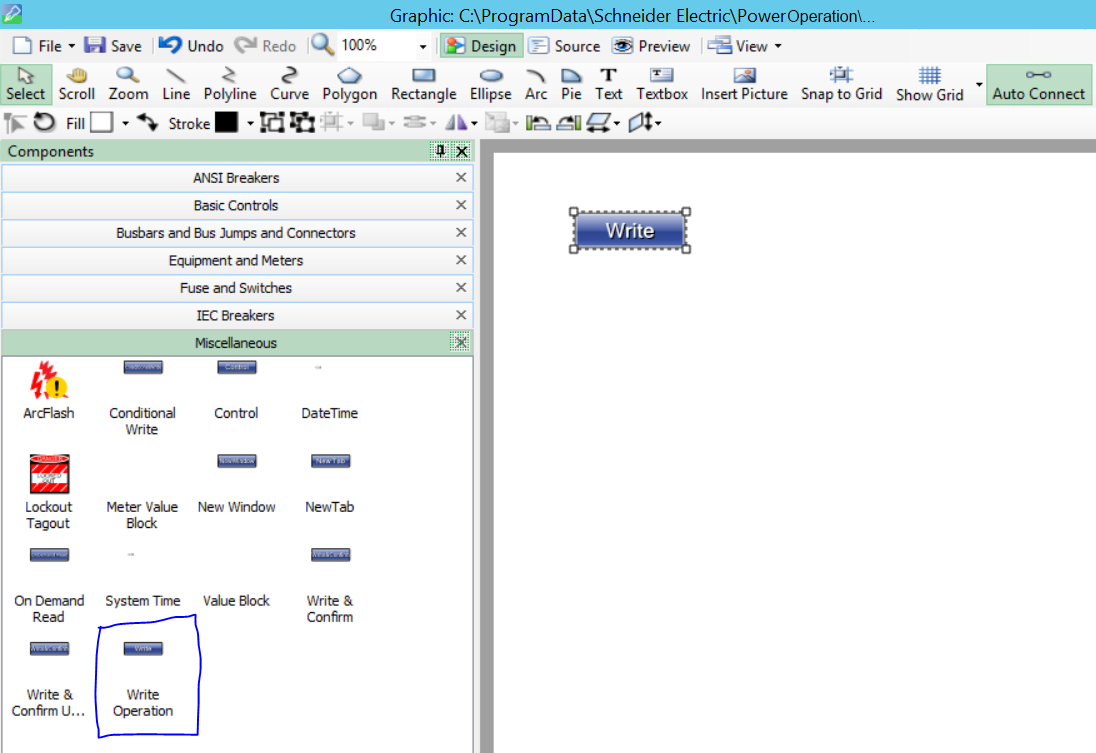
Click Miscellaneous:
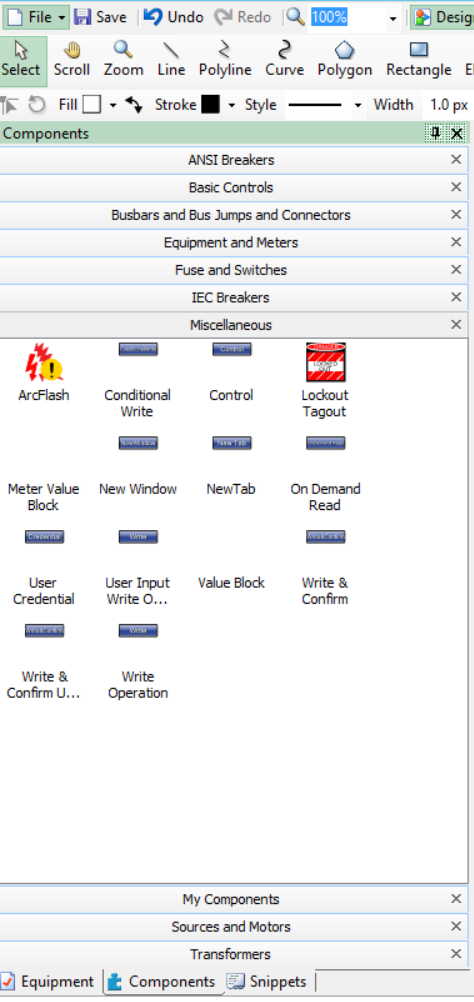
-
Drag and drop a Write Operation component to the workspace:
-
In the bottom right corner, click Objects, and then click on the write operation component:

-
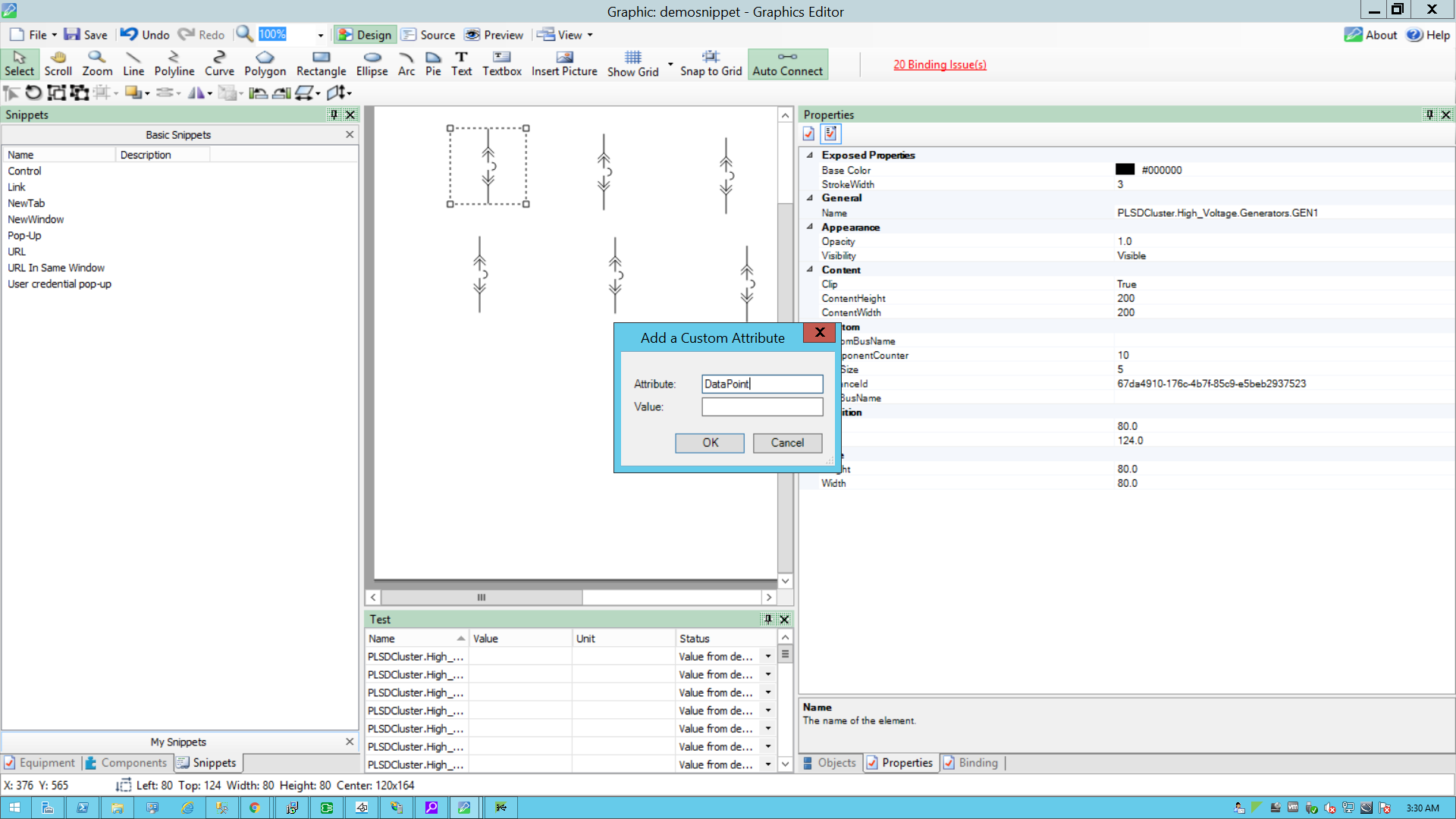
Click Properties (beside Objects.)
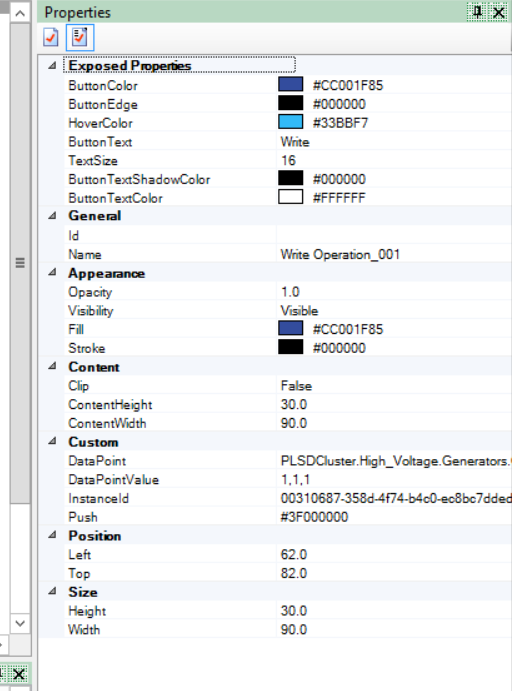
The DataPoint attribute is located in the Custom group:
-
In DataPoint, enter the fully qualified DataPoint value. The DataPoint attribute is located in the Custom group:
NOTE: Use a comma to add multiple DataPoint values.
-
Type the DataPointValue to write in the DataPointValue property.
NOTE: Use a comma to add multiple DataPointValue values.
-
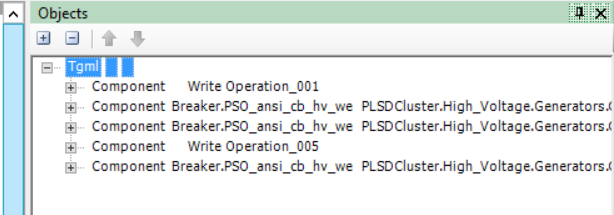
In the Object pane, expand Tgml:
-
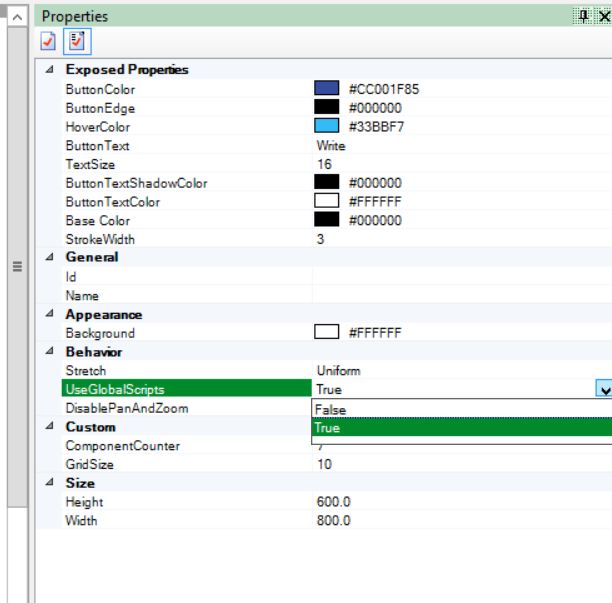
In Properties, from the UseGlobalScripts attribute drop-down, select True:
-
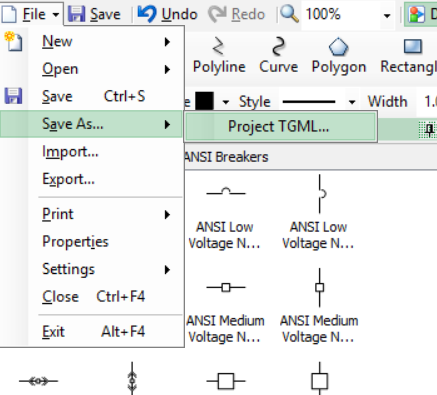
Go to File > Save As > Project TGML.
Test the changes:
- Log in to PO Web Applications (https://localhost/webhmi or https://ipaddress/webhmi).
-
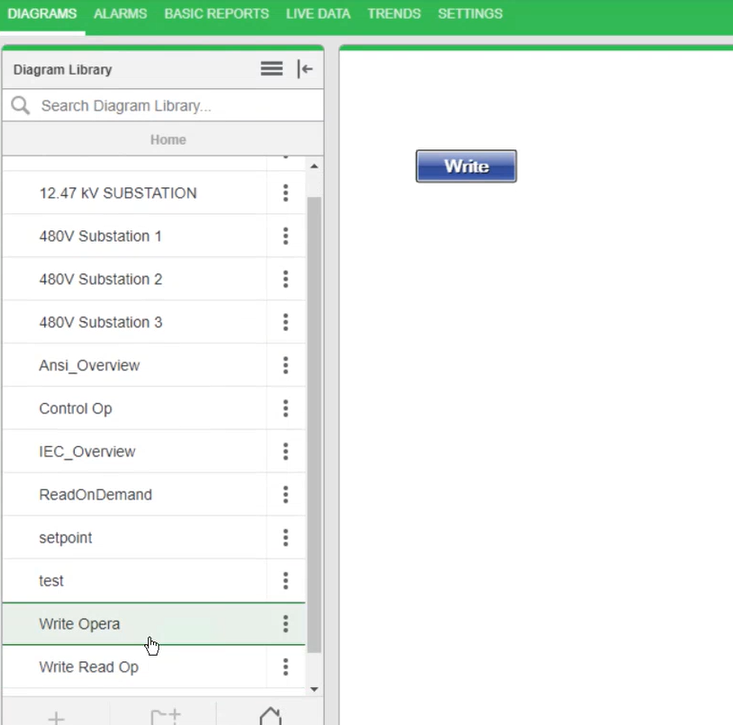
Click the Write Operation diagram:
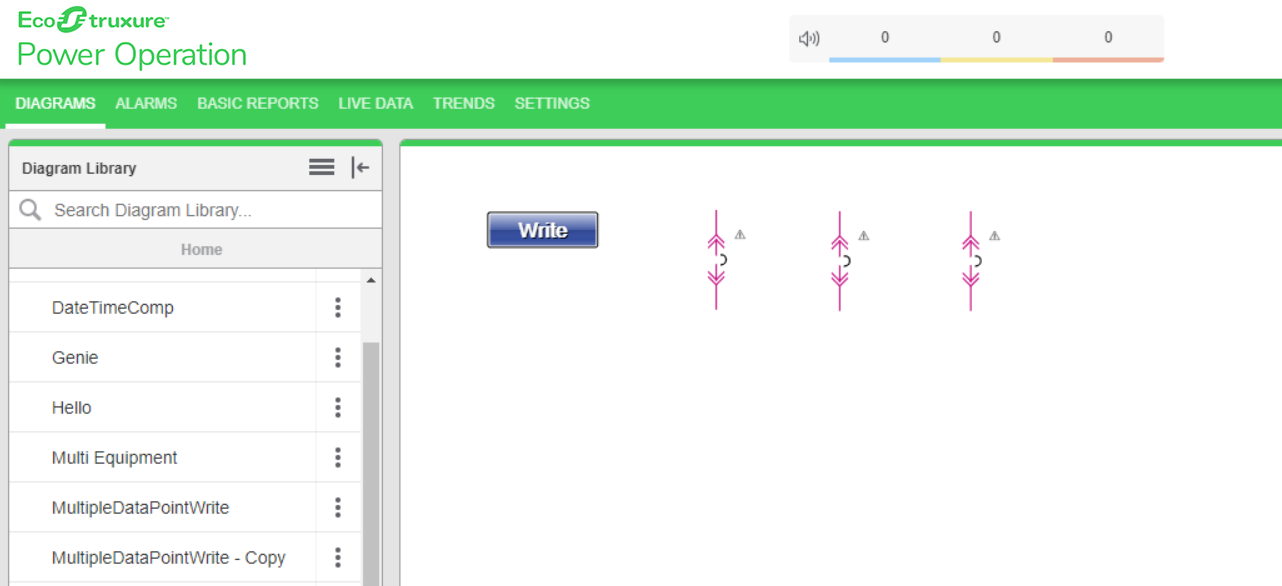
For example, the Write Operation closes 3 breakers:
-
Click the Write Operation component.
-
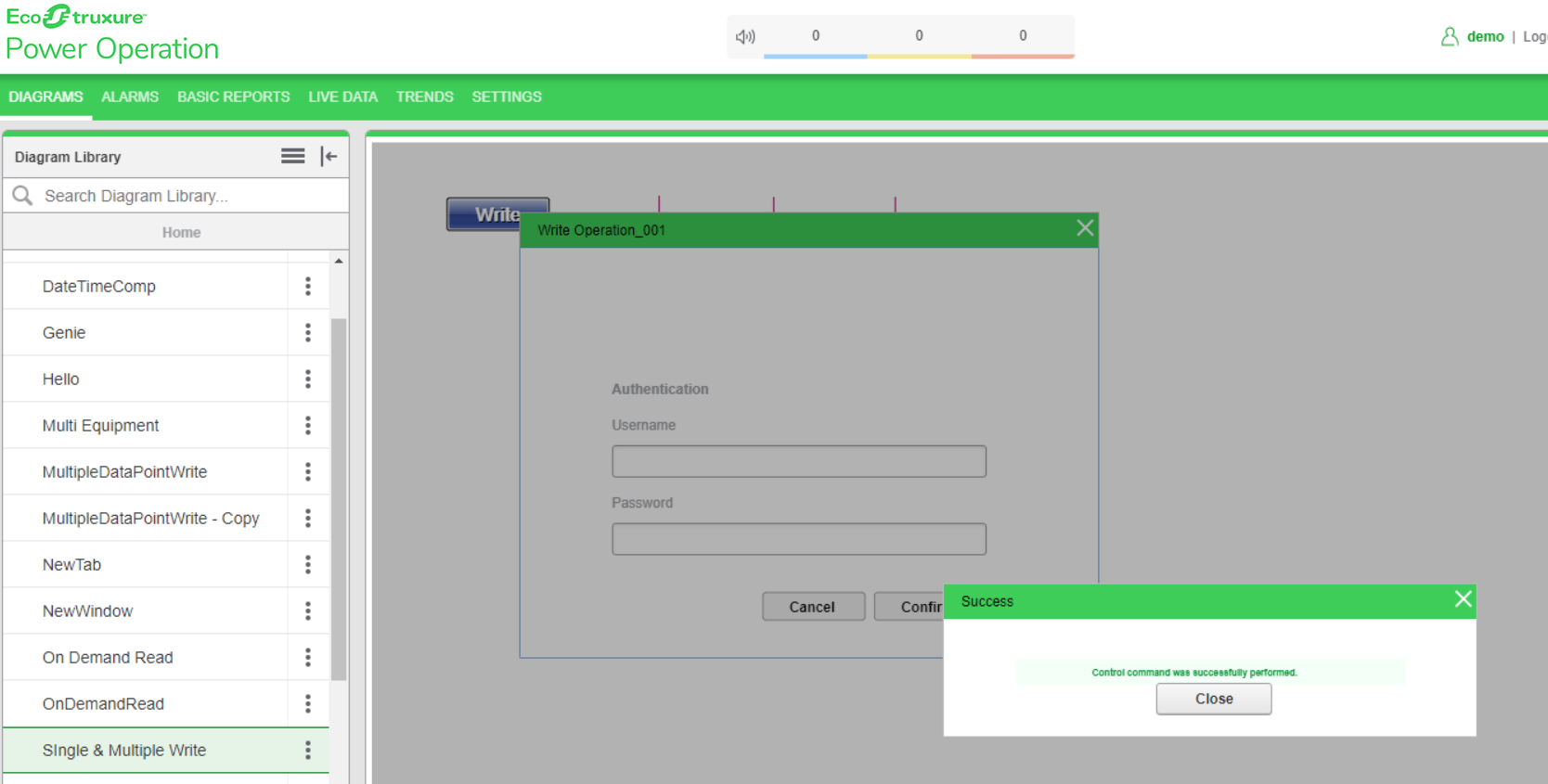
Enter your username and password, and then click Confirm. To control which components require authentication, see Turning off credential requirements for control components.
Upon successful write operation, a Success dialog appears:
-
Close the dialog.
All 3 breakers are closed and the write operation is successful: