Enable lockout/tagout
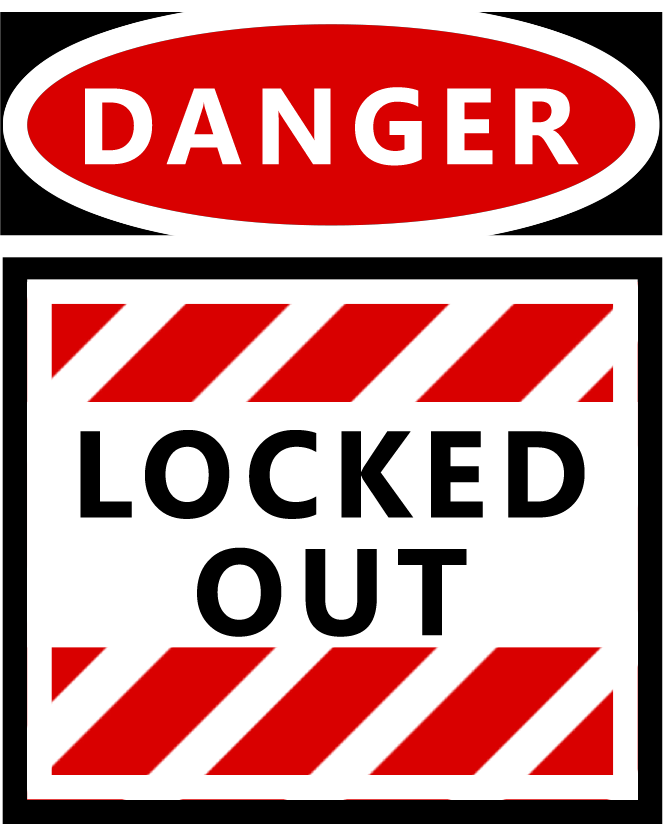
 danger
equipment electric shock, explosion, or arc flash
| • | Do not rely solely on the display of the graphic on the one-line. |
| • | Verify that the device is physically locked out/tagged out before you work on the equipment or any downstream equipment. |
| • | Ensure that all safety regulations and procedures have been followed before you work on the equipment. |
Failure to follow these instructions will result in death or serious injury.
NOTE: Do not incorrectly configure the tag, as this can lead to unexpected equipment operation. Also consider the possibility of communications loss that could yield false readings.
With this feature, you can cause the locked out icon (shown previous) to display on your Diagrams page. The icon displays when a tag attribute for a device reaches a specified value. For example, you might set a PLC tag to 0 when the equipment is in lockout/tagout (the door is open), and to 1 when the equipment status indicates that the door is closed.
This is a read-only feature; and it does not prevent controls to the device or area. This feature is not available in PLS_Example.
To enable the locked out icon for a device:
- From the Components library, add the lockout/tagout component to the graphics page. Position it beside the equipment that is being monitored.
- Bind to the fully qualified equipment and item name that indicates lockout/tagout status.
NOTE: Bind to a specific item name, not to a device.
- By default the status checks the value bound above for 2 values: 0 = lockout/tagout and 1 = normal operation.
- If you need a different value check, modify the JavaScript within the component.