Generating a Vista diagram
To generate a Vista diagram:
- In the UPS Configuration Tool, click Generate Vista Diagrams.
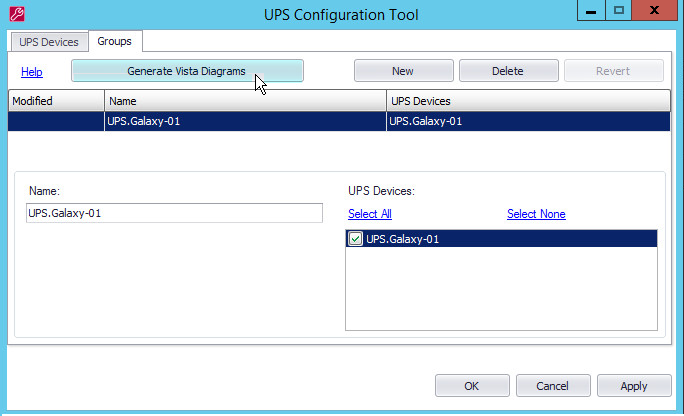
The Vista Diagram Generation dialog appears.
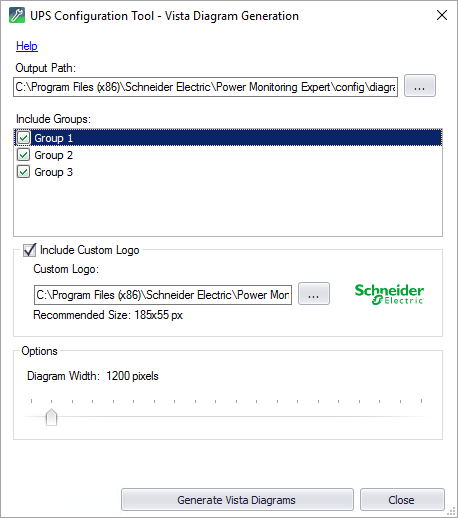
NOTE: The Output Path shows where the Vista diagram DGM file is saved after clicking Generate Vista Diagrams. The file name or location can be modified from the default value if desired.
- Click Include Custom Logo and then navigate to and select the file to include a custom logo in your diagrams. Otherwise, a Schneider Electric logo appears.
- Under Options, drag the indicator to define the width and dimensions of Vista diagrams you generate.
- Click Generate Vista Diagrams to generate the DGM files, then click Close.