Configuring Pulse Control components
To create a TGML graphic page sample with a Pulse Control operation:
- Open the Graphics Editor: select Start > Power Monitoring Expert > Graphics Editor.
- Select on File > New > Graphic.
- At the bottom left, select Components.
- Expand Basic Controls.
- Drag and drop the Pulse Control component to the workspace.
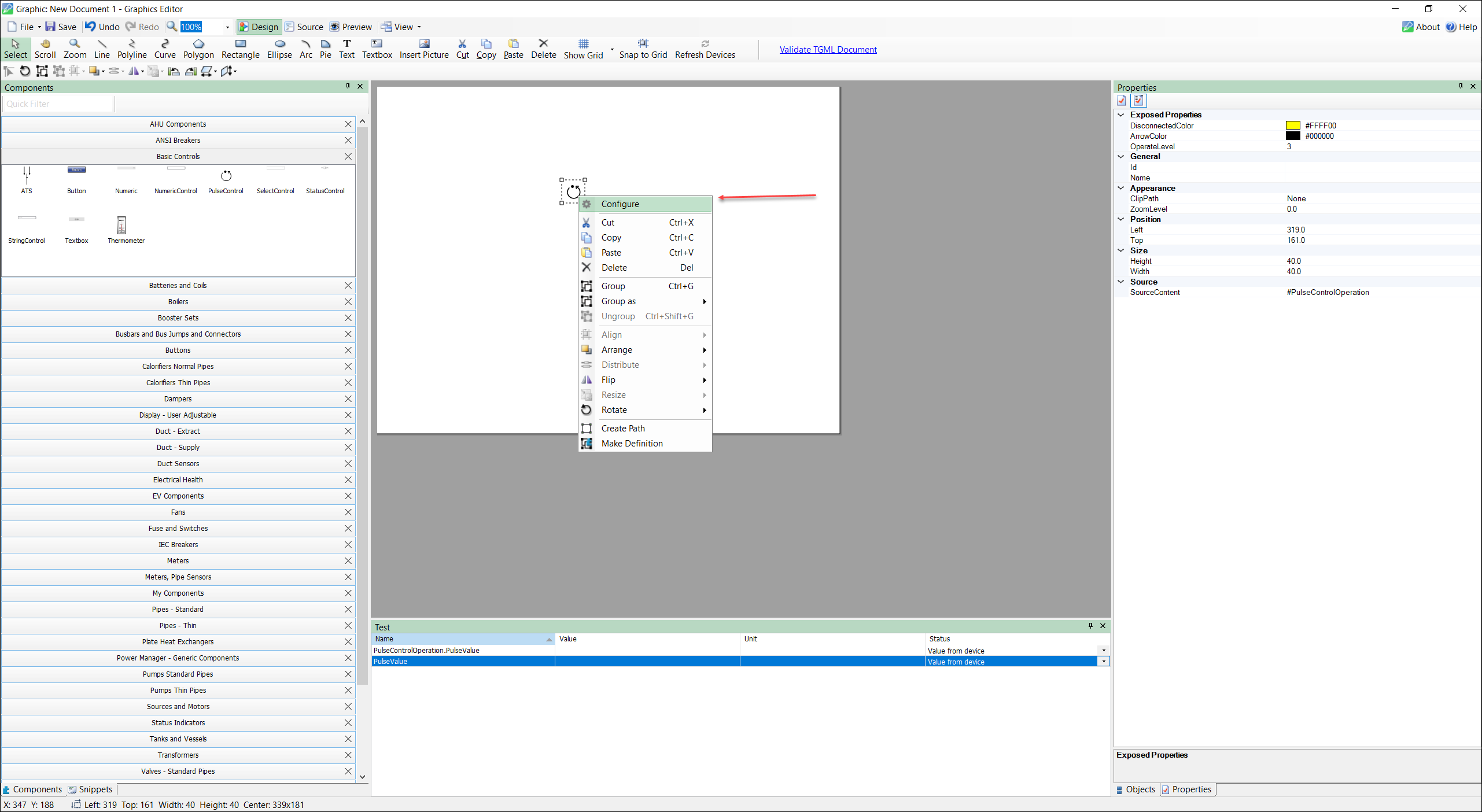
- Select the Pulse Control component and then right-click Configure.
-
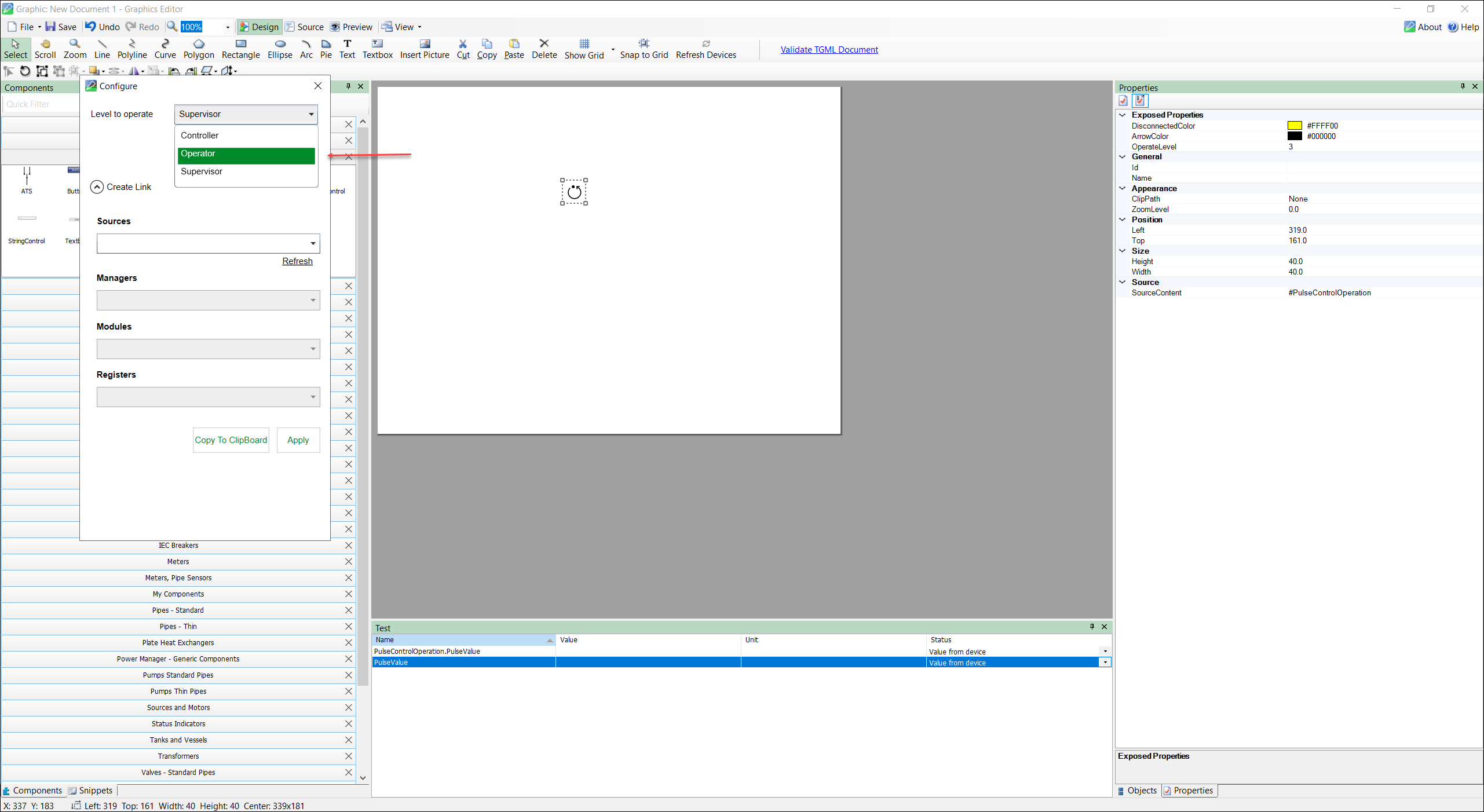
Select the Level to Operate from the drop-down list.
NOTE: This feature is privileged for Operators, Controller and Supervisor.
-
If you select Operator, Supervisor can access the privileges, but Controller cannot access the privileges.
-
If you select Controller, both Operator and Supervisor will be able to access the privileges.
-
If you select Supervisor, both Operator and Supervisor can access the privileges, but Controller will not be able to use the privileges.
-
-
Select Apply.
-
Select the configuration for the Pulse Control:
- Select the Sources.
- Select the Managers.
- Select the Modules.
- Select the Registers.
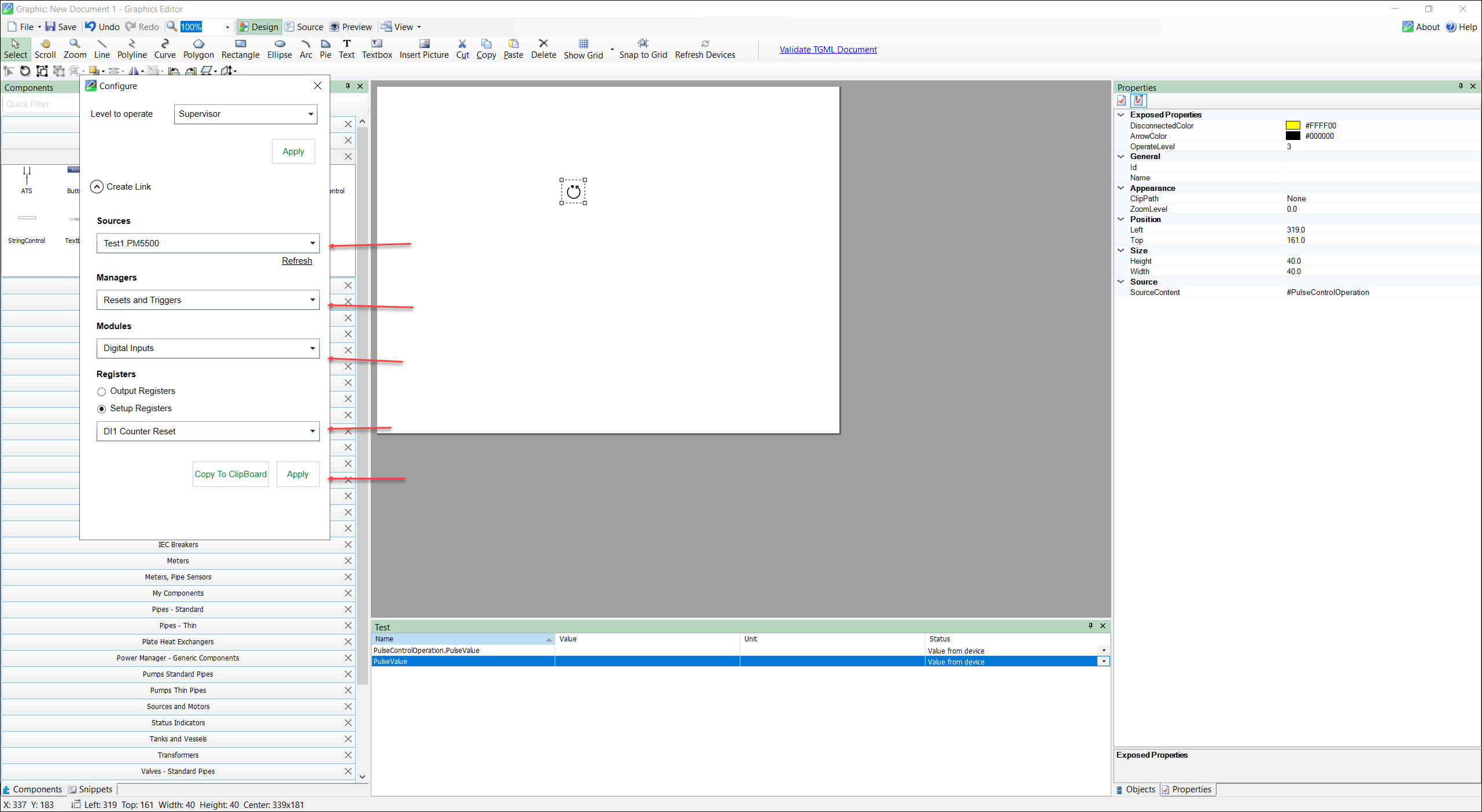
- Select Apply.
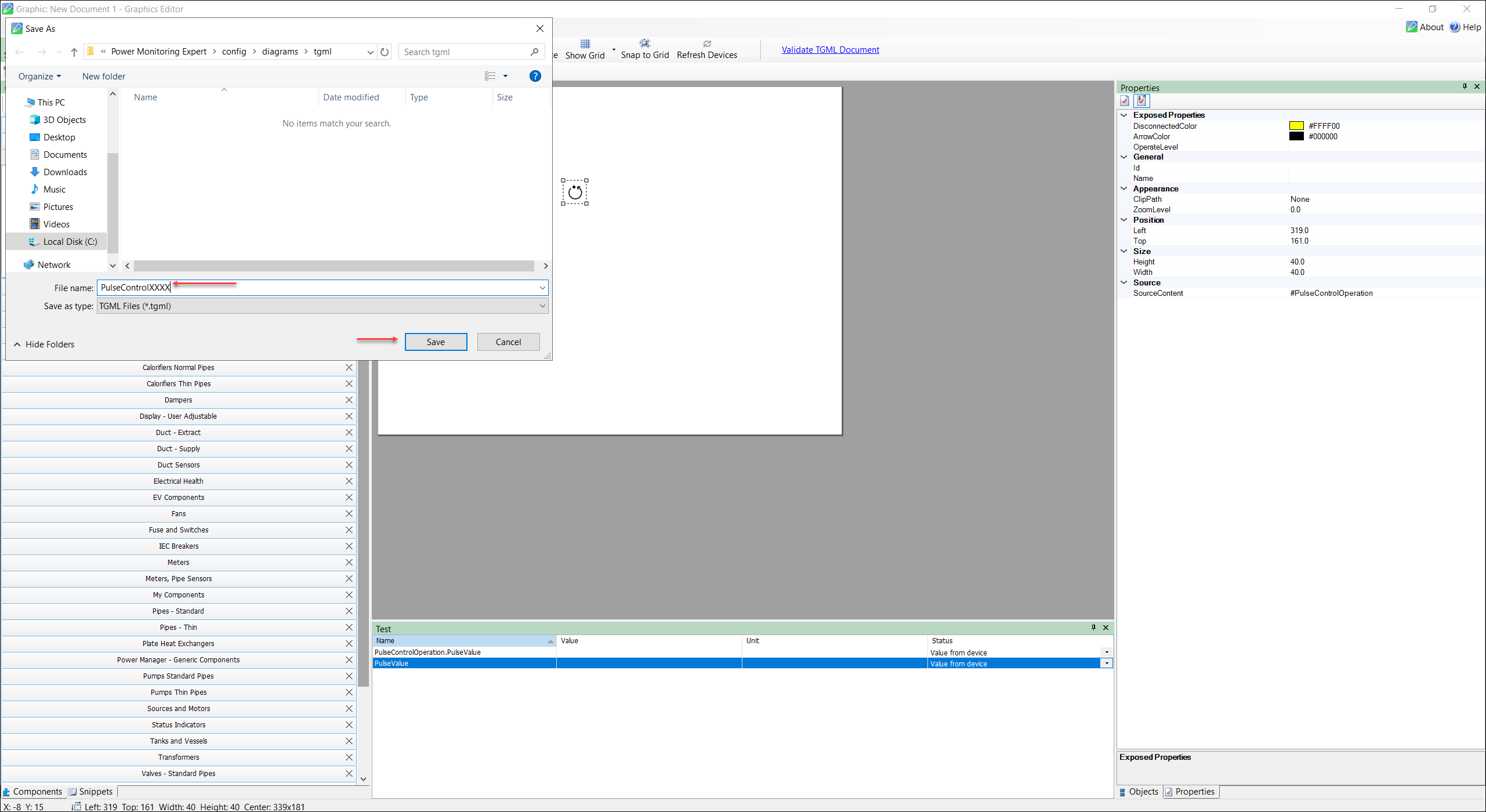
- Select Save to save the TGML file.
- Enter the File name and select Save.
- (Optional) You can change the default color properties by following the below steps:
- Select the Pulse Control component / Use the Pulse Control component.
- At the bottom right, select Properties.
- Change the following Exposed Properties:
- ArrowColor: To set the color for the Pulse Control arrow
- DisconnectedColor: To set the color of the Pulse Control box when source is disconnected.
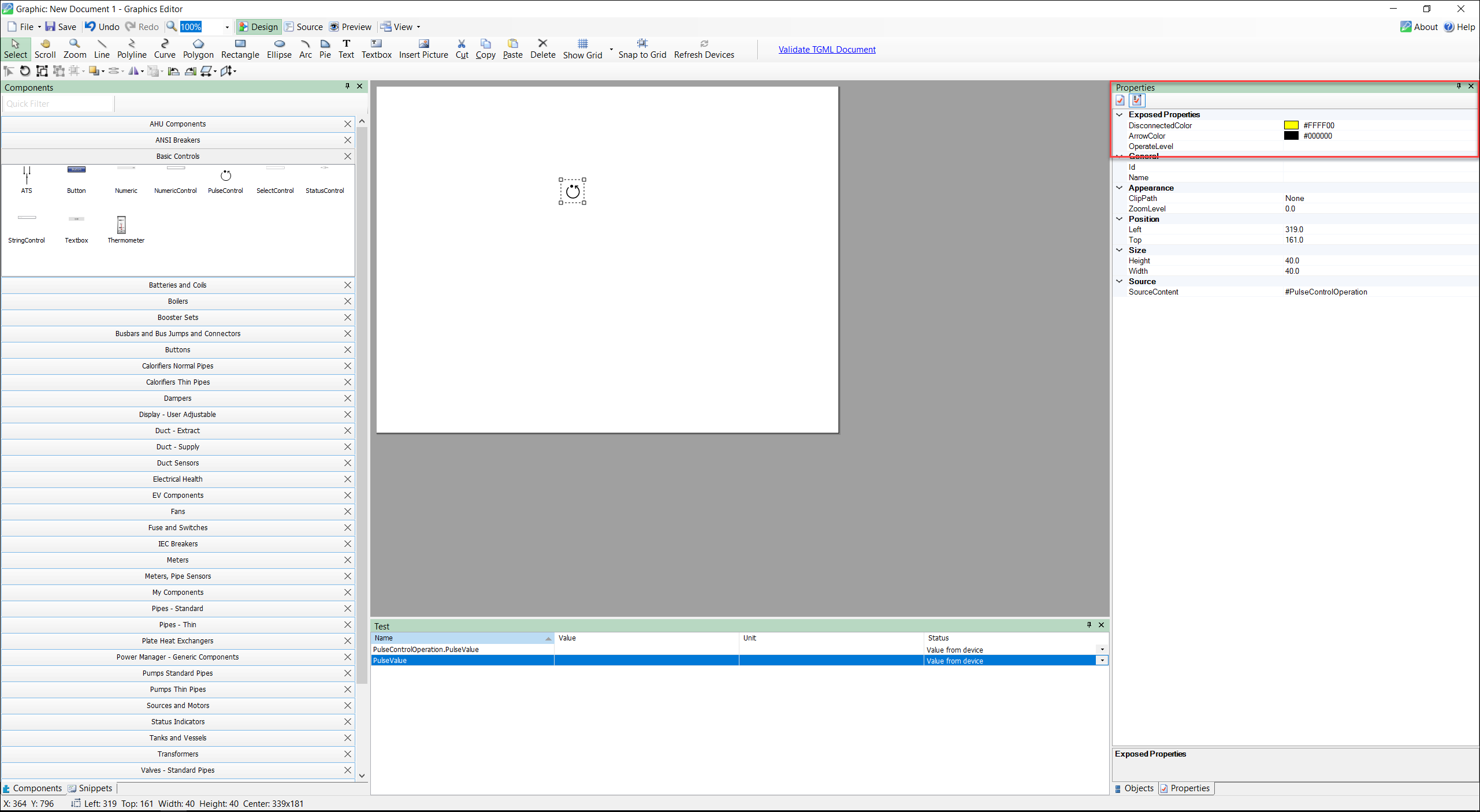
- Select Save to save the TGML file.