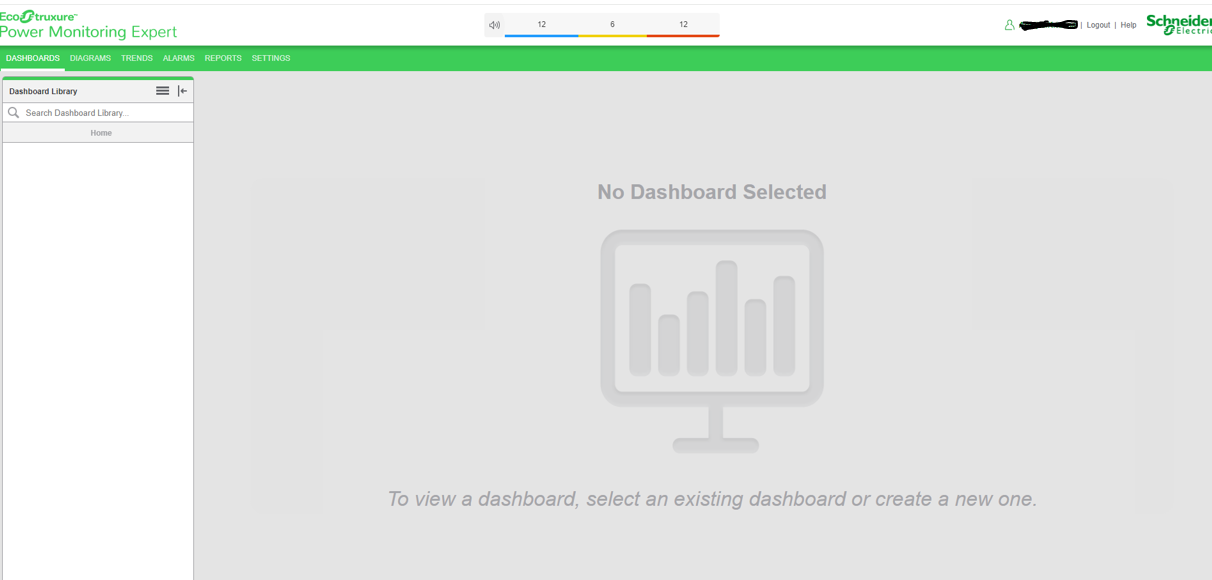
Login Options
Use the Login Options settings to define how Windows users can log into the software. You can also disallow login for standard users and only allow login for Windows users.
You can choose the following login options for Windows users:
- Manual Login Only
Windows users can log into the system by manually entering credentials on the login page.
- One-select Login Only
Windows users can log into the system by selecting a hyperlink on the login page.
- Manual Login and One-select Login
Windows users can log into the system by manually entering credentials, or by selecting a hyperlink on the login page.
NOTE: Standard users, if allowed to log in, always have to enter their credentials manually.
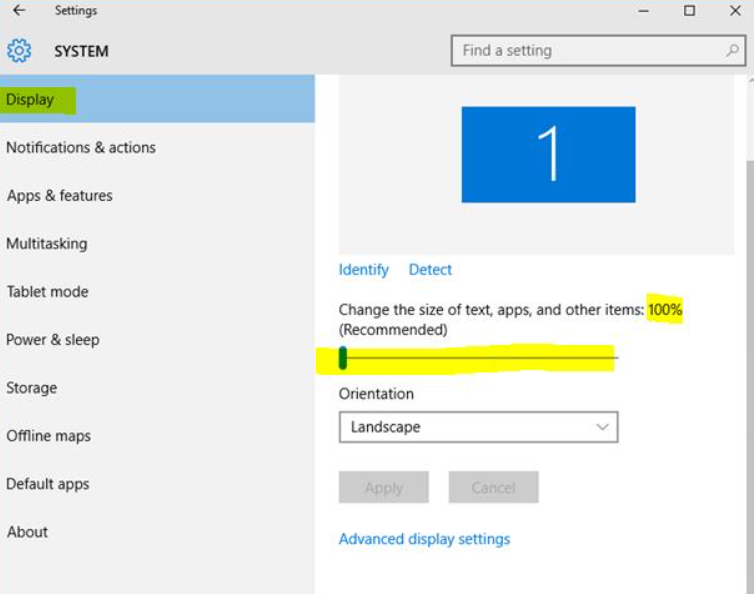
If the Login dialog appears very small or the Password entry field is not visible, use one of the following methods to correct this:
Method 1:
- Select Start > Settings > System > Display.
- Set the slider for Change the size of text, apps and other items to 100%.
- Select Apply.
Method 2:
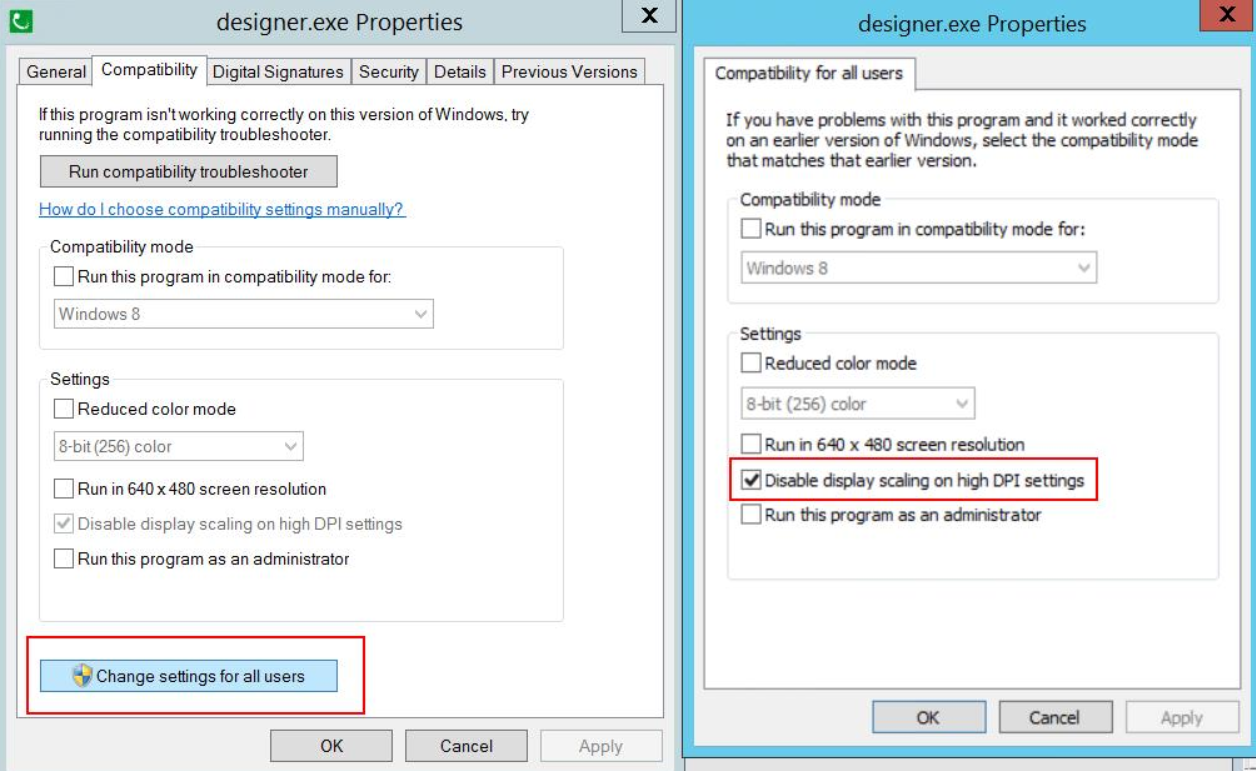
- In Windows Explorer, navigate to the appropriate EXE files (Designer, Vista...) in the installation directory:
..\Power Monitoring Expert\system\bin. - Right-select on the application EXE file (for example Designer.exe), and then select Properties.
- Select Compatibility.
- Select Change settings for all users.
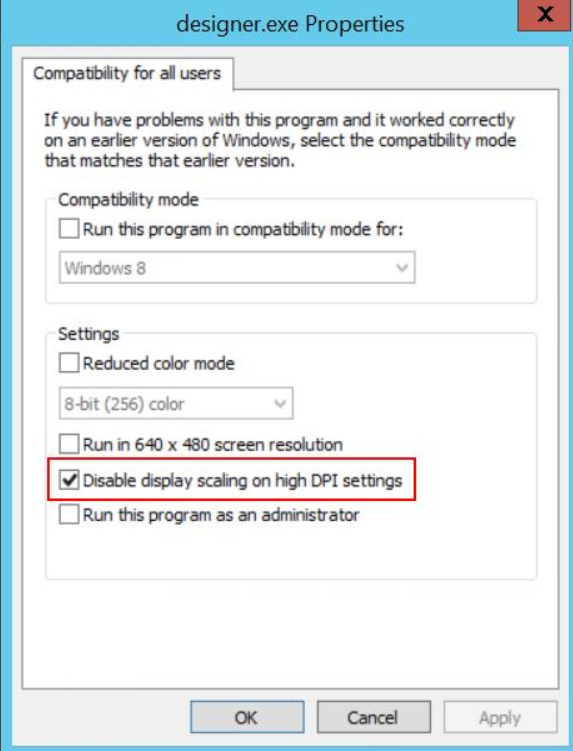
- Select Disable display scaling on high DPI settings.
- After changing the properties of all application EXE files, restart the server.
If you only want to allow Windows user accounts to log into the software, you can disable standard user login. For these options to be available, your system must have at least one Windows user with supervisor-level access.
Login with Single Sign On (SSO)
SSO and MFA Overview
PME allows you to perform Single Sign-On to PME web and Windows applications using a SAML v2 compliant Identity Provider (IdP). For example Okta, OneLogin and Microsoft Entra ID.
SSO Integration Process for PME
-
PME is a Service Provider (SP) that exchange user information with an Identify Provider (IdP).
-
IdP is a system which stores user information and identities.
-
The information exchanged between PME and the IdP is via SAML assertion.
-
PME application should be configured in the IdP, so that IdP administrator can manage user access to PME in the IdP. For more detail refer to Managing.
-
IdP manages authentication (log in credentials) and authorization (user access levels).
-
PME verifies user authentication and authorization by validating the SAML assertion.
-
Upon verification, PME allows the user log in based on their access level.
Prerequisites
The following prerequisites need to be met to enable the SSO feature in PME:
-
An Administrative account of an Identity Provider (IdP): You must have an Administrative account of an IdP to add PME to the IdP, assign users to PME in the IdP and manage the user access level to PME in the IdP.
RECOMMENDATION: Recommended IdP's such as OKTA, KeyClock, OneLogin and Microsoft Entra ID.
-
Session Timeout - PME is set for a definite session time-out at application level. If IdP is not time-out, PME will still log out based on the session time-out settings for PME.
-
SAML App Integration details in IdP:
General and Advanced Settings Values Single Sign-on URL https://XXXXXX/SystemDataService/Security/AssertionConsumerService
Replace XXXXXX with the PME domain.
For example - If the PME Domain is - https://standalone/ Single sign on URL – https://standlaone/SystemDataService/Security/AssertionConsumerService
Audience URL (SP Entity ID) https://XXXXXX/Metadata
Replace XXXXXX with the PME domain.
Single Logout URL Location where the logout response will be sent.
https://XXXXXX/SystemDataService/Security/SingleLogout
Replace XXXXXX with the PME domain.
Other Requestable SSO URLs If accessing PME from other machines using IP or using a different domain name. Add SSO URLs using this option.
For Example - If the IP (10.168.95.152) is used instead of domain name used in #1, Add the below URL in Other requestable URL’s https://10.168.95.152/SystemDataService/Security/AssertionConsumerService
Attributes details Configure the below user specific attribute to receive with the SAML assertion after the successful authentication. These configured attributes is sent back to the PME application in SAML assertion.

Managing PME access level in the IdP
-
Create users with email id and password.
-
Enter the Group Names already existing in the IdP for the Supervisor, User, Operator, Observer and Controller.
-
All Users in a group have the same access levels.
MFA Integration in IdP
Multi-Factor Authentication (MFA) part of the IdP Authentication process and should be set up during the IdP configuration.
RECOMMENDATION: Set the MFA Authentication as per the guidelines of the IdP documentation.
Enabling and configuring SSO login in PME
NOTE: You must apply Hotfix_252627 to fix the IdP Group Names issue. This hot-fix is applicable for PME 2024 and PME 2024 R2.
To enable the SSO login option in PME:
-
Navigate to Settings > Security > Login Options page in PME web.
-
Enable the Allow SSO users to log into the system.
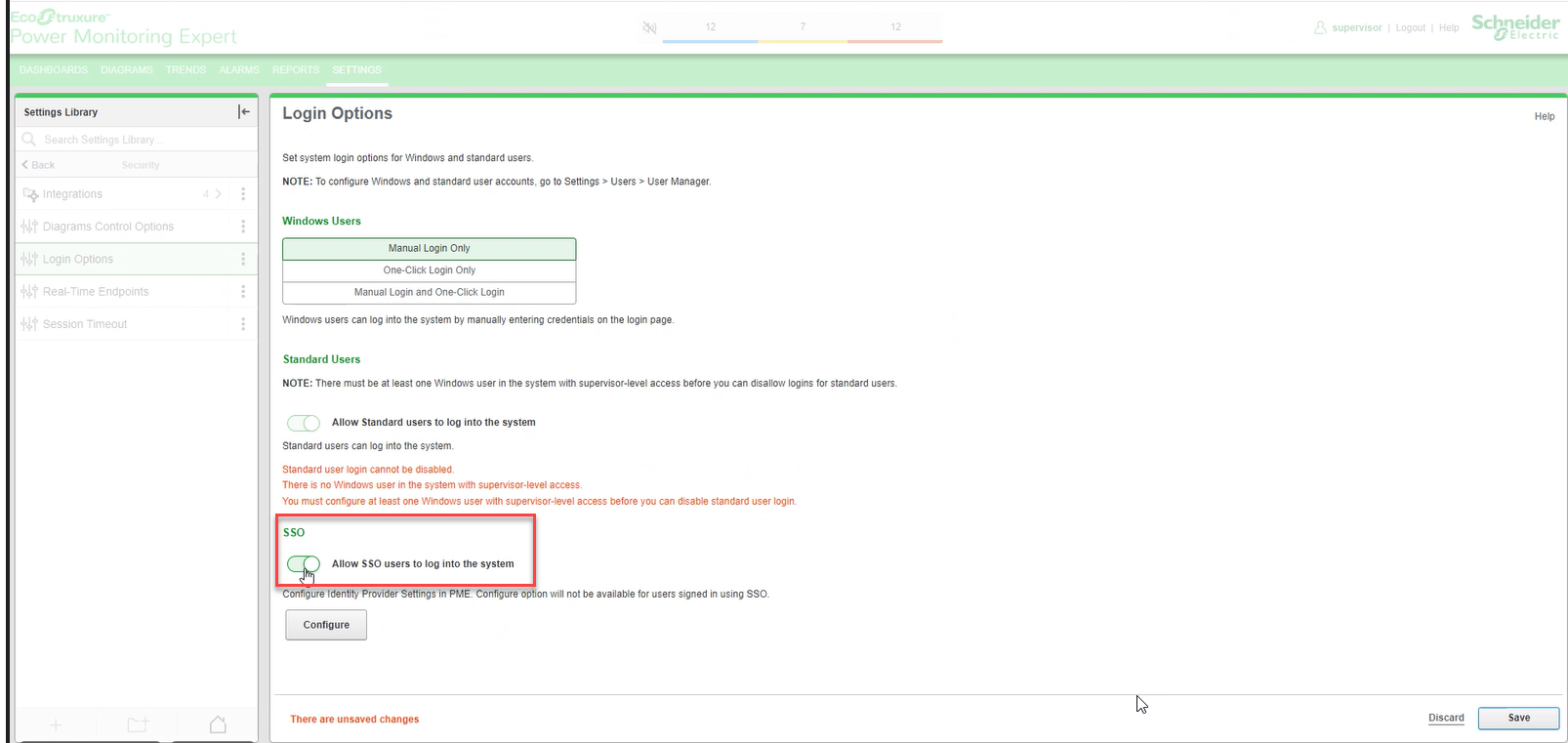
This enables the SSO login option both in the PME web and desktop applications.
-
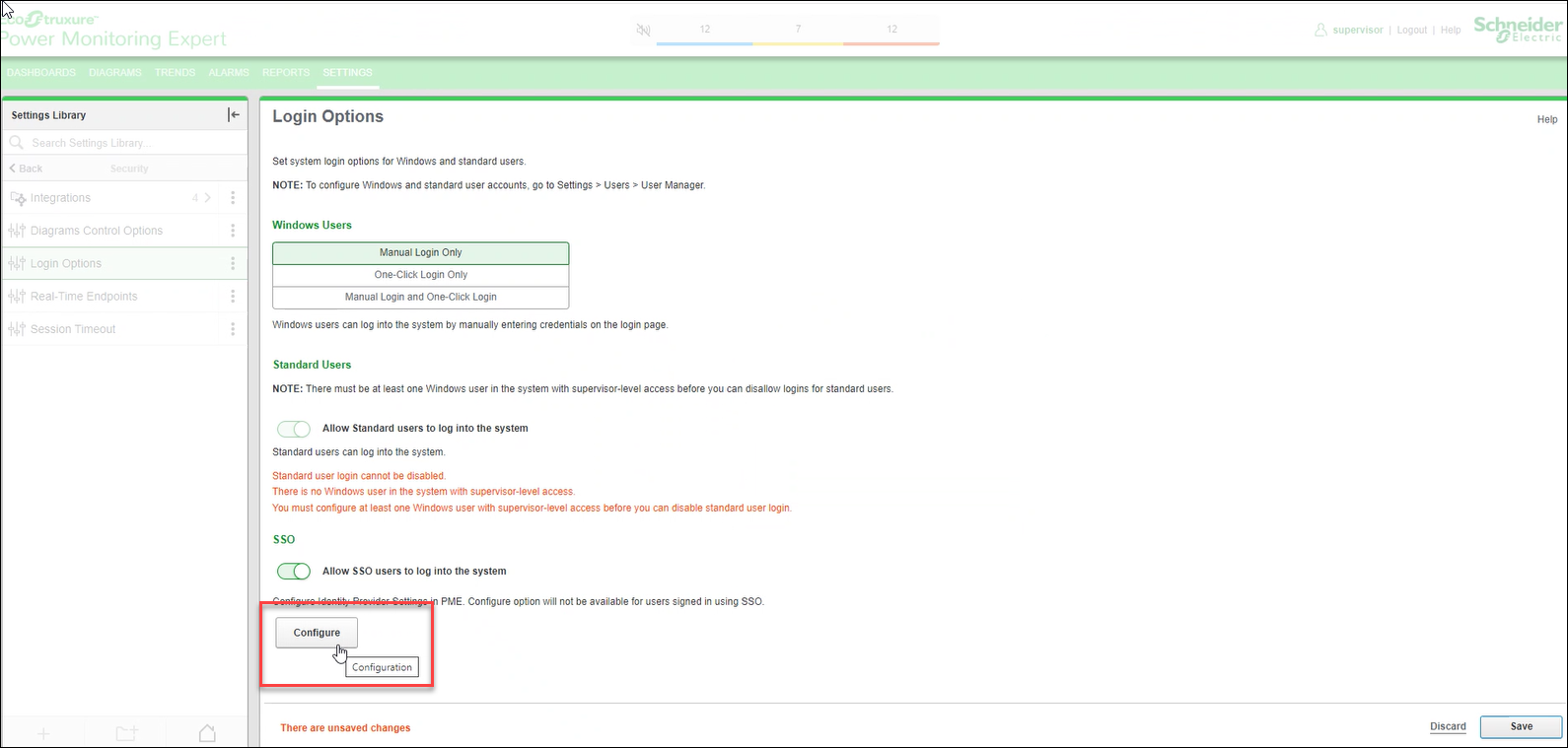
Select Configure.
-
Enter the SSO Settings details.
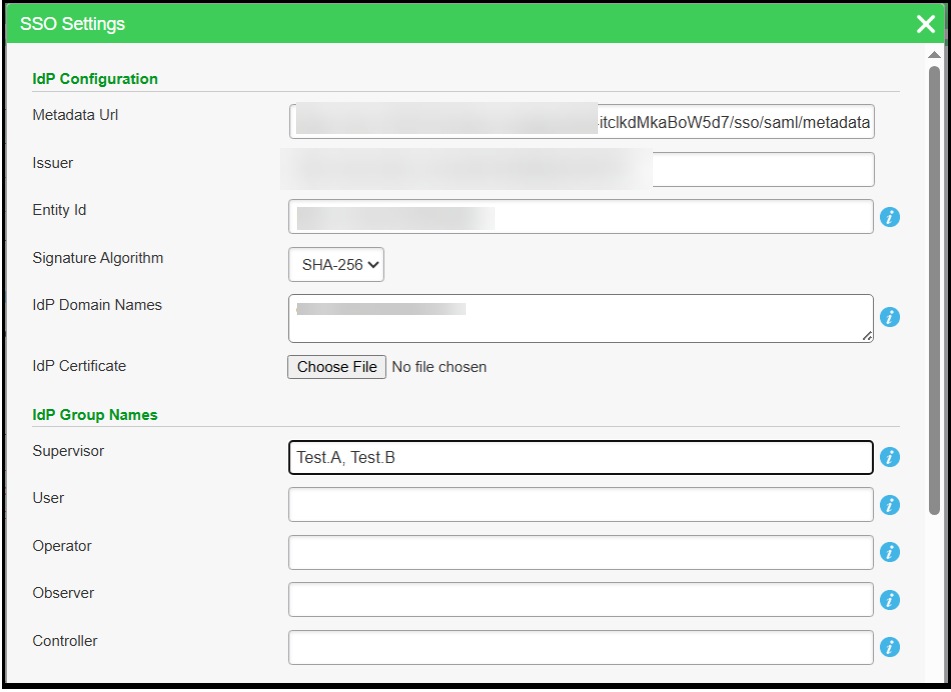

IdP Configuration Details Metadata URL SAML metadata URL in XML format which contains information necessary for interaction with SAML-enabled identity provider. You must note this URL while you are configuring PME in the IdP. Issuer It is an URL that uniquely identifies your SAML identity provider. You must note this URL while you are configuring PME in the IdP. Entity Id It is an URL which is the unique identifier for the PME application.
Example - Value can be https://pme-sso/metadata (Value should be same as that configured in IdP)
Signature Algorithm Signing Algorithm used to digitally sign the SAML assertion and response (You should select as per the IdP configuration of Identity provider). For example, for Okta SHA-256 is default. IdP Domain Name This is the idp domain name to update the PME Content security policy. Use the domain name from the Metadata URL provided. IdP Certificate This is a Public key certificate used to verify the SAML logout signature in IdP. This Certificate is used in PME to sign the logout request. IdP Group Names Details Supervisor These are the Group Name whose users are having Supervisor level privileges (Value should be same as that configured in IdP).
NOTE: We can add multiple Group Names followed by comma. There should not be any special characters or comma in the Group Names.
User These are the Group Name whose users are having User level privileges (Value should be same as that configured in IdP). Operator These are the Group Name whose users are having Operator level privileges (Value should be same as that configured in IdP). Observer These are the Group Name whose users are having Observer level privileges (Value should be same as that configured in IdP). Controller These are the Group Name whose users are having Controller level privileges (Value should be same as that configured in IdP). PME Configuration Details Proxy Proxy address of VM or Machine where PME is configured. Proxy is required to connect PME with IdP to get the metadata's information using the metadata URL. Domain Name PME application hosted domain name. Example - If PME is hosted in https://standalone, then provide standalone as domain name. Certificate Certificate used to sign SAML requests. Personal Information Exchange (pfx) is a password protected certificate used for code signing.
-
Create a self-signed certificate.
-
Export certificate in pfx format and upload in PME.
Certificate Password This is the pfx certificate password. Password can be set while exporting the certificate. Signature Certificate This is a public key certificate used to verify the SAML logout signature in IdP. This Certificate is used in PME to sign the logout request). You can download public key certificate from PME to upload in IdP. Download You can download the pfx certificate uploaded in PME, if required. Test Connection This is used to test the PME SSO configuration with the IdP. It will redirect to IdP login page, and the Administrator can provide the credentials.
If successfully redirected and user is able to login, user can confirm IdP related configurations are correct or not.
-
-
Select Test Connection to test the settings.
-
Select Configure and close the window.
-
Select Save to save the SSO settings.
Accessing the SSO in PME Web
After configuring the SSO in Login Options, SSO option is available in PME web application.
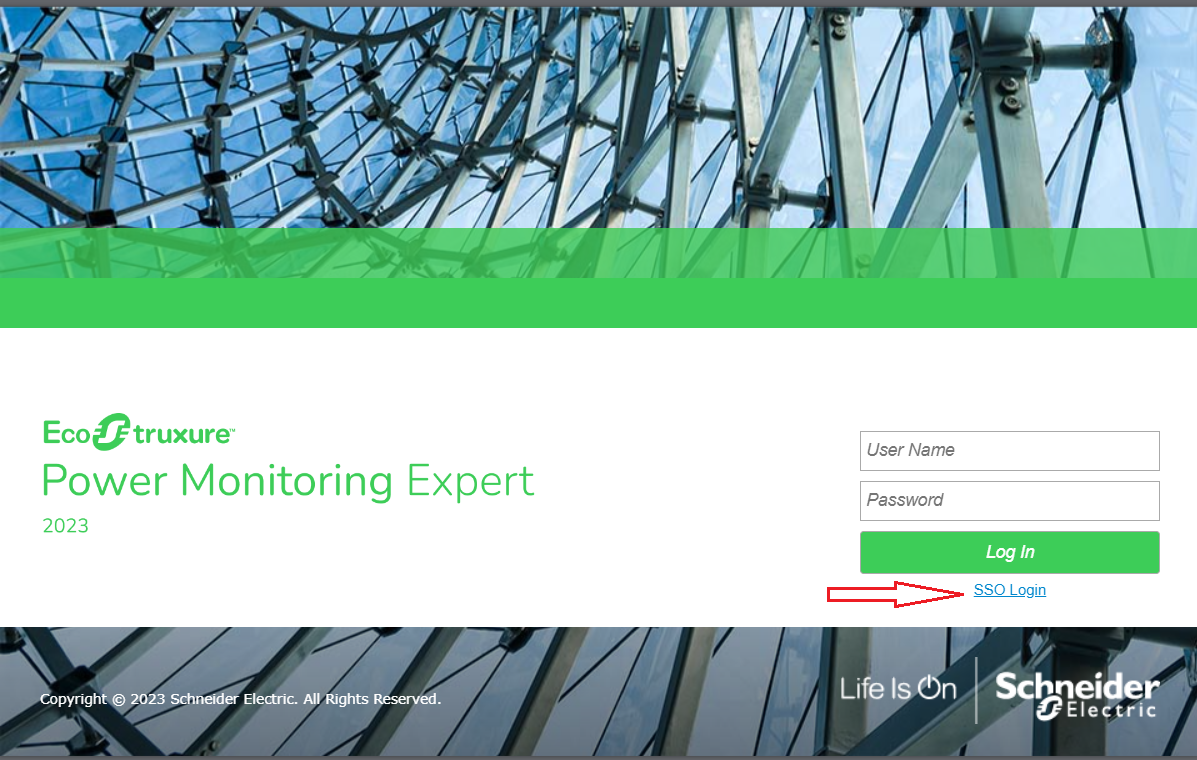
Select the SSO login to redirect to the IdP login screen.
Follow the instructions on the IdP login screen to complete the authentication.
NOTE: You should use the credentials from the IdP configuration to log in to the IdP.
After the successful authentication, the PME dashboard appears.