Displaying alarms in the runtime banner area
You can change how alarms are displayed in the Power Operation banner area. For example, instead of displaying the default Alarm Annunciator, you can display the three most recent alarms. This topic explains how to change how alarms display in the banner area.
To display the three most recent alarms in the banner:
- Log in to the PO Web Applications.
- Select SETTINGS.
- In the Setting Library pane, select Alarms, and then select Alarm Views.
- In the Alarm Views pane, under Annunciator, turn off the Enable toggle button.
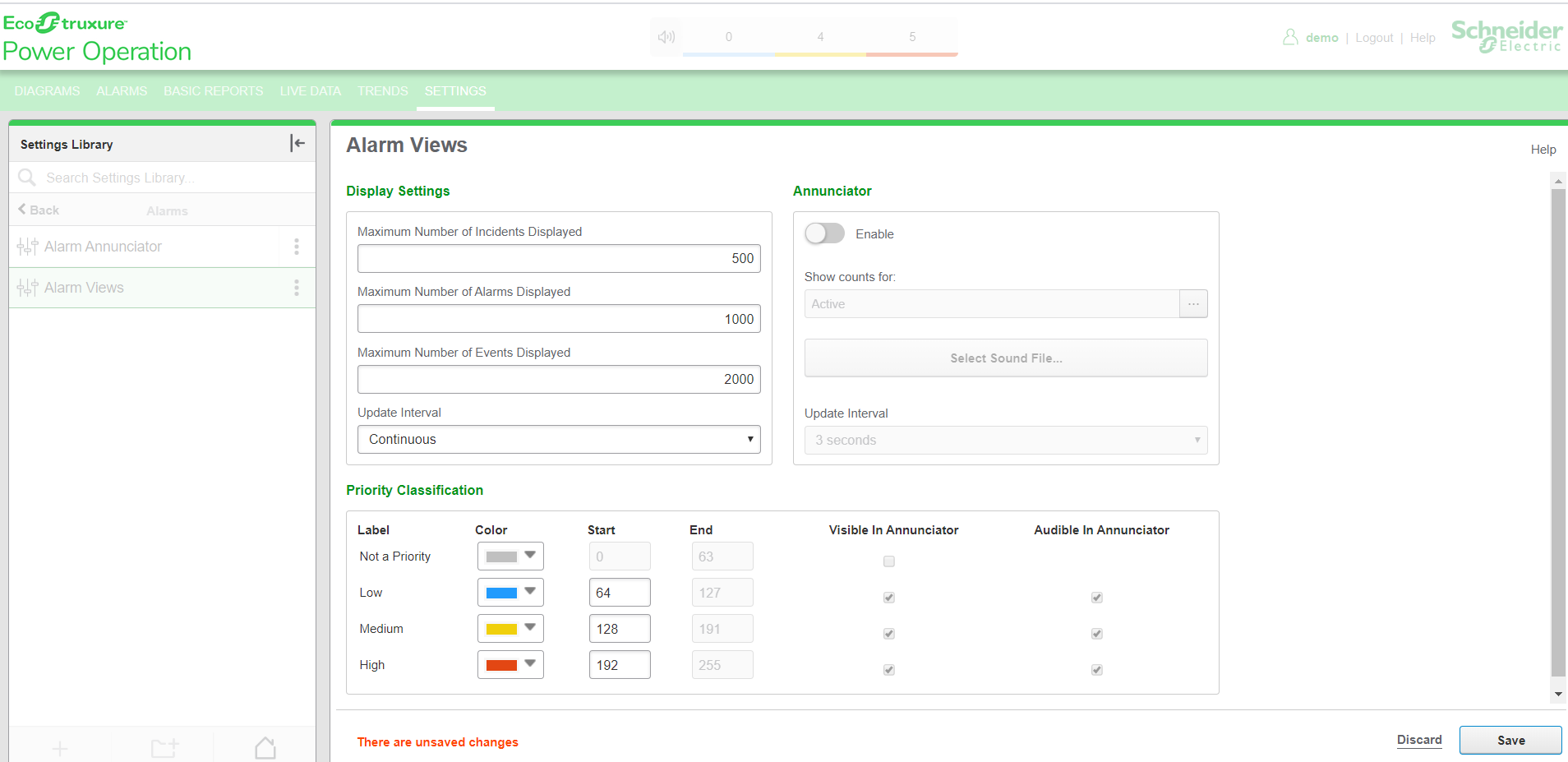
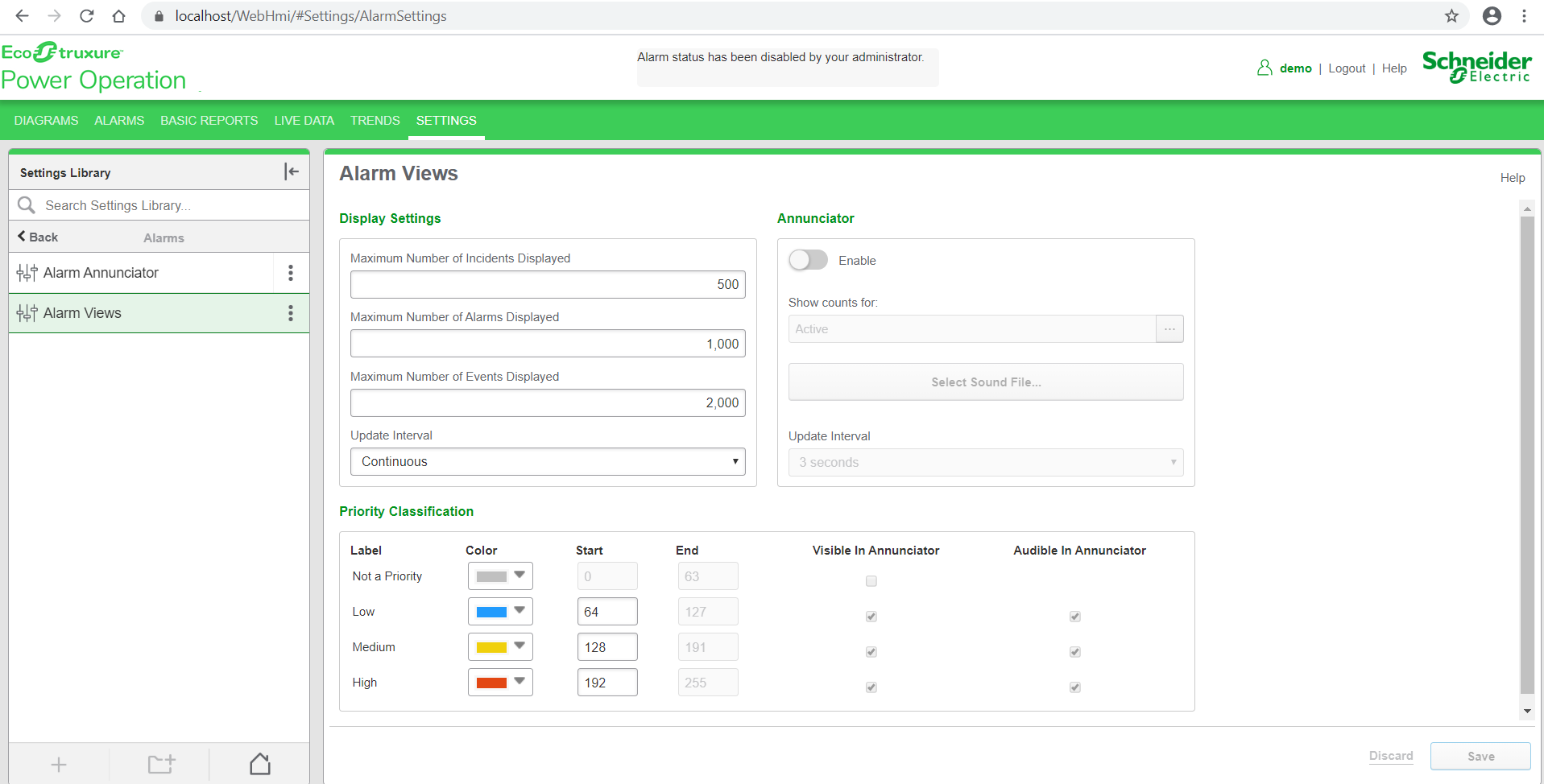
- Select Save, and then refresh the web page.
Notice that the Alarm Annunciator is no longer displayed:
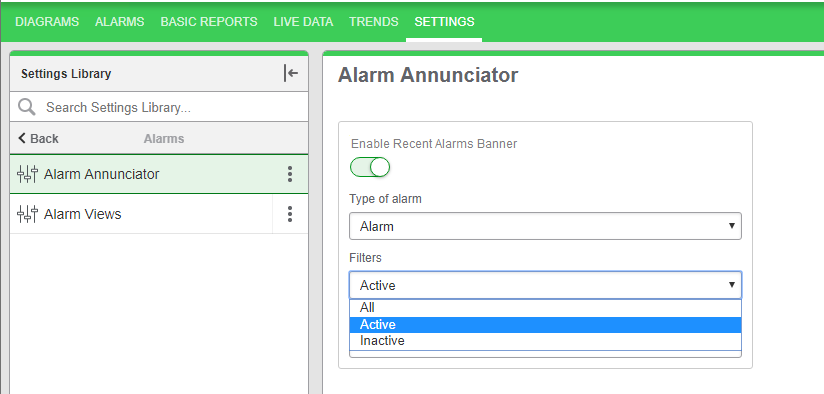
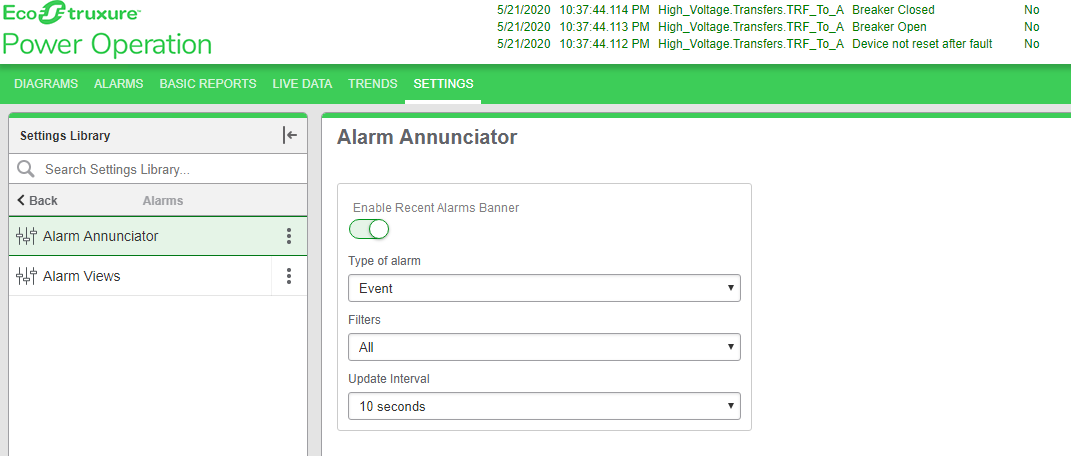
- In the Setting Library pane, select Alarm Annunciator, and then turn on the Enable Recent Alarms Banner toggle button to display the three most recent alarms.
- Select Save, and then refresh the web page.
- On the Alarm Annunciator page, select the relevant options as per your requirement to display the three most recent alarms in the banner.
- Type of Alarm – Select Alarms, Events, or Incidents from the drop-down.
- Filters – Select All, Active, or Inactive from the drop-down.
- Update Interval – You can select the required refresh rate by clicking the Update Interval drop-down.
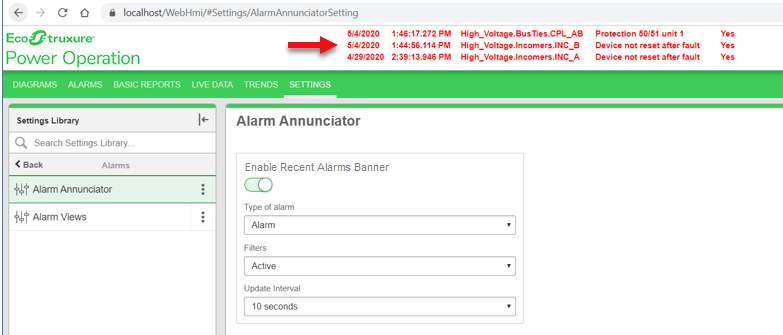
The 3 most recent alarms are displayed. For example:
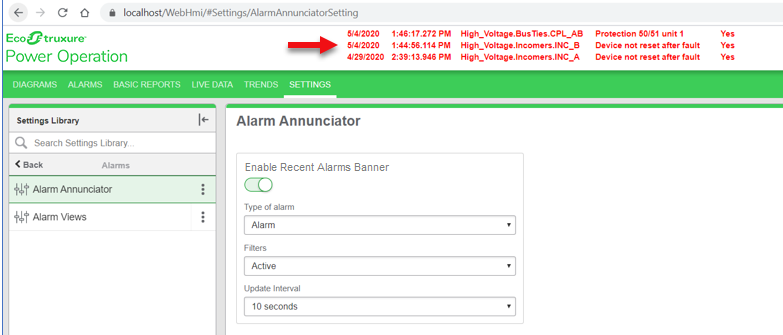
Filter selections in the banner
You can filter the display in the banner using the following alarm filters:
- All
- Active
- Inactive
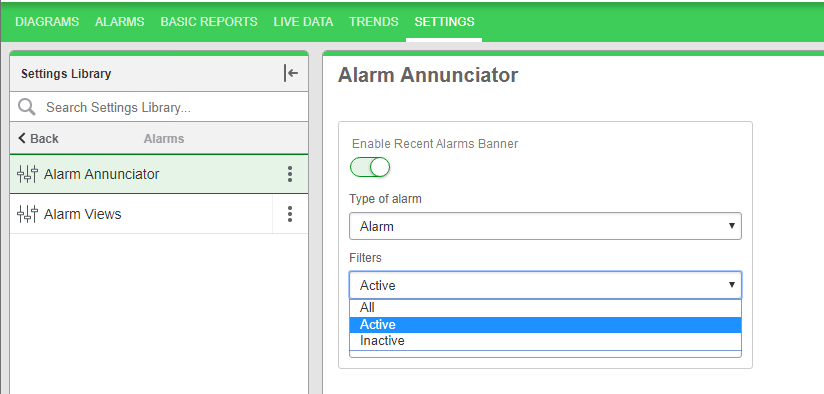
NOTE: The alarms are displayed based on the selection of the filter.
|
Type |
Active Records |
Inactive Records |
Acknowledged | Unacknowledged |
|---|---|---|---|---|
| Alarm | Color: red | Color: green | Font: normal | Font: bold |
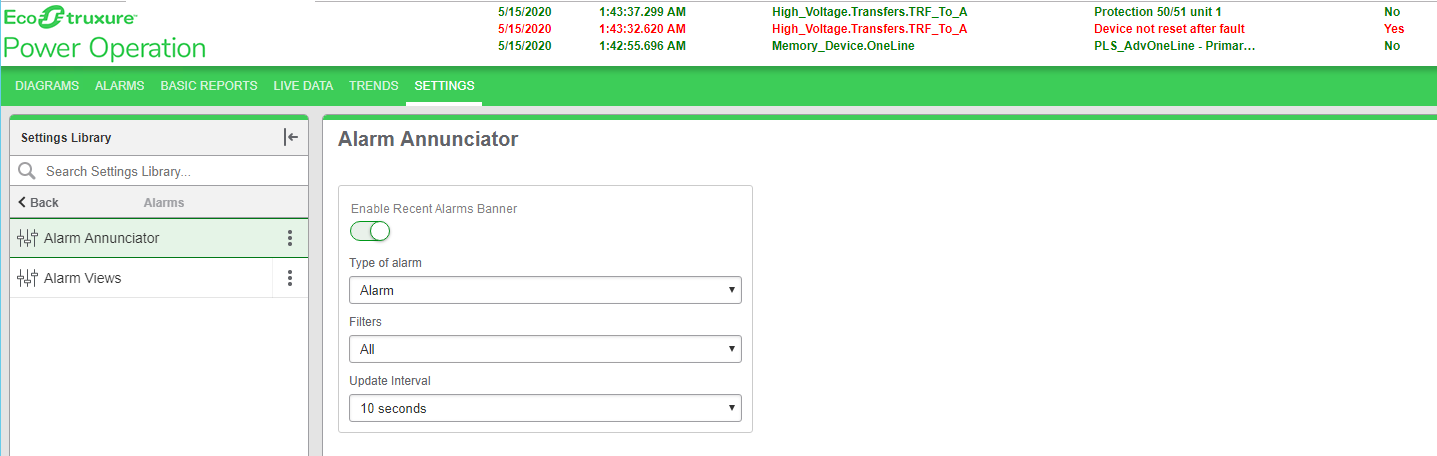
All Alarms – Displays all active unacknowledged, acknowledged and inactive unacknowledged, acknowledged with status Yes or No. For example:
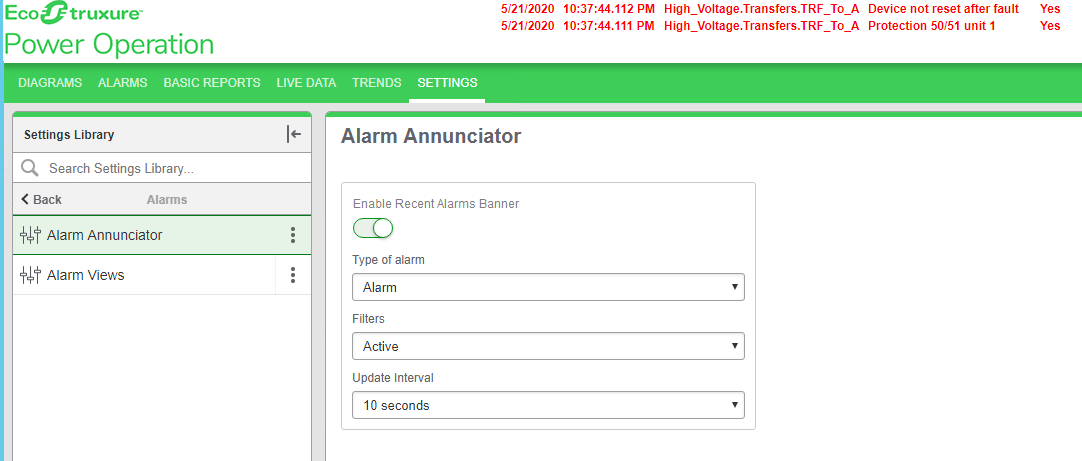
Active Alarms – Displays all active unacknowledged, acknowledged alarms with status Yes. For example:
Inactive Alarms – Displays inactive unacknowledged, acknowledged alarms which are not active with status No. For example:
For information on how to configure Alarms , see Alarms configuration.