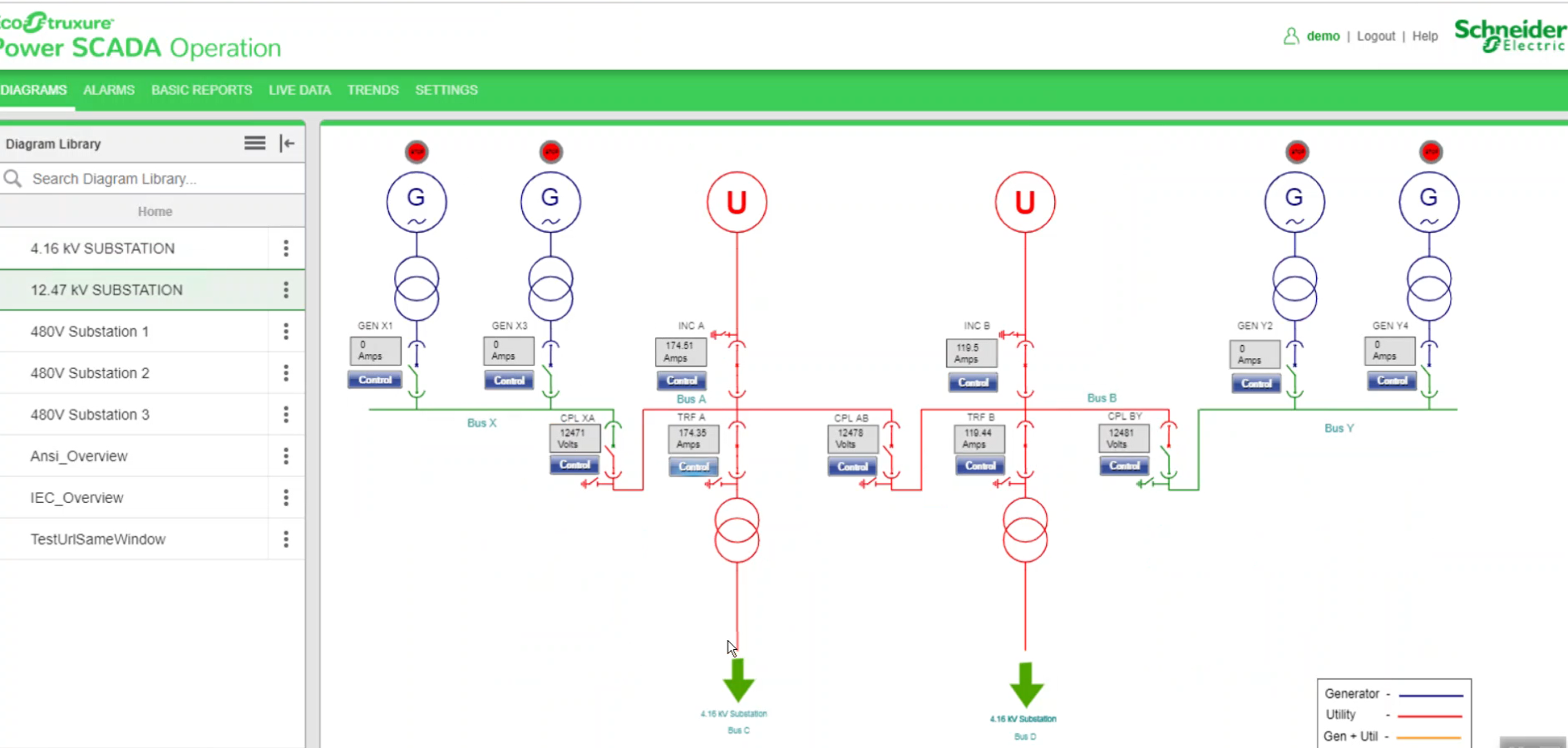
Link snippet example
When you select a TGML graphic that has a configured Link snippet, another TGML page is displayed. Typically, you would use link snippets to navigate between TGML pages.
This topic uses an example to illustrate how to configure a Link snippet.
Prerequisites:
This example uses a graphic file that already has a binded component or equipment in the workspace. For more information on how to prepare the TGML graphic snippet examples, see TGML snippet example prerequisites.
To create a Link snippet:
- In the left bottom corner, select Snippet, and then select Link.
- Drag and drop the Link snippet over the selected component in the workspace. For example:
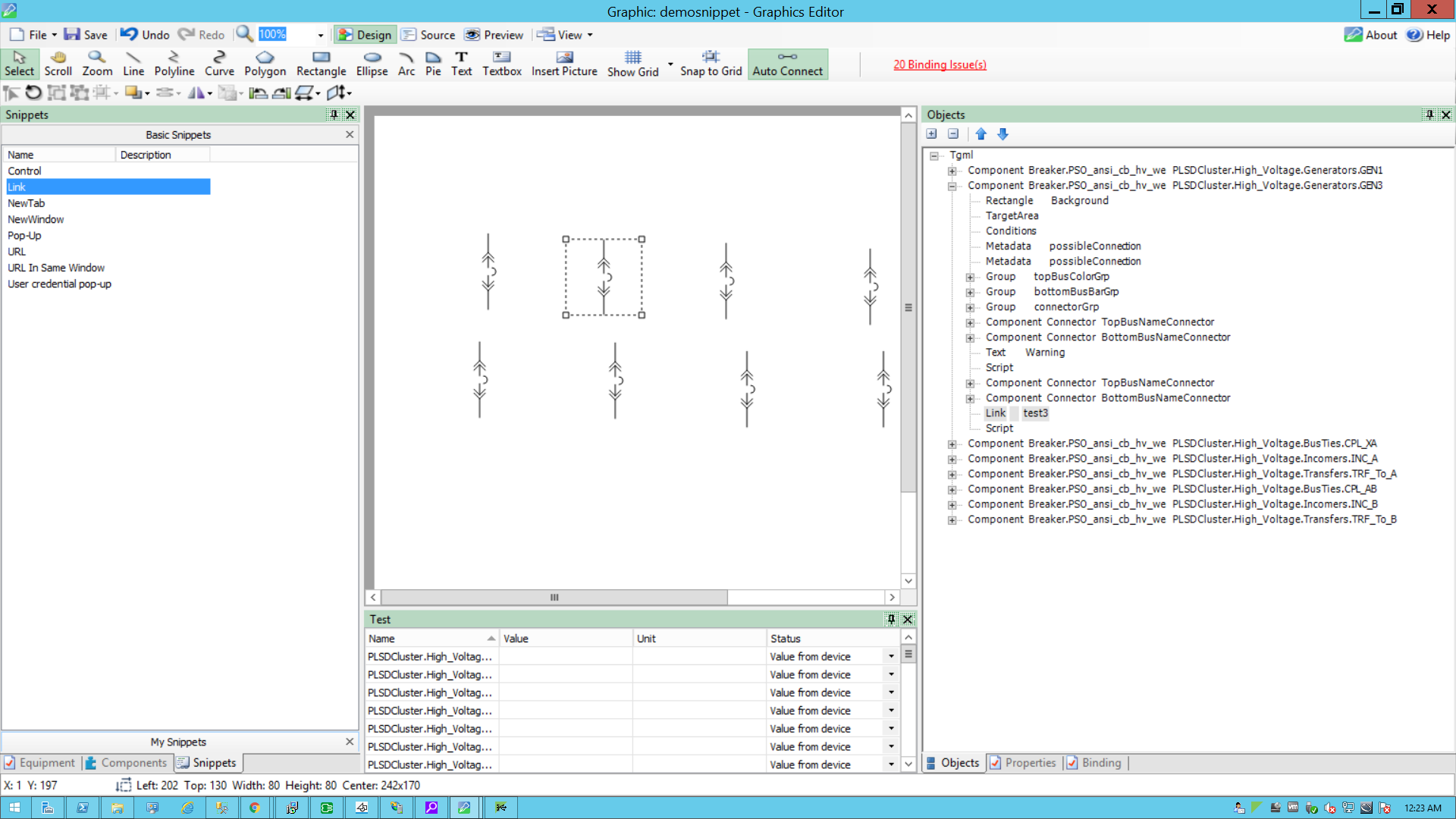
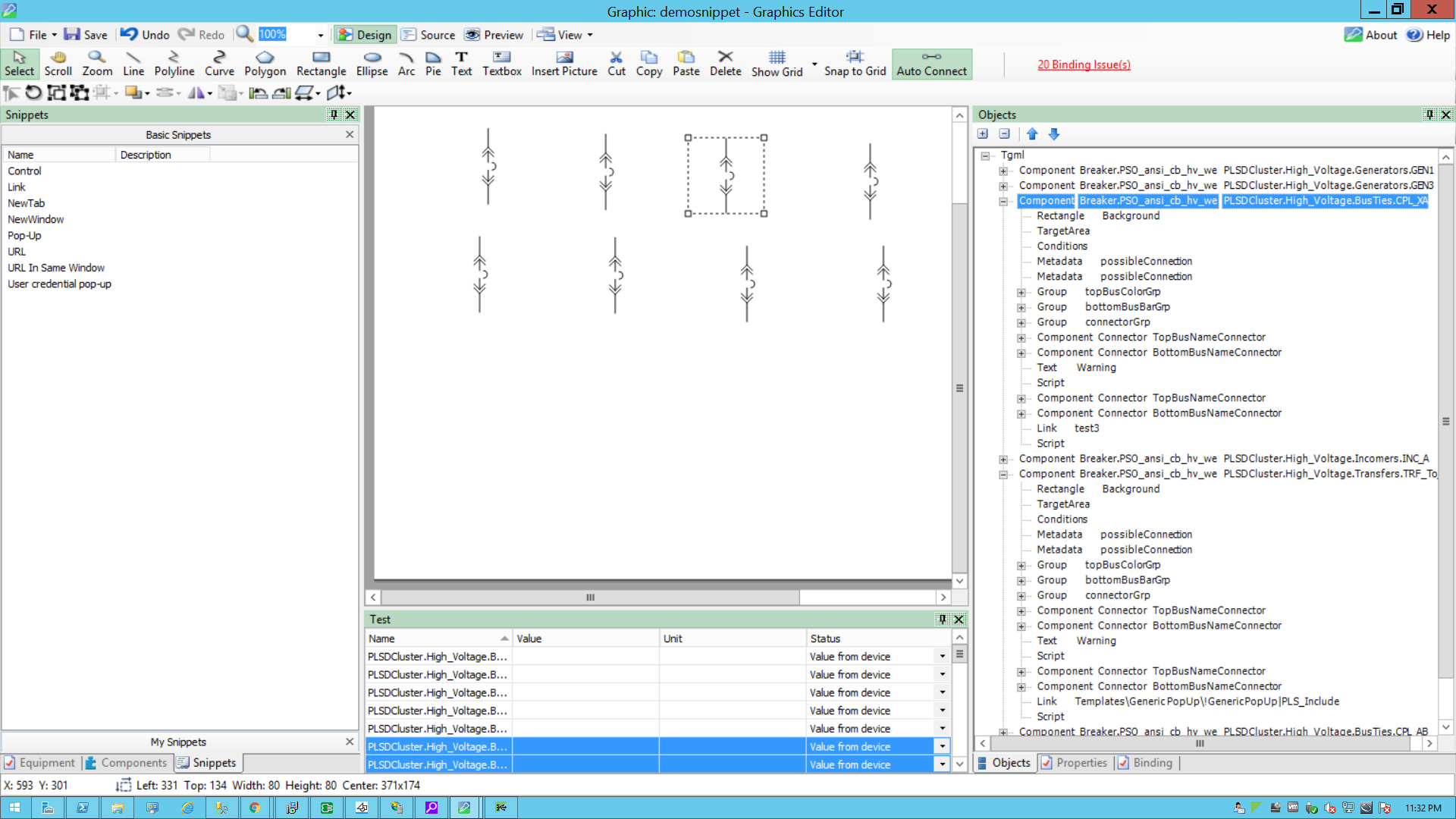
- In the bottom right corner, select Objects, and then expand the TGML node.
Two additional properties appear: Link and Script.
- Update the link with the TGML file to be opened. For example: test3
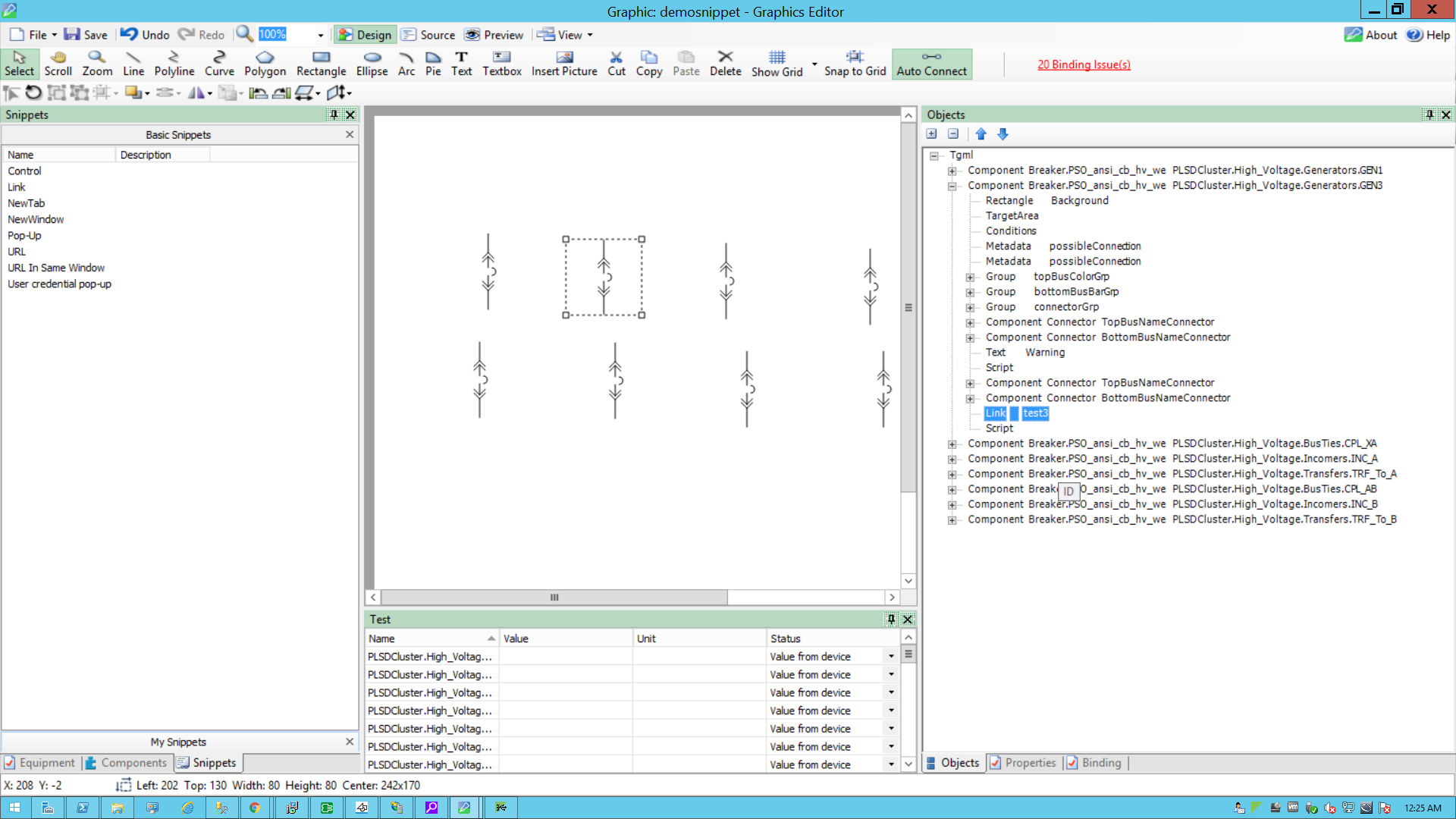
- Select Script.
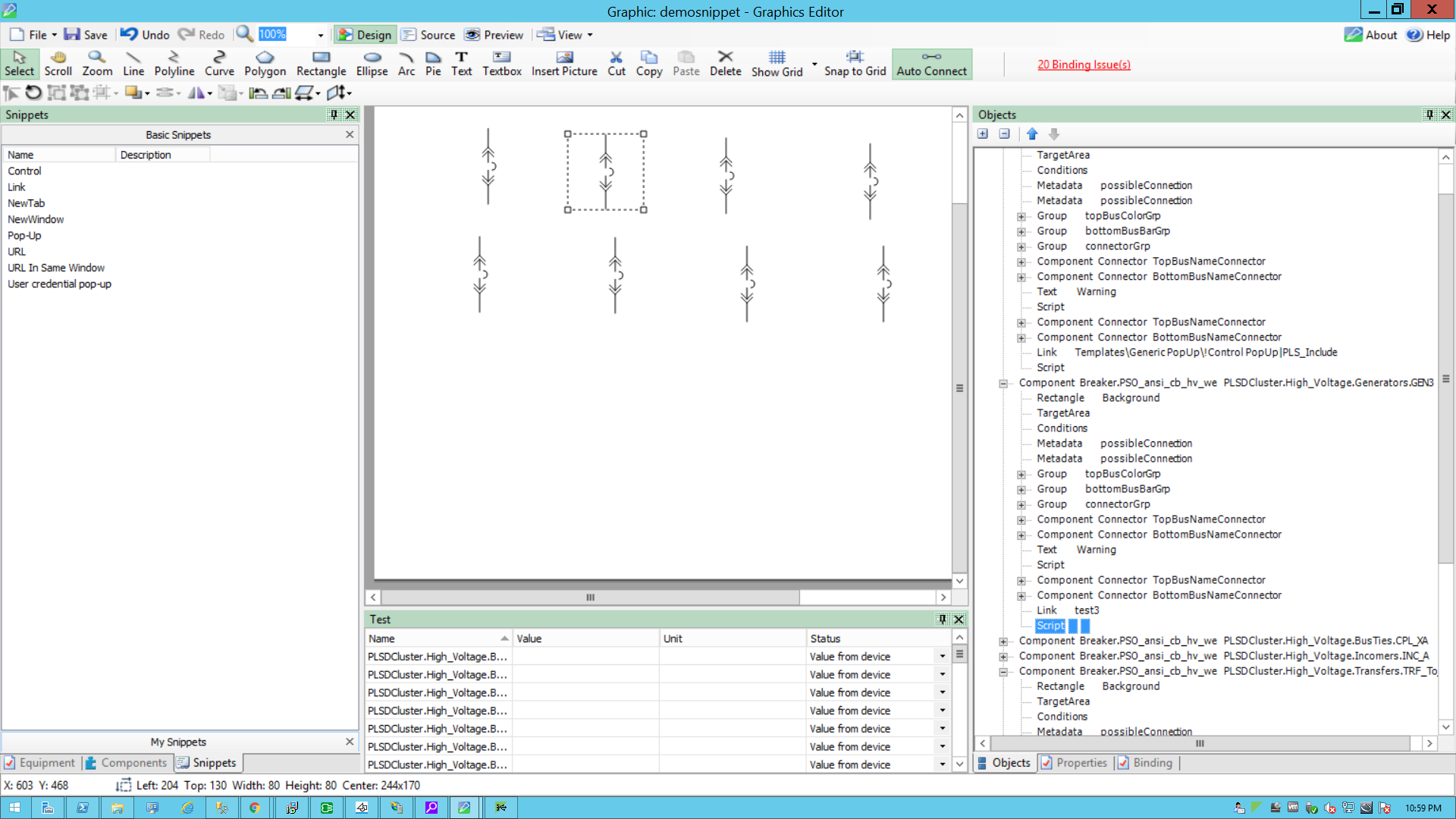
- In the bottom right corner, select Properties, and then expand Behavior.
- Select the ellipsis button in OnMouseClick.
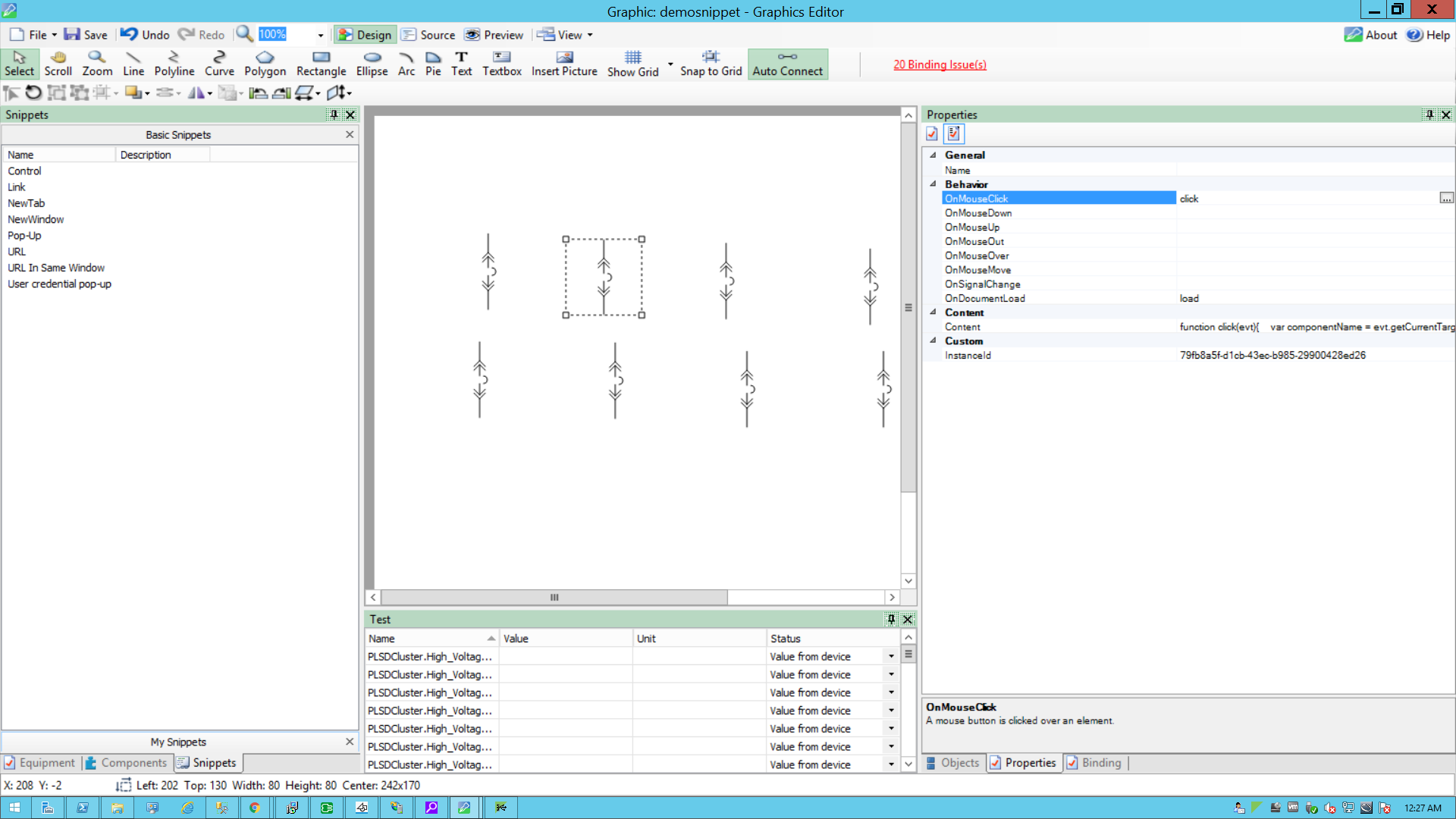
- Use the following script to set the TGML snippet's select behavior, and then close the script window:
- Open the TGML graphic and select on the Component in the TGML.
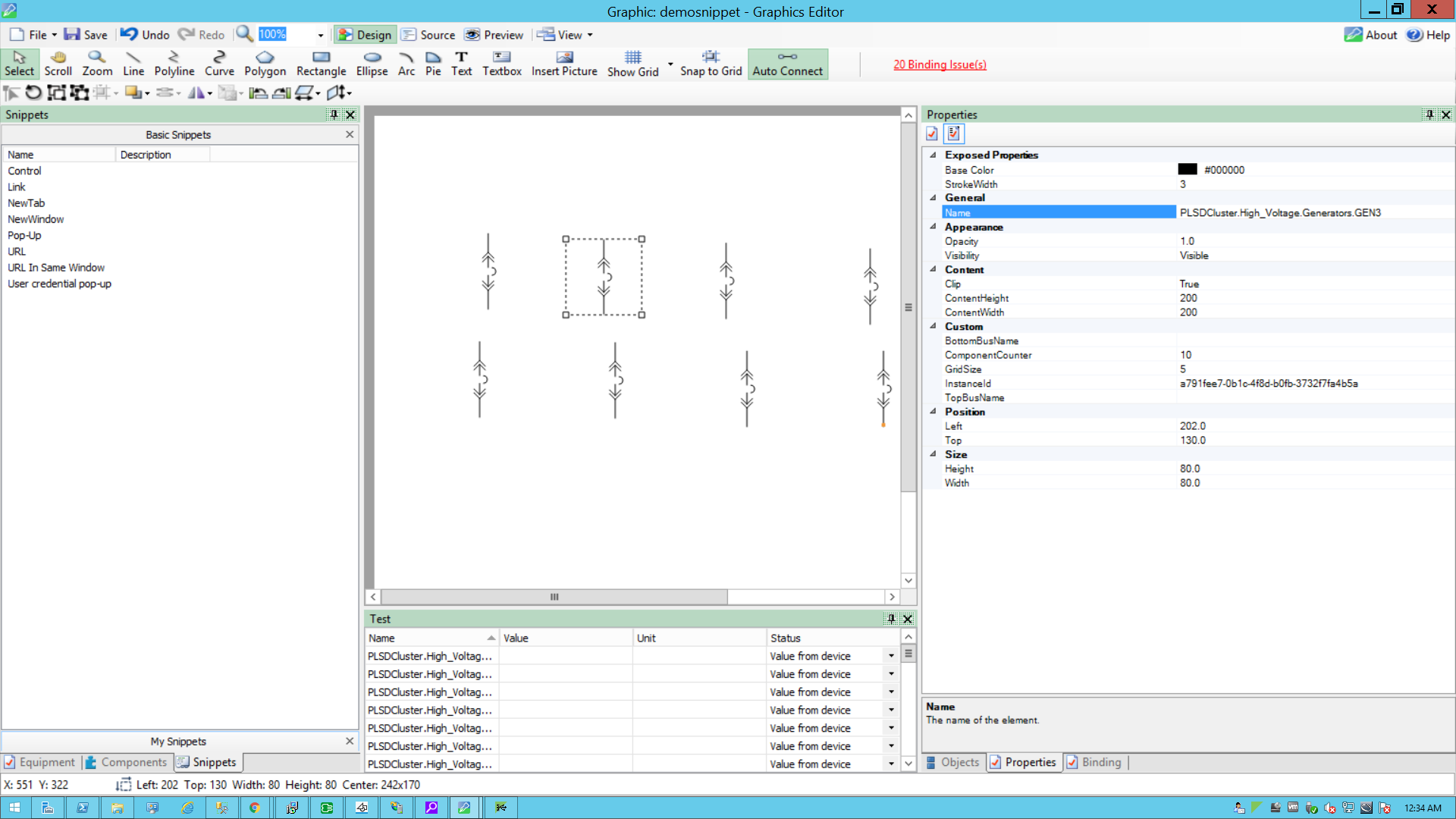
- In the bottom right corner, select the Properties tab.
Select on General > Name. The name visible in the Name field is a component name.
- Go to File > Save As > Project TGML.
- Enter a file name, and then select Save.
Copy
function click(evt)
{
//componentName is name of the component based on the component selection we will fetch the component name
var componentName = evt.getCurrentTarget().getAttribute("Name");

//Collecting the links from the Component
var Link = evt.getCurrentTarget().getElementsByTagName("Link");

//customExpose-If two breakers are internally connected (means multi equipment);
var customExpose = evt.getCurrentTarget().getAttribute("SubstituteNames");

for (var i=0;i< Link.length;i++) {
//LinkFileName : Extracting the file name from the Link
var LinkFileName = Link.item(i).getAttribute("Name");

//With invoke function you can configure the graphic component in Graphics Editor to open a linked target object in a target location when you perform a action(link) on the component
invoke(LinkFileName, "Type = Link | ComponentName=" + componentName + " | CustomExpose=" + customExpose);
}
}

function load(evt)
{
}
To view the snippet behavior:
- In a web browser, log into POWeb Applications (https://localhost/webhmi or https://ipaddress/webhmi).
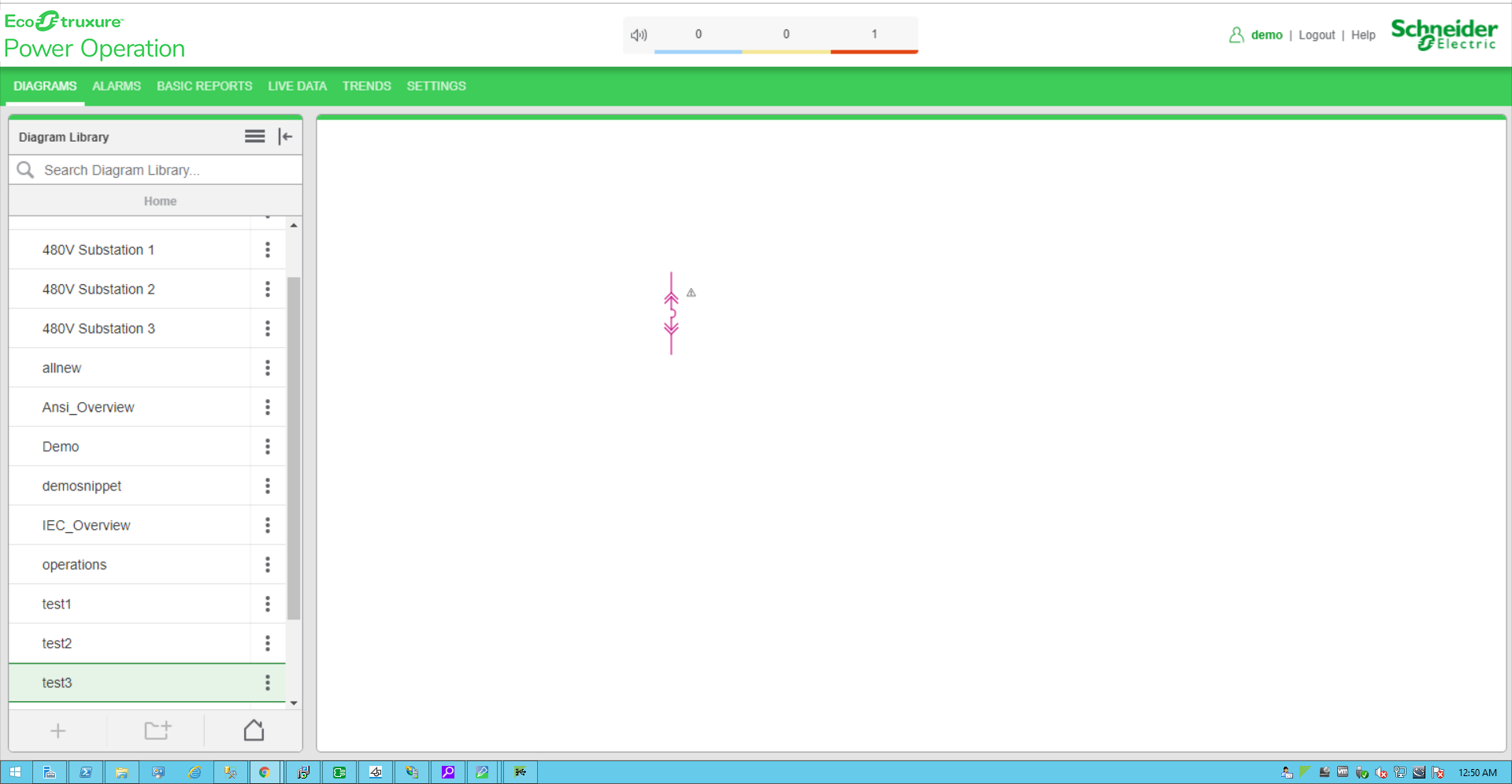
- Select the new TGML file from the Diagram Library.
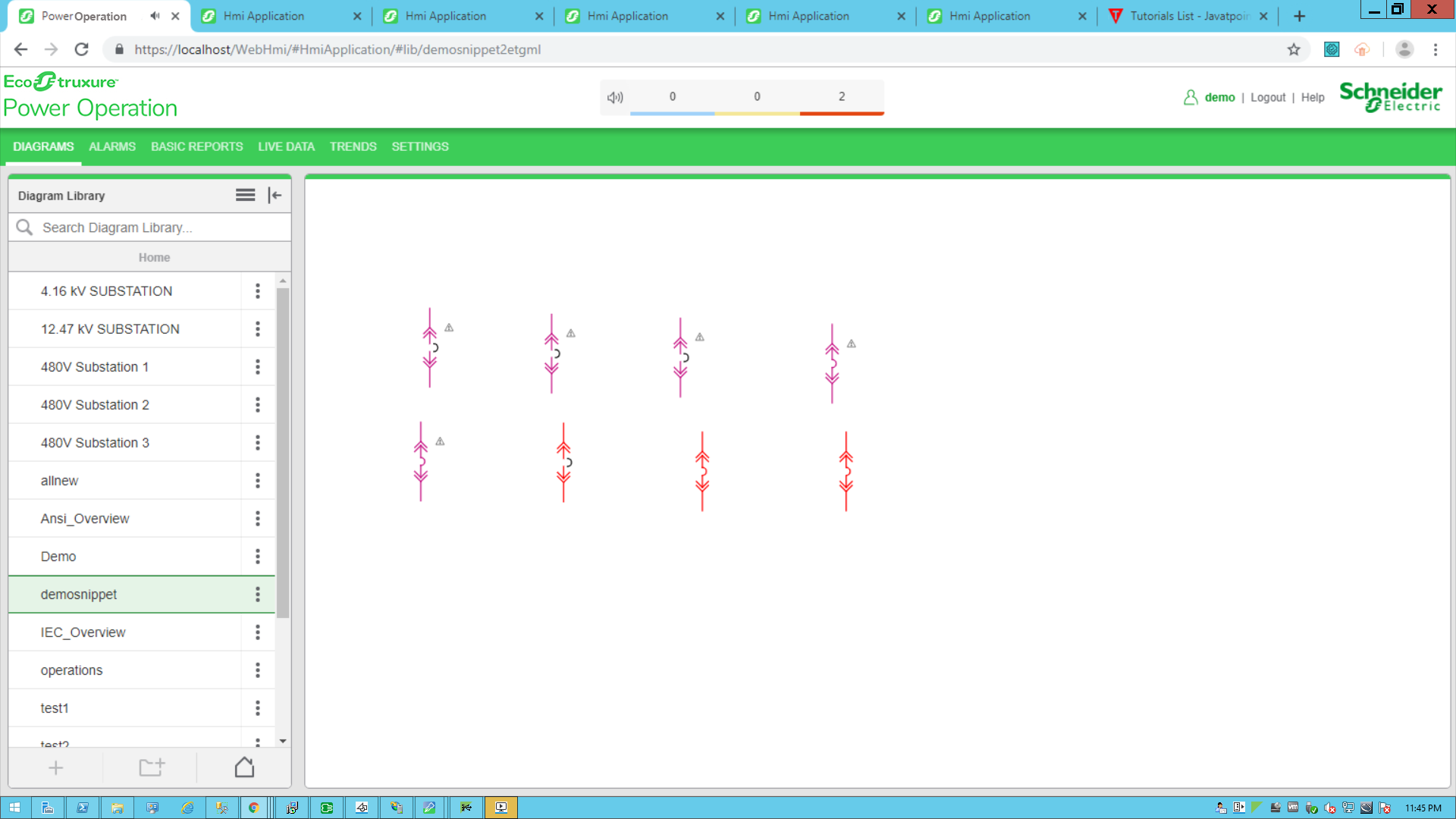
- Select on the circuit breaker.
The new link is opened:
The Power Operation Web Applications Home page appears.