Encryption, locking USB ports, and hardening servers
Encryption
Configure the system to use the latest version of Transport Layer Security (TLS), at least version 1.2.
PO supports the ability to encrypt communication between PO components using latest Transport Layer Security (TLS) version. Communication is encrypted between:
- Server(s) and client(s)
- Server to server.
Locking-down USB ports on server computers
Power Operation supports electronic software keys to allow IT departments to lock-down USB ports on server computers.
The configuration setup steps are:
- Create a project.
- Add all the devices on the network.
- Configure the rules for the network that define the traffic that can pass through which firewall.
We recommend that you begin with the firewalls in test mode so you can see what would be blocked and then adjust accordingly. The firewall configurations should be then loaded onto a USB flash drive that is used to upload the configuration to each firewall.
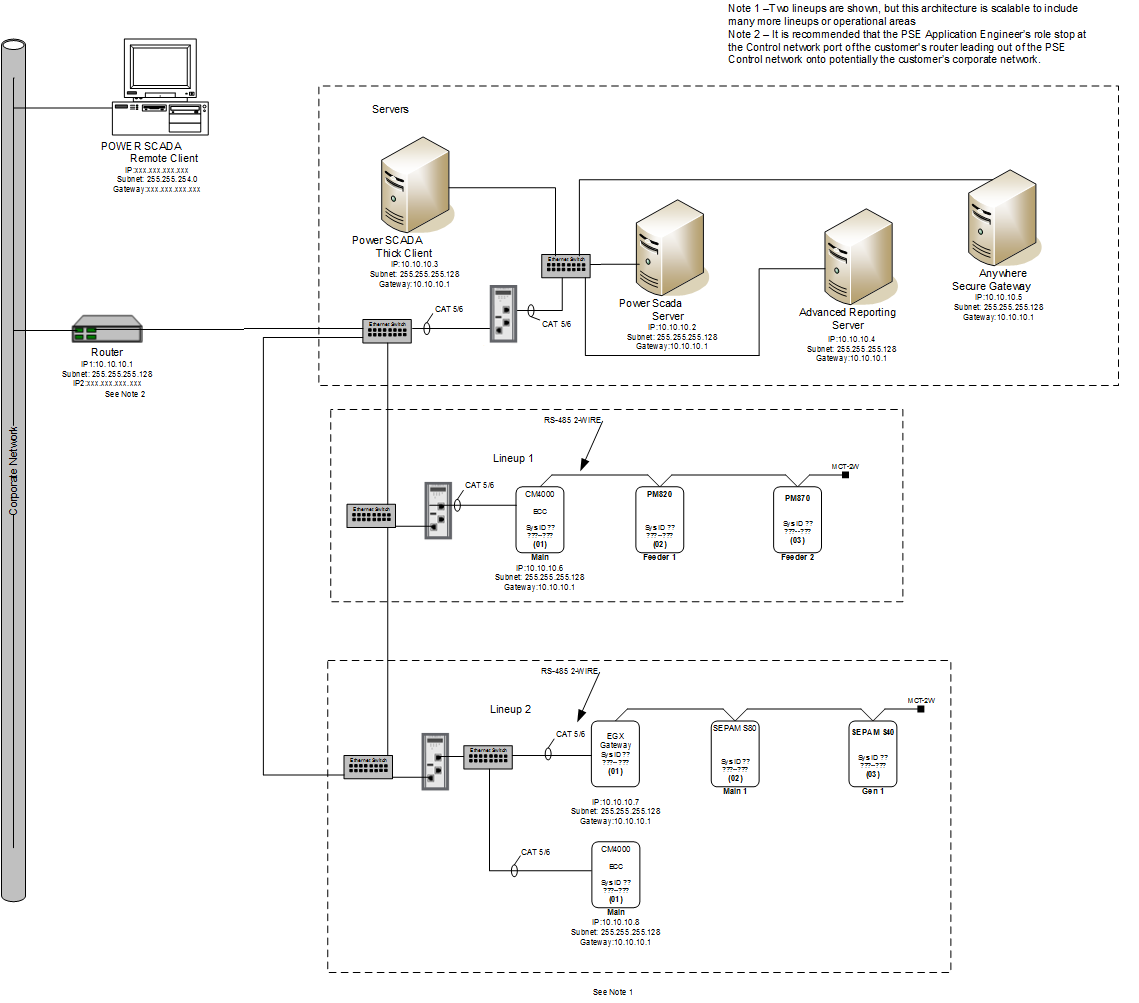
The following is an example architecture that can serve as reference for how one of the networks might be constructed. It is a small network that can be scaled out to fit a much larger system.
Configuring a System Management Server
Power Operation needs post-installation configuration to use encrypted communications. Only one of the machines in the network can be identified and configured as the System Management Server.
Use the Configurator to establish a trust relationship between one or more machines running Power Operation. This configuration allows for encrypted communication between these machines, which is achieved through a common System Management Server on which a certificate is created and used to encrypt communications. Certificates may be generated automatically on the System Management Server or provided by the IT department.
To connect to the System Management Server, you need to be a member of either the “aaAdministrators” or the “Administrators” group on the machine where the System Management Server is installed.
To configure a system management server:
- Start the Configurator.
- In the left pane, select Common Platform > System Management Server. The following is displayed:
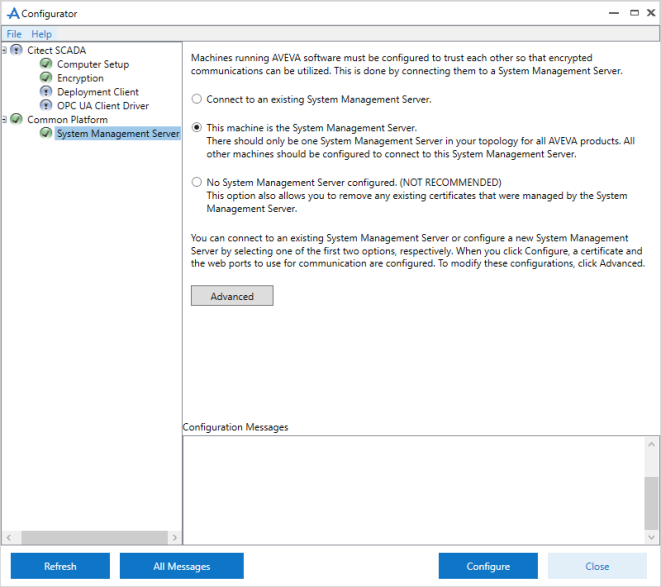
- Select This machine is the System Management Server. Review the notes on the screen before you start the configuration.
- Select Configure. If an existing binding is found for the specified ports, the following message is displayed:
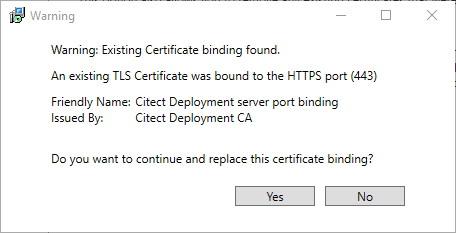
- Select Yes if you wish to replace the binding. The Configurator starts configuring the System Management Server.
If you select No, the following message is displayed in the Configuration Messages area:
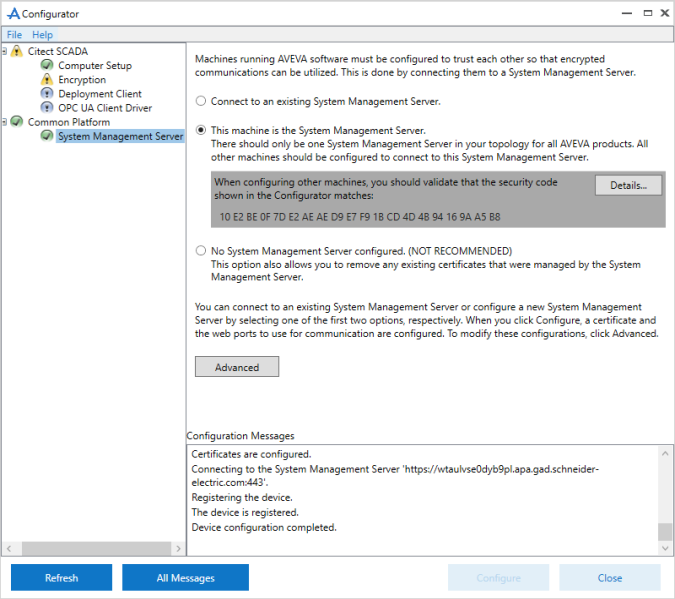
- On successful configuration, the message “Device configuration completed” is displayed. The security code is displayed in the Configurator as shown below. To view more information about the certificate, select Details.
- If the configuration is unsuccessful, check the ArchestrA Logger. You can access this by typing \Program files (x86)\common files\archestra\aaLogviewer.exe at the Windows command prompt. Alternatively, view details of the errors in the System Management Console. For more details, refer to the ArchestrA documentation.
- Select Close to exit the Configurator.