Managing CAE models
A model is a representation of a program or device in the control system and its objects, such as a tool, utility, or an application function block. You can create models in CAE to assign them to roles.
A model includes security capabilities to create:
- Permissions for components in a model.
- Objects for the permissions.
- Actions for each permission.
- Parameters for Device Specific Settings (DSS) (optional).
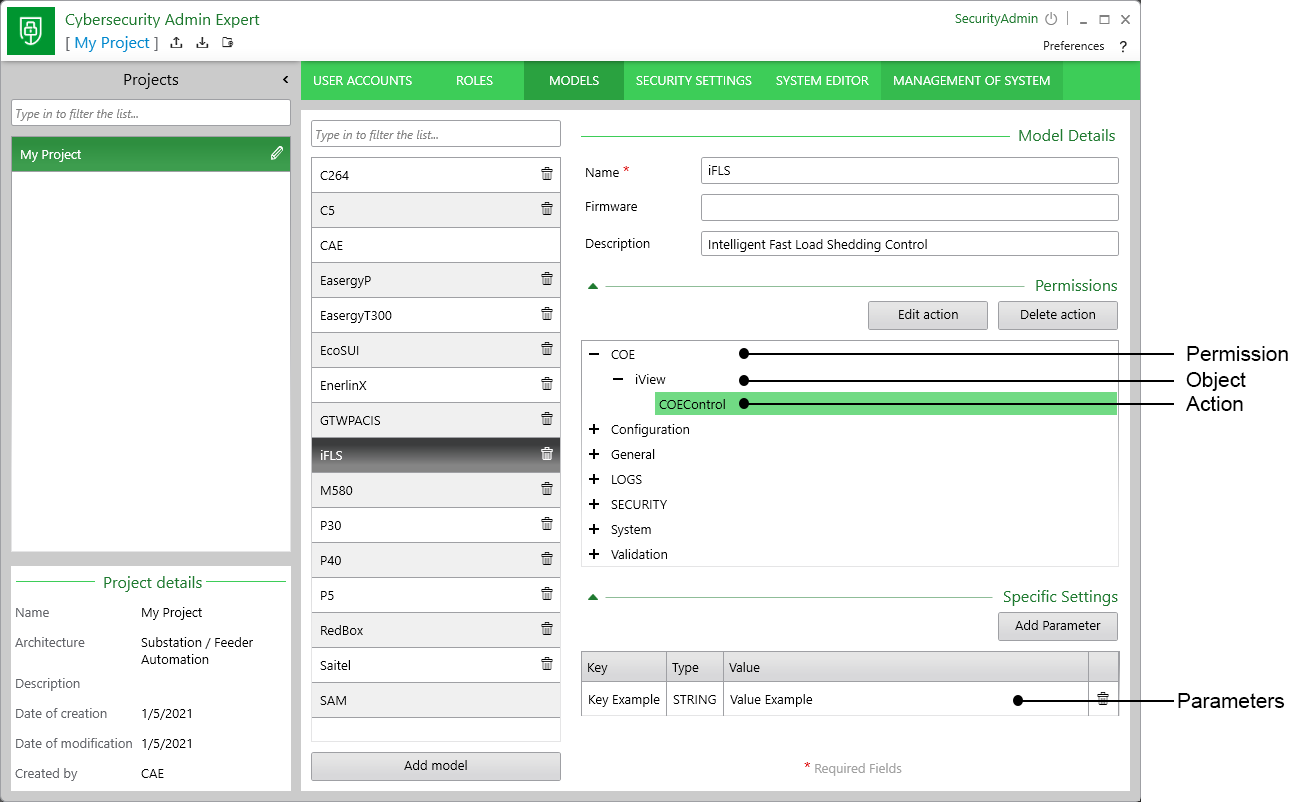
Recommendations:
- Assign roles only the essential privileges needed to perform their job.
- Follow user account management tasks as described by your organization or contact your network administrator.
Showing MODELS tab
The MODELS tab is hidden by default and can be enabled using a security administrator (SecurityAdmin) user account.
- Open Cybersecurity Admin Expert.
- Select ROLES tab > SECADM role.
- Expand CAE item in the Permissions area.
- Enable Model Management and Model View:
- Select Save changes. The MODELS tab is added.
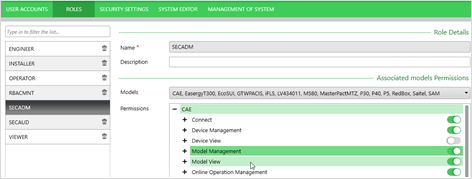
Adding, editing, or deleting a model
Default models are predefined and cannot be edited.
- Open Cybersecurity Admin Expert.
- Select MODELS tab:
- Add model: select Add model button, edit details.
- Edit model: select a model and edit details.
- Delete model: select a model and select the Trash icon. SAM model can not be deleted.
- Select Save changes.
Adding or editing model Permissions, Objects, Actions, or Parameters
- Open Cybersecurity Admin Expert.
- Select MODELS tab > select a model:
- Add or edit Permissions: select Add permission or select a permission and select Edit permission.
- Add or edit Object: select a permission and select Add object or select an object and select Edit object.
- Add or edit Action: select an object and select Add action or select an action and select Edit action.
- Add Parameter for DSS: scroll down and select Add Parameter. You can set specific security parameters by model, such as disabling a USB port or WI-FI access.