System Definition
Use System Definition to set the project display settings.
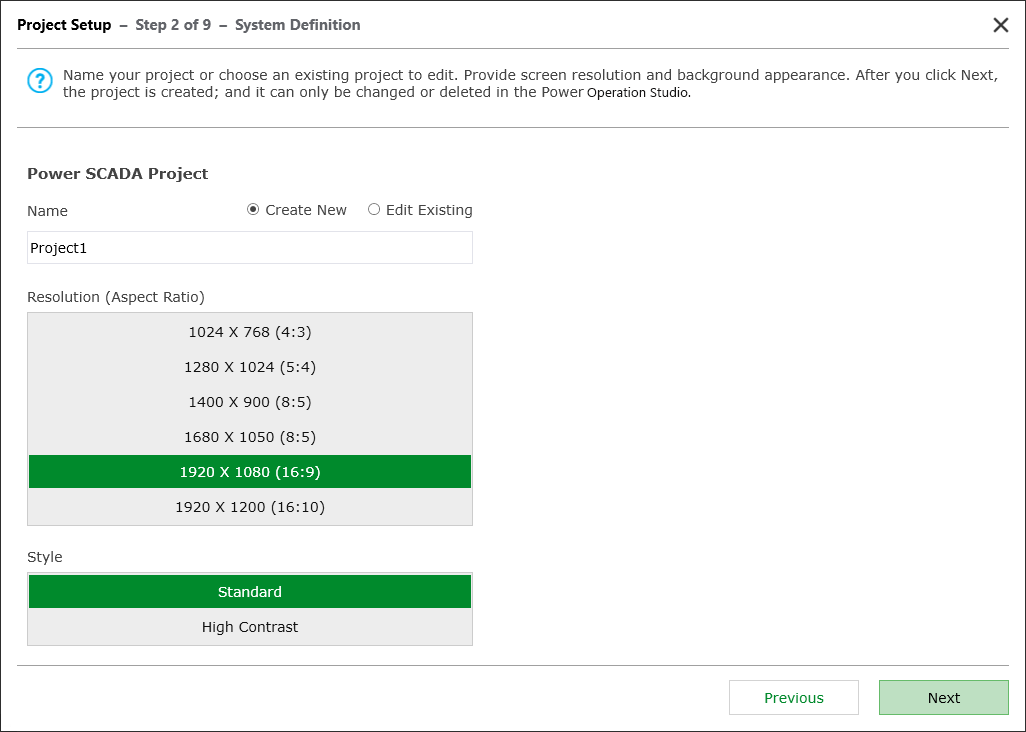
To set the project display settings:
- For Name, select either Create New or Edit Existing.
- If you select Create New, enter a project name. Use only alphanumeric characters and underscores.
- If you select Edit Existing, choose a project from the list.
- Under Resolution, choose the screen resolution that you want for the graphics pages in this project. This should match the resolution of the monitor that will display graphics pages.
- Under Style, choose the contrast. Standard uses a white background. High Contrast uses a black background, which makes it easier to view graphics pages.
NOTE: You can also set high contrast using the parameters in the Power Operation Studio. Open your project in the Power Operation Studio, then select Settings > Parameters. The parameter name is
IsHighContrast. 0 = standard; 1 = high contrast. - Select Next.
NOTE: After you select Next, the project is created. You cannot change or delete the project in Project Setup . To change or to delete it, use the Power Operation Studio.