Programming Control Interface
Overview
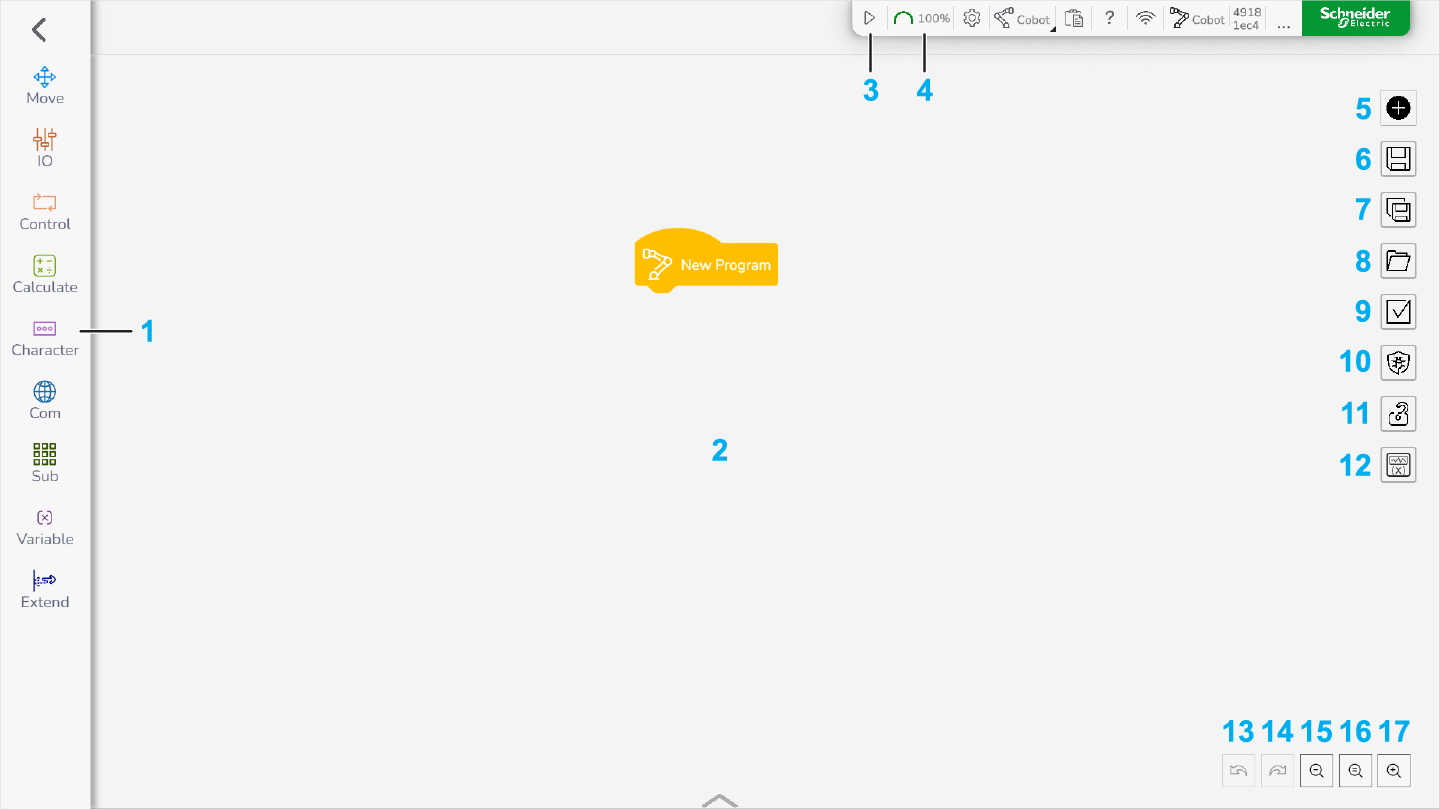
EcoStruxure Cobot Expert provides a visual programming interface which contains programming blocks and assisting dialog boxes to develop the program code for the Lexium Cobot.
To open the Programming Control interface, select Programming Control in the feature bar.
|
1 Instructions menu 2 Editing area 3 Run the program 4 Speed setting of the program 5 New programming file 6 Save the programming file 7 Save as the programming file 8 Open a programming file 9 Advanced Operation |
10 Debug mode 11 Lock the program 12 Variable Observation in the editing area 13 Undo the last action 14 Redo the last undone action 15 Zoom in the editing area 16 Reset view of the editing area 17 Zoom out the editing area |
The header of the job program consists of the yellow New Program instruction block, which is placed in by default.
The following instructions, connected to the head, form the body of the job program. The Lexium Cobot Arm executes the program step by step from top to bottom.
Running a Program
|
Step |
Action |
|---|---|
|
1 |
Power on and enable the Lexium Cobot Arm. |
|
2 |
In the feature bar, select Programming Control. Then, click the Run icon from the top menu. Result: The Lexium Cobot runs the program. |
Adjusting the Running Speed
|
Step |
Action |
|---|---|
|
1 |
In the feature bar, select Programming Control. Then, click the Speed icon from the top menu. Result: The speed bar is displayed under the speed icon. 100% corresponds to the value that is defined in the program. 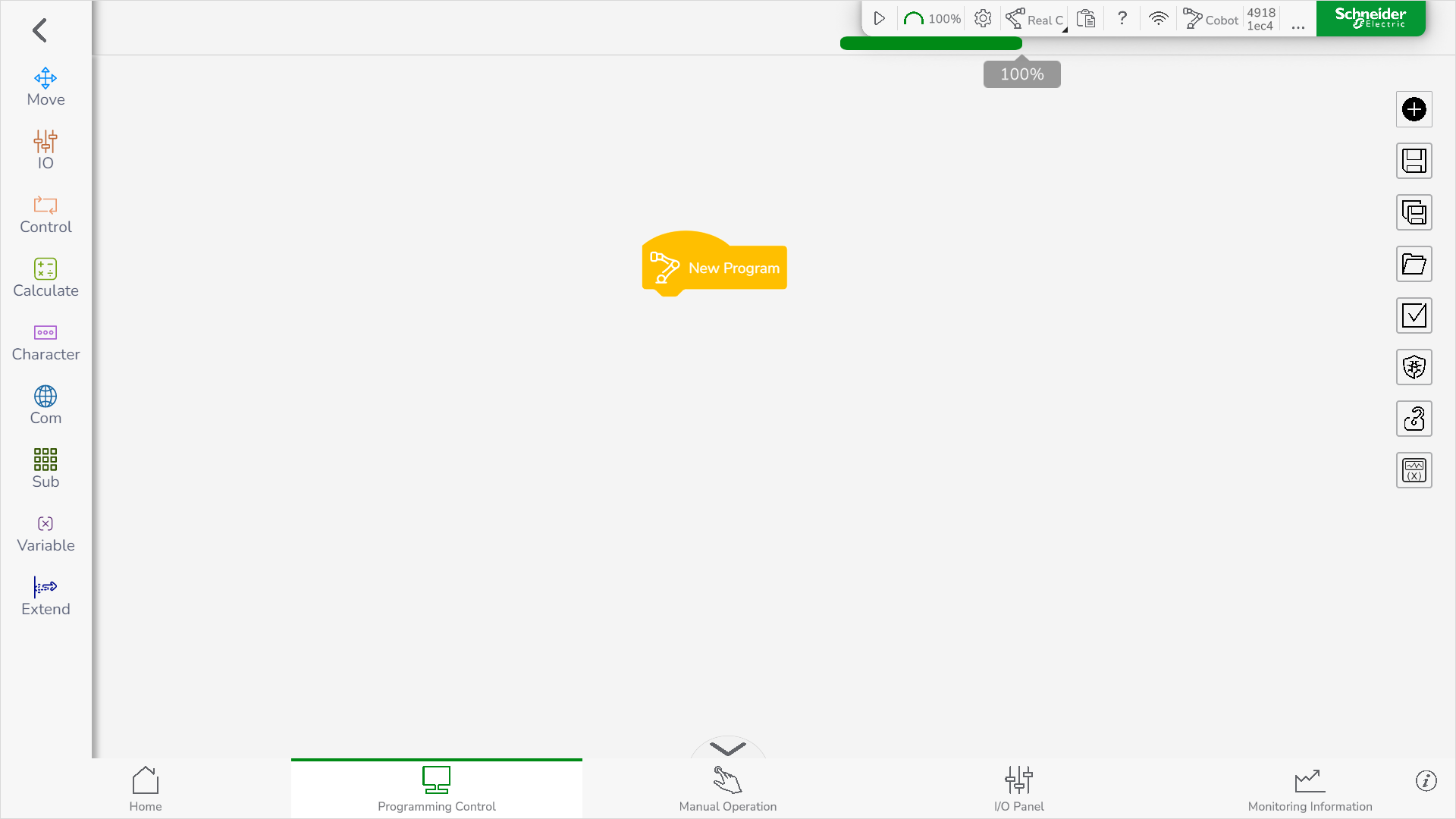
|
|
2 |
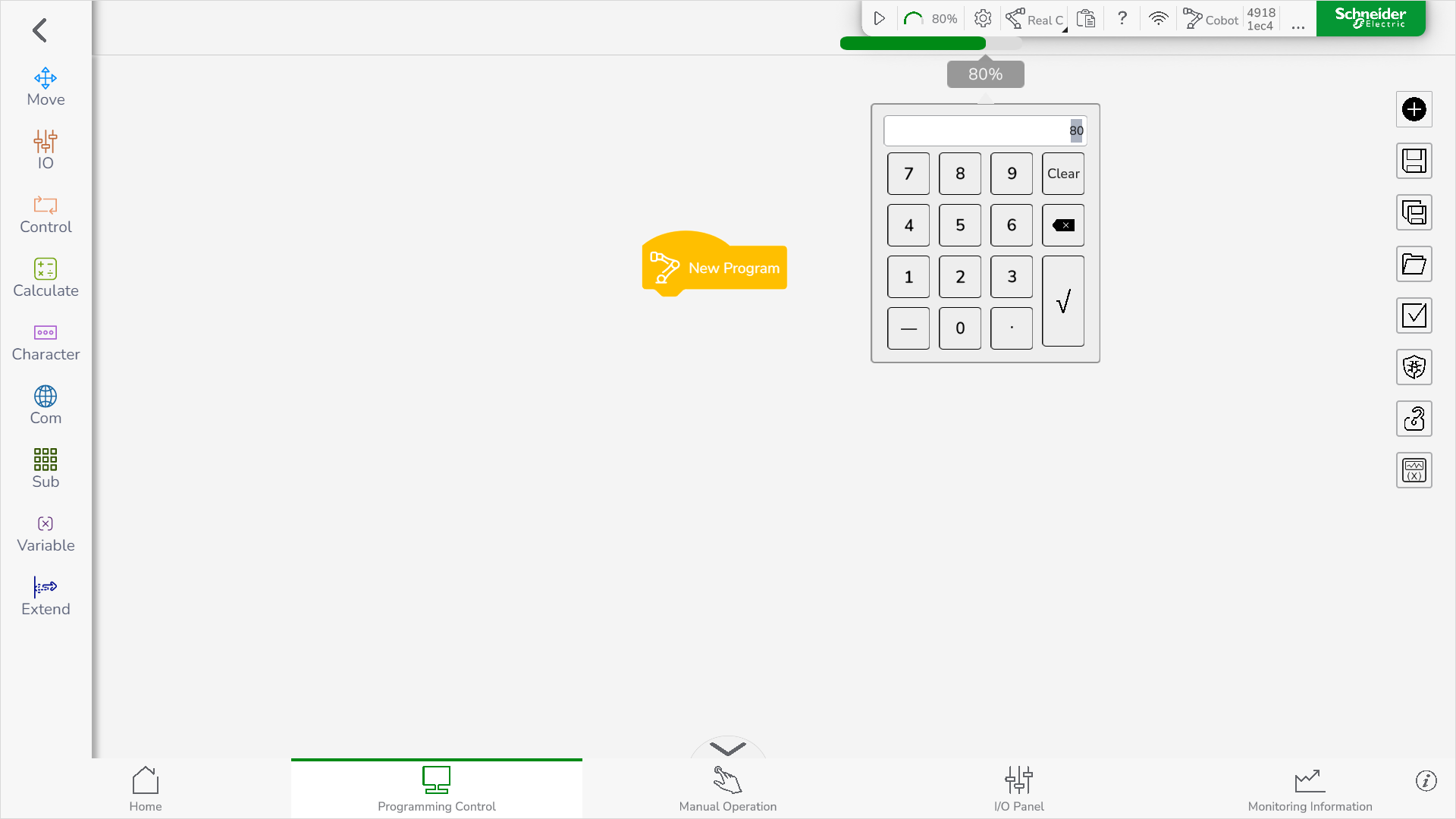
There are two options to adjust the running speed:
|
Creating a New Program
In the feature bar, select Programming Control. Then, click the New icon on the right of the editing area.
Result: The new program is created.
Renaming a Program
|
Step |
Action |
|---|---|
|
1 |
Click the New Program block. Result: The name setting dialog box is displayed. 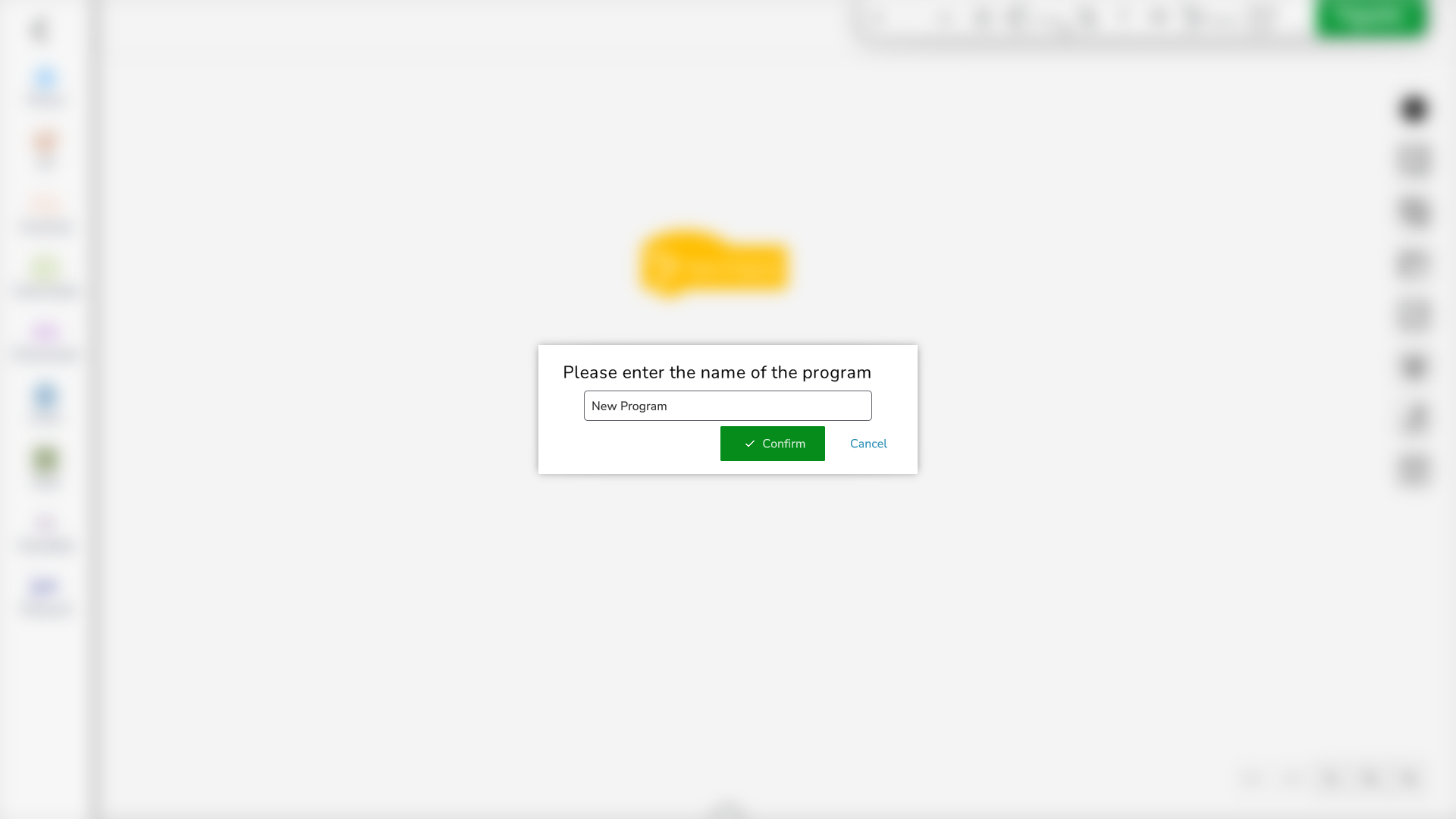
|
|
2 |
Type in the name of the program and click Confirm. Result: The program is renamed. |
Saving a Program
You have two options to save the program:
-
To save the program as the latest version, click the Save icon on the right of the editing area.
-
To save the program under a new file name, click the Save as icon on the right of the editing area.
Displaying the Programs
|
Step |
Action |
|---|---|
|
1 |
In the feature bar, select Programming Control. Then, click the Open icon on the right of the editing area. Result: The programs saved in the Lexium Cobot Controller are displayed. 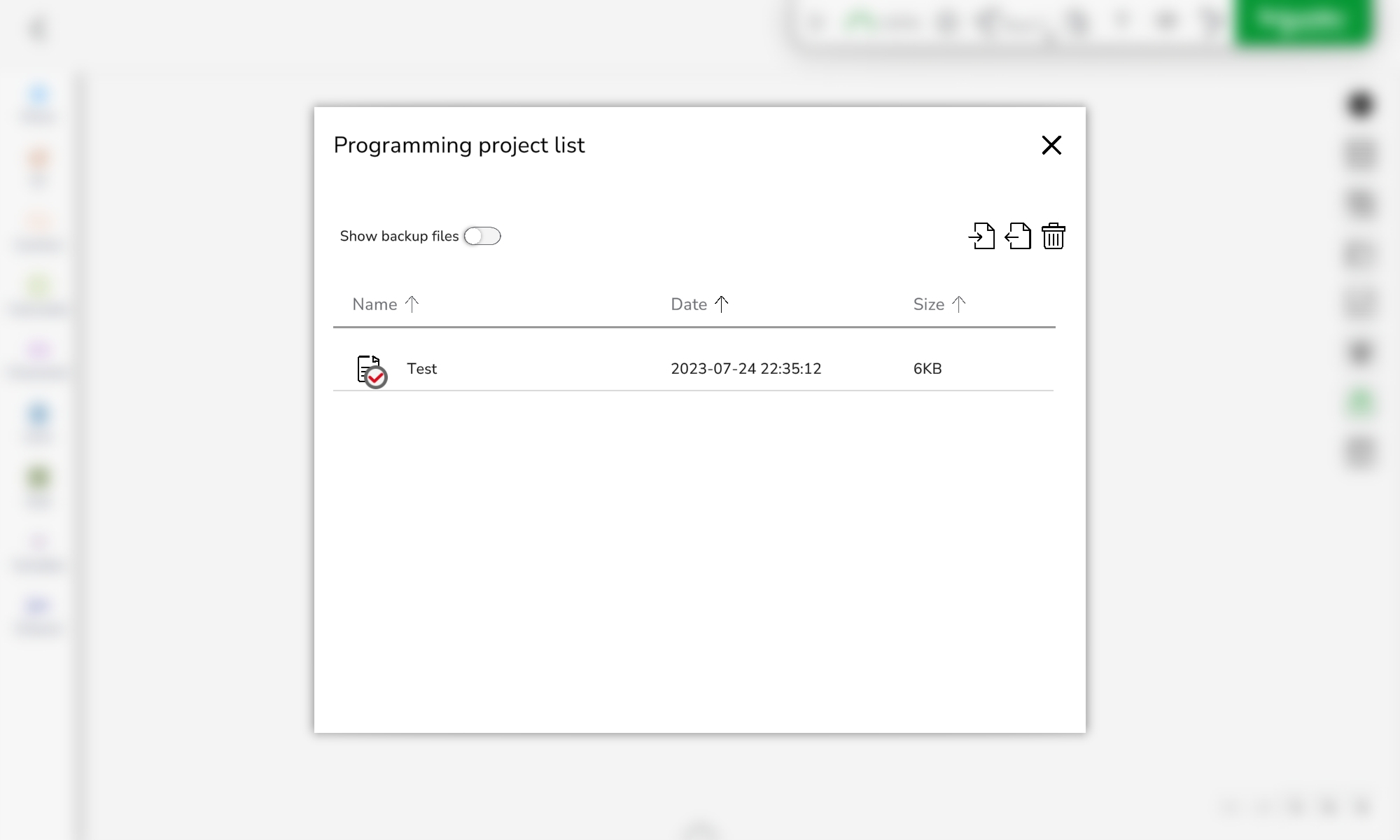
|
|
2 |
To sort the program list differently, click Name, Date, or Size. |
Open a Saved Program
|
Step |
Action |
|---|---|
|
1 |
In the feature bar, select Programming Control. Then, click the Open icon on the right of the editing area. Result: The programs saved in the Lexium Cobot Controller are displayed. |
|
2 |
Click the name of the program to be opened. Result: The program opens. |
Importing a Program
To import an exported program to the connected Lexium Cobot Controller, perform the following steps:
|
Step |
Action |
|---|---|
|
1 |
In the feature bar, select Programming Control. Then, click the Open icon on the right of the editing area. Result: The programs saved in the Lexium Cobot Controller are displayed. |
|
2 |
In the Programming project list dialog box, click the Import icon: 
Result: The file manager dialog box is displayed. 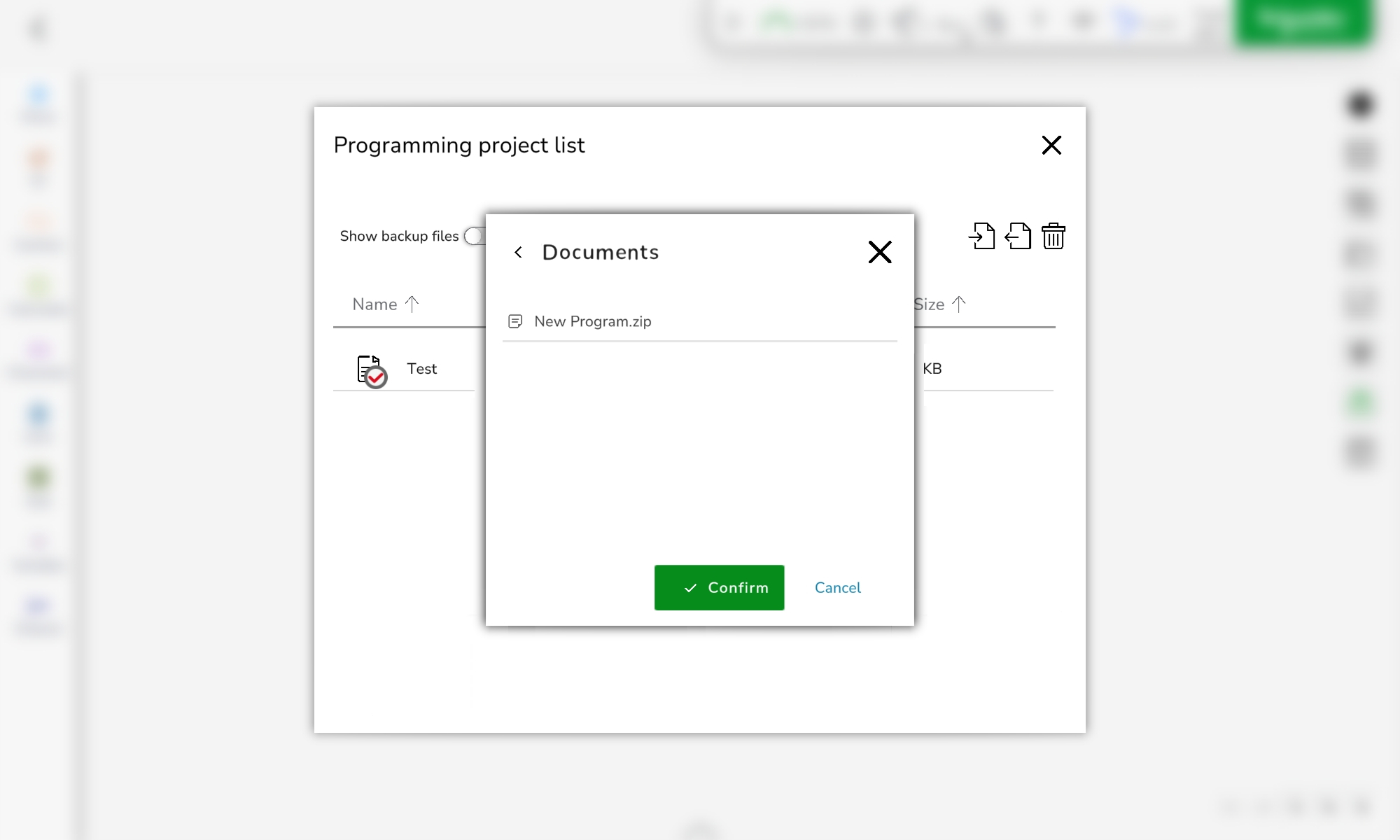
|
|
3 |
Select the program to be imported. |
|
4 |
Click Confirm. Result: The program is imported to the Lexium Cobot Controller and is added to the Programming project list. |
Exporting a Program
To export the program saved in the Lexium Cobot Controller, perform the following steps:
|
Step |
Action |
|---|---|
|
1 |
In the feature bar, select Programming Control. Then, click the Open icon on the right of the editing area. Result: The programs saved in the Lexium Cobot Controller are displayed. |
|
2 |
In the Programming project list dialog box, click the Export icon: 
Result: Checkboxes for the listed programs are displayed. 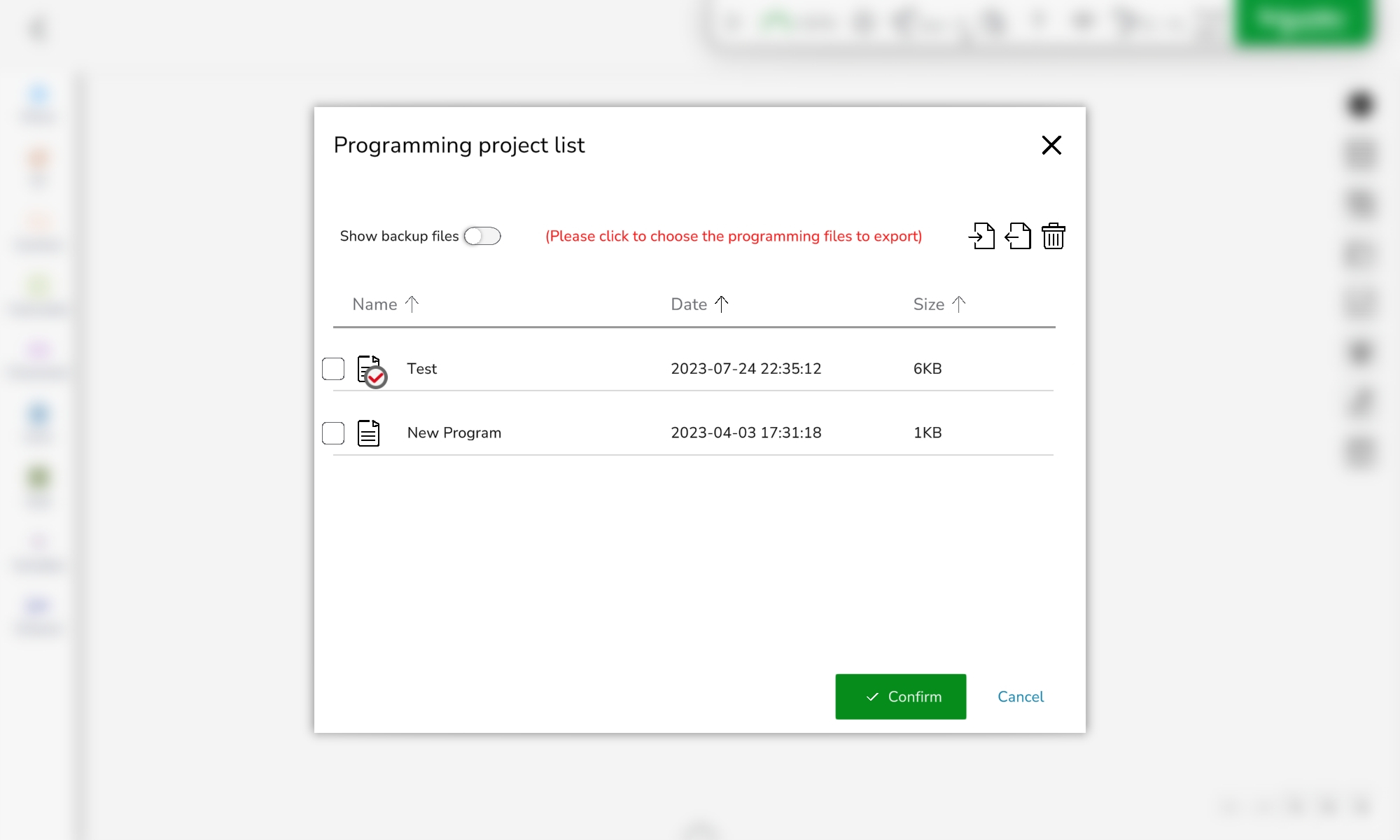
|
|
3 |
Select the program to be exported.
NOTE: Up to five programs can be selected at the same time.
|
|
4 |
Click Confirm. Result: The file manager dialog box is displayed. 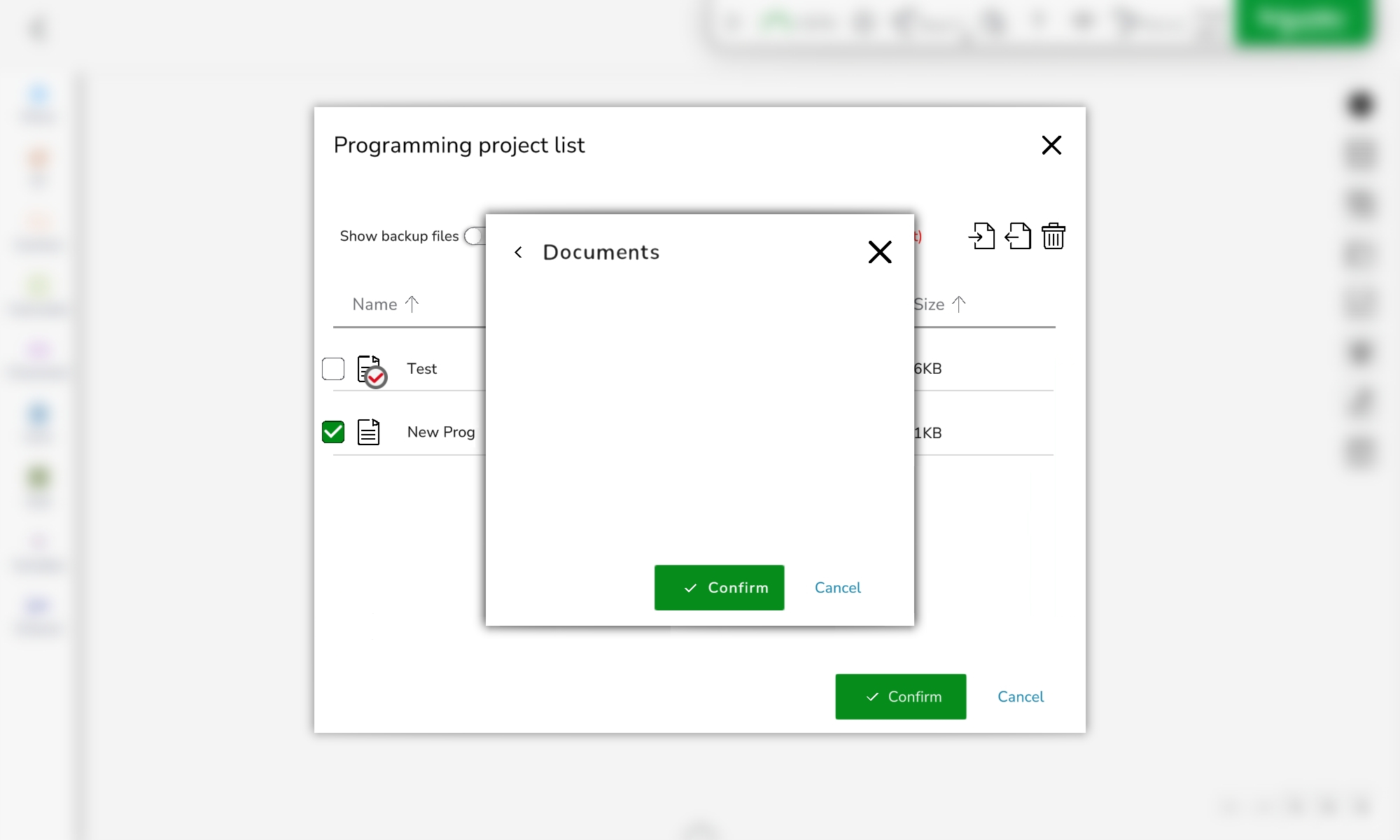
|
|
5 |
Select the path to export the program. |
|
6 |
Click Confirm. Result: The program is exported. |
Deleting a Program
|
Step |
Action |
|---|---|
|
1 |
In the feature bar, select Programming Control. Then, click the Open icon on the right of the editing area. Result: The programs saved in the Lexium Cobot Controller are displayed. |
|
2 |
In the Programming project list dialog box, click the Delete icon: 
Result: Checkboxes for the listed programs are displayed. 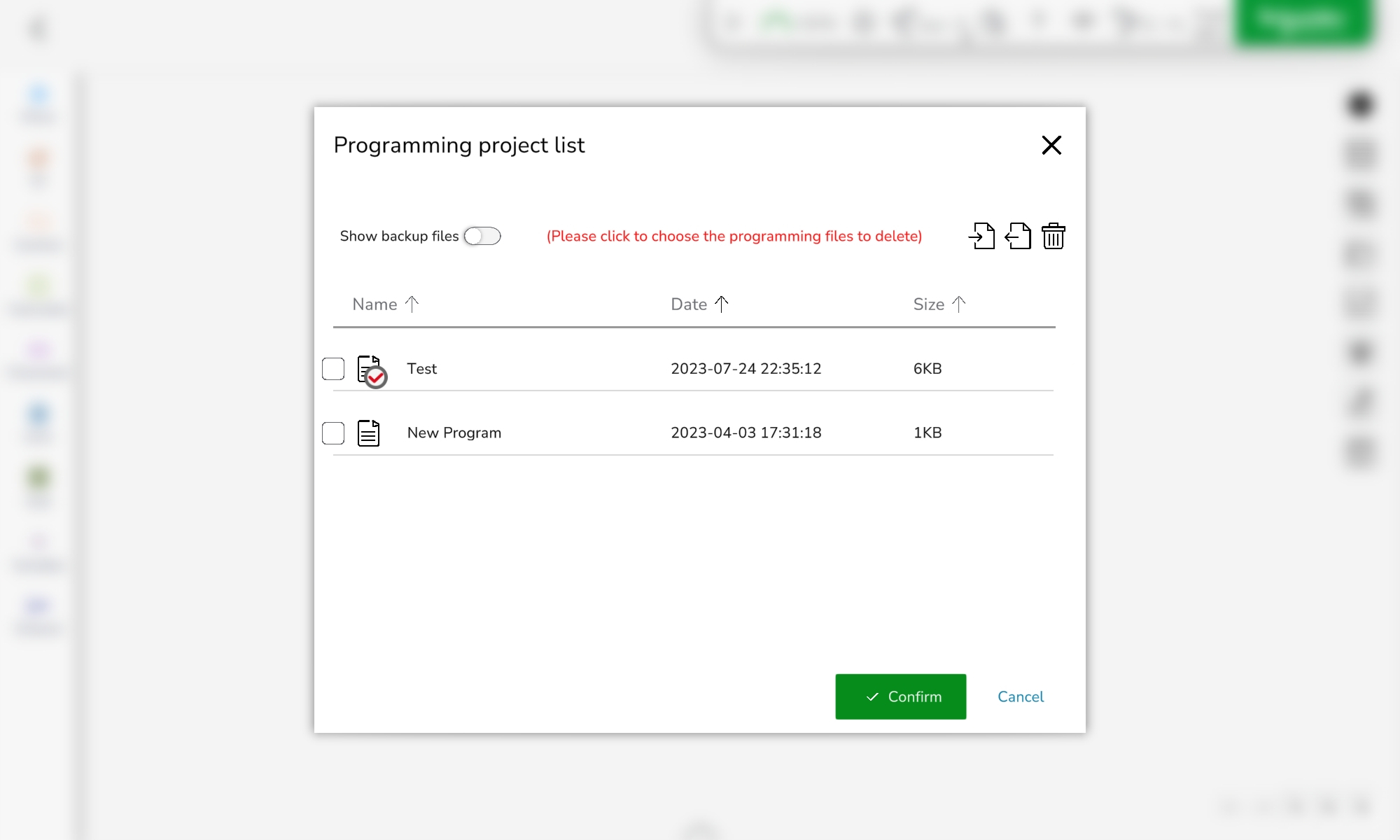
|
|
3 |
Select the program to be deleted.
NOTE: Up to five programs can be selected at the same time.
|
|
4 |
Click Confirm. Result: The following confirmation prompt is displayed. 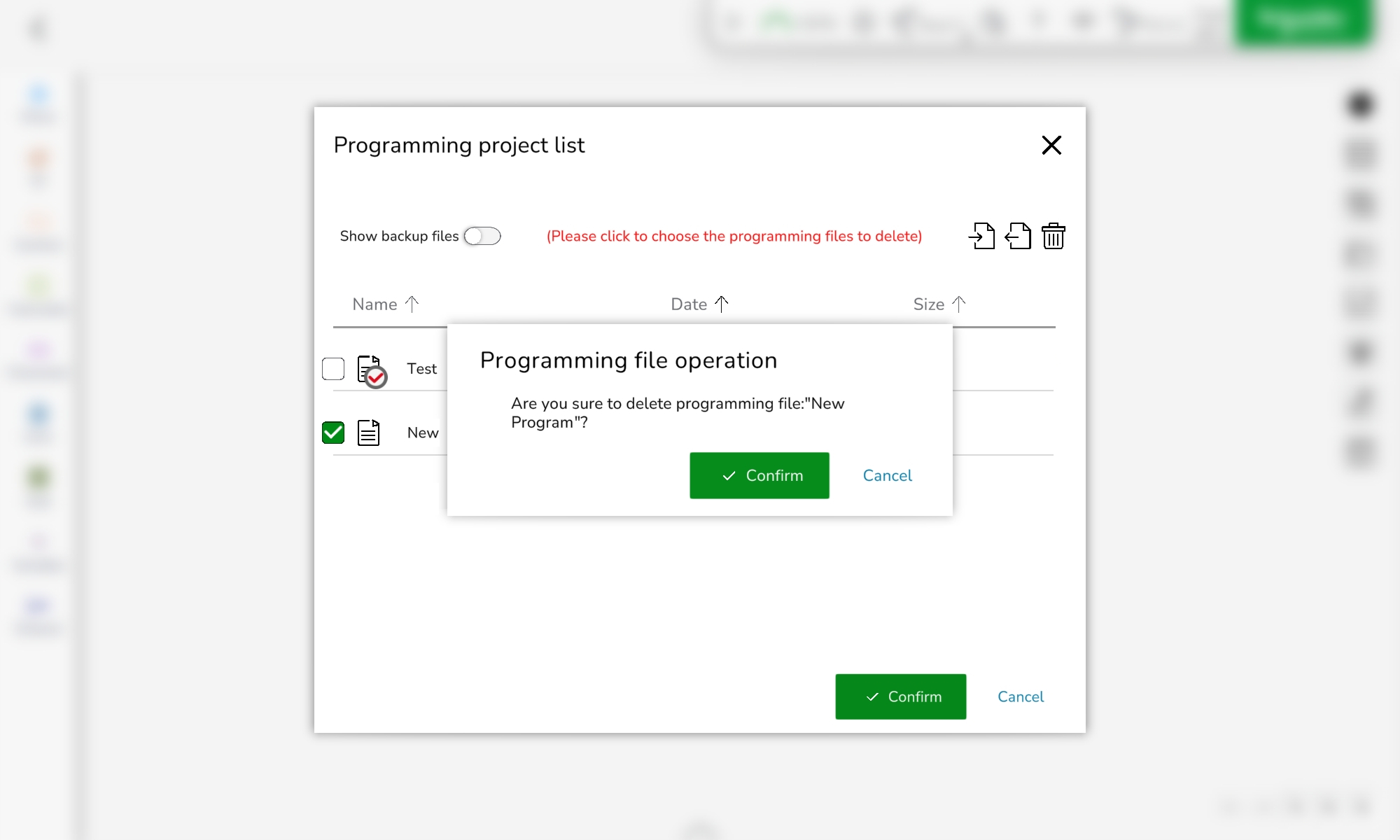
|
|
5 |
Click Confirm. Result: The program is deleted. |
Display the Advanced Operation Menu
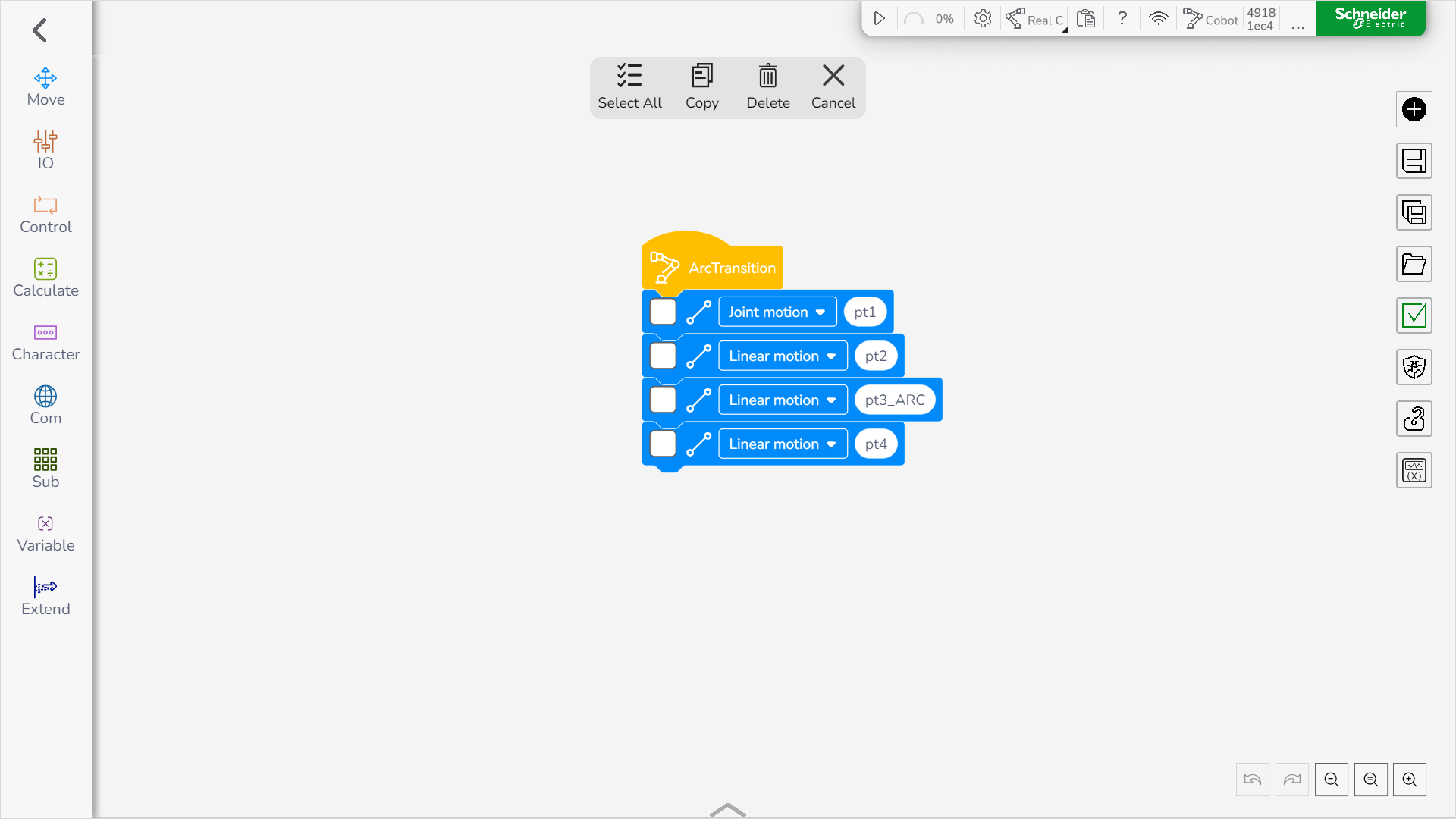
In the feature bar, select Programming Control. Then, click the Advanced Operation icon on the right of the editing area.
Result: The Advanced Operation menu and the check boxes of the instruction blocks are displayed.
Select All Instructions
To select all instructions in the editing area, perform the following steps:
|
Step |
Action |
|---|---|
|
1 |
In the feature bar, select Programming Control. Then, click the Advanced Operation icon on the right of the editing area. Result: The Advanced Operation menu and the check boxes of the instruction blocks are displayed. |
|
2 |
Click the Select All icon. Result: All instructions are selected. 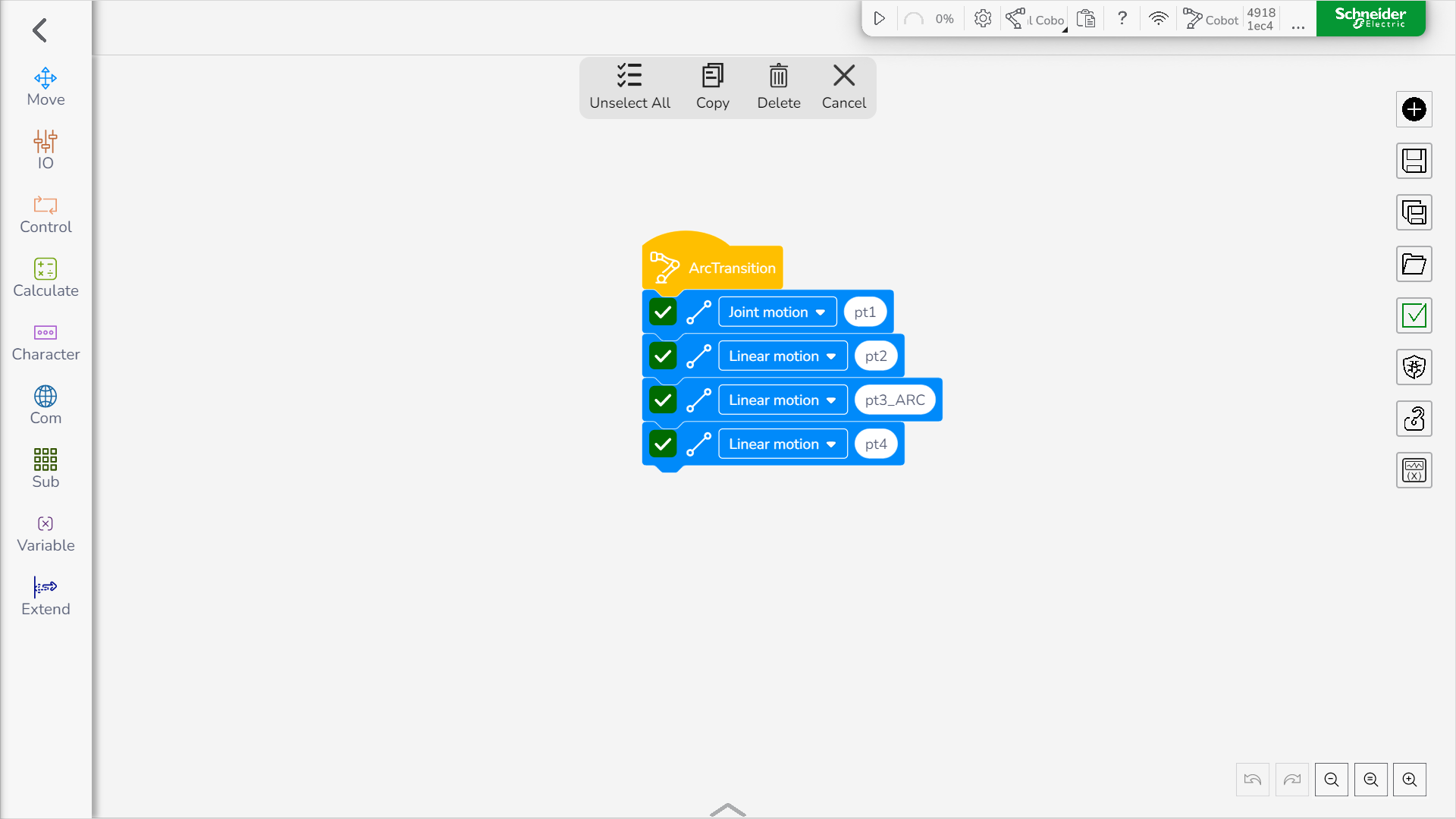
|
Copy Instructions
To copy selected instructions from the sequence and paste them into the editing area, perform the following steps:
|
Step |
Action |
|---|---|
|
1 |
In the feature bar, select Programming Control. Then, click the Advanced Operation icon on the right of the editing area. Result: The Advanced Operation menu and the check boxes of the instruction blocks are displayed. |
|
2 |
Select the instructions to be copied. |
|
3 |
Click Copy. Result: The selected instructions are inserted into the editing area. |
Copy Instructions Across Programs
To copy selected instructions and insert them into the editing area of another program, perform the following steps:
|
Step |
Action |
|---|---|
|
1 |
In the feature bar, select Programming Control. Then, click the Advanced Operation icon on the right of the editing area. Result: The Advanced Operation menu and the check boxes of the instruction blocks are displayed. |
|
2 |
Select the instructions to be copied. |
|
3 |
Open the program or subprogram into which you want to insert the instructions. Result: The following confirmation prompt is displayed. 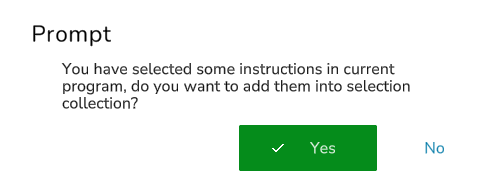
|
|
4 |
Click Yes. Result: The subprogram or program is opened and the Advanced Operation menu is displayed. 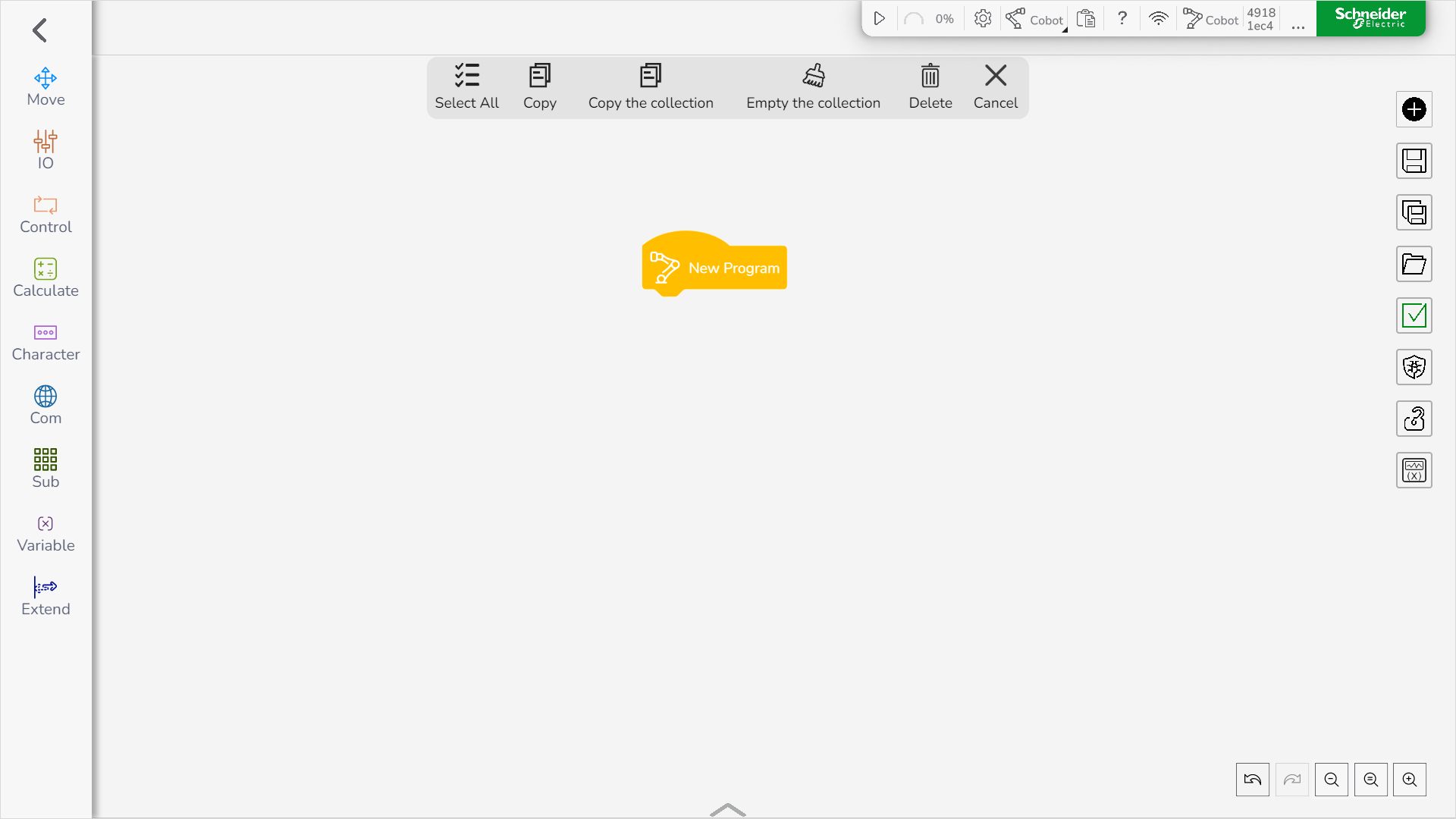
|
|
5 |
Click Copy the collection to finish the cross-program copying instruction. Result: The selected instructions are inserted into the editing area of the program. |
Delete Instructions
|
Step |
Action |
|---|---|
|
1 |
In the feature bar, select Programming Control. Then, click the Advanced Operation icon on the right of the editing area. Result: The subprogram or program is opened and the Advanced Operation menu is displayed.
|
|
2 |
Select the instructions to be deleted. |
|
3 |
Click Delete. Result: The selected instructions are deleted. |
Hide the Advanced Operation Menu
Click Cancel or Advanced Operation icon.
Result: The Advanced Operation menu is closed.
Single-Step Debugging of the Program
To execute the program instruction in single step, perform the following steps:
|
Step |
Action |
|---|---|
|
1 |
Power on and enable the Lexium Cobot Arm. |
|
2 |
In the feature bar, select Programming Control. Then, click the Debug mode icon on the right of the editing area. Then click Single-Step Debugging. Result: The following prompt is displayed: 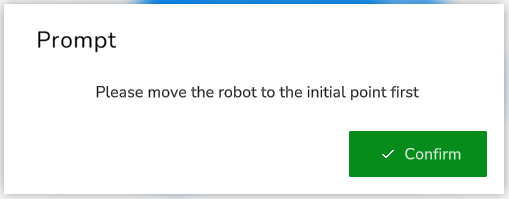
|
|
3 |
Click Confirm. Result: The Manual Operation interface is displayed. 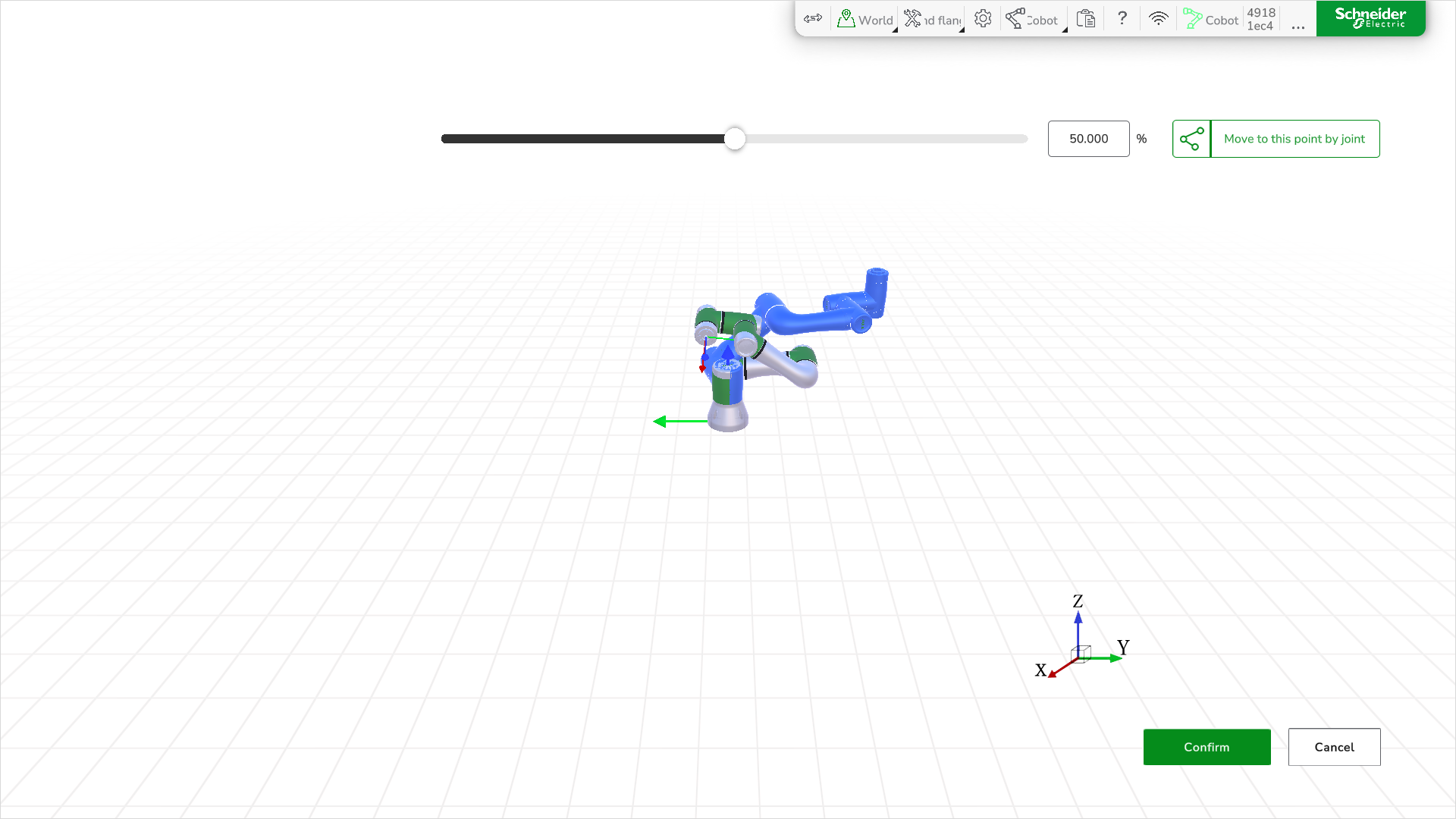
|
|
4 |
Click and hold Move to this point by joint until the prompt Robot has reached the position is displayed. 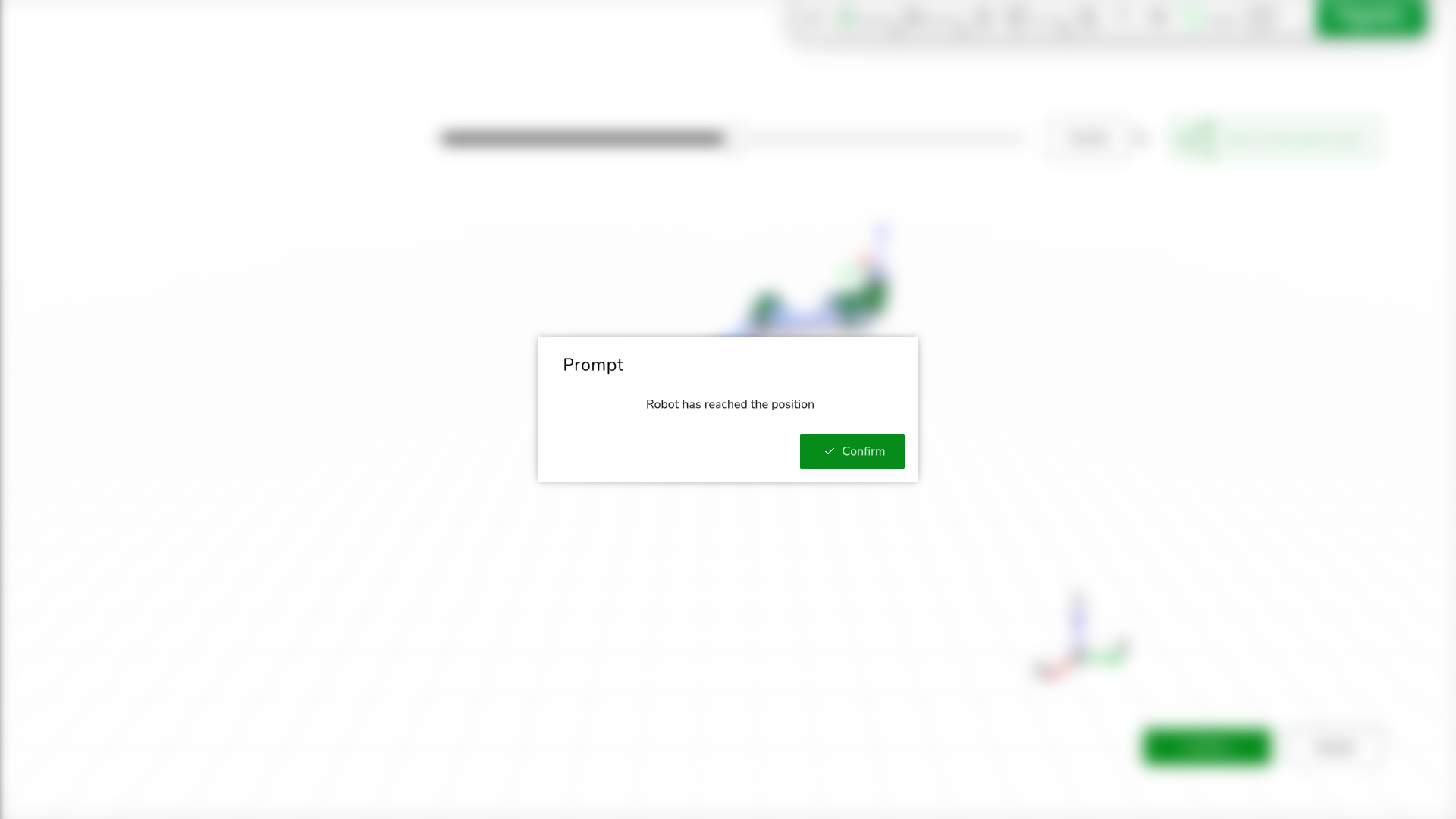
|
|
5 |
Click Confirm in the prompt and then Confirm in the Manual Operation interface. |
|
6 |
Click Single-Step Debugging. Result: The Lexium Cobot starts to run the program. The red arrow on the left side of the instruction indicates the next instruction to be executed. During the single-step debugging operation, the illuminated ring of the Lexium Cobot Arm flashes yellow at the hardware and at the representation in the Home screen of the software. 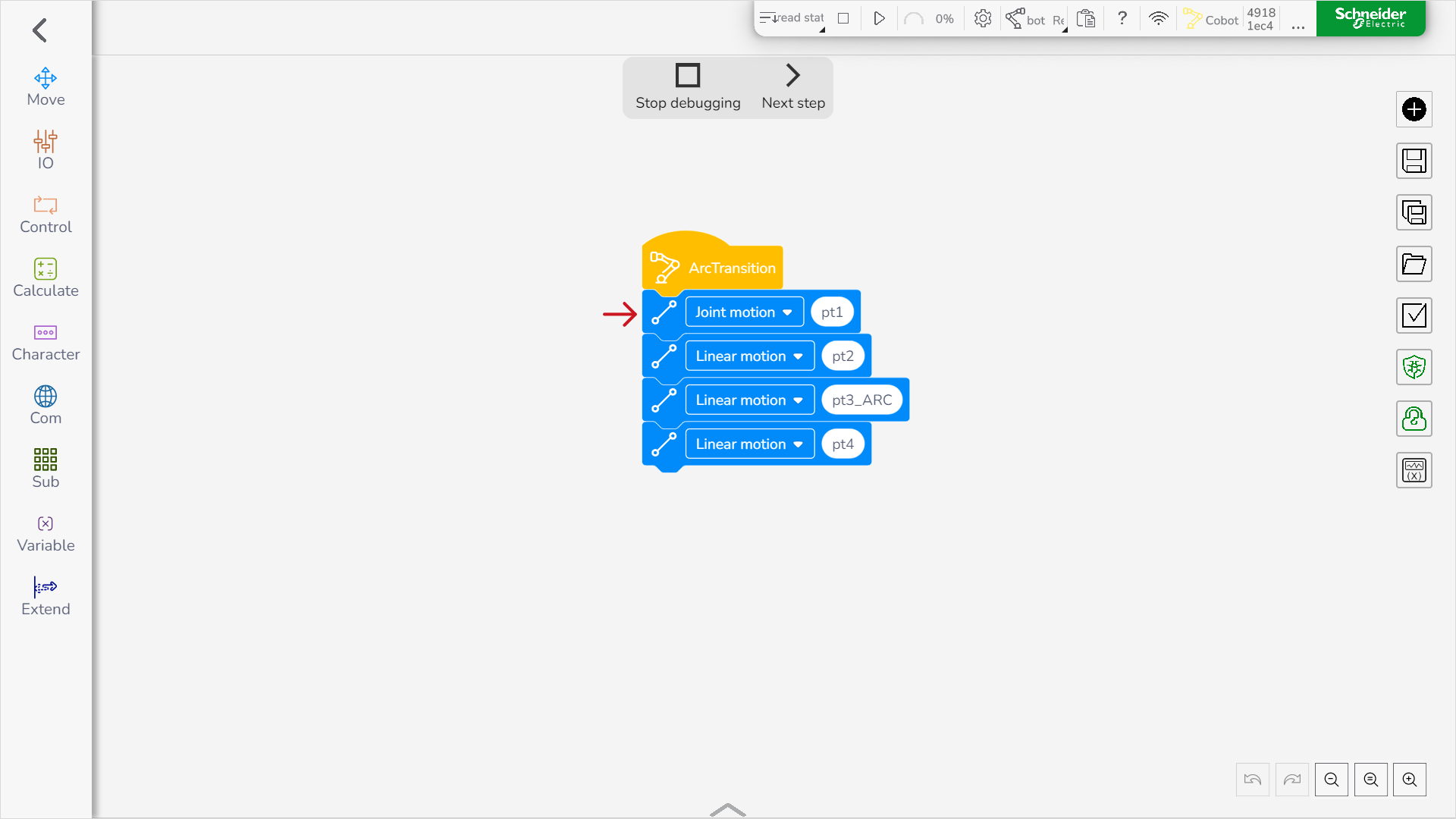
|
|
7 |
Click Next step. Result: The Lexium Cobot executes the next instruction. |
|
8 |
Repeat Step 7 for the other instructions, then click Stop Debugging to stop running the program. |
Locking the Program
In the feature bar, select Programming Control. Then, click the Lock icon on the right of the editing area so that it becomes green.
Result: The program is locked and cannot be edited.
Unlocking the Program
In the feature bar, select Programming Control. Then, click the Lock icon on the right of the editing area so that it becomes grey.
Result: The program is unlocked and can be edited.
Variable Observation
You can monitor the values of the variables in real time in the running program.
Four types of variables are available:
-
System variables
-
Program variables
-
Speed variables
-
Position variables
Monitoring a Variable
To monitor a variable, perform the following steps:
|
Step |
Action |
|---|---|
|
1 |
In the feature bar, select Programming Control. Then, click the Variable Observation icon on the right of the editing area:

Result: The Variable observation dialog box is displayed. 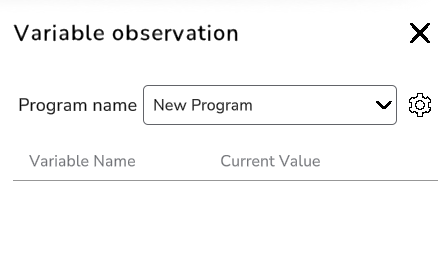
|
|
2 |
Click the Settings button. Result: The Observation variable setting is displayed. 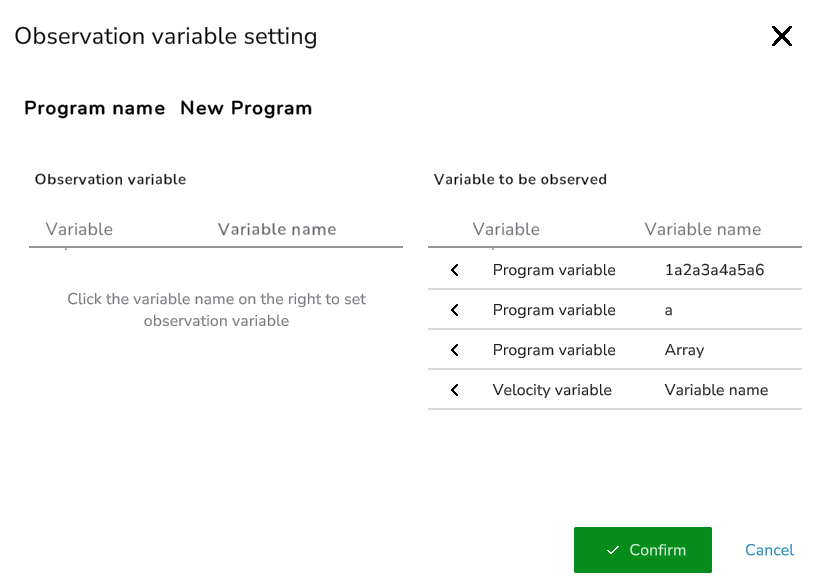
|
|
3 |
In the Variable to be observed table, click on the variables you want to monitor. Result: The selected variables are displayed in the Observation variable table. 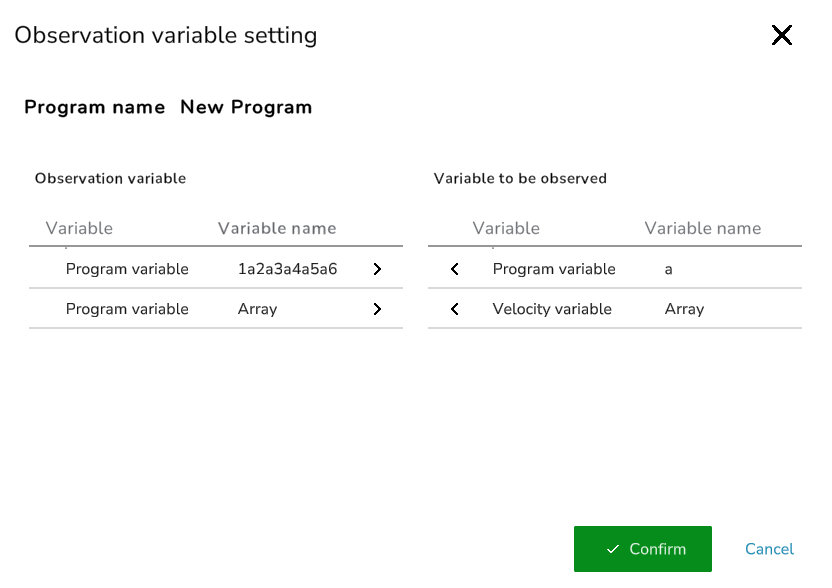
|
|
4 |
Click Confirm. |