Trajectory Record
Overview
To record the trajectory of the Lexium Cobot Arm during hand-guiding and Manual Operation, go to .
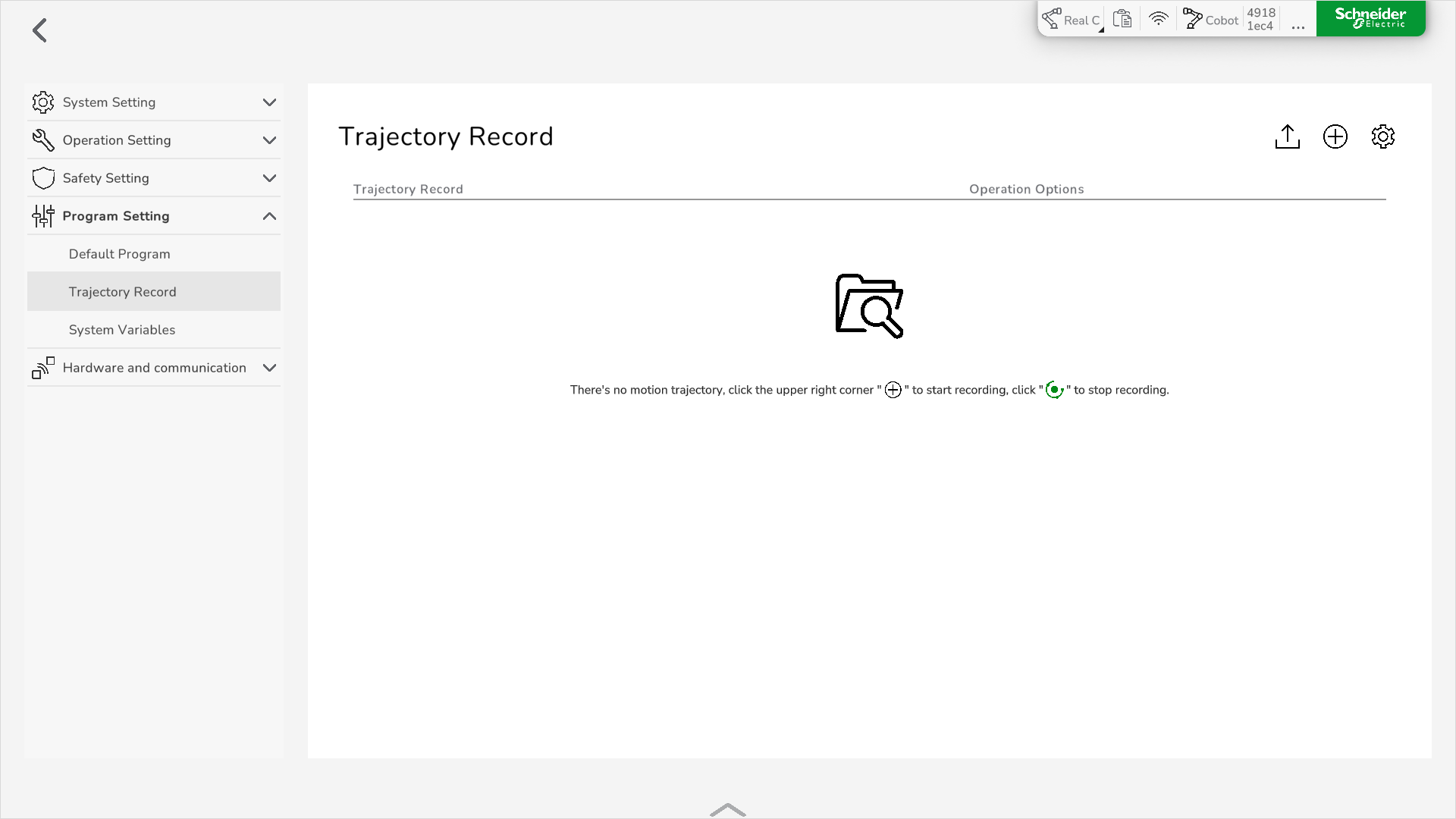
This trajectory file can be called during programming by the trajectory recording instruction to reproduce the recorded trajectory in the program.
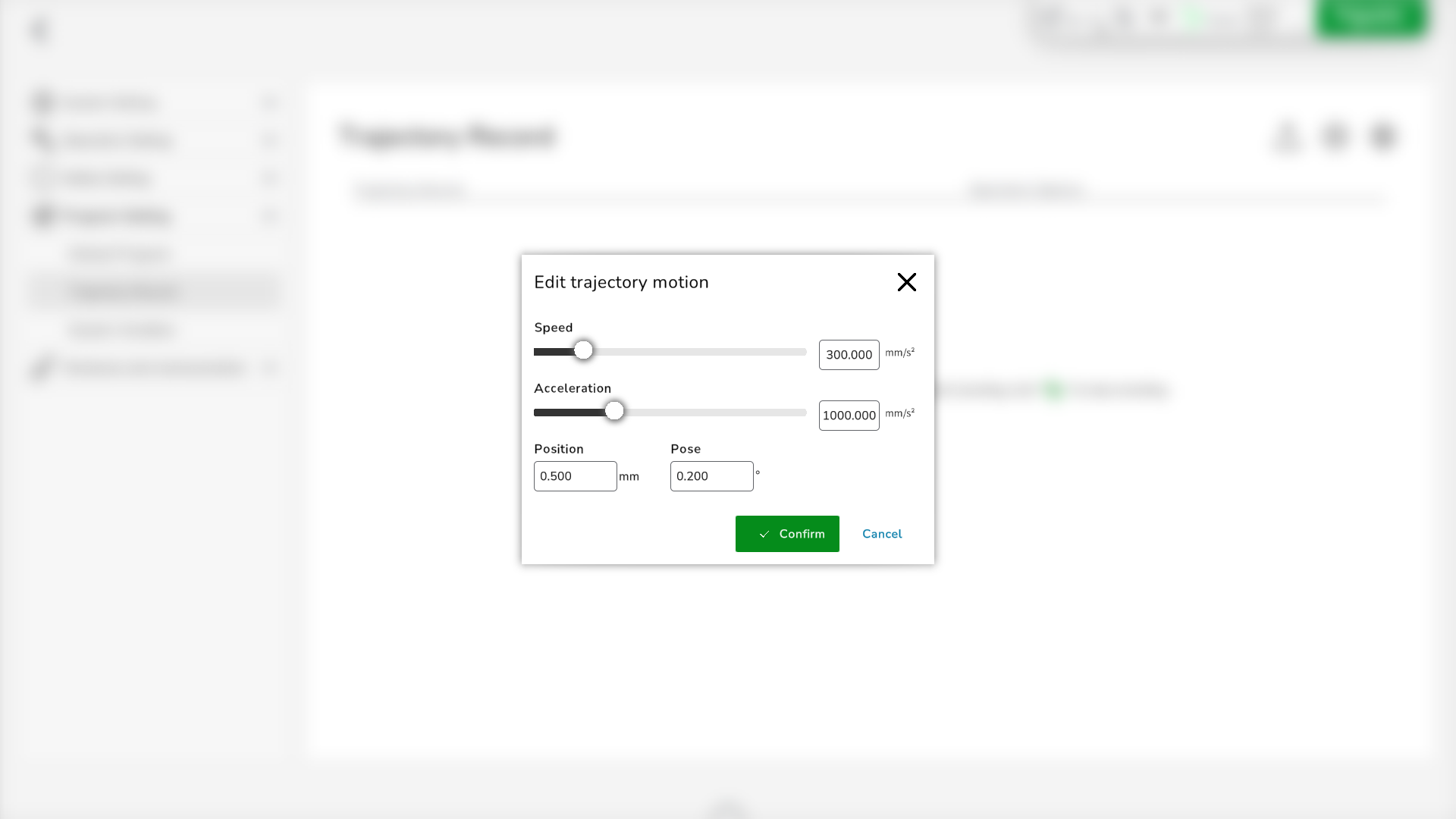
In the settings, you can set the default speed and acceleration for this trajectory in the program. These parameters have no influence on the recording itself and can be adjusted later for specific program requirements. You can also set the sampling accuracy of position and pose.
Operation Options
You have the following operation options in the Trajectory Record pane:
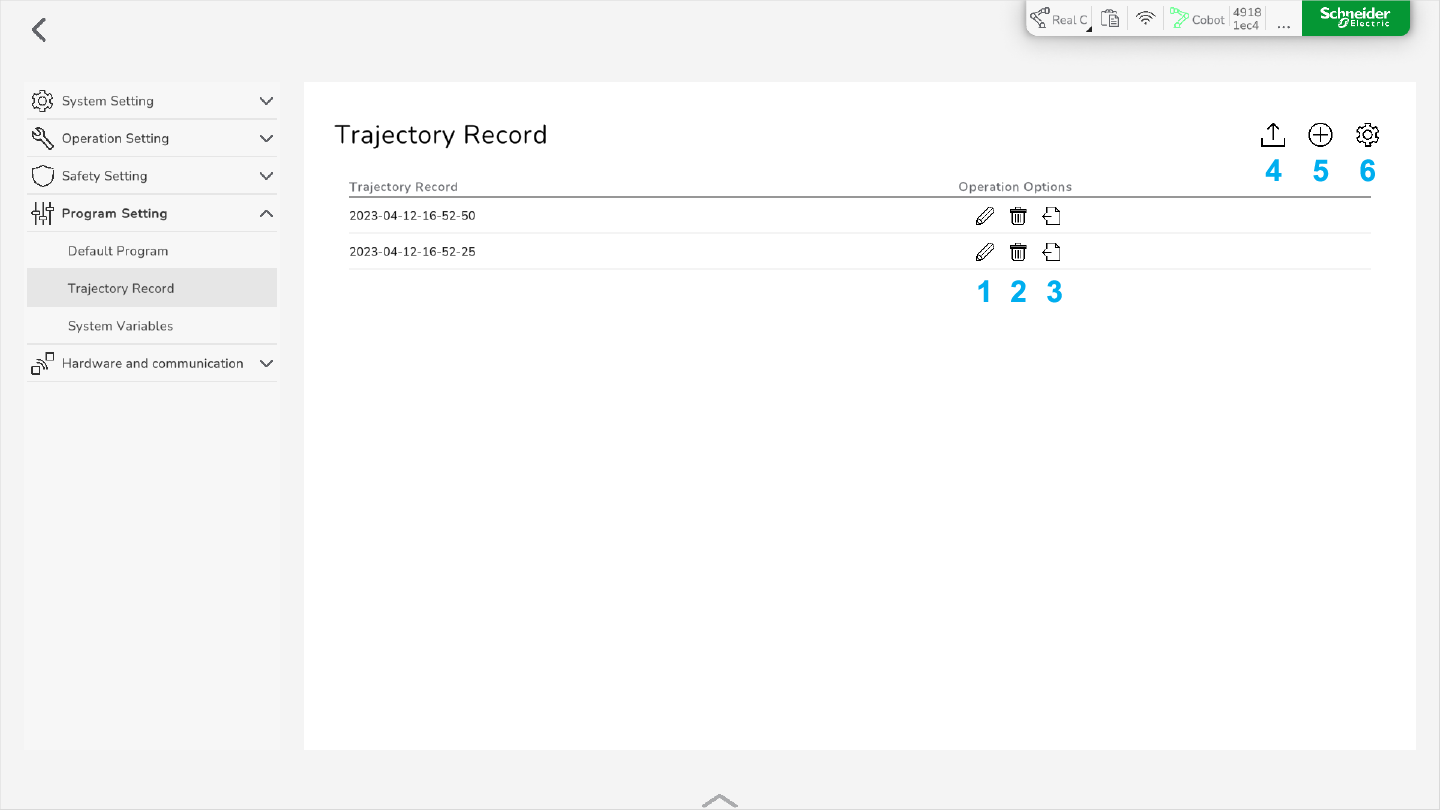
1 Edit the name of the trajectory record
2 Delete the trajectory record
3 Export the trajectory record
4 Import a trajectory record
5 Add a new recording
6 Settings for configuring the trajectory recording parameters
Recording the Trajectory
To record a trajectory, perform the following steps:
|
Step |
Action |
|---|---|
|
1 |
In , click the Settings icon. Result: The dialog box Edit trajectory motion is displayed.
|
|
2 |
Adjust the parameters according to your needs and click Confirm.
NOTE: If the motion distance of the trajectory is short, the sampling deviation of Position and Pose may be as much as 0.1 mm or degree respectively.
|
|
3 |
Click the Add icon. Result: The following confirmation prompt is displayed. 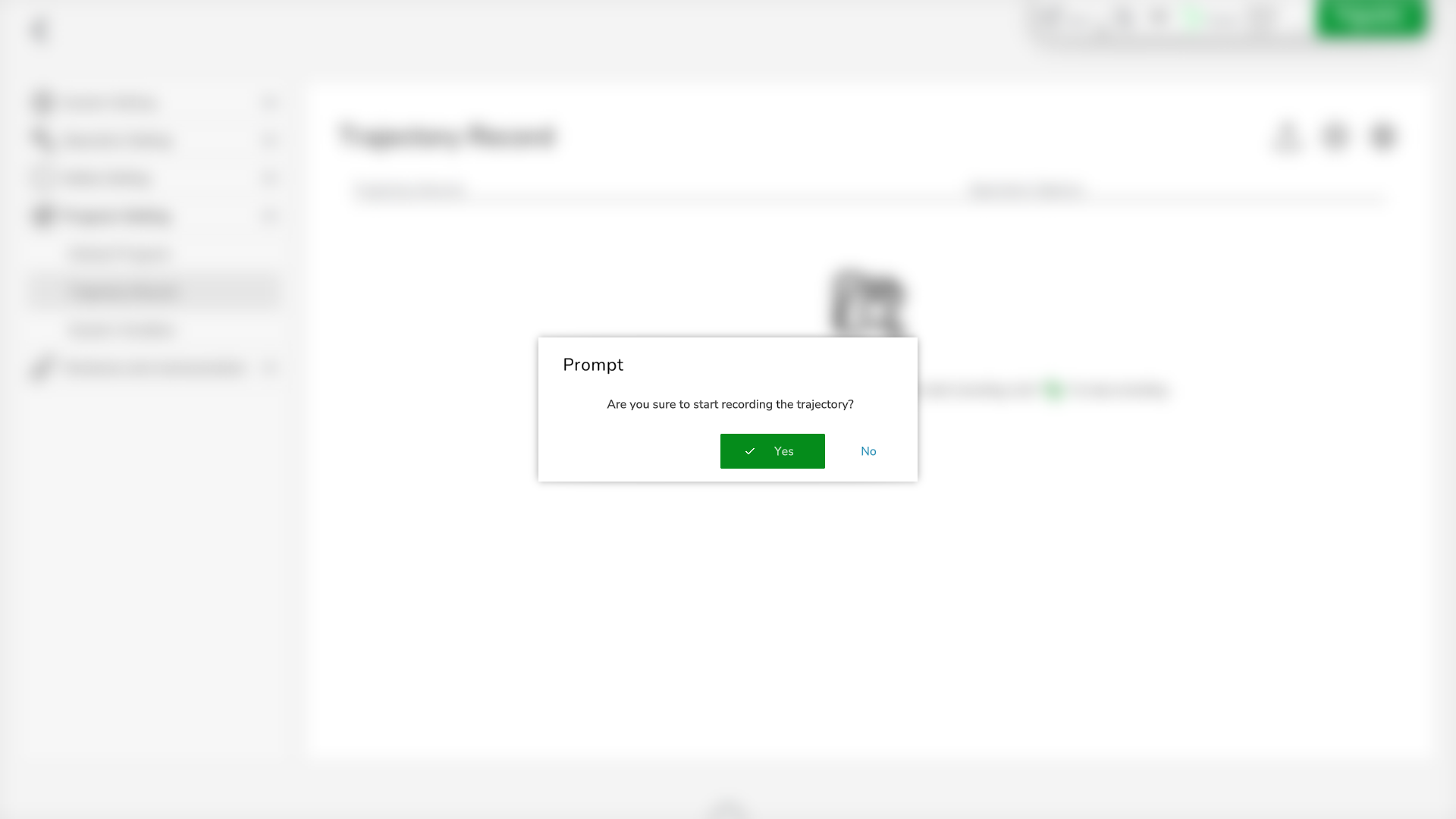
|
|
4 |
Click Yes to start a new record of the trajectory. Result: The recording starts. The record is added to the list and the Trajectory recording button is displayed in the top menu. 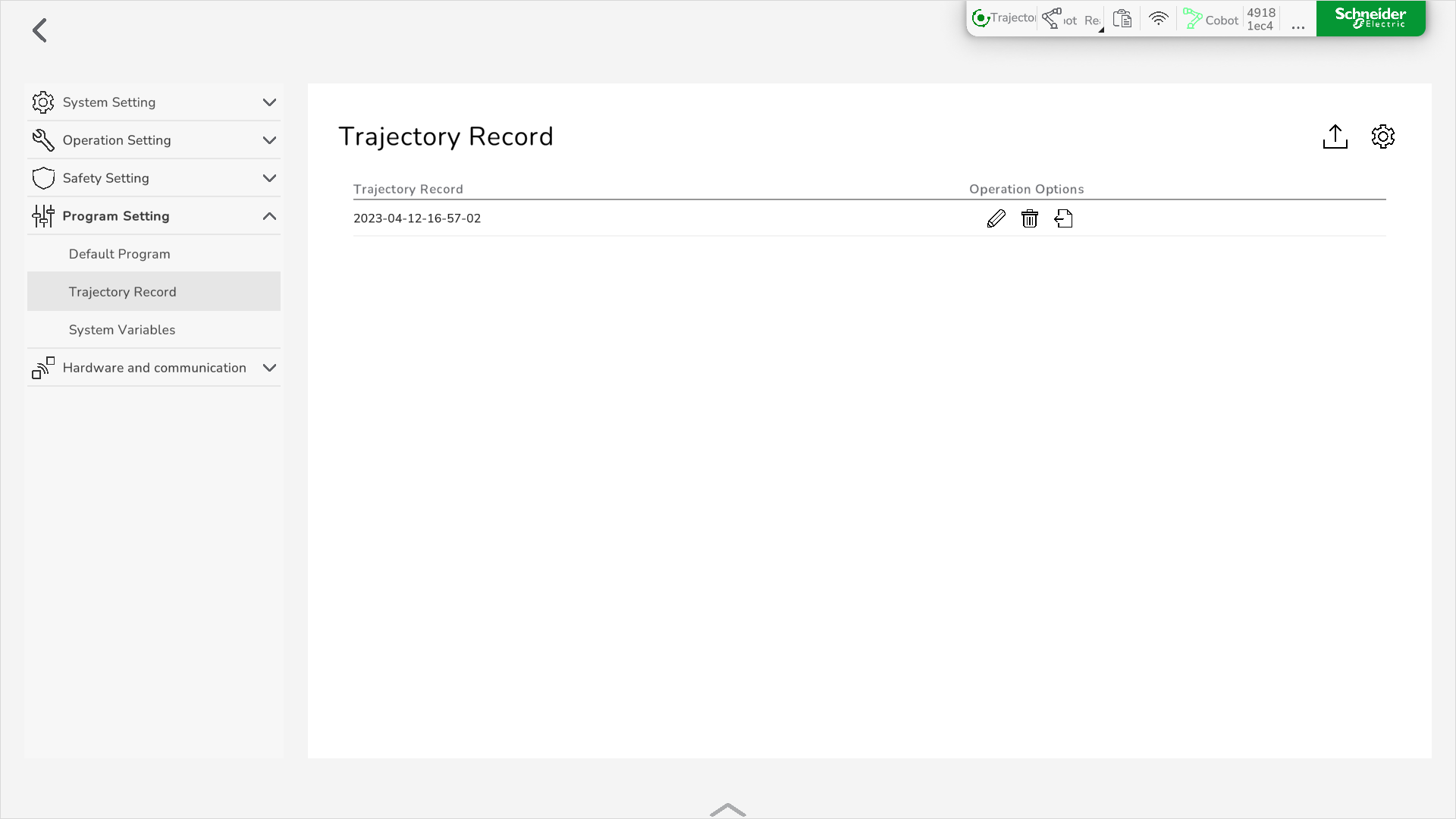
|
|
5 |
Move the Lexium Cobot Arm by hand-guiding or Manual Operation to record the motion trajectory.
NOTE: If no movement of the Lexium Cobot Arm has been performed, no recording is saved.
|
|
6 |
Click the Trajectory recording button in the top menu to stop the recording. Result: The trajectory is saved with the timestamp as a name. |
|
7 |
Click the Edit icon to give a meaningful name to the record. Result: The trajectory record is ready to be used in a program. |