Version Upgrade
Overview
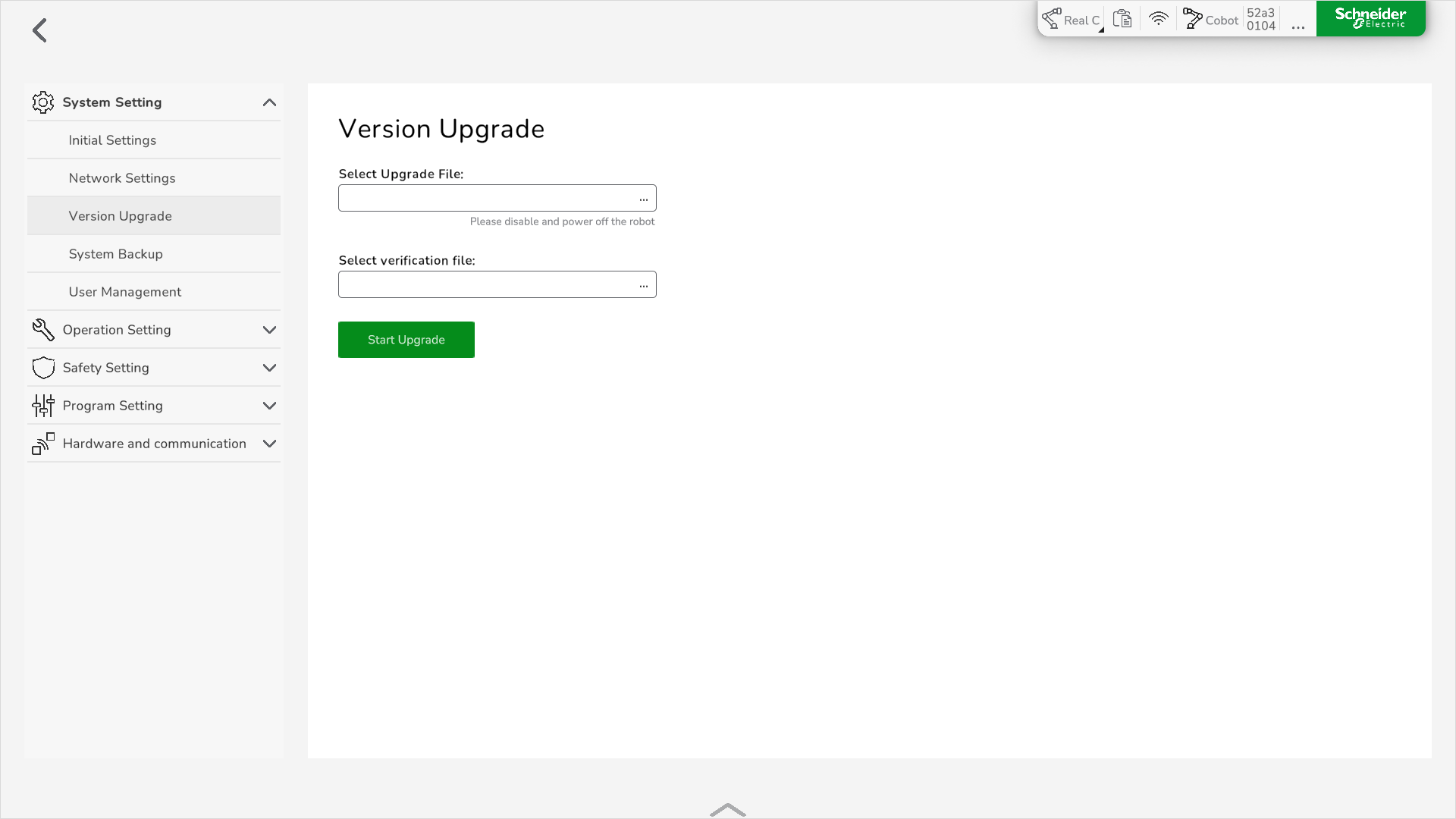
To upgrade the Lexium Cobot firmware, go to .
Upgrading the Components
To upgrade the components, perform the following steps:
|
Step |
Action |
|---|---|
|
1 |
Download the firmware package from the Lexium Cobot page on the Schneider Electric website. |
|
2 |
|
|
3 |
Ensure that the Lexium Cobot Arm is disabled and powered off. |
|
4 |
In , click the Select Upgrade File box. |
|
5 |
Select the upgrade package and click Confirm. Result: The upgrade package is selected.
NOTE: The original file name must remain unchanged.
|
|
6 |
Click the Select verification file box. |
|
7 |
Select the signature file and click Confirm. |
|
8 |
Click Start Upgrade. Result: The component selection dialog box is displayed. 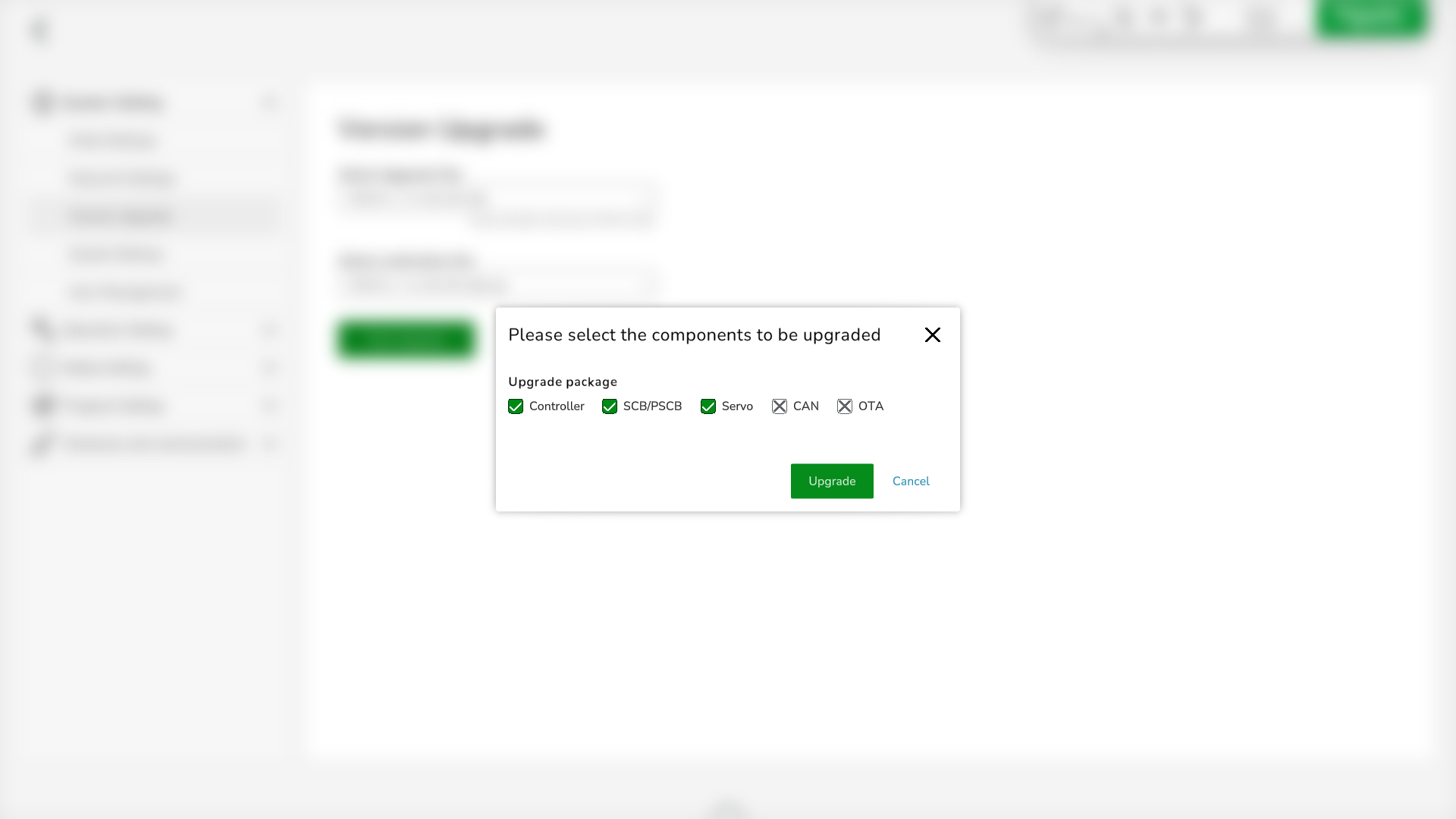
|
|
9 |
Select the components to be upgraded. |
|
10 |
Click Upgrade. Result: The upgrade package is being uploaded and installed. |
|
11 |
Wait until the Lexium Cobot Controller is automatically powered off and then power on the Lexium Cobot Controller with the Control Stick.
NOTE: The Control Stick has no power while the SCB is in update mode and the status indicator is off.
|
|
12 |
Wait for the start-up and then connect the Lexium Cobot in EcoStruxure Cobot Expert. Result: The upgrade is installed. |
|
13 |
Verify the version by clicking the About icon in the feature bar. |