The manual commissioning described in this chapter can be performed alternatively to the usual Commissioning. The expenditure of time for the manual commissioning is higher. This is why you should use the Commissioning.
|
Step |
Action |
|---|---|
|
1 |
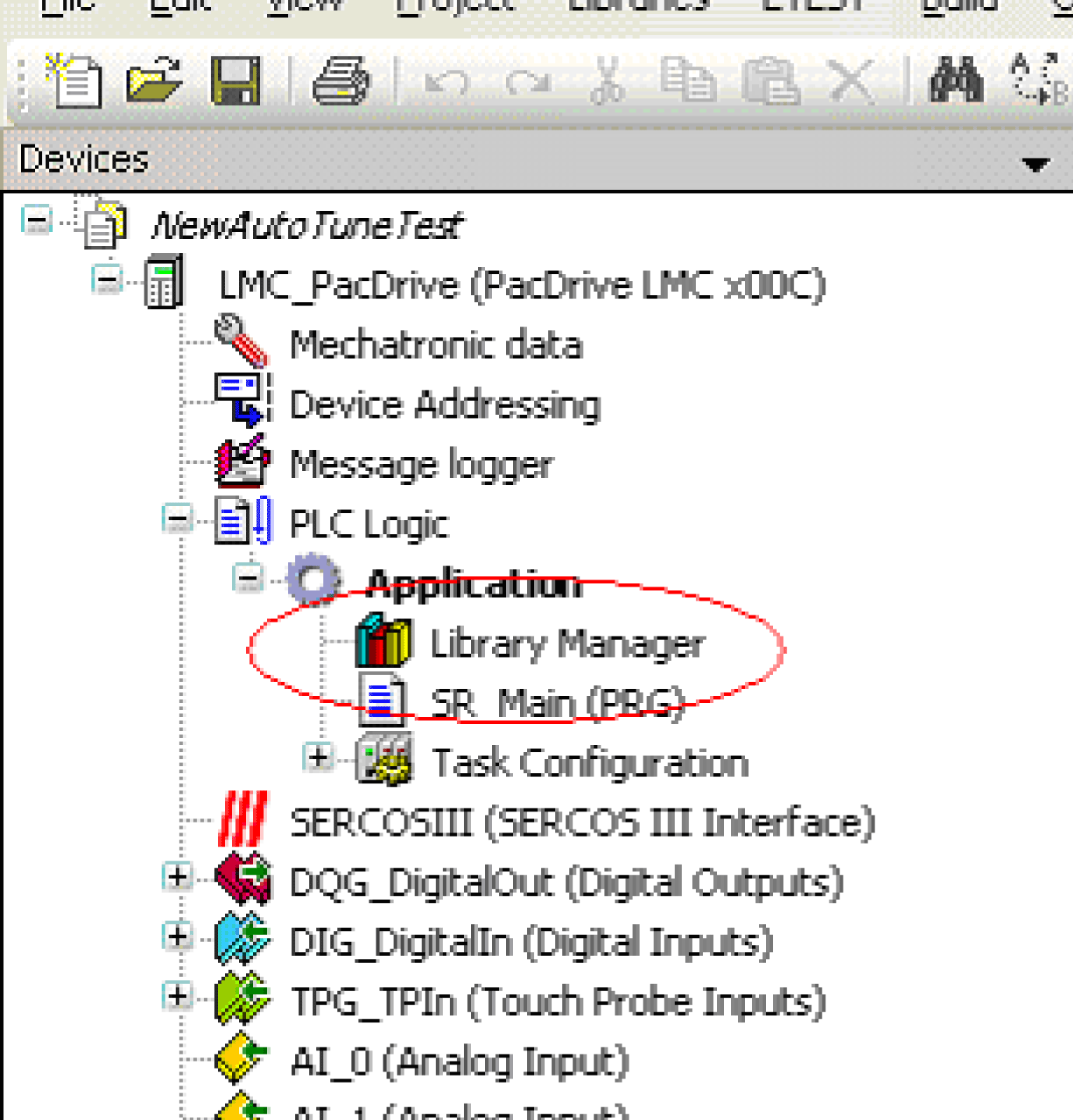
Double-click Library Manager in the PLC Configuration. Result: The library manager with the libraries already connected is displayed. |
|
2 |
Insert the AutoTune.lib library. Click Add library.... Result: The window "Add Library" opens. Select the AutoTune library from the Application category and add by clicking OK. |
Integrating the AutoTune Visualization
|
Step |
Action |
|---|---|
|
1 |
Add a new visualization object to the project. Right-click Application and subsequently Add object ... > Visualization. Result: The window "Add Visualization" opens. |
|
2 |
Enter the name of the new visualization (e.g. AutoTuneVis) and confirm by clicking Open. |
|
3 |
Open the new visualization and add a "Frame" object. Select the "Frame" symbol in the "ToolBox" window. 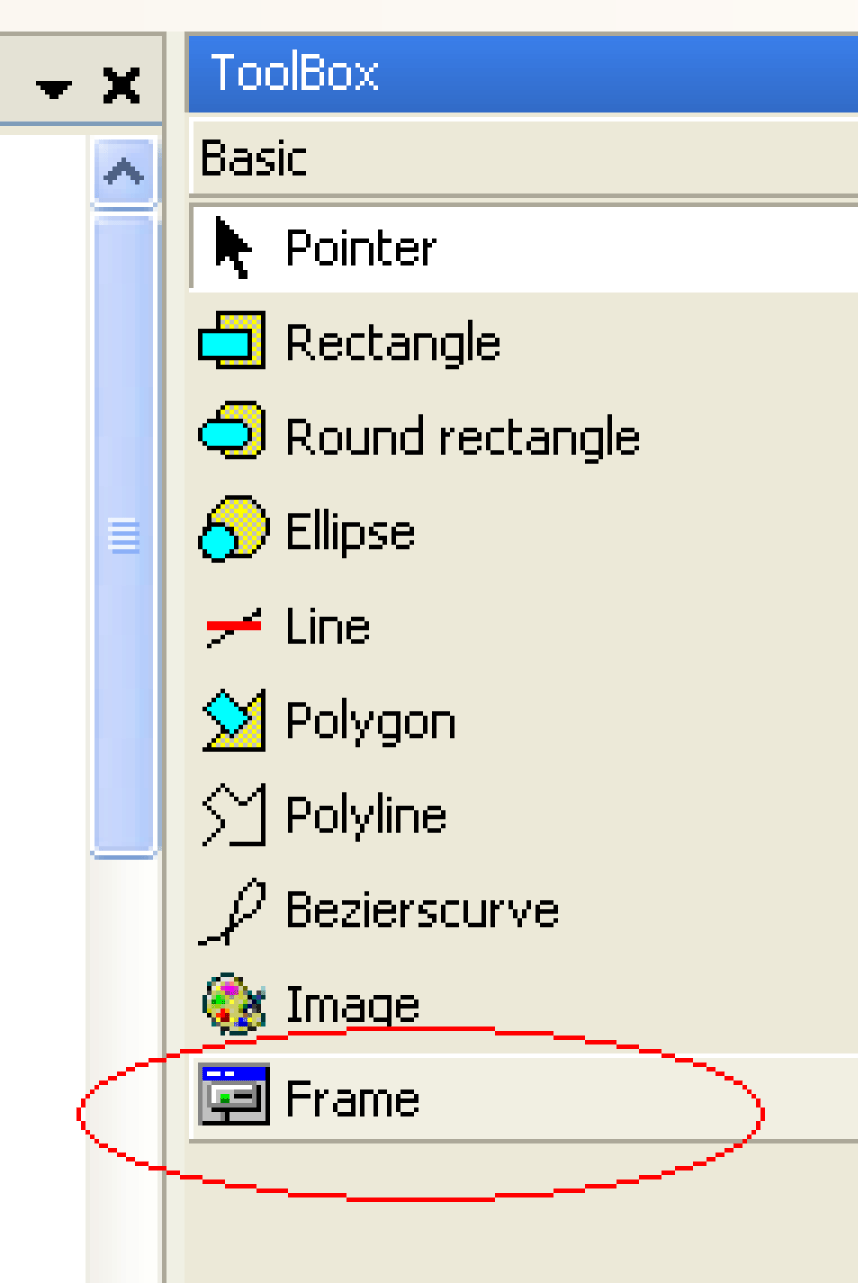
|
|
4 |
Place the "Frame" object in the visualization. 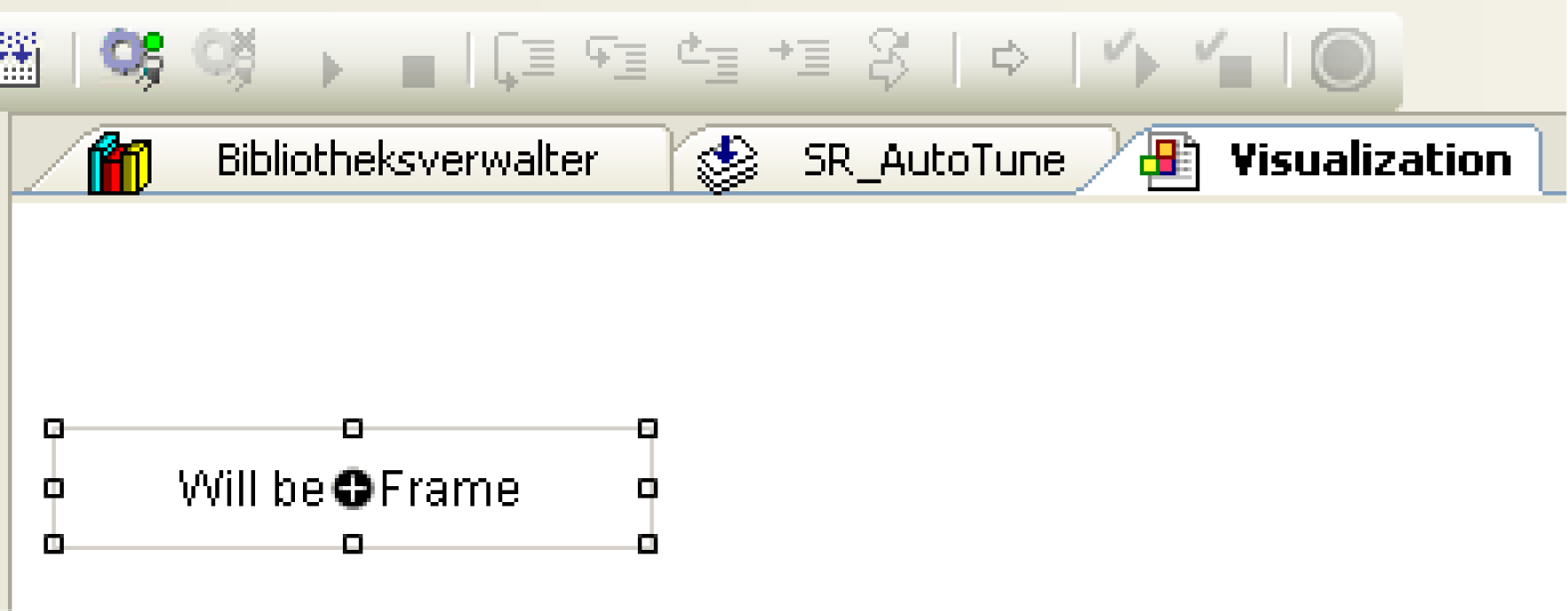
|
|
5 |
Right-click on the "Frame" object and select "Frame selection". Result: The "Select Visualization" window appears. |
|
6 |
Select the "AUT.VIS_AutoTune" visualization and click the right arrow. Confirm your selection by clicking OK. |
|
7 |
Select the "Frame" object and change the following properties: oX = 0 oY = 0 oWidth = 1024 oHeight = 768 |
|
8 |
In the properties, click the button under Reference > AUT.VIS_AutoTune > iq_stAutoTuneVisData. 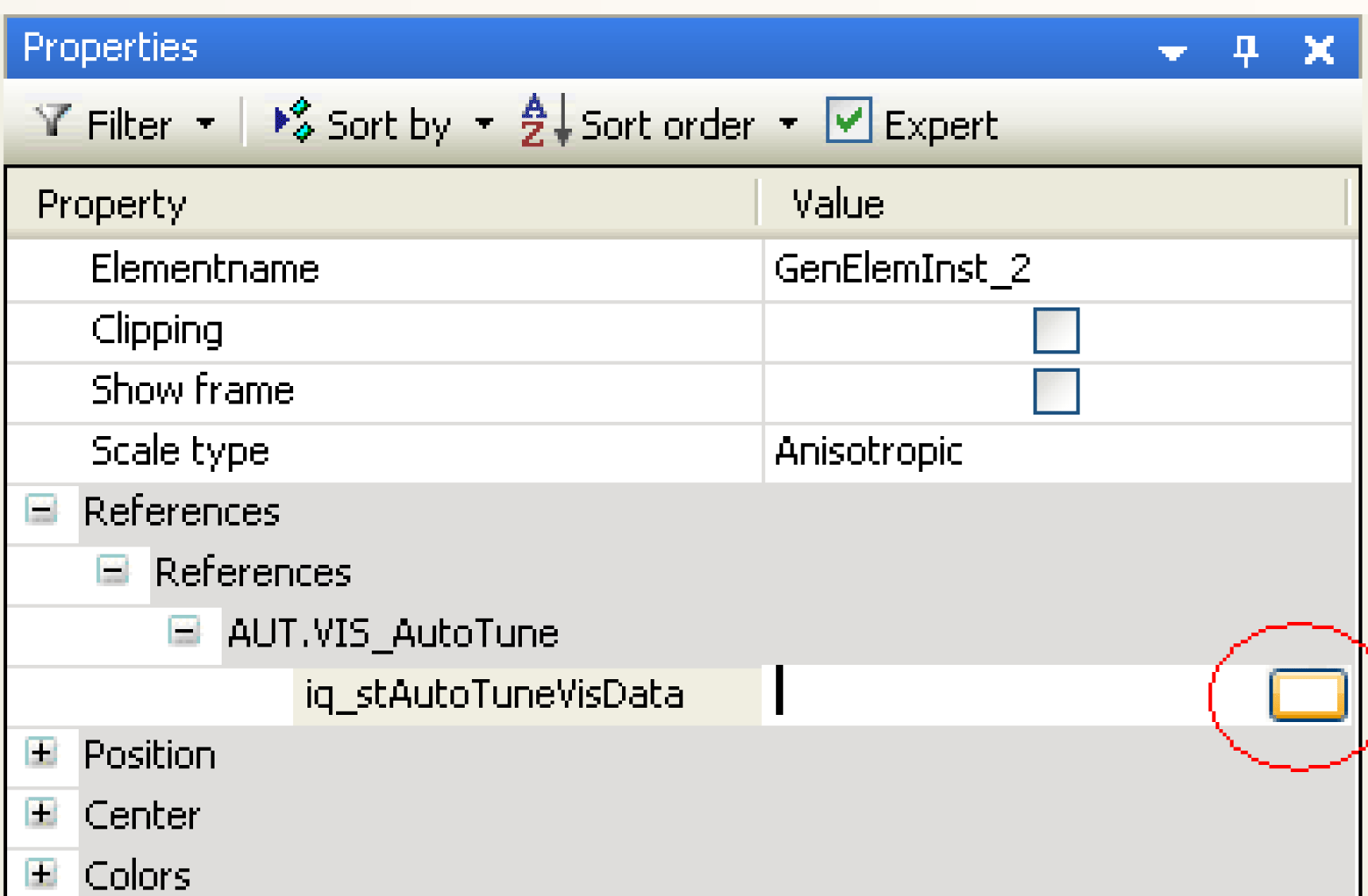
|
|
9 |
In the input assistant, select the variable AUT > AutoTune > GVL > G_stAutoTuneVisData and click OK. 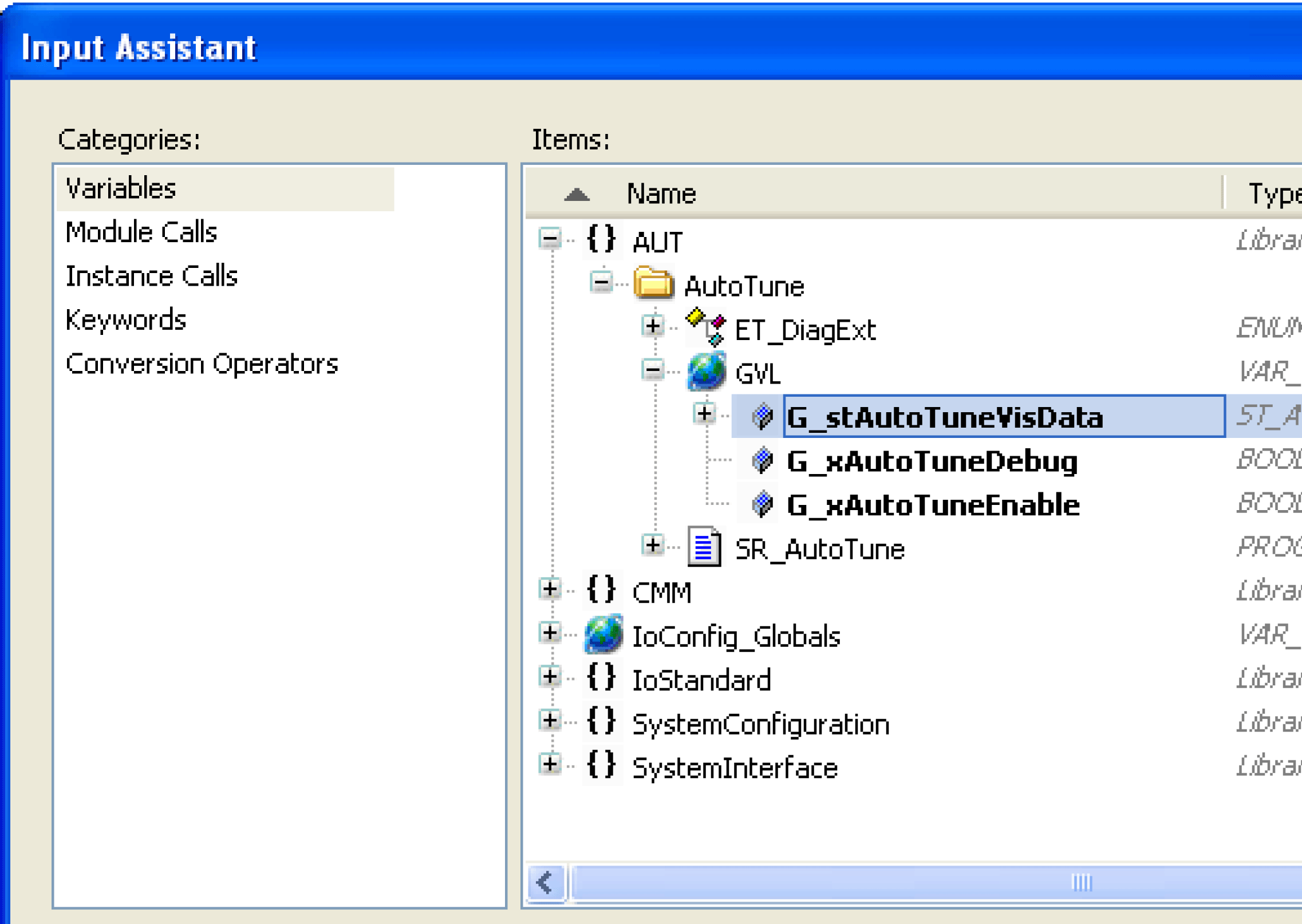
|
Integrating the SR_AutoTune Program
|
Step |
Action |
|---|---|
|
1 |
Right-click the Task Configuration and select Add object > Task. Result: The window "Add Task" opens. |
|
2 |
Enter the name of the new task (e.g. TASK_SR_AutoTune) and confirm by clicking Open. |
|
3 |
Open the new task object. |
|
4 |
Set the cycle time to 100 ms and disable the watchdog. 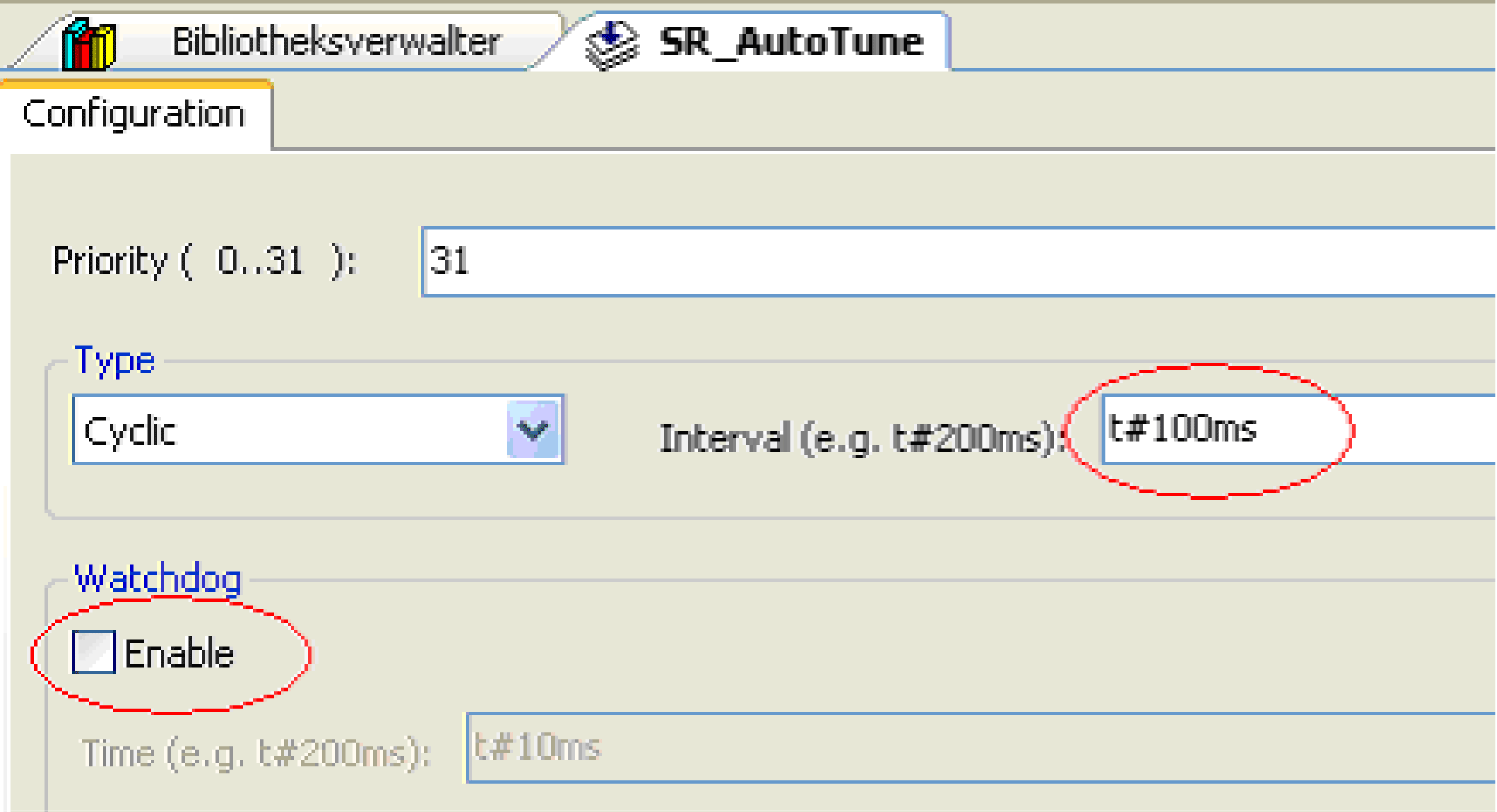
|
|
5 |
Click Add Call-up..., select AUT > AutoTune > SR_AutoTune and confirm by clicking OK in the input assistant. 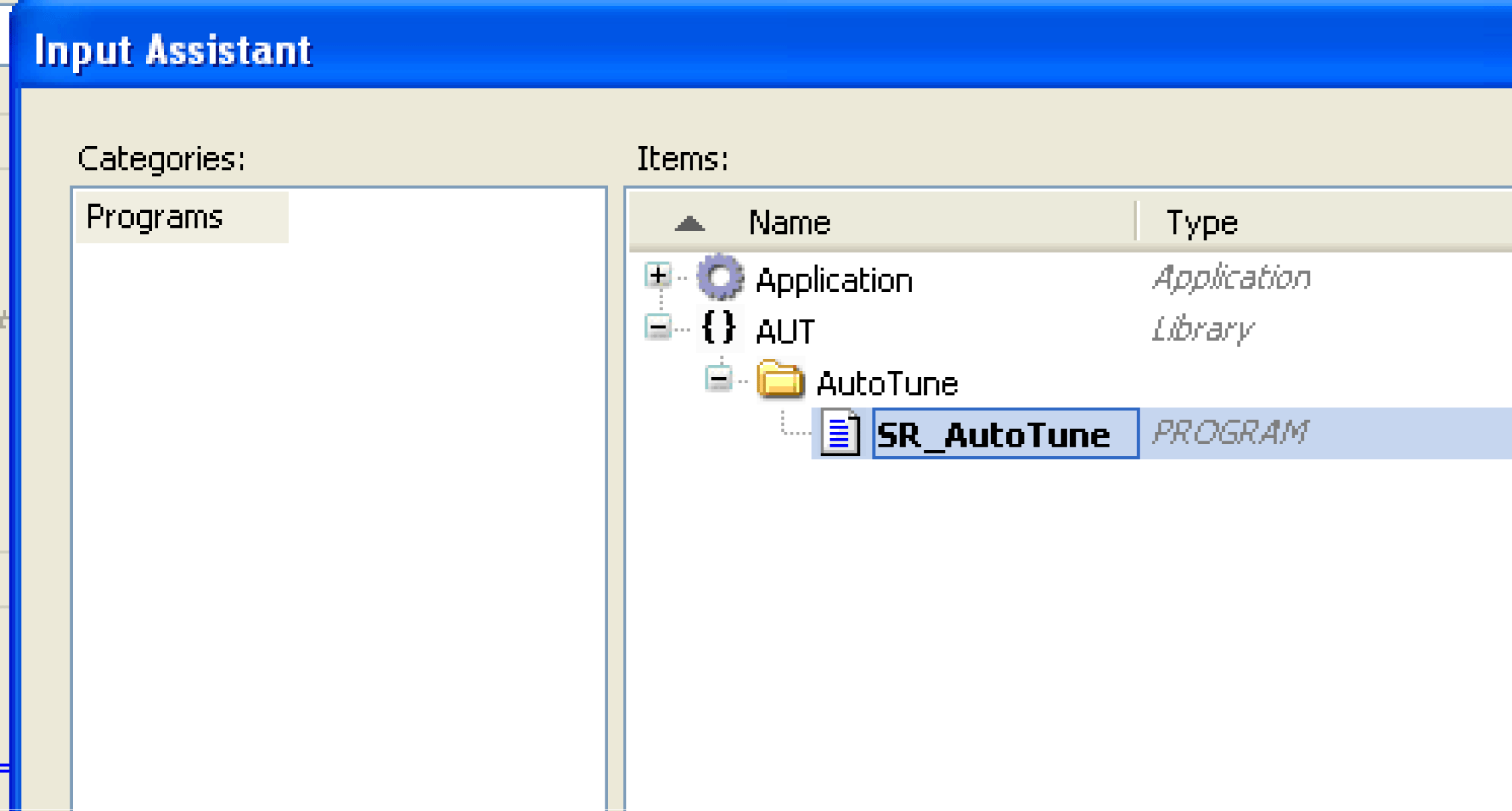
|