Adding and Creating a Device Interface with DTM via Modbus SL
The Modbus serial line manager supports the following devices:
|
Supported Device |
DTM Name |
|---|---|
|
Altivar 320 |
Altivar 320 Advanced Settings |
|
Altivar 340 |
Altivar 340 Advanced Settings |
|
Altivar 6•• |
Altivar 6•• |
|
Altivar 9•• |
Altivar 9•• |
|
Lexium 32 A |
Lexium 32 A Advanced Settings |
|
Lexium 32 C |
Lexium 32 C Advanced Settings |
|
Lexium 32 i |
Lexium 32 i Advanced Settings |
|
Lexium 32 M |
Lexium 32 M - S Advanced Settings |
|
Lexium 32 S |
Lexium 32 M - S Advanced Settings |
|
TeSys U |
TeSysU Advanced Settings |
|
TeSys T |
TeSysT Advanced Settings |
|
Harmony XB5R |
ZBRN2 Advanced Settings |
To add a DTM to your project, select the required supported device in the Hardware Catalog, drag it to the Devices tree, drop it on the Modbus_Serial_Line_Manager.
For more information on adding a device to your project, refer to:
• Using the Drag-and-drop Method
• Using the Contextual Menu or Plus Button
NOTE:
You can use the search area  of the Hardware Catalog to filter the devices:
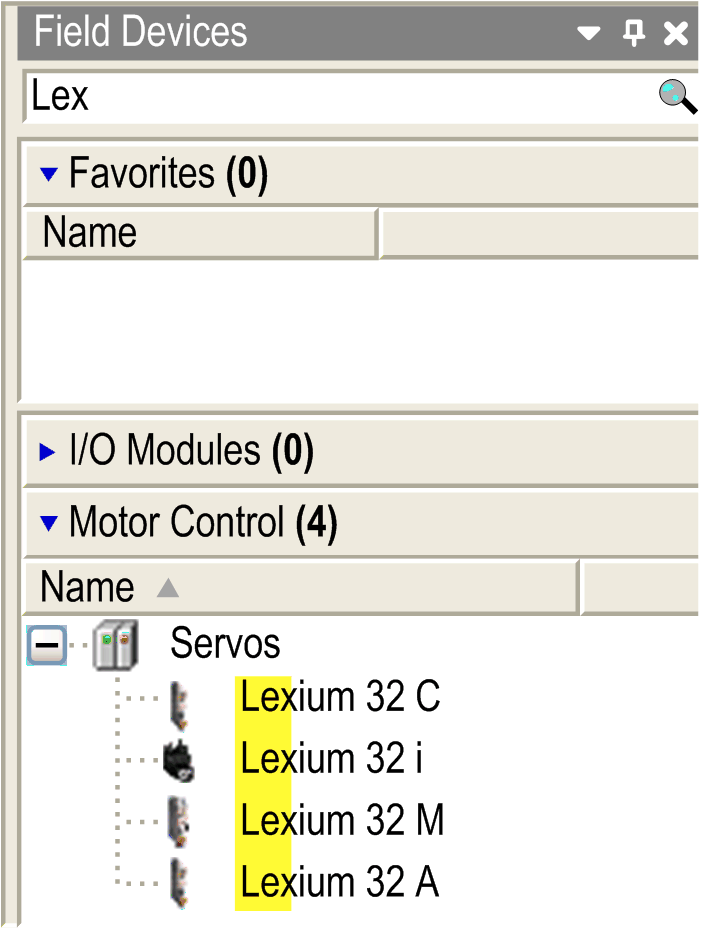
Double-click the DTM node to access the device editor screen.
The device editor screen contains the following tabs:
There are 2 sections in the DTM Information tab:
|
Section |
Description |
|---|---|
|
DTM Information |
General information about the device |
|
Communication |
Monitoring of the state, progress, and parent of the device |
The DTM is opened in this tab.
|
Step |
Action |
|---|---|
|
1 |
Right-click the device in the Devices tree then select Advanced Configuration > Documentation. Result: The device documentation menu is opened. |
|
2 |
Select a help document. Result: The device DTM documentation menu is displayed. |
This tab displays general information about the device (name, description, provider, version, image).
Displays device-specific status and diagnostic messages.