Displaying Array Data in Histograms
Setting element properties for histograms
Requirements
A project contains a visualization object and a program.
A one-dimensional array is declared in the program (example: histogram : ARRAY[1...10] OF INT;).
In the program, histogram data is assigned to the array (example: within the range from 0 to 50).
Double-click the Visualization object in the device tree.
In the ToolBox view, click Measurement controls and drag the Histogram element to the visualization editor.
In the visualization editor, click the inserted Histogram.
⇒ The Properties view opens.
In the Properties view, double-click the Value input field in the Data array element property. Then click  .
.
In the Input Assistant dialog box in the Variables category of the PLC (PRG) program, select the array (example here: histogram : ARRAY[1..10] OF INT;) and click OK.
To display only part of the array as a histogram, activate the Use subrange option and specify the index values of the array in Start index and End index to define the subrange.
Select the Display type (example: Bar).
Specify a value between 1 and 100 (example: 30) for the Relative bar width.
Click the histogram in the visualization editor and change the size and position as desired.
⇒ The Position property changes its values accordingly.
Specify the values for the Scale element property. Select the values for Scale start and Scale end so that the array is displayed completely. For the example: Scale start 0, Scale end 50.
For the distance between values on the rough scale, specify the value 10, for example, in Main scale.
In the Label element property, specify the Unit for the display values.
Click Build ‣ Build .
If the project has been compiled without errors, then click Online ‣ Login and start the application by clicking Debug ‣ Start .
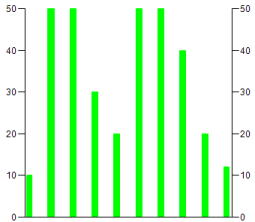
⇒ The histogram is displayed in the visualization as follows:
Defining alarm colors for the histogram
The visualization shows a histogram with bars all the same color (example: green). Now you want the bars with values less than 30, for example, to be displayed in another color (example: red).
Click the element property Colors ‣ Alarm color .
Specify the limiting value in Alarm value above or below which the bars should be displayed in another color.
Select More from the drop-down list in Alarm condition if all values greater than the Alarm value should be displayed in another color. Otherwise, select Less.
Select an Alarm color (example: Red).
Click Build ‣ Build .
If the project has been compiled without errors, then click Online ‣ Login and start the application by clicking Debug ‣ Start .
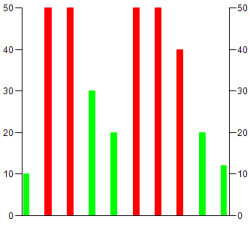
⇒ In the example histogram, all bars with values greater than 30 are displayed in red.