Create a project with the following program PLC_PRG:
PROGRAM PLC_PRG
VAR
iVar : INT;
rSin : REAL;
rVar : REAL;
END_VAR
iVar := iVar + 1;
iVar := iVar MOD 33;
rVar := rVar + 0.1;
rSin := 30 * SIN(rVar);
In the device tree, select the application and add a new visualization by clicking Project ‣ Add object ‣ Visualization .
⇒ The respective visualization editor opens.
Add the Visualization object to the device tree below Application.
⇒ An empty visualization appears.
Open ToolBox ‣ Special control elements .
Drag the Trace element to the visualization editor.
⇒ The element properties are displayed on the right side.
Click the symbol  in the Trace property.
⇒ The Trace configuration dialog opens.
Click Add variable to add an entry to the tree view of the trace configuration and select a project variable (for example, PLC_PRG.rSin).
Click the top node of the trace configuration.
⇒ The group Record Settings is shown on the right.
Select the MainTask option for the Task setting.
Tip: The trace recording and the corresponding program should be executed in the same task.
Click OK.
⇒ The task configuration is applied.
Select the trace element and click Visualization ‣ Add elements for trace control
⇒ The Trace wizard dialog opens. By default, all control elements are activated there.
Click OK to close the dialog.
⇒ The control elements are added to the visualization and the control variables are declared. Then the control elements and the trace element are configured with the control variables.
Download the application to the controller and start it.
Record the sine-shaped data of the IEC variable PLC_PRG.rSin
The PLC_PRG program is running on the PLC. When you follow the "Getting Started" instructions, the following interface is displayed:
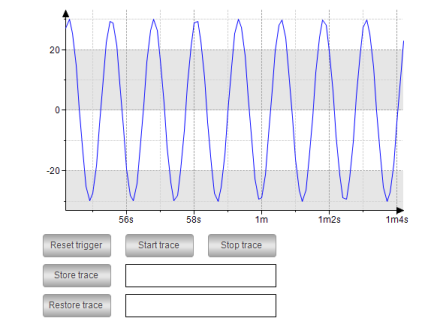
You can control the trace recording by clicking the buttons.
See also