Changing the TM2...N Analog I/O Expansion Module Firmware
This changing procedure is a maintenance operation.
The firmware is changed exclusively through the USB Programming Port of the M218.
The Exec Loader wizard guides you through the necessary steps to change the firmware.
NOTE: Before attending this procedure, ensure that the expansion bus is activated.
|
Step |
Action |
|---|---|
|
1 |
Disconnect the controller from the system. |
|
2 |
Plug the TCSXCNAMUM3P cable to an USB Port of your PC |
|
3 |
Plug the second end of the cable to the USB port of the controller |
|
4 |
Connect the TM2…N Analog expansion I/O module to the M218 controller. |
|
Step |
Action |
|---|---|
|
1 |
Launch the Exec Loader wizard. Start > Programs > Schneider Electric > Exec Loader Ext for M218 |
|
2 |
Browse the firmware file to transfer to your module. For example: C:\Program Files (x86)\Schneider Electric\EcoStruxure Machine Expert\V1.1\LogicBuilder\Firmware\TM2AIM2HTN\V1.04\TM2AIM2HTN.mfw |
|
3 |
Remove power from the controller. |
|
4 |
Click [Next]. When prompted, reapply power to the controller. NOTE: If the wizard is not able to open a connection with the controller, verify the USB connection and reboot the controller by doing a power cycle. |
|
5 |
Check the file and device properties, see the File and Device Properties part below. |
|
6 |
Click [Next]. |
If you remove power to the device, or there is a power outage or communication interruption during the transfer of the application, your device may become inoperative. If a communication interruption or a power outage occurs, reattempt the transfer. If there is a power outage or communication interruption during a firmware update, or if an invalid firmware is used, your device will become inoperative. In this case, use a valid firmware and reattempt the firmware update.
|
NOTICE |
|
INOPERABLE EQUIPMENT |
|
oDo not interrupt the transfer of the application program or a firmware change once the transfer has begun. oRe-initiate the transfer if the transfer is interrupted for any reason. oDo not attempt to place the device into service until the file transfer has completed successfully. |
|
Failure to follow these instructions can result in equipment damage. |
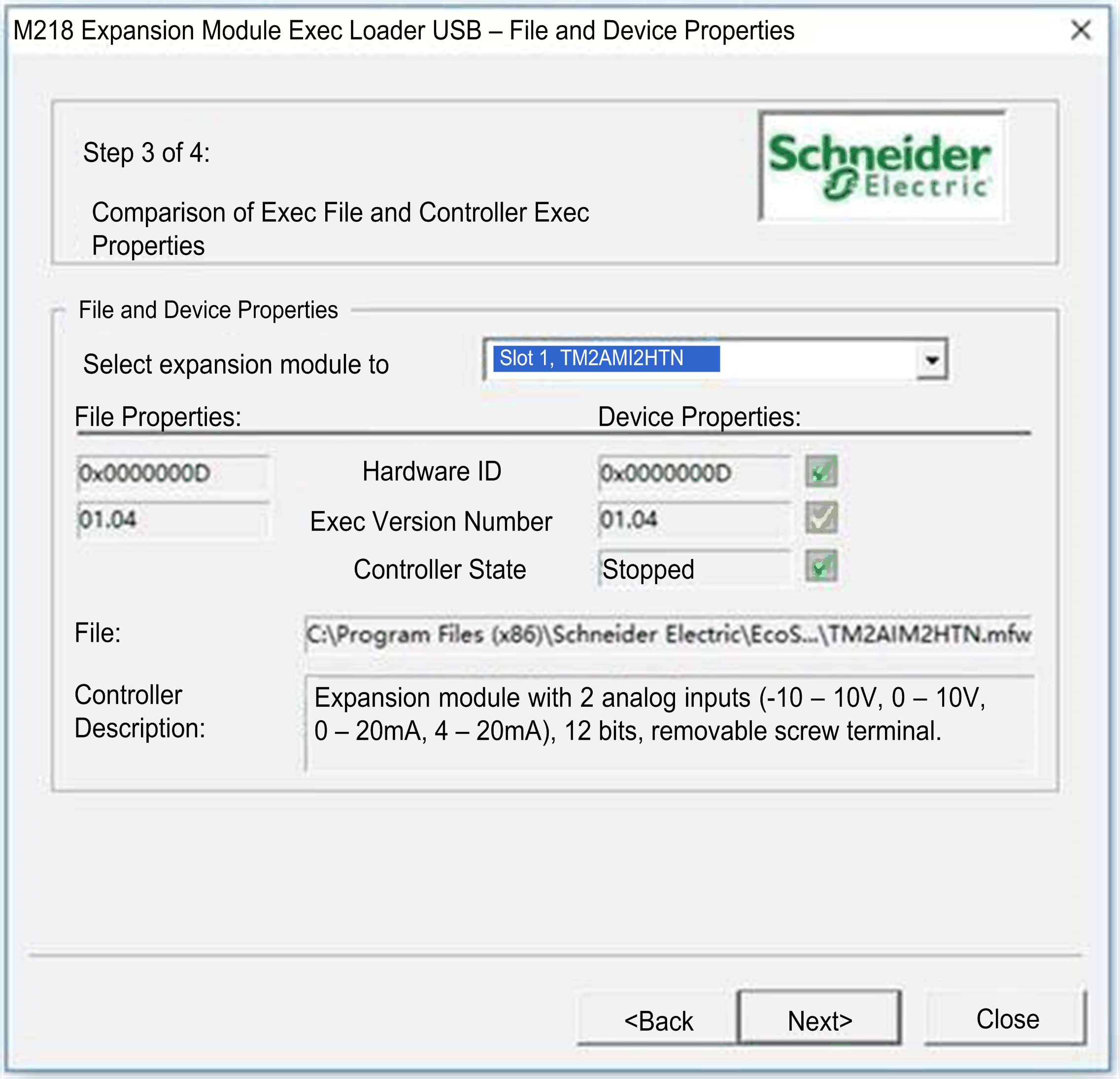
The step 3 of 4 from the wizard allows you to check the properties before launching the transfer of the firmware.
|
Properties |
Description |
Status |
|---|---|---|
|
Hardware ID |
Unique identifier for each module reference. |
oGreen check mark: OK oRed cross: incorrect firmware file. Select a firmware file corresponding to your module reference. |
|
Exec Version Number |
Version of the firmware. |
oGreen check mark: the selected firmware version is newer than the current firmware. oYellow check mark: the current firmware version is the same or newer than the selected firmware version |
|
Controller State |
– |
Must be stopped. |
NOTE: If several modules are connected, the selection of the one which will be updated is made through the drop-down list.
If the transfer is completed, a message box appears with 2 possible options:
o[YES]: the wizard returns to Step 2 - Settings.
o[NO]: the wizard window closes.
If the transfer is interrupted, a message box appears with 2 possible options:
o[YES]: the wizard returns to Step 3 - Files and Device Exec Properties.
o[NO]: the wizard window closes.
NOTE: The controller remains inoperative until a successful transfer is completed.