Adding a Modem to Your Application
The modem library is automatically included in your program when you add a modem to a serial line manager with EcoStruxure Machine Expert. Once the library is added, you can use modem-specific function blocks in any of your application's POUs.
This table lists the serial line managers and their compatible functions:
|
Serial Line Manager |
Transparent Communication |
SMS |
|---|---|---|
|
ASCII |
PSTN or GSM modem |
GSM modem SR2MOD03 with a specific ASCII configuration |
|
Modbus |
PSTN or GSM modem |
no |
|
EcoStruxure Machine Expert |
Use a modem that can ignore protocol frames when a connection is not established. (Use a TDW33 PSTN modem.) |
no |
Adding a Manager to Your Serial Line
|
Step |
Action |
|---|---|
|
1 |
Add the appropriate manager to the serial line. (Refer to your controller's programming manual for details.) |
|
2 |
Configure the manager for any required transparent communications. |
|
3 |
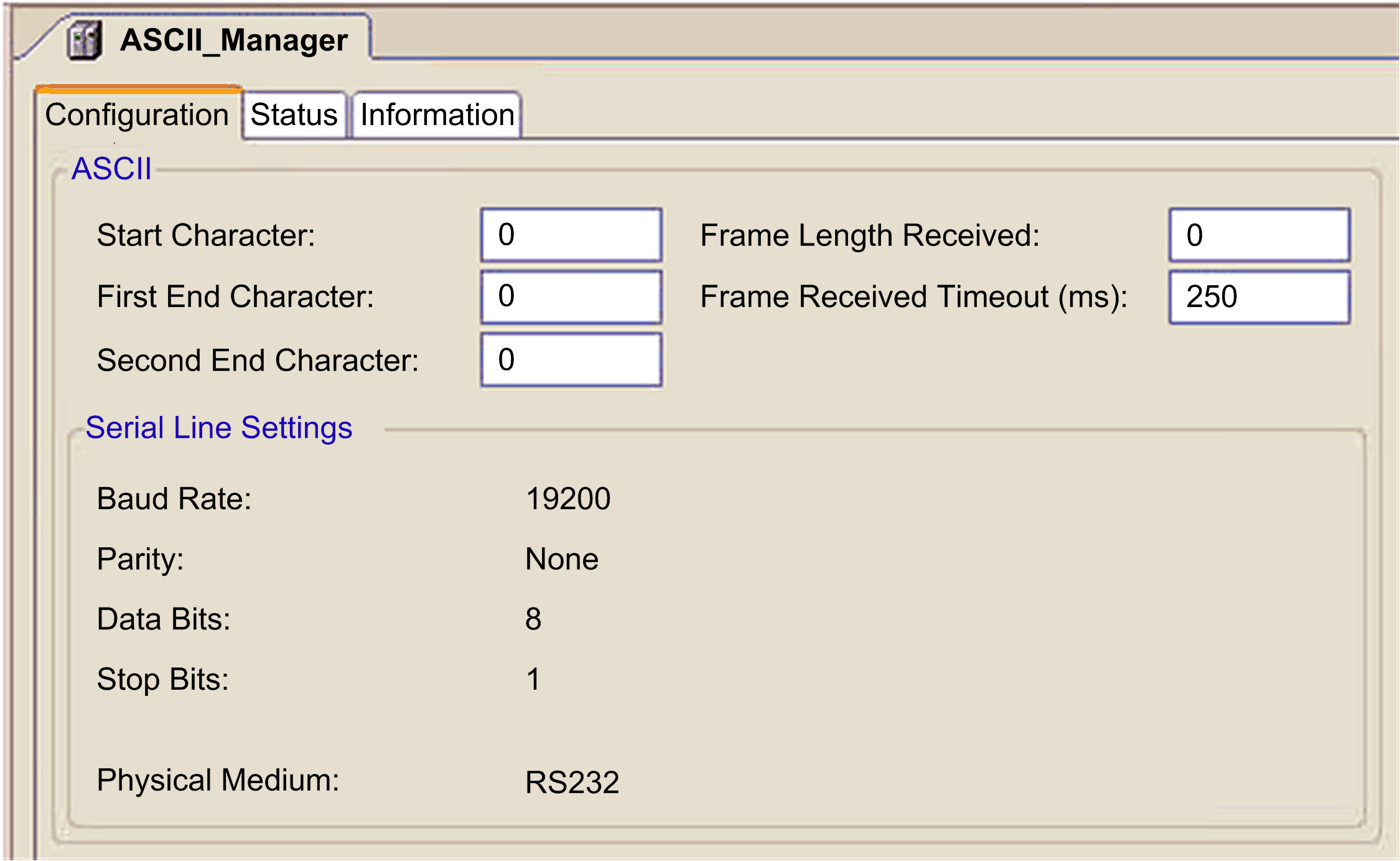
An ASCII manager is required for SMS functionality. It is recommended that you set an End of Frame detection on Timeout (no End Character and no Frame Length). (Refer to the figure below.) |
Add the selected modem to the serial line manager configured in the Add Device dialog box:

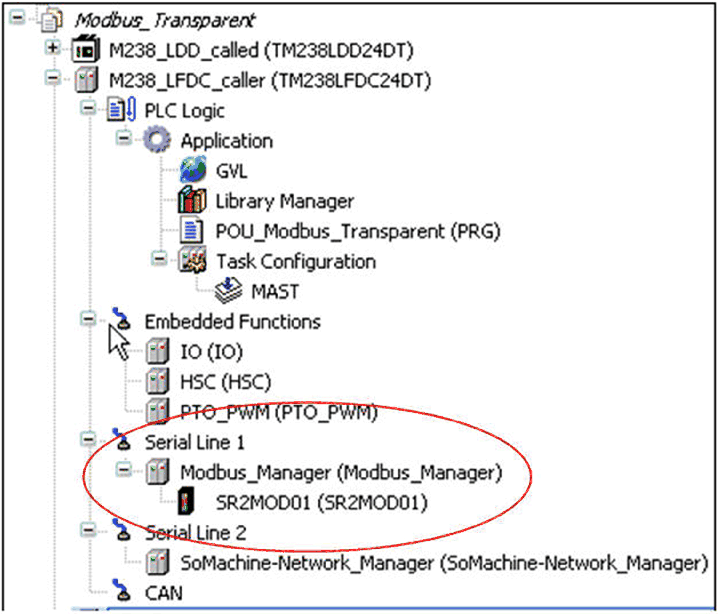
The modem appears under the serial line manager in the Devices tree:
Double-click on the modem to open the device editor:

In the Configuration view, the Hayes Reset Command string is set by default.
For modems SR2MOD01 and TDW33 supported by Schneider Electric, this default command string is set to be used with the following serial line configuration:
Baud rate 19 200
Parity none
Data bits 8
Stop bit 1
If the serial line configuration is different, the command string must be adapted accordingly.
NOTE: The Hayes Reset Command is the modem initialization string that consists of a series of commands which are called Hayes ("AT") commands. This string is sent on the serial line during the application configuration (that is, after the controller's power on, application download, and reset warm or reset cold commands). If the modem answers OK, the connected modem appears with no error (green) in the Devices tree in online mode. Otherwise it appears as a detected error (red triangle).
NOTE: The modem can take several seconds to be ready.