Tag: Special controls
The element displays the graphical curve of variable values. In addition, variables can be configured for controlling the view.
See also
|
Element name |
Example: Velocity |
|
Datasource |
Location where the trace data is buffered.
|
|
Application |
Application where data was recorded.
Requirement: A remote data source (not <local application>) is referenced in the Datasource property. |
|
Type of element |
Trace |
|
Trace |
|
See also
The position defines the location and size of the element in the visualization window. This is based on the Cartesian coordinate system. The origin is located at the upper left corner of the window. The positive horizontal x-axis runs to the right. The positive vertical y-axis runs downwards.
|
X |
The x-coordinate of the upper left corner of the element Specified in pixels Example: 10 |
|
Y |
The y-coordinate of the upper left corner of the element Specified in pixels Example: 10 |
|
Width |
Specified in pixels Example: 150 |
|
Height |
Specified in pixels Example: 30 |
|
Tip: You can change the values in X, Y, Width, and Height by dragging the corresponding symbols |
|
|
Angle |
Static angle of rotation (in degrees) Example: 35 The element is displayed rotated in the editor. The point of rotation is the center of the element. A positive value rotates clockwise.
Tip: You can change the value in the editor by focusing the element to the handle. When the cursor is displayed as a rotating arrow
Note: If a dynamic angle of rotation is also configured in the property Absolute movement ‣ Internal rotation , then the static and dynamic angles of rotation are added in runtime mode. The static angle of rotation acts as an offset. |
See also
|
Show cursor |
|
|
Overwrite existing trace on PLC |
|
|
Number format |
Number format of values in the tooltip in printf syntax (example: %d, %5.2f). |
Element property 'Control variables'
The control variables are assigned automatically when you click Insert elements for controlling trace.
|
Reset Trigger |
Variable (BOOL). Standard control variable: bResetTrigger TRUE: Resets the triggering. After the action is executed, the variable is set automatically to FALSE. |
|
Start Trace |
Variable (BOOL). Standard control variable: bStart TRUE: Starts the trace. After the action is executed, the variable is set automatically to FALSE. |
|
Stop Trace |
Variable (BOOL). Standard control variable: bStop TRUE: Stops the trace. After the action is executed, the variable is set automatically to FALSE. |
|
Save trace to a file |
|
|
Save Trace |
Variable (BOOL). Standard control variable: bStore TRUE: Saves the current trace configuration and the data that is stored in the development system to a file. When the action is ended, the variable is set automatically to FALSE. |
|
File name |
Variable (STRING) that contains the file name of the file to be saved. Standard control variable: sStoreFilename |
|
Load trace from file |
|
|
Load Trace |
Variable (BOOL). Standard control variable: bRestore TRUE: Reads the file specified below and loads its contents into the trace editor. The file contains a trace configuration and possibly also trace data. To do this, the stored trace configuration must match the application where the trace configuration is located. When the action is ended, the variable is set automatically to FALSE. Note: A trace configuration can be loaded from a file only under special circumstances. The file must have been created with exactly the same (running) application with which it will then be loaded. The consequence of changing the running application (for example by downloading again) is that a file which was previously created from the application cannot no longer be read into the application. Even external manual changes to the file can cause this. You should edit only those configuration settings that have an effect on displaying the variables. If you change variable definitions directly in the file (for example by replacing variable x with v y), then the file cannot be loaded. |
|
File name |
Variable (STRING) that contains the file name of the file to be read. Standard variable: sRestoreFilename |
See also
The properties contain fixed values for the coordinates of the point of rotation. This point of rotation is shown as the  symbol. The point is used as the center for rotating and scaling.
|
X |
X-coordinate of the point of rotation |
|
Y |
Y-coordinate of the point of rotation |
Note
You can also change the values by dragging the symbols () to other positions in the editor.
Element property 'Absolute movement'
The properties contain IEC variables for controlling the position of the element dynamically. The reference point is the upper left corner of the element. In runtime mode, the entire element is moved.
|
Movement |
||
|
X |
Variable (numeric data type). Defines the X position (in pixels). Example: PLC_PRG.iPos_X. Increasing this value in runtime mode moves the element to the right. |
|
|
Y |
Variable (numeric data type). Defines the Y position (in pixels). Example: PLC_PRG.iPos_Y. Increasing this value in runtime mode moves the element downwards. |
|
|
Rotation |
Variable (numeric data type). Defines the angle of rotation (in degrees). Example: PLC_PRG.iAngle1.
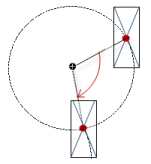
The midpoint of the element rotates at the Center point. This rotation point is shown as the In runtime mode, the alignment of the element remains the same with respect to the coordinate system of the visualization. Increasing the value rotates the element to the right. |
|
|
Interior rotation |
Variable (numeric data type). Defines the angle of rotation (in degrees). Example: PLC_PRG.iAngle2. In runtime mode, the element rotates about the point of rotation specified in Center according to the value of the variable. In addition, the alignment of the element rotates according to the coordinate system of the visualization. Increasing the value in the code rotates clockwise.
The rotation point is shown as the Note: If a static angle of rotation is specified in the Position ‣ Angle property, then the static angle of rotation is added to the variable angle of rotation (offset) when the visualization is executed. |
|
Note
You can link the variables to a unit conversion.
Note
The X, Y, Rotation, and Interior rotation properties are supported by the "Client Animation" functionality.
See also
Element property 'State variables'
The variables control the element behavior dynamically.
|
Invisible |
Variable (BOOL). Toggles the visibility of the element. TRUE: The element is not visible at runtime. |
Note
The Invisible property is supported by the "Client Animation" functionality.
See also
These properties are available only when you select the Preview: Support client animations and overlay of native elements option in the Visualization Manager.
You can animate a movement, a rotation, and the visibility of a visualization element.
|
Animation time |
Time that the element executes an animation (in milliseconds) Example: 500 |
|
Move to the foreground |
Property value (BOOL) TRUE: At runtime, the element is displayed in the foreground. FALSE: At runtime, the element is displayed in the layer where it was inserted in the visualization editor. |
See also
Element property 'Access rights'
Requirement: User management is set up for the visualization.
|
Access rights |
Opens the Access rights dialog. There you can edit the access privileges for the element. Status messages:
|
See also

 :
:
 : Lists all applications that are present below the data source.

 to another position in the editor.
 , you can rotate the element about its center as a handle.
 (1): Handle
 : A cursor (vertical line) is displayed at the mouse position. The trigger and variable values where the cursor points are displayed as a tooltip.