Brief Step-by-Step Instruction for Firmware Update
Overview
This section contains a brief step-by-step instruction for updating the devices (Sercos slaves). Before you start, you have to connect the drive to your computer via Ethernet cable and start the program.
|
Step |
Action |
|---|---|
|
1 |
Select the appropriate network adapter in the list and click the icon. Result: The device appears in the list. |
|
2 |
Select the . |
|
3 |
Click in the device context menu or click the icon in the toolbar. Result: The dialog is opened. |
|
4 |
Change the communication settings to match your local network. 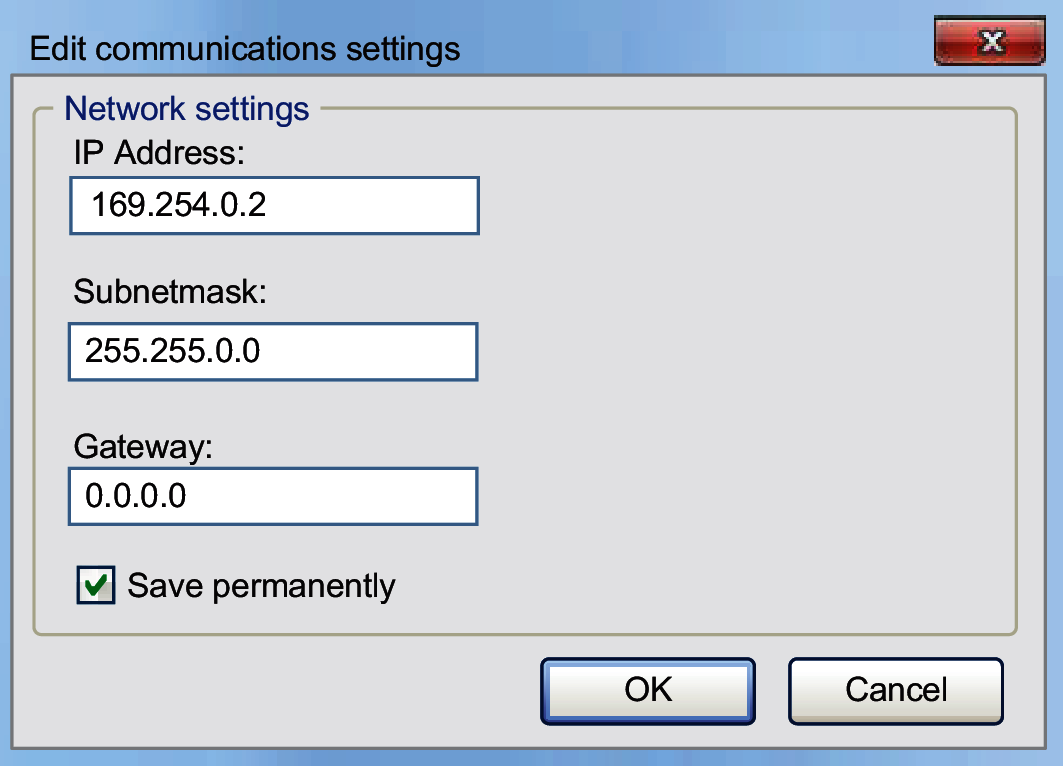
NOTE: If necessary, select to permanently save changes.
|
|
5 |
Click . Result: The list is updated and the device is displayed with its new communication settings. |
|
6 |
Select the device. |
|
7 |
Click in the context menu of the selected device or click the icon in the toolbar. Result: The file dialog opens. |
|
8 |
Select the new file with the extension *.DAT;*.fw or *.seco;*.sefirmware. |
|
9 |
Click . |
|
10 |
Click in the confirmation prompt. Result: The update is started and the progress bar is displayed.
NOTE: You can cancel the update operation at anytime by clicking the cross of the given devices progress bar or by clicking from the context menu of the device list or in the toolbar.
|
|
11 |
After the update has been completed successfully, restart the device by clicking in the dialog. Upon the next restart of the device, the new firmware will be installed to the memory. This takes a few seconds. |
|
12 |
Click in order to check whether the new firmware version is displayed. |
For further information, refer to Executing a Command and Command line.