Displaying Multiple Visualizations in One Visualization
You can reference other visualizations within a main visualization either in a Frame or a Tabs control and then display them in the window pane of the element.
In the case of the Frame element, you can freely program which of the visualizations is displayed at which time. One option is to use the switch frame variable of the Frame element, which automatically triggers a switch according to its value. You can also program additional controls which, after user input, trigger input actions that result in switching a visualization.
Visualizations can be nested at any depth by means of frame elements. In order to use the Switch to any visualization frame selection type without any problems, a frame must not contain more than 21 referenced visualizations.
For more information, see also the description for the Input configuration of an element: Action Switch frame visualization.
Moreover, you can use the Tabs control to reference visualizations. It is easy and advantageous that the Tabs element provides preconfigured control of the visualization switch.
In CODESYS Store, you will find the sample project "Visualization Switching". There you will see a visualization that displays other visualizations in a frame area one after another at runtime. The visualization switch is controlled either by the user, programmatically, or via the FrameManager.
Switching frame visualizations by means of a variable
In the main visualization, the Frame element displays one of the referenced frame visualizations at runtime. The user can select the Radio Buttons element which is displayed in the frame.
Connecting frame visualizations with a radio button
-
Create a new standard project in CODESYS.
-
Select the application in the device tree and click .
-
In the Add Visualization dialog, specify the name
VisuMainand click Add to close the dialog. -
Select the application in the device tree and click .
-
In the Add Visualization dialog, specify the name
Visu1and click Add to close the dialog. -
Select the application in the device tree and click .
-
In the Add Visualization dialog, specify the name
Visu2and click Add to close the dialog. -
Select the application in the device tree and click .
-
In the Add Visualization dialog, specify the name
Visu3and click Add to close the dialog.⇒ In addition to the main visualization, there are three more visualization objects.
-
Open the
Visu1object. -
In the Visualization Toolbox, in the Basic category, select and drag the Radio Buttons element to the visualization editor.
⇒ The Properties view of the element opens.
-
Configure the properties of the rectangle as follows:
-
Property Texts, Text =
Visu1 -
Property Text properties, Font = Title
-
Property Colors, Normal state, Fill color = Light gray
⇒
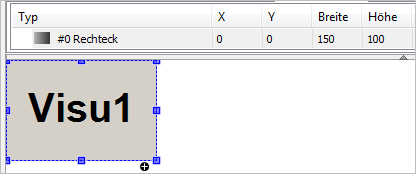
-
-
Program the object
Visu2accordingly.Properties of the rectangle:
-
Property Texts, Text =
Visu2 -
Property Text properties, Font = Title
-
Property Colors, Normal state, Fill color = Gray
-
-
Program the object
Visu3accordingly.Properties of the rectangle:
-
Property Texts, Text =
Visu3 -
Property Text properties, Font = Title
-
Property Colors, Normal state, Fill color = Dark gray
-
-
Open the
VisuMainobject. -
In the Visualization Toolbox, in the Basic category, select and drag the Frame element to the visualization editor.
⇒ The Frame Configuration dialog opens.
-
In the Available Visualizations window area, on the By Visualization Name tab, select the object
Visu1. In Selected Visualizations, click Add. -
Then select the object
Visu2and click Add in Selected Visualizations. -
Then select the object
Visu3and click Add in Selected Visualizations. -
Click OK to exit the dialog.
⇒ Now the Frame element references the three selected visualizations. In the element properties of the Frame element, the references (1) are listed in the References property. In addition to the visualization name, the corresponding index value (2) is also displayed.
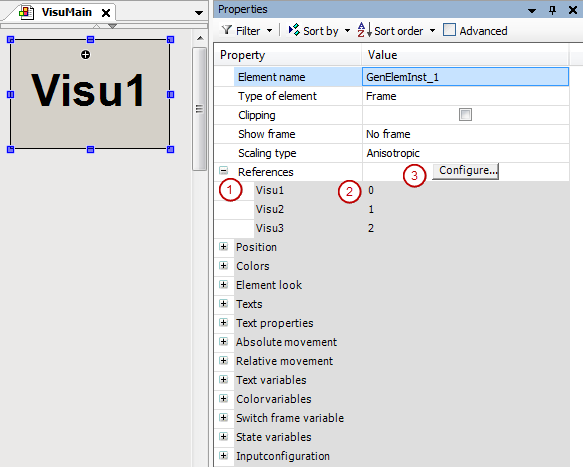
Note: You can open the dialog when you click the Configure button in the value field of the References property. See (3). You can influence the index by means of the visualization order in the Selected Visualizations list.
-
In the Visualization Toolbox, in the Common Controls category, select and drag the Radio Buttons element to the visualization editor.
⇒ The Properties view of the element opens.
-
In the Radio button settings, Radio Button, click the Create new button.
⇒ This element has three switches to select from.
-
Configure the properties of the radio button as follows:
-
Property Radio button settings, Areas, [0], Text =
Visu1 -
Property Radio button settings, Areas, [1], Text =
Visu2 -
Property Radio button settings, Areas, [2], Text =
Visu3
⇒
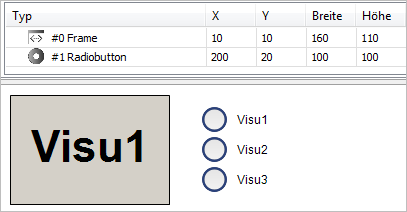
-
-
In the
PLC_PRGprogram, declare a local variable for the number of the visualization that is active.⇒
VAR iActiveVisu : INT; // Index of visu activated by the user END_VAR -
Select the Radio Buttons element. In the value field of the Variable property, click
 .
.
-
In the Input Assistant dialog, select the recently declared variable. Then exit the dialog.
⇒
Property of the Radio Buttons element:
-
Property Variable =
PLC_PRG.iActiveVisu
-
-
Select the Frame element. Click in the value field of the Switch frame variable, Variable property. Specify the recently declared variable here as well.
⇒
Property of the Frame element:
-
Property Switch frame variable , Variable =
PLC_PRG.iActiveVisu
The control variable of the Radio Buttons element is also the switch frame variable of the Frame element. User input for the radio button switches the frame visualization.
-
-
Click .
-
Click and start the application.
⇒ The visualization starts. One of the referenced visualizations is running in the frame. When you click an unselected option of the radio button, the visualization switches the contents in the frame to the desired visualization.
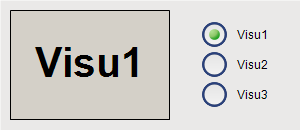
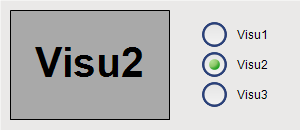
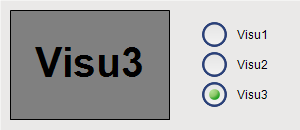
In the example, the switch frame variable is connected to an input variable. Instead, you can also set the switch frame variable programmatically in the IEC code.
Switching frame visualizations by means of a follow-up action
In the main visualization, the Frame element displays one of the frame visualizations at runtime. The user can use buttons to control the display in the frame. The user input triggers the Switch frame visualization input action.
Programming a visualization
-
Create a new standard project in CODESYS.
-
Select the application in the device tree and click .
-
In the Add Visualization dialog, specify the name
VisuMainand click Add to close the dialog. -
Select the application in the device tree and click .
-
In the Add Visualization dialog, specify the name
Visu1and click Add to close the dialog. -
Select the application in the device tree and click .
-
In the Add Visualization dialog, specify the name
Visu2and click Add to close the dialog. -
Select the application in the device tree and click .
-
In the Add Visualization dialog, specify the name
Visu3and click Add to close the dialog.⇒ In addition to the main visualization, there are three more visualization objects.
-
Open the
Visu1object. -
In the Visualization Toolbox, in the Basic category, select and drag the Rectangle element to the visualization editor.
⇒ The Properties view of the element opens.
-
Configure the properties of the rectangle as follows:
-
Property Texts, Text =
Visu1 -
Property Text properties, Font = Title
-
Property Colors, Normal state, Fill color = Light gray
⇒
-
-
Program the object
Visu2accordingly.⇒
Properties of the rectangle:
-
Property Texts, Text =
Visu2 -
Property Text properties, Font = Title
-
Property Colors, Normal state, Fill color = Gray
-
-
Program the object
Visu3accordingly.⇒
Properties of the rectangle:
-
Property Texts, Text =
Visu3 -
Property Text properties, Font = Title
-
Property Colors, Normal state, Fill color = Dark gray
-
-
Open the
VisuMainobject. -
In the Visualization Toolbox, in the Basic category, select and drag the Frame element to the visualization editor.
⇒ The Frame Configuration dialog opens.
-
In the Available Visualizations window area, on the By Visualization Name tab, select the object
Visu1. In Selected Visualizations, click Add. -
Then select the object
Visu2and click Add in Selected Visualizations. -
Then select the object
Visu3and click Add in Selected Visualizations. -
Click OK to exit the dialog.
⇒ Now the Frame element references the three selected visualizations. In the element properties of the Frame element, the references (1) are listed in the References property. In addition to the visualization name, the corresponding index value (2) is also displayed.
Note: You can open the dialog independently when you click the Configure button in the value field of the References property. See (3). You can influence the index by means of the visualization order in the Selected Visualizations list.
-
In the Visualization Toolbox, in the Common Controls category, select and drag the Button element to the visualization editor.
⇒ The element is selected and its properties are visible in the Properties view.
-
Configure the Texts, Text property with
Visu1. -
In the Input configurationOnMouseDown property, click Configure.
⇒ The Input Configuration dialog opens.
-
Select the Switch frame visualization action and click
 .
.
⇒ The action is displayed in the window on the right.
-
Configure the action:
-
Select the Switch local visualization option.
-
Set the Visualization selection to
Visu1. -
Click OK to exit the dialog.
⇒ The follow-up action is configured in the Input configuration property.
Property Input configuration, OnMouseDown, Switch frame visualization =
0 -
-
Drag another Button element to the visualization editor. Configure the button accordingly.
⇒
Properties of the button:
-
Property Texts, Text =
Visu2 -
Property Input configuration, OnMouseDown, Switch frame visualization =
1
-
-
Drag another Button element to the visualization editor. Configure the button accordingly.
⇒
Properties of the button:
-
Property Texts, Text =
Visu3 -
Property Input configuration, OnMouseDown, Switch frame visualization =
2
-
-
Click .
-
Click for the device and start the application.
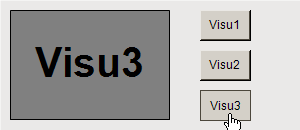
⇒ The visualization starts. One of the referenced visualizations is running in the frame. When you click one of the buttons, the visualization switches the contents in the frame to the respective visualization.
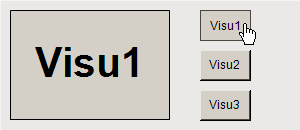
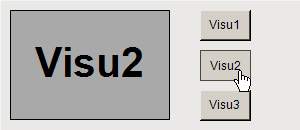
Displaying visualizations in a Tabs element
For the Tabs, the navigation of the referenced visualizations is provided automatically. The first of the referenced visualizations is in the foreground, while the others are hidden behind it. The user can navigate between them by means of the tabs which are provided automatically.
Configuring a Tabs
-
Create a new standard project in CODESYS.
-
Select the application in the device tree and click .
-
In the Add Visualization dialog, specify the name
VisuMainand click Add to close the dialog. -
Select the application in the device tree and click .
-
In the Add Visualization dialog, specify the name
Visu1and click Add to close the dialog. -
Select the application in the device tree and click .
-
In the Add Visualization dialog, specify the name
Visu2and click Add to close the dialog. -
Select the application in the device tree and click .
-
In the Add Visualization dialog, specify the name
Visu3and click Add to close the dialog.⇒ In addition to the main visualization, there are three more visualization objects.
-
Open the
Visu1object. -
Drag a Rectangle element to the visualization editor.
⇒ The Properties view of the element opens.
-
Configure the properties of the rectangle as follows:
-
Property Texts, Text =
Visu1 -
Property Text properties, Font = Title
-
Property Colors, Normal state, Fill color = Light gray
⇒
-
-
Program the object
Visu2accordingly.⇒
Properties of the rectangle:
-
Property Texts, Text =
Visu2 -
Property Text properties, Font = Title
-
Property Colors, Normal state, Fill color = Gray
-
-
Program the object
Visu3accordingly.⇒
Properties of the rectangle:
-
Property Texts, Text =
Visu3 -
Property Text properties, Font = Title
-
Property Colors, Normal state, Fill color = Dark gray
-
-
Open the
VisuMainobject. -
In the Visualization Toolbox, in the Basic category, select and drag the Frame element to the visualization editor.
⇒ The Frame Configuration dialog opens.
-
In the Available Visualizations window area, on the By Visualization Name tab, select the object
Visu1. In Selected Visualizations, click Add. -
Then select the object
Visu2and click Add in Selected Visualizations. -
Then select the object
Visu3and click Add in Selected Visualizations. -
Click OK to exit the dialog.
⇒ Now the Frame element references the three selected visualizations. In the element properties of the Frame element, the references (1) are listed in the References property. In addition to the visualization name, the corresponding index value (2) is also displayed.
Note: You can open the dialog Frame Configuration dialog independently when you click the Configure button in the value field of the References property. See (3). You can influence the index by means of the visualization order in the Selected Visualizations list.
-
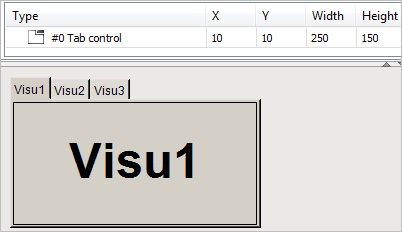
In the Visualization Toolbox, in the Common controls category, select and drag the Tabs element to the visualization editor.
⇒ The Properties view of the element opens.
-
Configure the properties of the tab as follows:
-
Property Tab width:
40 -
Property References,
Visu1, Header =Visu1 -
Property References,
Visu2, Header =Visu2 -
Property References,
Visu3, Header =Visu3
⇒
-
-
Click .
-
Click for the device and start the application.
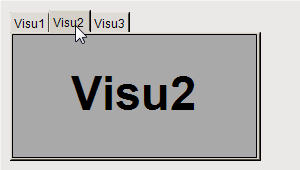
⇒ The visualization starts. One of the referenced visualizations is running in the tab control. Click the tab to switch to the respective visualization.
See also