How to Perform a Firmware Update
Introduction
The Controller Assistant provides two different ways to update the firmware:
-
The first firmware update procedure automatically removes the application in the controller.
-
The second firmware update procedure does not remove the application from the controller.
How to Perform a Firmware Update Automatically Removing the Application
In order to execute a firmware update and automatically remove the application of a controller, click the button in the dialog. Proceed as described in the Updating the Firmware chapter.
How to Perform a Firmware Update Without Removing the Application
In order to execute a firmware update of a controller without removing the application, proceed as follows:
|
Step |
Action |
|---|---|
|
1 |
On the dialog, click the button. Result: The dialog opens. |
|
2 |
In the dialog, click the controller button. Result: The dialog opens. |
|
3 |
Select the required connection type and controller and click the button. Result: The image is transmitted from the controller to the computer. After this has been accomplished successfully, you are automatically redirected to the dialog. |
|
4 |
Click the button and then . Result: The dialog for updating the firmware opens. |
|
5 |
Execute individual steps for updating the firmware in the active image (Changes are only effected in the image on your computer). In the final step, you can decide whether you want to create a backup copy of the image read by the controller. Result: After the update of the firmware, the dialog opens. 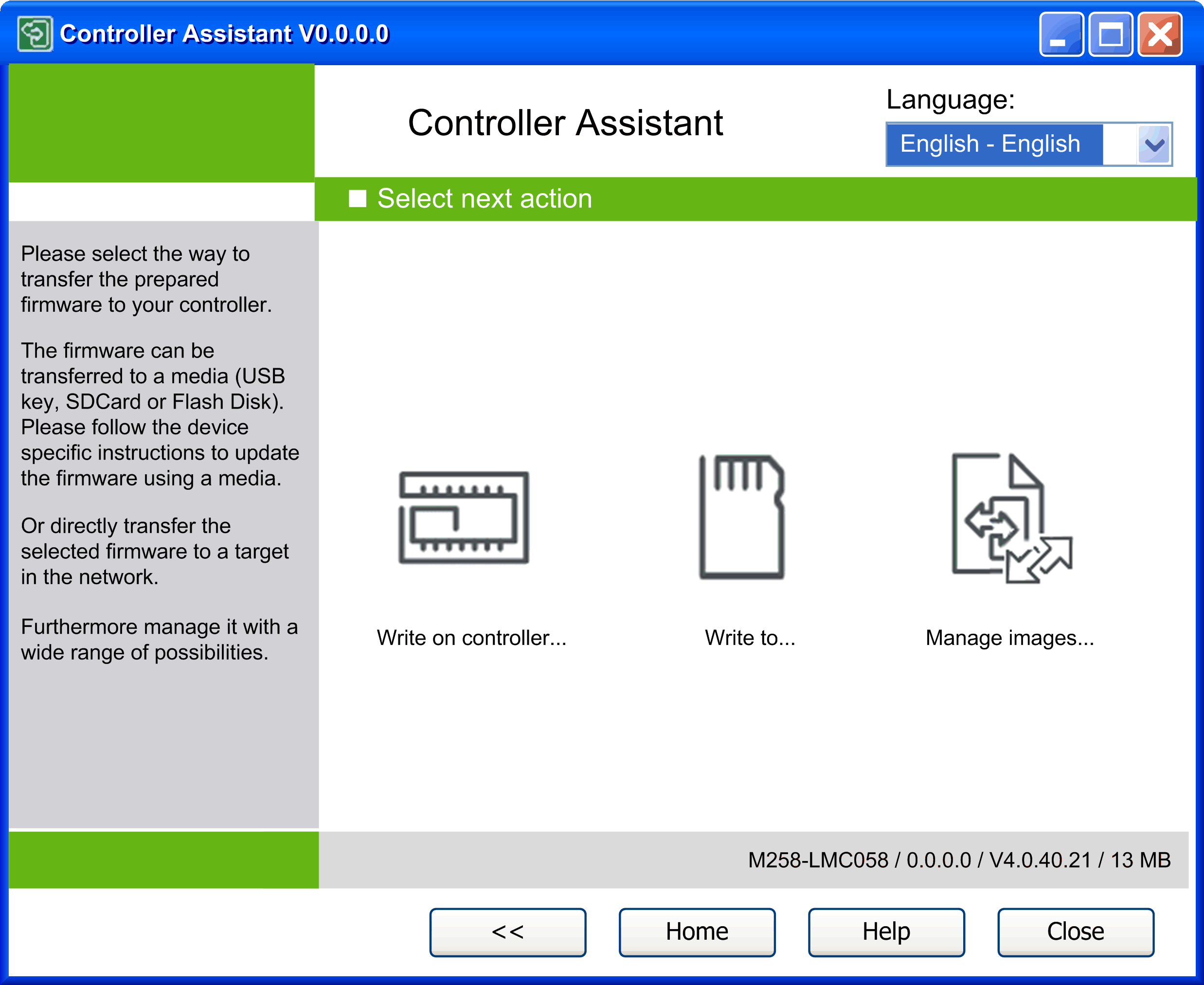
|
|
6 |
On the dialog, click the button. Result: The dialog opens. |
|
7 |
Select the required connection type and controller and click the button. Result: The image is transmitted from your computer to the controller. After the transmission you are automatically returned to the dialog. |