Description of the Dialog
Overview
To open the dialog , click one of the buttons or on the dialog. Depending on this selection, the dialog appears in one of the variants described in this chapter.
dialog after call-up via button.
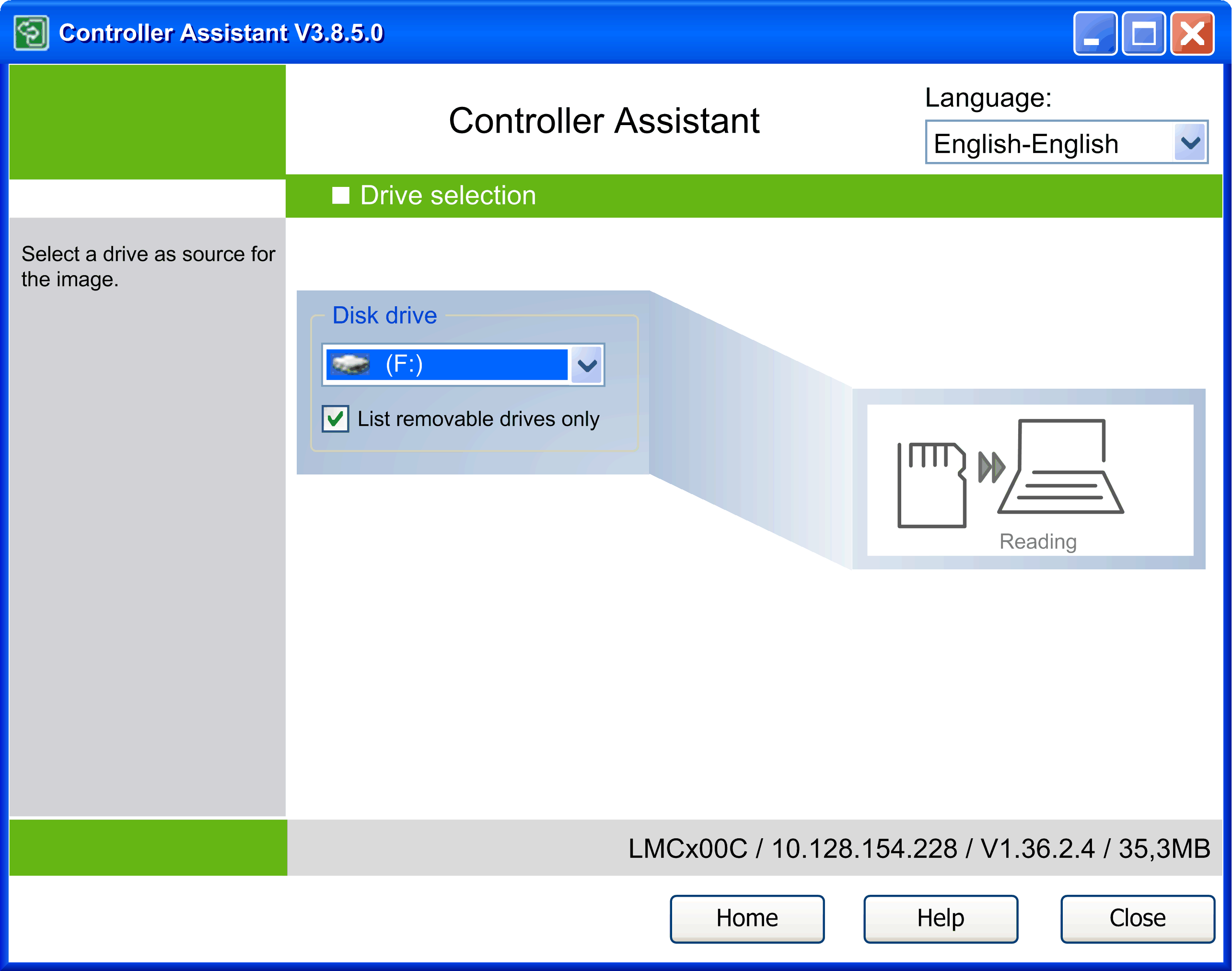
In this dialog, select the drive into which you have inserted the removable storage device (CF card for PacDrive M controllers, SD card for Modicon M221, M241, M251 Logic Controllers, or USB mass storage device for Modicon M258 Logic Controller, Modicon LMC058 Motion Controller).
By default, the option is selected. This has the effect that the list only contains drives of removable media. To display also hard disk drives in the list, deselect the option .
Select a drive from the list.
Click the button to load the image into the Controller Assistant.
dialog after call-up via button.
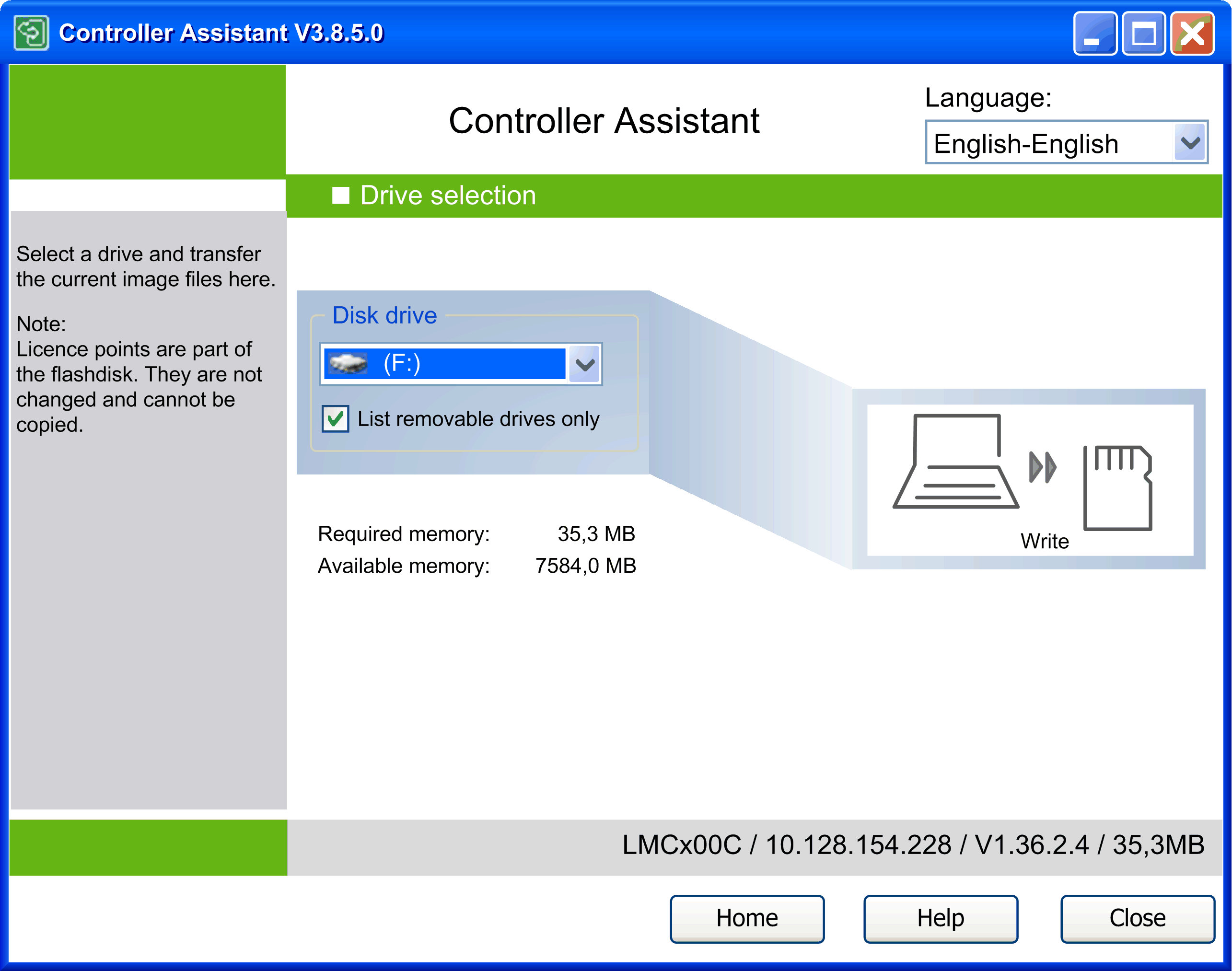
In this dialog, select the drive into which you have inserted the storage device.
By default, the option is selected. This has the effect that the list only contains drives of removable media. To display also hard disk drives in the list, deselect the option .
Click the button to write the image back onto the inserted storage device. Before the operation is performed, a message is displayed informing you that the data will be deleted from the selected drive. Before you start the operation by clicking , it allows you to verify the content of the destination drive in a Windows Explorer view by clicking . To cancel the operation, click .
For PacDrive controllers (except for PacDrive M controllers), you might be prompted for device user rights management.
Note for PacDrive M controllers that existing license points are not a component part of an image but are a part of a flash disk. They cannot be copied. They are not changed when writing an image to the flash disk or controller.