Changing TEST mode timeout
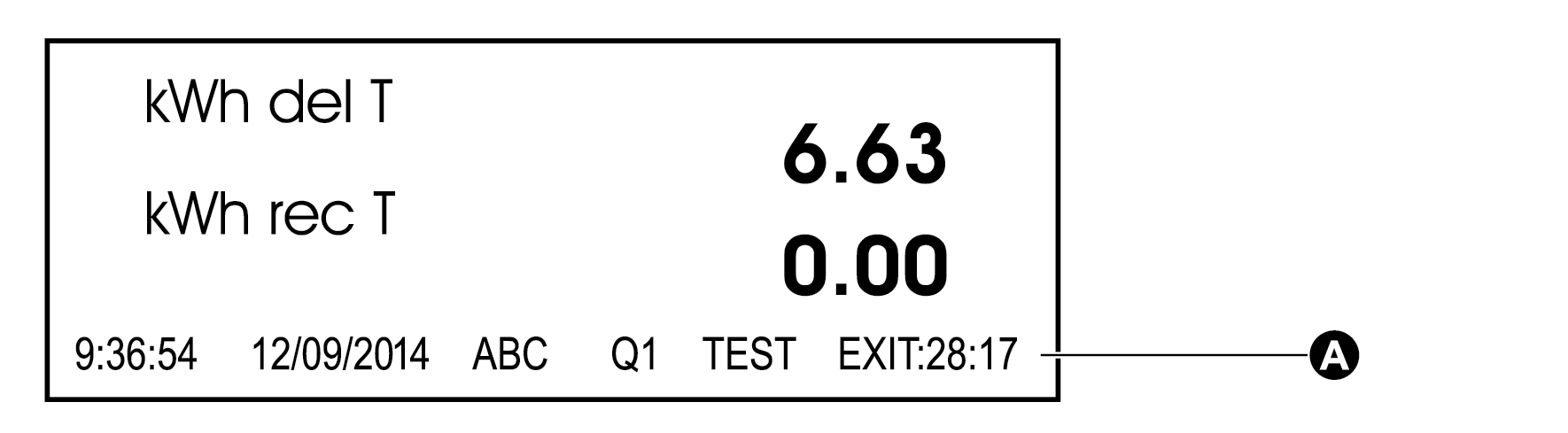
If no front panel buttons are pressed, the meter exits TEST mode after 30 minutes (1800 seconds) by default, if the default TEST mode timeout value has not been changed. The timeout value resets to 30 minutes each time you press any front panel button. While in TEST mode, the value on the bottom right of the status bar indicates the amount of time before TEST mode times out. The meter always returns to NORM mode when the TEST mode timeout elapses.
|
A |
The timer indicates the TEST mode timeout. |
You can change the value of the TEST mode timeout using Power Monitoring Expert, ION Setup or the front panel.
Using the front panel
Follow these steps to change the TEST mode timeout using the front panel:
NOTE: You must be in TEST mode to change the TEST mode timeout if your meter is hardware locked.
- Enter the SETUP menu by holding down the ALT/ENTER button.
- Scroll through the menu items, highlight DISPLAY OPTIONS, and press the ALT/ENTER button.
- Scroll down and highlight the TEST MODE TO menu item. Press ALT/ENTER. The current TEST mode timeout is displayed.
- Enter the new value of the TEST mode timeout in seconds. Use the up or down arrow buttons to change the value of the highlighted digit. Press the up or down arrow button to change the position of the highlight cursor. Press the ALT/ENTER button.
- Select YES to confirm the change. Enter the meter password if prompted.
Using ION Setup
- Connect to the meter in Advanced Mode. See the ION Setup Help for instructions.
- Locate the Display Options module in the module list and double-click to open the module.
- Click the Setup Registers tab and double-click the Test Mode Timeout setup register.
- Set the Test Mode Timeout to the desired time. You can choose from a numeric bounded format or an elapsed interval format.
- Click Send to save the changes to the meter.
Using Designer
- Open your meter in Designer.
- Double-click the Display Setup folder.
- Right-click on the Display Options module to access the setup registers. Select the Test Mode Timeout setup register and click Modify to edit.
- Set the Test Mode Timeout to the desired time.
- Click OK to send the changes to the meter.