Specify the Two-Factor Authentication (2FA) Account Description
With Geo SCADA Expert 2023 onwards, you can further strengthen the security of user access to Geo SCADA Expert by requiring users to provide two factors of authentication before they are permitted to access the database. Geo SCADA Expert 2023 supports time-based one-time password (TOTP) authentication. With this implementation, users whose User Accounts are configured for two-factor authentication are required to enroll for, and use, an authenticator account on an authenticator app. Whenever they log on to Geo SCADA Expert, those users use the authenticator account to obtain the one-time password that they need to enter as the second authentication factor during the log on process. The users require a separate authenticator account per implementation of a Geo SCADA Expert database (system). Even if your deployed Geo SCADA Expert system only comprises a single database, if you have other implementations of that database configured for two-factor authentication (such as a test system), each one will require a different authenticator account.
You configure the authenticator account description on the Root Group of each Geo SCADA Expert system. To do so, you use the Two-Factor Authentication (2FA) Account Description properties on the Root Group tab of the Root Group. You then deploy that configuration across the system. This is different to other configuration in Geo SCADA Expert and is intended to avoid inadvertent changes to the two-factor authentication account description being deployed unintentionally.
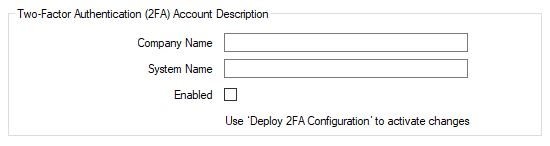
You use the Company Name and System Name in the Two-Factor Authentication (2FA) Account Description section of the tab to define the text that gets displayed on the users' authenticator apps. The text identifies the authenticator account that users need to use to obtain the one-time password when logging on to this particular implementation of the database. The same text also appears on the One-Time Password Authentication window that gets displayed during the logon process. In both places, the username of the user's User Account is displayed alongside Company Name and System Name, to identify the User Account to which the authenticator account relates.
Take care when determining the naming convention that you intend using to specify the Company Name and System Name properties. The Company Name and System Name combination have to be unique per implementation of each Geo SCADA Expert database (see the examples below). Additionally, if the Company Name or System Name properties are ever changed in Geo SCADA Expert, that change will not alter the text of the corresponding existing authenticator accounts on the authenticator apps. As such, the text used to identify those existing authenticator accounts will thereafter differ from the values of the Two-Factor Authentication (2FA) Account Description properties in Geo SCADA Expert. Only the text of authenticator accounts that get created after the configuration change in Geo SCADA Expert will have text that accurately reflects the values of both of those properties. For more information about this, see Considerations and Limitations (2FA). (Some authenticator apps might provide the ability for users to rename the authenticator accounts on those apps.)
-
Company Name—Specify the text that identifies the company with which the authenticator account is associated on each user's authenticator app. In conjunction with the System Name, this helps to identify which authenticator account users need to use when they want to log on to this particular system. The Company Name and System Name combination have to be unique on each implementation of a database that is configured to use two-factor authentication. You might want to consider including a prefix or suffix to further clarify this particular implementation of the database.
If the value of this property is ever changed, ensure that existing users whose User Accounts are configured to use two-factor authentication are made aware of the change. This is important, as any changes to the value of this property will not affect the text shown on existing authenticator accounts. As such, the text is then likely to differ on those authenticator accounts when compared to the text that is displayed on the One-Time Password Authentication window in Geo SCADA Expert.
-
System Name—Specify the text that identifies this particular implementation of the database on each user's authenticator app. In conjunction with the Company Name, this helps to identify which authenticator account users need to use when they want to log on to this particular system. The Company Name and System Name combination have to be unique on each implementation of a database that is configured to use two-factor authentication. You might want to consider including a prefix or suffix to further clarify this particular implementation of the database.
If the value of this property is ever changed, ensure that existing users whose User Accounts are configured to use two-factor authentication are made aware of the change. This is important, as any changes to the value of this property will not affect the text shown on existing authenticator accounts. As such, the text is then likely to differ on those authenticator accounts when compared to the text that is displayed on the One-Time Password Authentication window in Geo SCADA Expert.
-
Enabled—Use this check box to specify whether the above two-factor authentication configuration is activated on this system (database).
Either:
-
Select the Enabled check box to activate, but not deploy, the above two-factor authentication on the system. The configuration in this Two-Factor Authentication (2FA) Account Description section of the tab then becomes the 'proposed' two-factor authentication on the system. To actually deploy this two-factor authentication configuration across the system, use the Deploy 2FA Configuration pick action on the Root Group. Once deployed, any users whose User Accounts are configured to use two-factor authentication will have to enroll successfully for two-factor authentication before they can access the system. Take care to ensure that suitable User Accounts exist to provide access for any clients, or client applications, that do not support two-factor authentication (see Considerations and Limitations (2FA)).
-
Clear the check box (the default) on systems on which two-factor authentication is not required. Also clear the check box if the Company Name and System Name have been defined in this Two-Factor Authentication (2FA) Account Description section of the tab, but that configuration is not to comprise active two-factor authentication configuration.
Be aware that if you deploy the configuration while the Enabled check box is clear, this results in two-factor authentication being disabled across the system. Users whose User Accounts are configured to use two-factor authentication will then only have to enter a valid username and password to access that system; they will not require a second authentication factor.
-
You can use the Currently Deployed Two-Factor Authentication Status and Proposed Two-Factor Authentication status attributes on the Root Group to check the current proposed and deployed two-factor authentication status of the system. The status attributes are only displayed on systems on which two-factor authentication has ever been enabled and/or deployed.
The Information category of the Server Status Tool also displays information about the current status of the system's two-factor authentication configuration and implementation (see Information). Such information is only displayed if the fields in the Two-Factor Authentication (2FA) Account Description section of the Root Group's configuration form have ever been populated.
 Example showing how the Two-Factor Authentication Account Description configuration affects the text that users see when logging on
The Two-Factor Authentication (2FA) Account Description on the Root Group of a particular system is configured as follows:
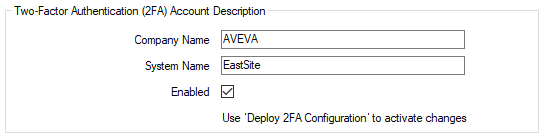
The Deploy 2FA Configuration pick action is used to deploy the above configuration across the system.
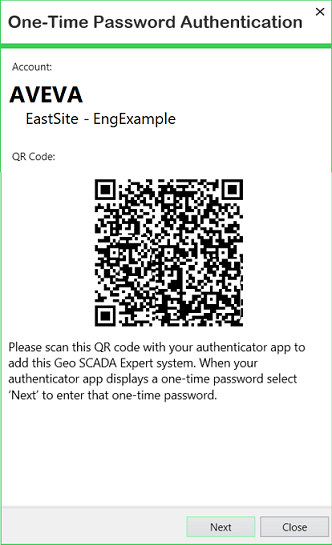
This triggers Geo SCADA Expert to check for User Accounts that are configured to use two-factor authentication but that are not currently enrolled. It places those User Accounts into an enrollment phase. When the users of those User Accounts next attempt to log on, they are required to enroll. As part of the enrollment process, Geo SCADA Expert displays a One-Time Password Authentication window that contains a QR code. The window displays the Company Name and System Name of the deployed two-factor authentication, along with the username of the user's User Account (in this particular case, 'EngExample'):
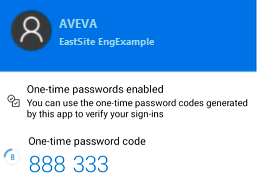
The users use an authenticator app to scan the QR code that Geo SCADA Expert displays for them. This triggers an authenticator account to get created on that authenticator app. The authenticator account is automatically assigned the Company Name and System Name of the deployed two-factor authentication, along with the username of the user's User Account:
To complete the enrollment process in Geo SCADA Expert, the user is then invited to enter the one-time password that the authenticator account has generated. They enter this into the One-Time Password Authentication window in Geo SCADA Expert.
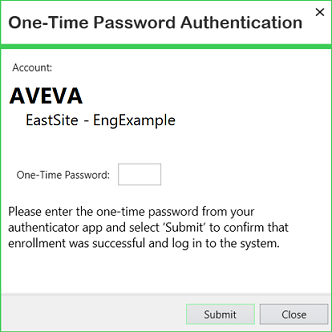
The user also has access to other databases that are configured for two-factor authentication. They enroll separately for each of those systems. This provides them with a different authenticator account for each database to which they require access.
In future, whenever the user needs to log back onto a system, they check the text that appears on the One-Time Password Authentication window in Geo SCADA Expert. They use that text to identify which authenticator account they need to use to generate the one-time password that they need to enter to complete the logon process to access that particular database.
Example showing that the Two-Factor Authentication Account Description values have to differ for each implementation of a database
A particular company has 3 implementations of the same database:
-
An offline test and development system
-
A training system for new staff
-
The online deployed version that connects to plant and is used for day-to-day monitoring and control.
The company also has 2 implementations of a different database:
-
An offline test and development system
-
The online deployed version that connects to plant and is used for day-to-day monitoring and control.
The two-factor authentication in Geo SCADA Expert requires that each implementation of a Geo SCADA Expert database has to have a unique authenticator account description. As such, each system is assigned:
-
A Company Name that comprises the name of the company followed, when required, by a suffix to identify the type of database
-
A System Name that identifies the site to which that particular database relates.
In the case of the above database implementations, 5 different Company Name and System Name combinations are used (so that each combination is unique per implementation of each database):
| Database Implementation | Company Name | System Name |
|---|---|---|
| Database 1 - test and development | AVEVA-Test | West |
| Database 1 - training | AVEVA-Training | West |
| Database 1 - live deployed system | AVEVA | West |
| Database 2 - test and development | AVEVA-Test | East |
| Database 2 - live deployed system | AVEVA | East |
Whenever a user whose User Account is configured for two-factor authentication attempts to log on to any of the above databases, they are presented with a One-Time Password Authentication window. The window displays the Company Name and System Name, together with the username of their User Account. The user uses this information to identify which authenticator account that they need to use to obtain a valid one-time password that they need to enter into that window. The authenticator account on the authenticator app also displays the same information, to help identify which authenticator account they need to use. To complete the authentication process, the user enters into the One-Time Password Authentication window the one-time password that they obtain from the authenticator account . Geo SCADA Expert authenticates that one-time password and then logs the user onto that particular system.
Further Information