Specify the Life of Historic Data Storage for the Point
Use the Life property on a Point Form’s Historic tab to define the duration to keep historic data online for that point.
By default, this property is configured to use the Keep online for period that applies system-wide (see Specify the Duration to Retain Historic Data Online). However, you can specify one of three Alternatives periods for points for which the historic storage period is to deviate from the overall keep online period. To do this, you select a shorter period for retaining historical data for a specific point compared to the overall keep online period. This allows for more flexibility and control over the storage and availability of historical data based on individual requirements or preferences. For example, you might select a shorter period for a point that frequently updates, but for which the data does not need retaining for a long period.
To define the life of the historic data of the point:
- Display the Point Form for the point that you want to configure (see Display a Form in the Geo SCADA Expert Guide to Core Configuration).
- Select the Historic tab.
The Historic tab is only included on the relevant configuration Forms when the Historic Data feature is enabled on the server. The feature enables Geo SCADA Expert to store data historically (see Historic Data Storage Settings).
- Ensure that Historic is enabled (see Enable or Disable Historic Data Storage).
ATTENTION: With points on some drivers, ‘Historic Data Filter’ properties are used to define the type of reported point data that Geo SCADA Expert is to store historically for those points. With such points, reported point values are only stored historically if historic is enabled on the point’s Historic tab, and at least one option other than ‘None’ is selected within the Historic Data Filter section of the Point Form. The driver-specific guides provide details about any points that have Historic Data Filter properties.
- Use the Life combo box to select the required historic data keep online period for the point.
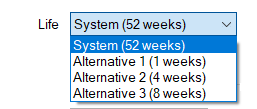
The durations that are shown in parentheses correspond to the values that are configured on the server that is currently the Main server. Other servers might have different duration values.
- Select from the Main server's overall keep online period (labeled 'System') or one of the alternative keep online periods that is configured for the server. The default alternative keep online periods are 1, 4 and 8 weeks. The default overall keep online period is 52 weeks.NOTICE
LOSS OF DATA
Choosing a shorter duration than one that was previously in use will delete any older historic data for this point.Failure to follow these instructions can result in loss of data - Save the configuration.
Further Information