Export Trend Data to a File
When you display a Trend, each trace displays values for the amount of time shown on the X-Axis. You can export these values to a file. The file can then be viewed using a text editor such as Notepad.
To export a Trend's values to a file:
- Right-click on the relevant trace in the Trend key.
A context-sensitive menu is displayed.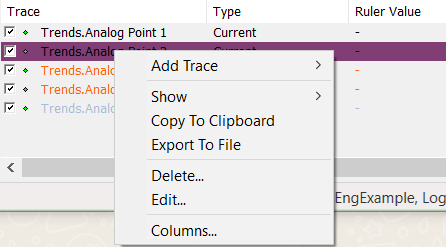
- Select the Export to File option.
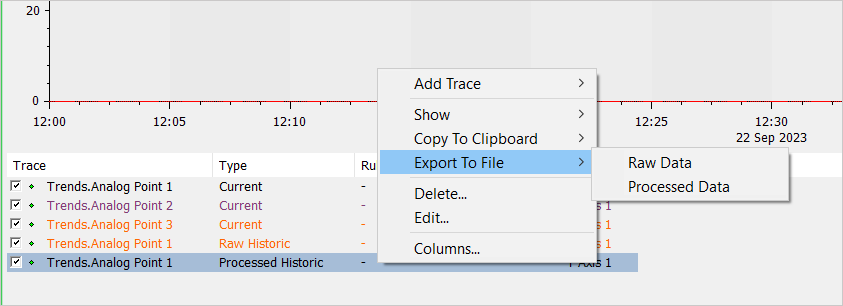
- Select either the Raw Data or Processed Data option. For more information on these types of data, see Raw Historic Data on Trends, and see Processed Historic Data on Trends.
If the trace is a raw data trace or a current data trace, the data for the trace is exported to file. This is unless the raw data trace is using a summary of the values rather than the actual raw values. If the trace is using a summary of the values, a summarized or aggregated representation of the data is exported to file.
By default, the data is exported in 'Text (Tab delimited)' format.The Raw Data option is unavailable if the total number of values required for the interval on the trace exceeds the Marker Limit that has been configured for the trace.