Enroll for Two-Factor Authentication
Your User Account might be configured to require you to use two factors of authentication to log on to Geo SCADA Expert. With a new User Account, or an existing User Account, on which this requirement has just been applied, you will need to enroll for two-factor authentication. You will be prompted to do this the next time that you try to log on. You can only enroll from a ViewX client or a Virtual ViewX client that provides access to the relevant Geo SCADA Expert system (the system on which you want to enroll). By design, you cannot enroll for two-factor authentication on other types of client. If you try to log on to Geo SCADA Expert using a client that does not support enrollment, your logon attempt will not succeed. You will be denied access to Geo SCADA Expert until you successfully complete the enrollment process. (The enrollment process differs slightly on a DMZ-connected client (see Enroll for Two-Factor Authentication from a DMZ-Connected Client)).
To enroll for two-factor authentication:
- Enroll with an authenticator app on a suitable device, such as a smartphone. We recommend using an authenticator app that can be locked so that it requires a PIN or biometric to open it, to help prevent unauthorized access. For example, Microsoft Authenticator.
- On a ViewX client or a Virtual ViewX client, display the Log On window.
- Enter your user name and password, and select the Log On button.
The One -Time Password Authentication window is displayed. - Use your authenticator app to scan the QR code to set up an authenticator account on your device.
The authenticator app starts to generate one-time passwords.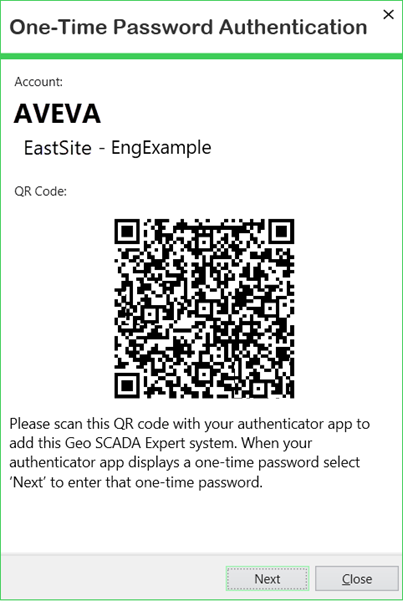
- On the One-Time Password Authentication window in Geo SCADA Expert, select Next.
-
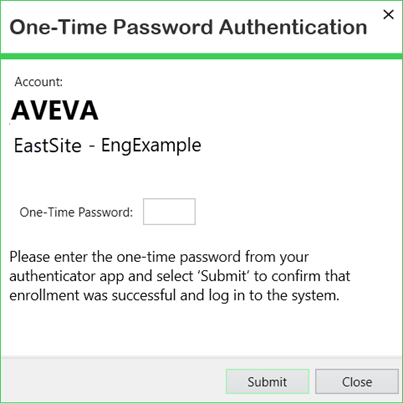
Enter the one-time password that the authenticator app has generated.
-
Select the Submit button.
Once Geo SCADA Expert has validated the one-time password, the enrollment process is considered successful.
If the one-time password does not validate, you can start again from step 1 to reattempt the enrollment process. You can retry the enrollment until the enrollment period expires. If further attempts are unsuccessful and the enrollment period expires, your User Account will be disabled, and a system administrator will have to re-enable it. A system administrator will also need to reset the two-factor authentication enrollment on your account in order to initiate a new enrollment period.
If your User Account provides access to other Geo SCADA Expert systems (databases) that are also using two-factor authentication, you have to enroll separately for each of those systems. To do so, repeat the above procedure by logging on to each of those systems in turn. You will acquire, and need, a separate authenticator account for each database. Ensure that you are aware as to which authenticator account you need to use to log on to each system (database). The authenticator account details are shown on the One-Time Password Authentication window that gets displayed whenever you log on to Geo SCADA Expert. Use this information to identify the authenticator account that you need to use for that particular system.
Further Information