To add a driver-specific channel, set, outstation, point, or pulse action to your system (preferably in that order—see Configuration Order):
- Display the Database Bar (see Display an Explorer Bar).
- Right-click on the Group or System to which you want to add an item.
A context-sensitive menu is displayed. - Select the Create New option.
A further menu is displayed. - Select the <Driver> option for the driver to which you want to add an item
A further menu is displayed.If the items that you are adding are on an extension driver, the menu for that extension driver might be located under its 'parent' or 'grandparent' driver.
With a few drivers, you select the entries from a different branch of the Create New menu. If this applies, it will be mentioned in the guide for that driver.
If the driver that you require is not installed on your system or not displayed on the menu, contact a system administrator.
- Select the type of item that you want to add to the system, for example Analog Input Point.
An item of the selected type is added to the database and displayed on the tree-structure. It is automatically selected, ready for you to define its name.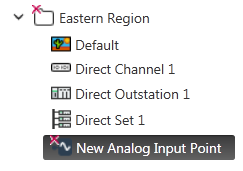
- Enter the required name for the item (see Naming Restrictions).
- Select another part of the interface, or press the Enter key to confirm the entry.
You then need to display the Form to configure the item (see Display a Form).