Configure the Security Properties of a Network Connected Outstation
This section only applies to an outstation on an advanced driver when that outstation uses a network connection to communicate with the server. The Network tab on the Form of such an outstation includes a Security section.
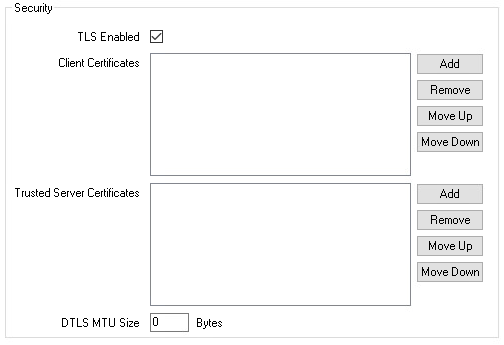
Use the fields in the Security section to configure the Transport Layer Security (TLS) settings for a network connected outstation database item. When using TLS, the device that this Outstation database item represents can be a TLS server, TLS client, or both a TLS server and client. This depends on the capabilities and configuration of the outstation and the Geo SCADA Expert system. The settings that are described in this topic only apply when the outstation that this database item represents is a TLS server and Geo SCADA Expert is a TLS client.
-
TLS Enabled—Select this check box for Geo SCADA Expert (when it is a TLS client) to make a secure outbound connection to the network outstation (when it is a TLS server). This uses the TLS protocol for TCP connections, and the DTLS protocol for UDP connections. (The TCP/IP Type is specified on the channel or channels to which the outstation is connected (see Configure a Channel’s Network Connection Properties).)
By default, this check box is not selected. The rest of the fields in this section are 'grayed out' and unavailable for use when this check box is clear.
If an outstation’s Communications Availability is Incoming Only (see Specify the Availability of Communications Between the Outstation and Geo SCADA Expert), then the outstation is a TLS client only, and Geo SCADA Expert is the TLS server. Therefore, these outstation TLS Security settings are not applicable, and enabling TLS here will result in a configuration error (see Correcting Invalid Configuration).
-
Client Certificates—Add the client certificates for the Geo SCADA Expert system. These certificates are used by the network outstation (the TLS server) to authenticate Geo SCADA Expert (the TLS client). If you do not specify any certificates, the outstation will not be able to authenticate Geo SCADA Expert, which is not recommended.
If you are using a certificate authority to issue the certificate, add the end-entity certificate and private key, along with any intermediate certificates that are required to verify the certificate. The outstation should trust the certificate authority's root certificate.
If you are using a self-signed certificate, add the self-signed certificate and private key. The outstation should trust this individual certificate.
In each case, you store the certificates and private key in an SSL Certificate and Key database item.
For compliance with the IEC 62351-3 standard, mutual authentication is required. Therefore, you need to provide the Trusted Server Certificates (of the network outstation) and the Client Certificates (of the Geo SCADA Expert system) to configure mutual authentication. You must also configure the network outstation to authenticate Geo SCADA Expert and to trust the certificates that are configured in the Client Certificates field.
-
Trusted Server Certificates—Add the trusted certificates for the network outstation (when it is a TLS server). These certificates are used to authenticate the outstation. If you do not specify any certificates, Geo SCADA Expert does not authenticate the outstation, which is not recommended.
If the outstation's certificate is issued by a certificate authority (CA), add the certificate authority's root certificate. If the outstation's certificate is self-signed, add a copy of the self-signed certificate. You store the file that contains the certificate in an SSL Certificate database item.
For dual network outstations, the outstation can either use the same certificate for both networks, or use a separate certificate for each network. If each network has its own certificate, you must specify both the certificates in this field. In this latter case, you can store both certificates in the same or in two separate certificate files. You store each certificate file in an SSL Certificate database item.
-
DTLS MTU Size—This field is applicable only for UDP connections. Use this field to set the maximum transmission unit (MTU) size (in bytes) of a data packet. The valid range is from 200 to 65,535 bytes inclusive.
Set the field to zero (0) to use the Schannel default DTLS MTU size, which is 1096 bytes. The default value of this field is 0.