Configure the Security Properties of a Network Connection
This section only applies to a channel on an advanced driver when that channel represents a Network connection. The Connection tab on the Form of such a channel includes a Security section.
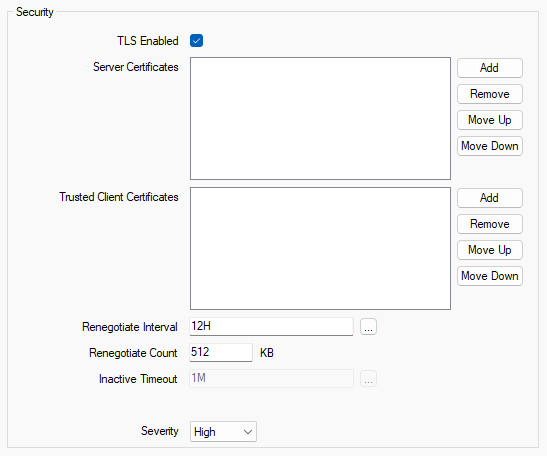
Use the fields in the Security section to configure the Transport Layer Security (TLS) settings for a channel that represents a Network connection. These settings are applicable only when a Listen Port is enabled and configured. A channel with a Network connection is a TLS server. As such, network-connected outstations will make a secure inbound connection to the Listen Port of the channel.
-
TLS Enabled—Select this check box to enable the outstations to make a secure inbound connection to the Listen Port. This uses the TLS protocol when the TCP/IP Type is TCP, and the DTLS protocol when the TCP/IP Type is UDP (see Configure a Channel’s Network Connection Properties).
By default, this check box is not selected. The rest of the fields in this section are 'grayed out' and unavailable for use when this check box is clear.
-
Server Certificates—Add the certificates for the Geo SCADA Expert system (the TLS server). When an outstation connects to the Listen Port, the driver selects one of the certificates that have been configured for the server when establishing a secure connection with the outstation. The outstation receives the selected end-entity certificate and intermediate certificates (if any) from the server so that it can authenticate Geo SCADA Expert (any root certificate is not sent to the outstation).
The server certificate is mandatory for TLS connections, so not specifying any certificates in this field will result in a configuration error (see Correcting Invalid Configuration)
If you are using a certificate authority to issue the certificate, add the end-entity certificate and private key, along with any intermediate certificates that are required to verify the certificate. The outstations should trust the certificate authority's root certificate.
If you are using a self-signed certificate, add the self-signed certificate and private key. The outstations should trust this individual certificate.
In each case, you store the certificates and private key in an SSL Certificate and Key database item.
-
Trusted Client Certificates—Add the trusted client certificates for all of the outstations that connect to the Listen Port. These certificates are used by Geo SCADA Expert (the TLS server) to authenticate the outstations (the TLS clients). If you do not specify any certificates, Geo SCADA Expert does not authenticate the outstations.
You must obtain the certificates of all of the outstations that connect to the Listen Port. If an outstation's certificate is issued by a certificate authority (CA), obtain the certificate authority's root certificate to trust all certificates that are issued by the certificate authority. If an outstation's certificate is self-signed, obtain a copy of the self-signed certificate.
You can then merge all of the certificates into a single file, provide separate certificate files for each outstation, or provide a combination of merged and individual certificate files (see What Certificates do I Require?). You store each certificate file in an SSL Certificate database item.
For compliance with the IEC 62351-3 standard, mutual authentication is required. Therefore, you need to provide the Trusted Client Certificates (of the network outstations) along with the Server Certificates (of the Geo SCADA Expert system) to configure mutual authentication. You must also configure the outstations to authenticate Geo SCADA Expert and to trust the certificates that are configured in the Server Certificates field.
-
Renegotiate Interval—This field is only applicable to TLS 1.2 or earlier versions. Use this field to define the period (in minutes) after which a TLS session is renegotiated and certificates are validated, which will detect revoked or expired certificates.
The IEC 62351-3 standard mandates that this interval be configured. The valid range is from 10 minutes to 1440 minutes (24 hours) inclusive. The default period is 720 minutes (12 hours).
To disable periodic renegotiation, set the value to 0.
-
Renegotiate Count—This field is only applicable to TLS 1.2 or earlier versions. Use this field to define the amount of encrypted data (in kilobytes) that can be sent to an outstation, after which a renegotiation is performed.
The minimum value that can be set is 10 KB. The default value is 512 KB.
To disable renegotiation based on data quantity, set the value to 0.
-
Inactive Timeout—This field only applies when the channel's TCP/IP Type is set to UDP, which indicates that the DTLS protocol is being used (see Configure a Channel’s Network Connection Properties). If an authentication failure occurs in the DTLS server, an alarm will be raised and the DTLS session will be terminated. With UDP and DTLS, the DTLS client will not be notified if there is an authentication failure at the DTLS server, so the client will start sending encrypted messages to the server. The client is likely to continue to send encrypted messages until all of its retries have been exhausted. When the server receives an encrypted message, it will start a new DTLS session and try to handshake, but this will immediately fail and raise a handshake failed alarm that will overwrite the original authentication failed alarm. This then repeats for each subsequent retry by the DTLS client. To prevent this from occurring, the lifetime of the initial DTLS session can be extended until the client stops retrying or the client creates a new DTLS association.
Use the Inactive Timeout field to extend the DTLS session until the client has been inactive for this period of time. Each encrypted message that the server receives during this time is discarded. Once this time has expired, the server's DTLS session is deleted. The timeout count restarts whenever a new datagram is received from the client. Enter the required interval in the OPC Time Format. You can enter the value directly in the field, or use the Interval window (accessed via the field's browse button) to specify the required value. The default is 1M (1 minute).
The channel, operating as a DTLS server, is likely to have a number of clients that are configured to make a connection to its Listen Port. When determining a suitable interval for the Inactive Timeout, you should take into account the timeout settings of each of those clients.
If the client is a network outstation on another Geo SCADA Expert system, the time specified should allow for that client's reply timeout, including its Standard Reply Delay. (Be aware that some drivers in Geo SCADA Expert have their own reply timeout settings.)
If the client is a Geo SCADA Expert TCP/IP channel on another Geo SCADA Expert system, the time specified should allow for that client's Standard Reply Delay and Reestablishment Interval.
If the client is a third-party client, that should have similar reply timeout settings.
In each case, you should ensure that the Inactive Timeout is larger than the longest reply timeout or reestablishment interval on any of the clients that might connect to the channel's Listen Port. The default Inactive Timeout is 60 seconds because the default Reestablishment Interval in Geo SCADA Expert is 30 seconds.
-
Severity—Use this combo box to define the severity of any events and text alarms that get raised on the channel due to issues associated with TLS handshake or TLS authentication when an outstation connects to the channel's Listen Port.
For more information about severities, see Defining Severities in the Geo SCADA Expert Guide to Core Configuration.
-
Area of Interest—This field is only displayed if the Area of Interest feature is enabled on your system. Use the field to specify the Area of Interest with which events and text alarms are to be associated (see Assign a Different Area of Interest to an Item's Alarms and Events). This relates specifically to events and text alarms that have been raised due to issues associated with TLS handshake or TLS authentication when an outstation connects to the channel's Listen Port.
For further information about the Area of Interest feature, see Restrict Alarm and Event Access to Specific Areas of Interest.