Export an SSL Certificate
You can export an SSL Certificate from the database to a file on disk. To export the certificate, you use the Export Certificate pick action on the relevant SSL Certificate database item in which an actual SSL Certificate is stored.
There might be certain scenarios in which you are required to add or remove an individual certificate from a file that contains trusted certificates. To do this, you can export the certificate to a file on disk, modify the file, and then import the modified file back into the SSL Certificate database item. Some drivers only support a single SSL Certificate database item, so all of the trusted certificates must be in one file.
This process will be required when renewing a trusted root certificate. Before the existing certificate expires, a replacement needs to be created and added to the SSL Certificate database item. This will allow both certificates to be trusted during the transition period. The old certificate can then be removed once the transition is completed.
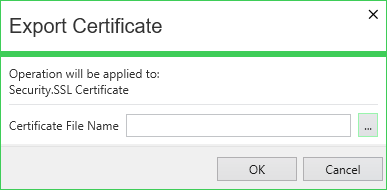
-
Certificate File Name—Use the browse button to display a File Name window. Use the window to select the location to which you want to export the certificate file on the local ViewX client. Ensure that you specify the full path to the file. Alternatively, you can enter the full path and file name directly into the field.
Ensure that you specify an appropriate name and file extension for the certificate that you export.