When you have created Mimic parameters, you need to associate them with Mimic items on a Mimic that is to be embedded. When you associate a parameter with a Mimic item property, you should then animate the Mimic item so that it shows the value for the parameter. For example, if you create a parameter that shows the FullName value of an item and you associate it with the Text property of a text box, the text box will show the full name of the database item that you then use to animate the text box.
To associate a parameter with a Mimic item:
- Display the Parameters Window.
- Position the Parameters window so that you can select the Mimic item and a parameter. (You will need to drag the parameter onto the Mimic item from the Parameters window.)
- Select the required Mimic item.
- Select the required parameter and drag it onto the selected Mimic item.
A context-sensitive menu is displayed.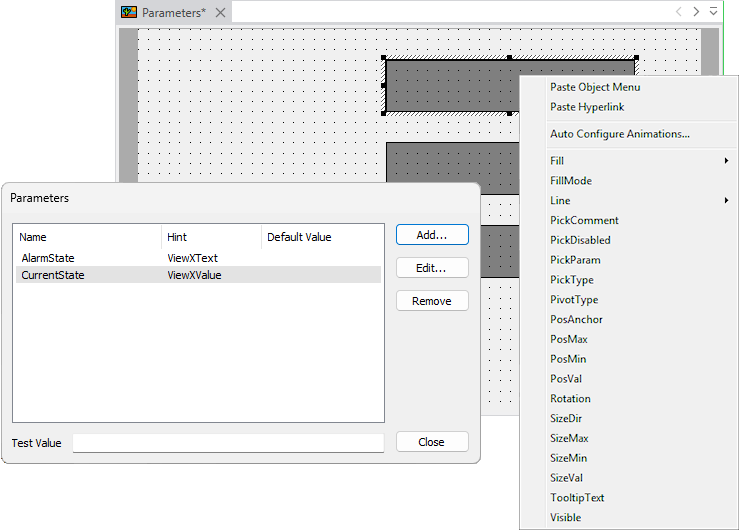
- From the context-sensitive menu, select the option for the animation property that you want to associate with the parameter on that Mimic item. For example, if you want the value of a parameter to be shown in a text box, associate the parameter with the text box's Text property.
- Repeat steps 2-5 inclusive for other parameters and Mimic items as required, and then save the Mimic.
When you have associated parameters with Mimic items, you need to embed the Mimic and then animate its parameters (see Animate the Mimic Parameters on an Embedded Mimic).