Configure the URL, Certificate, and Authentication Properties
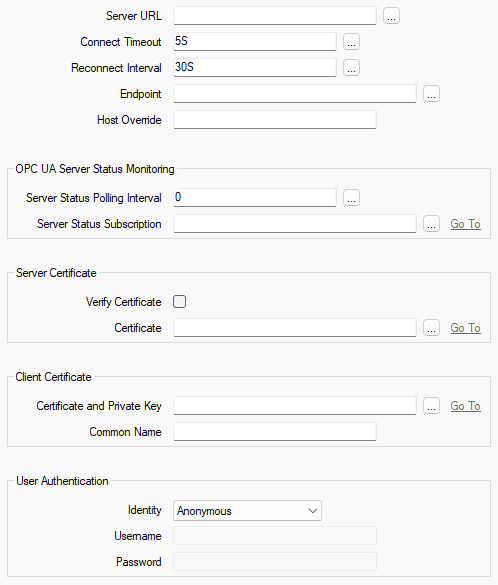
Use the following properties on the Server tab of the OPC UA Server Form to configure the server URL, certificate, and authentication properties:
-
Server URL—Use to specify the URL of the OPC UA server.
If you do not use
The OPC UA URL for a Geo SCADA Expert server might look like this for the local host:
opc.tcp://localhost:48031
If you use OPC UA Discovery Server items in your database, you can either specify the URL manually, or select from a list of OPC UA servers. Use the browse button to display a Reference browse window and then select the required entry from the window. The entries that are listed comprise the OPC UA compatible servers that have registered their availability with the discovery server(s) for which valid OPC UA Discovery Server items exist in the Geo SCADA Expert database. (Provided that those OPC UA Discovery Server items are, or have been, in communications with the discovery server(s) with which the OPC UA servers have registered their availability.)
 Example that demonstrates the use of the Reference window:
A particular Geo SCADA Expert system includes three OPC UA Discovery Server items. These are named DS1, DS2, and DS3 in the database.
On the Form of an OPC UA Server, a configuration engineer uses the browse button next to the Server URL field to display a Reference window from which they intend selecting the relevant OPC UA server (the one to which the database item is to relate).
The Reference browse window that gets displayed when the browse button is selected lists the 3 discover servers to which Geo SCADA Expert is configured to connect:
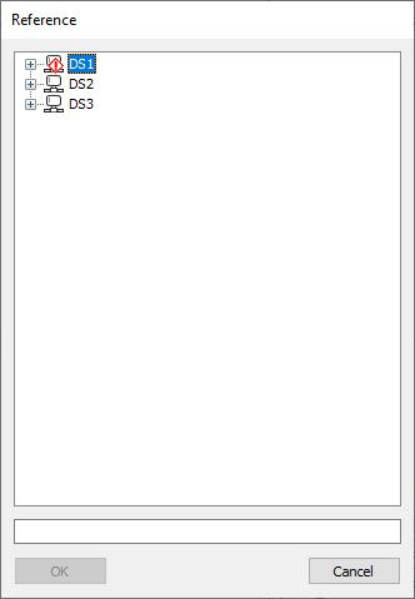
The OPC UA server that the database item is to represent connects to the DS2 discovery server, so the engineer expands the DS2 branch in the Reference window in order to locate and select the required OPC UA server entry.
Notice that a diagnostic indicator overlays the DS1 entry. This indicates that Geo SCADA Expert was unable to connect to the DS1 discovery server at the time that it attempted to perform the discovery. With this situation, you can either enter the URL of the relevant OPC UA server manually in the Server URL field, or wait until the connection to the discovery server is reestablished and then select the required entry from the Reference window.
The Reference window will be unpopulated if:
-
No OPC UA Discovery Server items exist in your database
-
OPC UA Discovery Server items exist in the database, but have invalid configuration or have never been in communication with the discovery server to which they are configured to connect
-
-
Connect Timeout—Specify the time within which the OPC UA server has to complete the connection that Geo SCADA Expert has requested. Enter the required interval in the OPC Time Format. You can enter the value directly in the field, or use the Interval window (accessed via the field's browse button) to specify the required value. The default of 5 seconds should be suitable for most systems, however you might need to increase the value if the OPC UA server is slow to start.
If the OPC UA server does not complete the connection within this time, the connection times out, after which it is then reattempted.
-
Reconnect Interval—Specify the interval, in seconds, between attempts to reconnect to the OPC UA server after a failed connection. This might occur, for example, if Geo SCADA Expert attempted to connect but the OPC UA server was initially offline. Enter the required interval in the OPC Time Format. You can enter the value directly in the field, or use the Interval window (accessed via the field's browse button) to specify the required value.The default is 30 seconds.
-
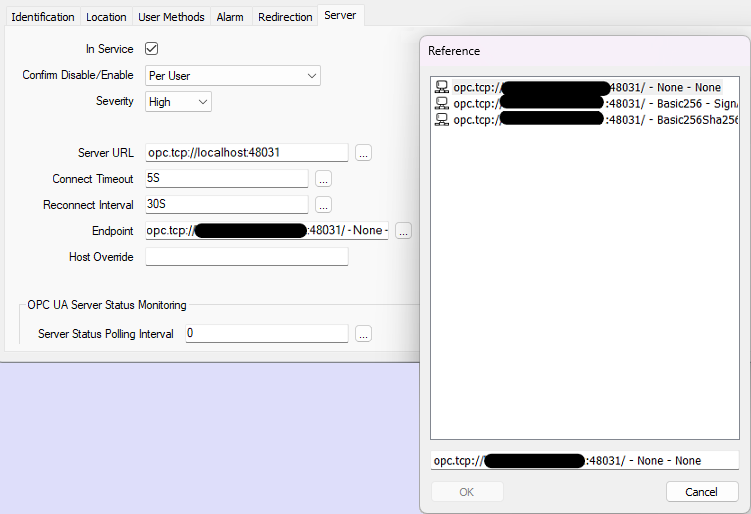
Endpoint—An OPC UA server can have various endpoints with different levels of security and encryption. Once the Server URL field is populated, you can use the browse button next to this Endpoint field to display a Reference browse window. Use the window to select the endpoint with which this OPC UA Server database item is to be associated. Ensure that you select an endpoint that supports the level of encryption that is to be used. (The options offered vary, depending on the device, but might include, for example: None, Basic128Rsa15, Basic256, and so on.)
The Endpoints on one particular system are as follows:
- Host Override—Use to specify the host name that Geo SCADA Expert is to use instead of the host name or IP address of the endpoint that Geo SCADA Expert receives from the OPC UA server.
You only need to populate this field if Geo SCADA Expert connects to the OPC UA server via Network Address Translation (NAT). The value that is defined in this field will replace the host part of the Endpoint URL that the user selects.
On a particular Geo SCADA Expert system, Geo SCADA Expert connects to the OPC UA server via Network Address Translation (NAT). In this particular case, NAT is set up to 'translate' the public IP address
northwest.cominto the private network addressareathree.netfor use on the local network. This latter address is not directly accessible to Geo SCADA Expert.The database item that represents the OPC UA server is set up to include the following configuration:
Server URL: opc.tcp://northwest.com:62640/IntegrationObjects/ServerSimulator
Host Override: northwest.com
As the Host Override property is populated, this triggers Geo SCADA Expert to map the private network address part of the selected Endpoint URL to the public IP address that is specified in the Host Override field.
The database item's configuration also includes the following:
Endpoint: opc.tcp://areathree.net:62640/IntegrationObjects/ServerSimulator - None - None
The URL in the above field includes the private network address
areathree.net, which is not directly accessible from Geo SCADA Expert.Geo SCADA Expert 'translates' the private network address
areathree.netin the Endpoint URL into the public IP addressnorthwest.com(which is specified in the Host Override field). Geo SCADA Expert then attempts to connect to the endpoint using this URL:opc.tcp://northwest.com:62640/IntegrationObjects/ServerSimulator
(in which the private network address
areathree.nethas been replaced by the public IP addressnorthwest.com).If no Host Override is specified, the endpoint URL is not modified.
Leave the field blank if Geo SCADA Expert does not connect to the OPC UA Server via Network Address Translation (NAT).
The OPC UA Server Status Monitoring section of the tab contains properties that you use to specify how Geo SCADA Expert is to monitor the status of the OPC UA server that this database item represents. Geo SCADA Expert supports two ways of doing this: either poll the OPC UA server itself, or use a Subscription to monitor various aspects of the server status structure:
- Server Status Polling Interval—Use to specify the interval at which Geo SCADA Expert polls the OPC UA server. Enter the required interval in the OPC Time Format. You can enter the value directly in the field, or use the Interval window (accessed via the field's browse button) to specify the required value.
If the interval is set to 0 (zero), further polling will not occur after the initial poll during which the connection to the OPC UA server is established. You might want to set this interval to 0 if you opt to use an OPC UA Subscription item to monitor the status of the OPC UA server.
- Server Status Subscription—You can optionally use an OPC UA Subscription item to monitor the status of the OPC UA server. If you choose to do this, use this field to specify the OPC UA Subscription item that is to be used to monitor the status of the OPC UA server. Use the browse button to display a Reference browse window and then select the required entry from the window.
When this field is populated, the Status display of the OPC UA Subscription item includes a set of additional status attributes per aspect of OPC UA server status that Geo SCADA Expert is monitoring (see Status Attributes that are Specific to OPC UA Subscription Items). Use the attributes to monitor the status of the OPC UA server.
Leave the Server Status Subscription field empty if you purely want Geo SCADA Expert to monitor the status of the OPC UA server using the Server Status Polling Interval.
The Server Certificate section of the tab includes these properties:
- Verify Certificate—Use to specify whether Geo SCADA Expert is to verify the certificate on the OPC UA server itself against the certificate that is listed in the Certificate field in this section of the tab.
Select the check box for Geo SCADA Expert to verify the certificate. This helps to verify that Geo SCADA Expert is connecting to the OPC UA server, rather than to another machine that is trying to impersonate that server.
Clear the check box if Geo SCADA Expert is not required to verify the certificate. This is the default option.
- Certificate—With communications for which Geo SCADA Expert is to check the authenticity of the OPC UA server's certificate, you first need to import that certificate into the Geo SCADA Expert database. The certificate must be in DER format. (You might need to export the certificate from the server machine before you can import it into Geo SCADA Expert.) You use an SSL Certificate database item to import and store the certificate in the database
Use the browse button next to the Certificate field to display a Reference browse window. Use the window to select the SSL Certificate database item that is being used to store the OPC UA server certificate that Geo SCADA Expert is to trust.
The Client Certificate section of the tab includes these properties:
- Certificate and Private Key—With encrypted communications, Geo SCADA Expert sends a client certificate to the OPC UA server as part of the certificate validation process. You use an SSL Certificate and Key database item to store this certificate and its private key in the database
- Common Name—The value of this field has to match the Common Name field that is defined in the Client Certificate that you are using.
Use the browse button next to the Certificate and Private Key field to display a Reference browse window. Use the window to select the SSL Certificate and Key database item that is being used to store the client certificate that Geo SCADA Expert is to send to the OPC UA server.
For guidance on creating client certificates and private keys, see Set Up Secure Connections for the OPC UA Client.
The User Authentication section of the tab includes these properties:
-
Identity—Use to specify the level of user authentication that is required to establish a connection to the OPC UA server. Choose from:
-
Anonymous—Select this option if the OPC UA server accepts connections from clients (such as Geo SCADA Expert) without requiring the provision of valid user credentials. The rest of the fields within the User Authentication section of the tab are 'grayed out' and unavailable for use.
-
Username and password—Select this option if Geo SCADA Expert has to provide valid user credentials to the OPC UA server in order to communicate with that server. Ensure that these user credentials are assigned the appropriate access on the OPC UA server itself.
-
-
Username—Specify the username of a valid user on the OPC UA server. (This field is 'grayed out' and unavailable for use when the Identity is set to 'Anonymous'.)
-
Password—Specify the password of the user on the OPC UA server. (This field is 'grayed out' and unavailable for use when the Identity is set to 'Anonymous'.)