ATTENTION: This topic relates to the deprecated Original WebX client that is supported by this and previous versions of Geo SCADA Expert. Geo SCADA Expert 2025 will be the last version of the product to support and include the deprecated Original WebX client. For web client support, please use Virtual ViewX clients instead of Original WebX clients. For information about the Virtual ViewX client, click here.
ATTENTION: This section only applies to User Accounts that are managed directly in Geo SCADA Expert. With User Accounts that are associated with
It is important to keep your user password secret. If another user logs in using your username and password, any actions they perform will be logged against your name. If you think that your password has been compromised, you should change it.
You have to be logged onto Geo SCADA Expert to change your password (see Log On to a WebX Client). You can change your password if your user account has the Can Change Password feature enabled and is not authenticated via Windows. Check with your system administrator.
To change your password via a WebX client:
- Select your User Name at the bottom of the WebX interface.
The Change Password page is displayed.
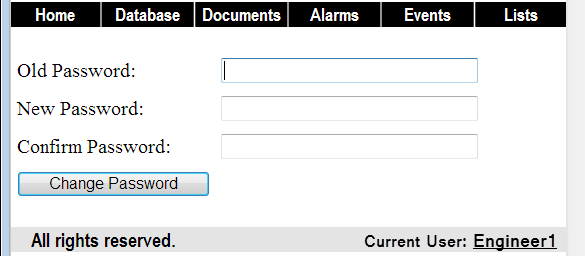
- Enter your Old Password, followed by your New Password. Both fields are case sensitive.
- Confirm the spelling and capitalization of your new password by entering it in the Confirm Password field.
- Select the Change Password button to confirm the change.
For more information about changing your password, see Change your Password via ViewX.