ATTENTION: This topic relates to the deprecated Original WebX client that is supported by this and previous versions of Geo SCADA Expert. Geo SCADA Expert 2025 will be the last version of the product to support and include the deprecated Original WebX client. For web client support, please use Virtual ViewX clients instead of Original WebX clients. For information about the Virtual ViewX client, click here.
To run a WebX client:
- Either:
- Select the Start button.

The Windows Start menu is displayed.
- Select the All Apps option.
- Select the Microsoft Edge option.
Or:
- Double-click on the Microsoft Edge desktop shortcut.
Microsoft Edge is displayed.
- Select the Start button.
- Enter the address for your Geo SCADA Expert server in the Address field, in one of these formats:
http://<name_of_server>
http://<name_of_server>:<port_number>
https://<name_of_server>
https://<name_of_server>:<port_number>
Where <name_of_server> is the node name of your web server (you may also use its IP address), and <port_number> is the port used by the server. Use the 'https' address if your server uses secure http. If the web server is configured to use the default port for its protocol (80 for http, 443 for https), omit the port number.Your system administrator will be able to provide you with this information.
- Press the Enter key.
The browser displays your WebX client home page.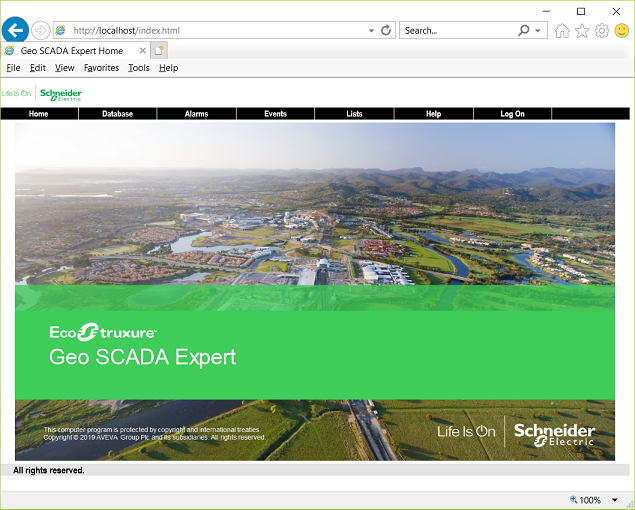
A Default View, such as a custom Mimic, is displayed instead of the above image, if the Root Group on your system is assigned a Default View. Such a ‘file object’ might, for example, comprise an overview of your system. For more information, see Defining a Default View in the Geo SCADA Expert Guide to Core Configuration.
To access Geo SCADA Expert via WebX, you typically need to Log On to a WebX Client.