The process for adding and configuring a DMZ Permanent Standby server is very similar to the process used when adding and configuring a 'normal' Permanent Standby server.
ATTENTION: You should install the same drivers on the DMZ Permanent Standby server as those installed on the Main server. If the Main server has drivers that are not installed on the DMZ Permanent Standby, the DMZ Permanent Standby server will not be able to establish a connection with the Main server.
Configure a DMZ Permanent Standby server
To configure a DMZ Permanent Standby server, you need to:
- Select the Standby tab.
- Choose DMZ Permanent Standby Server as the Type. Do not choose Permanent Standby Server as the type as this will set the server to have a connection back to the Geo SCADA Expert system.
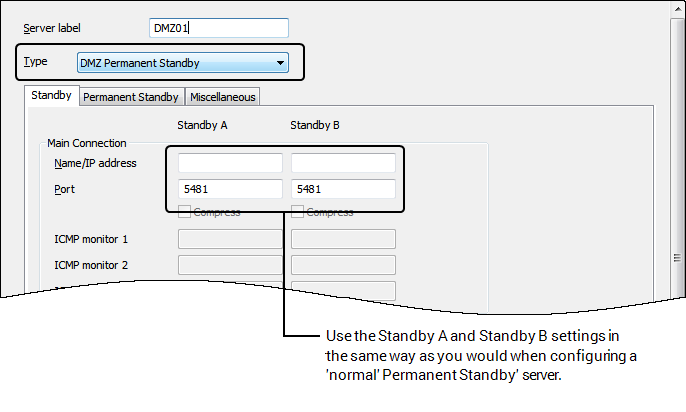
- Configure the DMZ Permanent Standby server to recognize the Main and Standby servers as appropriate.
The other aspects of the DMZ Permanent Server configuration are the same as those for the configuration of a 'normal' Permanent Server.
Configure the Main/Standby to recognize the DMZ Permanent Standby server
- Select the Permanent Standby tab.
- Use the settings in the Permanent Standby A, Permanent Standby B, Permanent Standby C and Permanent Standby D columns, in the same way as you would when configuring a Main/Standby server to recognize a 'normal' Permanent Standby server. The difference is that you need to select the DMZ check box so that the Main/Standby server can establish a connection to the DMZ Permanent Standby server. The DMZ Permanent Standby server will be unable to connect to the system if the DMZ check box(es) are cleared.
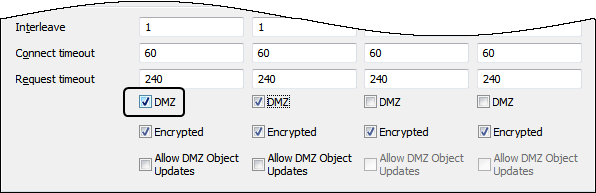
- Select the Encrypted check box to ensure that the transfer between the Main/Standby and the DMZ Permanent Standby is encrypted.
- The Allow DMZ Object Updates setting relates to a DMZ Permanent Standby server on which both of the following apply:
- The External Authentication feature is enabled on the Geo SCADA Expert server (see Using External Authentication with Geo SCADA Expert).
- The server is configured to Create users automatically from group membership (see Integrate Geo SCADA Expert User Accounts with Active Directory or LDAP User Accounts).
Use the Allow DMZ Object Updates check box to control whether new users can be created automatically, and User Group membership updated automatically, in User Groups that are configured to Allow Automatic User Creation (see Provide Settings for Automatic User Creation). Regardless of the setting of this check box, the Main server will log events for users that log on from the DMZ Permanent Standby server, and will update logon statistics. The Main server will also save the ViewX user profile data whenever a user logs off from the DMZ Permanent Standby server. Additionally, the user will also be able to change their password from the DMZ Permanent Standby server (this functionality is required if passwords are configured to expire). If a User Account is configured for two-factor authentication, the user will be able to enroll for two-factor authentication (see Enroll for Two-Factor Authentication from a DMZ-Connected Client).
The DMZ Permanent Standby server does not establish a connection to the Main server; instead, the Main server establishes a connection to the DMZ Permanent Standby server. As the DMZ Permanent Standby server is unable to write the information to the database itself, it batches the data and provides this to the Main server as part of the synchronization process. The Main server collects this data when it 'polls' the DMZ Permanent Standby server for changes to users. As the DMZ Permanent Standby server has no connection back to the Main server, it offers more protection against malicious attacks than 'normal' Permanent Standby servers.
Clear the Allow DMZ Object Updates check box to restrict updates to just the following: updates to the User Account of the user that is logged on from the DMZ Permanent Standby server, logon statistics, ViewX user profile updates, and password changes. The logon statistics include logon/logoff events and other information about a user's logon activities, such as failed logon attempts.
Select the Allow DMZ Object Updates check box to allow the Main/Standby server to read user security information from the DMZ Permanent Standby server. This enables new User Accounts to be created automatically when a valid user logs on from the DMZ Permanent Standby server. Additionally, User Group membership is also updated automatically. The DMZ Permanent Standby server updates the Main server about the state of that user. If the User Account is disabled on the DMZ Permanent Standby then it becomes disabled on the Main server. To re-enable that User Account, the System Administrator is then required to reset the User Account on the Main server and DMZ Permanent Standby server.
The data transfer request is initiated from the Main server as part of the standby transfer process, and occurs after the User Account's data has been transferred, but before the historic data is transferred.
ATTENTION: If you configure a 'normal' Permanent Standby server and then configure the Main server or Standby server to have the DMZ setting enabled for the Permanent Standby server, the connection will fail. Similarly, a Main or Standby server can only connect to a DMZ Permanent Standby server if the DMZ Permanent Standby server’s Type is set to DMZ Permanent Standby Server and the DMZ check box is selected on the Main and Standby servers.