Permanent Standby Permission Restrictions Tab
The tab is only available for use when the server Type is set to Hot-Standby Pair or Triple Standby (see Set the Type of Server).
With Permanent Standby servers, you might want to restrict privileged operations rather more than on Main and Standby servers. Especially, for example, if those Permanent Standby servers are placed in a separate network security zone to the Main/Standby servers.
Use the Permanent Standby Permission Restrictions tab in the Partners section to control user access to the database on a server-wide basis from your Permanent Standby servers. Use the settings in this section to specify the Permission Restrictions that apply to any Permanent Standby servers for which the Enabled check box is selected on the Permanent Standby tab
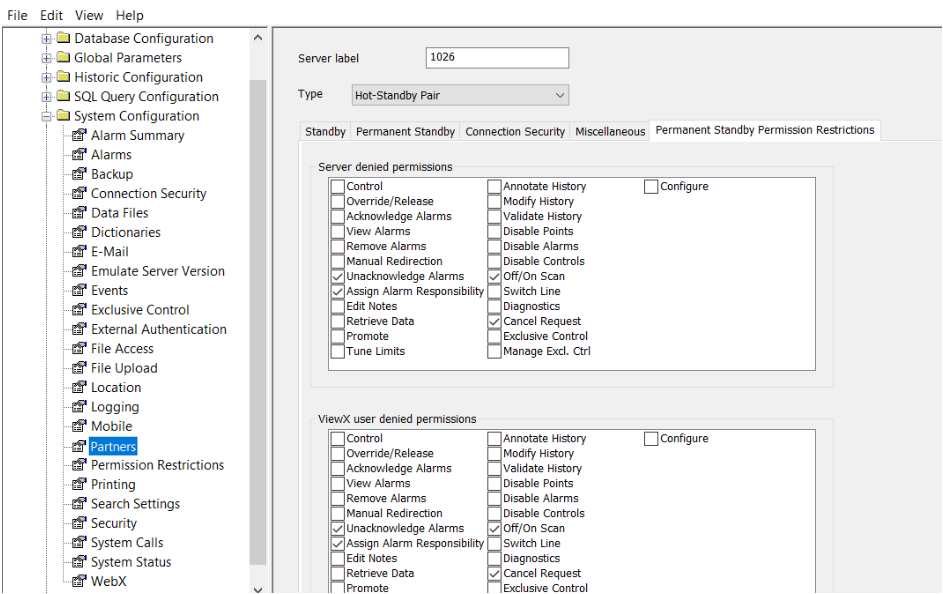
The Permanent Standby Permission Restrictions settings are grouped as follows:
- Server Denied Permissions—The permissions in this group apply to every client that is connected to the Permanent Standby server (ViewX clients,
- ViewX User Denied Permissions—The permissions in this group only apply to ViewX clients that are connected to the Permanent Standby server.
- WebX/Operator ViewX User Denied Permissions—The permissions in this group only apply to Virtual ViewX and Original WebX clients that are connected to the Permanent Standby server. Any changes you make will not affect ViewX clients, the Automation interface, and so on.
- Standard Pick Menu Denied Permissions—The permissions in this group apply to the options in the standard pick action menu for database items. They apply to the standard pick action menu on ViewX
You use the Permanent Standby Permission Restrictions settings to:
- Deny permissions to all users or to all ViewX and/or Virtual ViewX users that are connected to Geo SCADA Expert via the Permanent Standby server, without having to alter the configuration of their individual user accounts.
- Specify different types of access according to the type of interface being used.The configuration of a user's user account defines which features are available to that user in both ViewX and Virtual ViewX.
- Deny access to the various standard pick action menu options for each of the client interfaces. For example, if you want all Virtual ViewX and Original WebX users to be unable to acknowledge alarms, you can use the Permanent Standby Permission Restrictions settings to remove the Acknowledge Alarms permission for all WebX/Operator ViewX users, irrespective of the permissions allocated to their individual user account.
Once you have configured the settings that you require, Apply the changes to the server.
With those Permanent Standby servers that are configured to inherit their Permission Restrictions from the Permanent Standby Permission Restrictions settings defined on the Main server, this inheritance will occur when the Main synchronizes with the Permanent Standby servers. At that stage, the Main server will update the Permission Restrictions registry settings on the Permanent Standby servers so that they match the settings that are configured on the Permanent Standby Permission Restrictions tab on the Main server. On each Permanent Standby server, you can use the Privileges section of the Server Status Tool to ascertain the server-wide Permission Restriction settings that apply to that particular server. The Privileges section shows the server-wide Permission Restrictions that apply to the Permanent Standby server regardless of whether that server inherits those permissions from the Main server.
Geo SCADA Expert ignores the Permission Restrictions section of the Server Configuration Tool on any Permanent Standby servers that inherit their Permission Restrictions from the Permanent Standby Permission Restrictions settings on the Main server. With such servers, you use the Privileges section of the Server Status Tool (mentioned above) to ascertain the server-wide Permission Restrictions that apply to those Permanent Standby servers (see Privileges).
For more information on setting permissions on a client or standard pick menu basis, see Define Whether any Permissions are Restricted.
For information about the permissions themselves, see Permissions for Database Items.
Further Information
View the current status of a server's server-wide Permission Restrictions: see Privileges.
Standby Permission Settings: see Define Whether any Permissions are Restricted.