The Server Links category provides status information about the links between the server and clients.
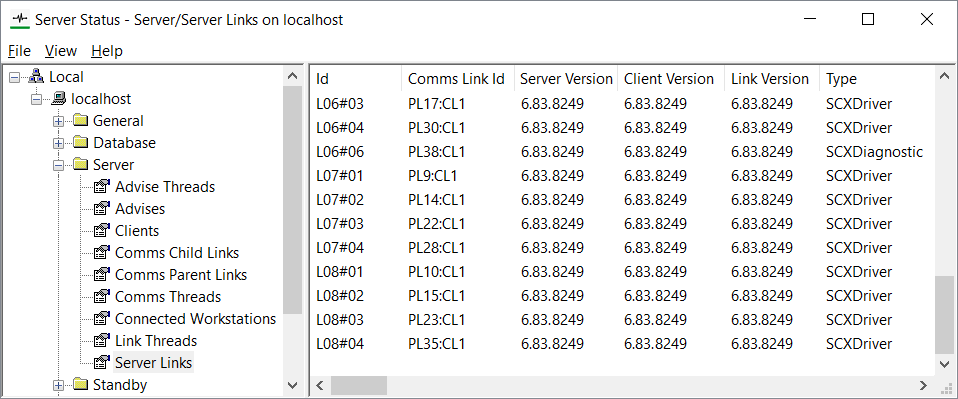
Geo SCADA Expert requires multiple links, with the number of links varying depending on the size of the system. In many cases, the number of links that each ViewX client uses is approximately:
- 1 link for the system manager to poll each server
- 1 link for the embedded mimic cache
- 1 link for the global script cache
- 2 links for the Alarm Banner
- 1 link for each open Queries List (SQL list)
- 1 link for each open Trend
- 2-3 links for open Mimics
- 1 link for each open Properties Form.
The status information for the links is categorized as:
- Id—The identifier that Geo SCADA Expert has allocated to the link. This has the format
Lxx#yywhereLindicates that this is a 'server link',xxcorresponds to the Id of the Link Thread, andyyidentifies this particular link within the thread.L07#03
The Id of a server link that is the third link on the seventh link thread.
- Comms Link Id—Indicates the comms link that is servicing the server link. The format is
PLx:CLywherexis the number of the parent link andyis the number of the child link. The Ids match those shown in the Id columns in the Comms Parent Links and Comms Child Links categories of the Server Status Tool respectively. - Server Version—The version number of the Geo SCADA Expert software that is installed on the server that is using the link. This information is useful when Server Emulation is in use following an upgrade
The Server Version can be affected by these factors:
The version of the server
The version that the server is emulating (if any)
The version that the database is emulating (if any)
The Type of link (see below).
SCXStandby is a special case, it uses client (partner) version
SCXStandbySink ignores server emulation
SCXIcon, SCXDiagnostic, SCXConfig, and SCXDriver ignore
The Server Version matches the lowest version of the different version numbers that are in force.
- Client Version—The version number of the Geo SCADA Expert software that is installed on the client that uses the link.
Be aware that, if Server Emulation
- Link Version—The version of the client-server protocol that is used by the link. This can be affected by these factors:
- The version of the client that is connected to the link
- The version of the server
- The version that the server is emulating if Server Emulation
The Link Version matches the lowest version of the different version numbers. For example, if the client version is the lowest version number, the Link Version will be the same version as the client.
For information about the client-server protocol that is being used by advises links (rather than 'regular' links), see the Advises category of the Server Status Tool.
- Type—The type of communications that are sent via the link. These can be:
- OPCAE and OPCAEEVENTMGT—The link is being used to transfer requests for OPC Alarm and Event data.
- OPCAEBROWSE—The link is being used to transfer a request made for the OPC alarm and event interface.
- OPCDA and OPCDAGROUP—The link is being used to transfer requests for OPC current data
- OPCHDA—The link is being used to transfer a request for OPC historic data.
- OPCHDABROWSE—The link is being used to transfer a request for the OPC historic interface.
- SCX—The link is being used to send a request that relates to configuration and database management data that is not managed by the other types of Geo SCADA Expert type link.
- SCXDriver—The link is being used to transfer a request made via one of the Geo SCADA Expert drivers, such as the AdvancedModbus driver.
- SCXManager—The link is being used to monitor ViewX.
- SCXDiagnostic—The link is being used by the Server Status Tool.
- SCXIcon—The link is being used by the Server Icon application that is shown in the Windows taskbar.
- SCXConfig—The link is being used by the Server Configuration Tool.
- SCXBROWSE—The link is being used to transfer a request made for the ViewX interface.
- SCXStandby—The link is being used to transfer a request from the main server to a standby server.
- SCXStandbySink—The link is being used to transfer a request from a standby server to the main server.
- Status—Indicates the present condition of the link. This can be:
- Start
- OnOpenWaitforDBlock
- OnOpenNoDBlock
- AddToThread
- Idle
- Processing
- SendingReply
- ReadRequest
- Queued
- WaitForDBReadLock
- WaitForDBWriteLock
- WaitForSend
- RemoveFromThread
- OnCloseWithDBlock
- OnCloseNoDBlock
- Close
ReadRequest, Queued (used when the request is processed in a ‘worker’ thread rather than the link’s thread), Start, OnOpenWaitforDBlock, OnOpenWithDBlock, OnOpenNoDBlock, and AddToThread are phases in the connection sequence. When the link is not being used, it is Idle. If a request is made, for example, a request for data, the server link goes through the request phases of WaitForDBReadlock or WaitforDBWritelock, Processing, WaitforSend (only if request was Queued), and SendingReply before returning to the Idle state.
When the link is being closed, it goes through the phases of the closing sequence: RemoveFromThread, OnCloseWithDBlock, OnCloseNoDBlock, and finally, Close.
Schneider Electric engineers can use this status information when investigating potential software issues relating to unresponsive clients.
- Flags—Indicates the type of activity being undertaken by the link. The Flags status shows one of the following:
- P—The link is being used to process a request.
- W—The link has been used to process a request and is waiting to send the reply.
- S—The link is being used to send the reply to a request.
- C—The link has checksums enabled. This means that requests made on this connection include checksum information that is used to detect and reject corrupt requests. Many links have checksums enabled, and so it is common for links to have the C flag.
- E—The data that is transmitted using this link is encrypted.
- V—The link makes use of a Comms Parent Link that supports coalesced communications.
- Advise—Shows the Id of the associated advise on the link (see Advises), or a dash (-) if there is no advise. Each client sends an advise to the server as part of the server-client connection establishment process.
- Client—The unique identification number of the client advise. This can be used to match the server links information against data contained in the DBClient log files.
- Curr Req—The unique code number used by Schneider Electric to identify the type of request.
- Requests—The total number of requests sent via the link.
- Up Time—The amount of time for which the link has been connected.
- Idle Time—The amount of time that has elapsed since the latest request.
- Last Req—The code and duration of the most recent request. The code can be used by Schneider Electric engineers to determine the cause of impaired performance (when caused by excessive request times). The code is the same as the Curr Req.
This information is used in conjunction with the Longest Req code and time.
- Longest Req—The code and duration of the longest request (this should be less than 1000mS). The code can be used by Schneider Electric engineers to determine the cause of impaired performance (when caused by excessive request times). The code is the same as the Curr Req.
- Client Name—The name of the client application or process that is using the link, for example, the name of a driver or the name of a ViewX component (including the client on which it runs).
- User Name—The name of the User account that is logged on to the client that is using the link. This can be a custom User account, a built-in User account, or an internal User account such as Driver. This provides an indication of which user is logged on to each client.
- Provisional User—For more information, see Provisional User Logon in the Geo SCADA Expert Guide to Security.
- Locale—The Windows locale of the client that is using the link, for example, English (United Kingdom).
- TZ Bias—The offset of the user’s time zone (in minutes) from UTC. This does not include any daylight saving time adjustments.
- Licensed—Indicates whether there is a valid license for the link. The status can be:
- Yes—The link is using a valid server license.
- No—The link is unlicensed (there is no client license installed and there are no spare server licenses available).
- Exempt—The link does not require a license. Links between Main and Standby servers, links with drivers, and links with the server tools (Server Icon, Server Configuration Tool, and Server Status Tool) do not require a license.
- Client—The link is using a client license.
- Workstation Name—The workstation name that has been given to the ViewX client (this is blank if a workstation name has not been configured). The workstation name is used with the Set Responsibility action
Workstation Names should only be used for ViewX clients (as opposed to Virtual ViewX clients) and have to be unique on the system.
- Client ID—The unique identifier of the client (the client’s IP address) and a session number. The session number is 0 unless ViewX is running under Citrix or Microsoft Remote Desktop Services, in which case, the number is a unique session number. The unique session number is used by the server when enforcing the license.
- Open QP Tables—The number of Query Processor tables that have been opened, but not closed, on the link. For ViewX links, this status should be 0 or 1, whereas for links for Third Party applications, the number may be higher. When tables are being queried correctly, the Open QP Tables number should reach a number and then remain at that number. If the Open QP Tables number rises and continues to rise, there may be a problem with the way in which a Third Party application is accessing the QP tables, for example, there may be a memory leak. In this scenario, you should seek assistance from the support team of the Third Party application manufacturers.
- Data From Client—The total amount of compressed data received from the client. This is the actual amount of data transmitted across the network.
- Data To Client—The total amount of compressed data sent to the client. This is the actual amount of data transmitted across the network.
- Content From Client—The total size of the data received from the client (after the data has been decompressed).
- Content To Client—The total size of the data sent to the client (after the data has been decompressed).
- % Compression From Client—The amount by which the data transmitted from the client could be compressed. For example, 90% compression means that the actual transmitted data was compressed to 1/10 of its original size.
- % Compression To Client—The amount by which the data transmitted from the server could be compressed. For example, 90% compression means that the actual transmitted data was compressed to 1/10 of its original size.
- Memory Usage—The amount of memory used for the server link.
You should pay particular attention to the number of links in the Server Links category—there should not be an excessive number of links in comparison with the number of clients. You should also check that the Longest Req is generally less than 1000mS.
An excessive number of links or a Longest Req over 1000mS may indicate a high server load, see Diagnose Client Performance Problems.