Deactivate Database Emulation after a Successful Upgrade
Do not deactivate Database Emulation if you intend downgrading the version of Geo SCADA Expert software that is currently running on the servers on your system. Instead, if Database Emulation was activated for the upgrade and has remained activated since then, leave that Database Emulation activated while you perform the downgrade (see Perform a Downgrade after Upgrading Geo SCADA Expert).
If Database Emulation was activated when you upgraded the version of Geo SCADA Expert software that was running on your servers, once you have confirmed that the upgrade is successful on your system, you should deactivate that Database Emulation. You have to do this on each Geo SCADA Expert server on which Database Emulation is enabled. This will cause each server to stop. Therefore in a multi-server architecture, you might want to deactivate Database Emulation on each of the standby servers first, before you shut down and then deactivate it on the Main server. This will result in a single Changeover (rather than multiple changeovers if you deactivated Database Emulation on the Main server first, or partway through deactivating the feature on each of your servers). For detailed steps on how to do this, select the relevant link below:
-
Upgrade a Geo SCADA Expert Server in a Lone Server Architecture
-
Upgrade Geo SCADA Expert Servers in a Multi-Server Architecture
To deactivate Database Emulation:
-
Ensure that all of your servers have been upgraded to run the same build of Geo SCADA Expert software.
-
See above for the suggested order in which you should deactivate this feature on the servers on your system.
-
Right-click on the
A context-sensitive menu is displayed. -
Select the Deactivate database version emulation option. (This option is only available when Database Emulation is currently activated on the server.)
On a multi-server system, the server will shut down. On a lone server system, the server will remain running. Database Emulation will be deactivated on the server.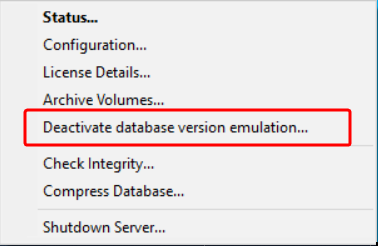
-
With a lone server system, you can ignore the rest of the steps in this procedure.
With a multi-server system, restart the server.
-
With a multi-server system, repeat the above steps on the other Geo SCADA Expert servers on which Database Emulation is currently activated.
(On a triple redundant system
Once Database Emulation has been deactivated:
-
The database files will get stored in the database format that is specific to the version of Geo SCADA Expert to which the servers have been upgraded.
-
The features and functionality that is only available in Geo SCADA Expert from that upgraded version of software will become available for use.
When you upgrade the version of Geo SCADA Expert software that is running on a server, the setting that was specified for Database Emulation in the Installation Wizard gets stored on that server (see Database Emulation Configuration). This same setting is then offered by default when the server is next upgraded. Deactivation of Database Emulation via the Server Icon only deactivates that feature on the version of upgraded Geo SCADA Expert software that is currently running on the server; it does not affect the setting used for Database Emulation in the Installation Wizard. (To change the setting that is offered by default when the server is next upgraded, you use the Server Configuration Tool