You can use Windows Control Panel to perform a ‘quick uninstall’ of Virtual ViewX server. This will remove Virtual ViewX server (and the Virtual UI Server Tool) from your computer, but will leave behind some registry settings and files. This process works in a similar way to uninstall procedures for other applications that run in Windows.
To perform a ‘quick’ uninstall of Virtual ViewX server:
- Log on to your PC via a Windows user account that has Administrator permissions.
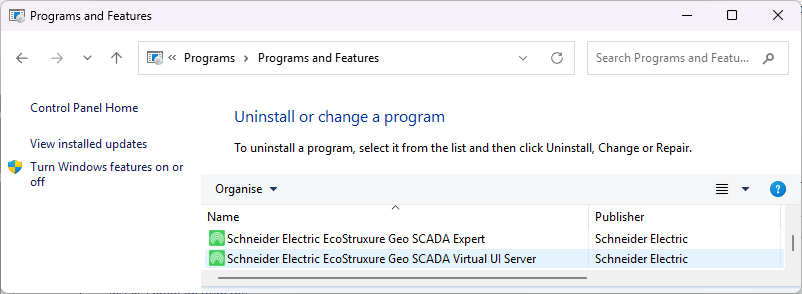
- Use Windows Control Panel to access the Uninstall or Change a Program window.
In Windows 10, use the following procedure:
- In the Search field in Windows, enter the following search string:
Control Panel.
The Control Panel is displayed. - Within the Control Panel select the Programs and Features entry.
For information on how to uninstall a program in other versions of Windows, please refer to your Windows documentation.
- In the Search field in Windows, enter the following search string:
- Select Schneider Electric EcoStruxure Geo SCADA Virtual UI Server in the list of programs.
The options in the menu at the top of the list change and now show an Uninstall option.Alternatively, you can right-click on the entry to display a context-sensitive menu.
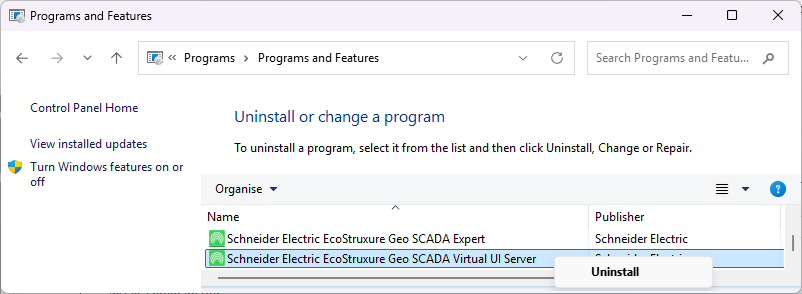
- Select the Uninstall menu option.
A dialog box is displayed, with options to confirm or abort the uninstall procedure. - Select Yes to proceed with the uninstall process.
The Virtual ViewX Server and Virtual UI Server Tool are removed from your computer. However, this is a quick uninstall and some Virtual ViewX and Virtual UI Server files and settings will remain in place unless you also perform step 6 . - Once the Virtual ViewX applications have been uninstalled, optionally use Windows Explorer to delete the contents of the following directory (the default location is shown here):
C:\ProgramData\Schneider Electric\Virtual ViewX
You can also optionally delete the VVXLocalUser account that is created in Windows when Virtual ViewX is installed on the Virtual ViewX server machine.
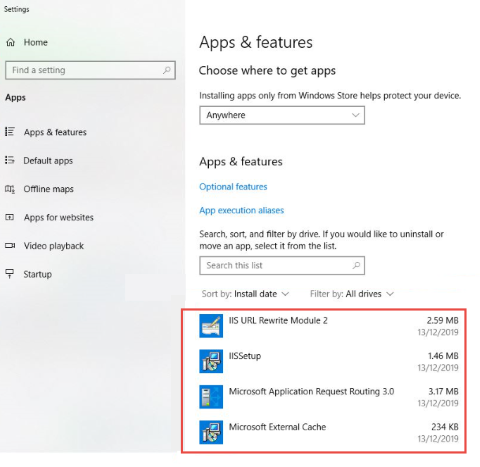
The following files relating to Virtual ViewX remain on the PC even after the uninstallation process is complete. You can leave these files as they do not affect system performance. Alternatively, the 'IISSetup' program can be uninstalled safely. If you are sure that the other files are not used by any other IIS web server applications, you can also uninstall those files.
Uninstalling the Virtual UI Server application does not remove the Geo SCADA Expert settings in IIS. Refer to your IIS administrator to remove the settings from IIS.