Web Server Ports Configuration
This page of the Installation Wizard is only displayed on a Geo SCADA Expert server installation. (It is not displayed on a client-only installation.)
This page is not shown when you modify an existing installation. To change the Web Server Port settings on an existing installation, use the IIS Manager application to change the settings and then replicate any changed port settings in the WebX section of the Server Configuration Tool.
A local IIS reverse proxy is now installed and configured as part of the Geo SCADA Expert installation when you use the Installation Wizard to install the server components. We recommend that you use this local IIS reverse proxy to perform TLS negotiation on behalf of the Geo SCADA Expert server.
Use the Web Server Ports Configuration page to specify Geo SCADA Expert's web server port and the ports that the IIS reverse proxy is to use. Also specify the certificate that the IIS reverse proxy is to use for HTTPS communications. The properties on this page are used to configure the local proxy settings in the Internet Information Services (IIS) Manager application.
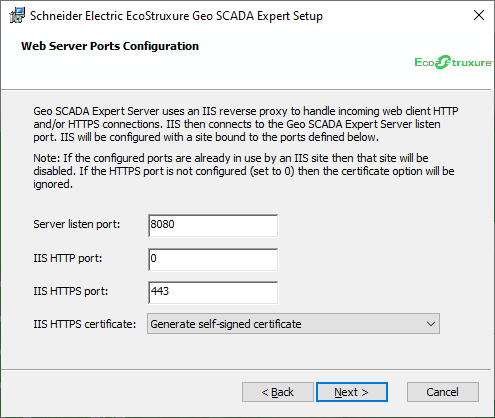
-
Server listen port—Use to specify the port on which the Geo SCADA Expert server should listen for new connections. The default is port 8080. This is the HTTP listen port that is defined in the WebX section of the Server Configuration Tool
-
IIS HTTP port—Use to specify the port on which the IIS reverse proxy should listen for HTTP connections.
By default, this port is disabled (represented by the value being set to zero (0)).
When enabled (by specifying a port number other than 0), the IIS reverse proxy accepts non-secure HTTP connections via the specified port number. Ensure that you do not specify a port that is already in use by an IIS site, as that site will be disabled.
If you initially configure, but later decide to disable, the HTTP port, you should edit the web configuration file to specify that cookies should only be transmitted over a secure channel
-
IIS HTTPS port—Use to specify the port on which the IIS reverse proxy should listen for secure HTTPS connections. The default is port 443. Ensure that you do not specify a port that is already in use by an IIS site, as that site will be disabled.
-
IIS HTTPS certificate—Use to specify the certificate that the IIS reverse proxy should provide to web clients. You can select any certificate with a matching private key that exists in the local machine's Personal certificate store. Alternatively you can opt to generate a self-signed certificate if an existing certificate is not available; this is not recommended as web clients will not be able to validate the web server's identity. If the IIS reverse proxy is already configured with a certificate then an additional option to retain the existing certificate is available. If, at a later stage, you want to select a different certificate, do so via the IIS Manager application.
This setting is ignored if the IIS HTTPS port is disabled (set to 0).
For information about using HSTS
The settings in the WebX section of the Server Configuration Tool are used to inform the Geo SCADA Expert server of the current IIS configuration. These are initially set up to use the settings that you specify above. If the settings are later changed in the IIS Manager application, remember to also update the settings in the WebX section of the Server Configuration Tool.
Once you are ready to move onto the next stage of the installation process. select the Next button to go to Ready to Install.