If, as recommended, you install the Virtual ViewX server software on a separate machine to the Geo SCADA Expert server, you will need to configure a connection between both servers. This is to enable the Virtual ViewX server to access data on the Geo SCADA Expert server. You configure the connection using the Configure Connections tool. This is the same tool that you use to configure client connections in Geo SCADA Expert. The tool is installed together with the Virtual ViewX Server.
To display the Configure Connections tool:
- In Windows, select the Start menu. Scroll down the alphabetical list of installed applications and expand the EcoStruxure Geo SCADA folder.
- Select the Configure Connections option.
The Configure Connections tool runs. It shows a list of the systems (Geo SCADA Expert databases) to which the Virtual ViewX server can connect (if it cannot currently connect to any systems, the list is empty). The Configure Connections tool includes various buttons that you can use to manage the connection configuration settings: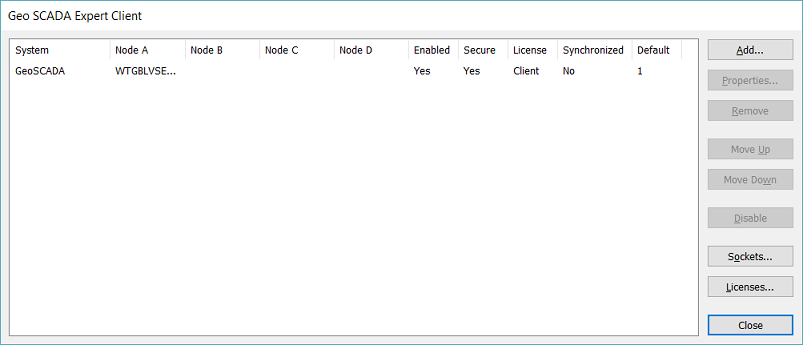
A User Account Control prompt may appear - select Continue on the prompt to allow the Configure Connections tool to run.
The Configure Connections tool contains various buttons (for those buttons not mentioned here, see Access and Use the Configure Connections Tool in the Geo SCADA Expert Guide to Client Administration):
Use to add a system (Geo SCADA Expert database) to which the Virtual ViewX server can connect.
A Virtual ViewX server can connect to multiple systems (it can connect to a maximum of 64 servers across those systems).
A Virtual ViewX server can connect to a maximum of 4 Geo SCADA Expert servers in a single system. The number of servers to which it can connect in a single system varies, depending on the system setup. For more information, see 'Define the Node Name for a System Connection' in the topic Configure the Virtual ViewX System Connection.
This button enables you to Display the Client Configuration Window on a Virtual ViewX Server.
Use to remove a system (Geo SCADA Expert database) connection. If you remove a system , the Virtual ViewX clients are no longer able to access it.
The Virtual ViewX server requires a single ViewX client license. This is a single license for connection to multiple systems, and can be a dongle or license file. The Geo SCADA Expert server's License Details window specifies the number of ViewX clients or Virtual ViewX clients for which it is licensed (see Understand the License Details Window on a Geo SCADA Expert Server).
Additionally, the Virtual ViewX server has to be licensed for the relevant number of Virtual ViewX client users. This is a separate software-based process from the existing Geo SCADA Expert licensing system and does not involve dongles or license files (see License your Virtual ViewX Installation).
Use to close the Configure Connections tool.
For more information, see the topics that are listed in the gray footer section at the bottom of this topic. Select the relevant entry to display the topic that you require.