Graphics Editor View Menu
Use the View menu to show or hide the Graphics Editor tabs and panes. From the View menu, you can also toggle a graphic between full screen mode and displaying it in the Graphics Editor window:
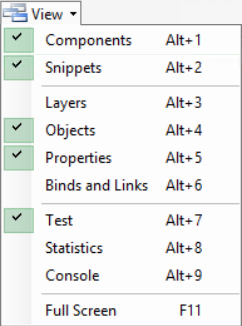
| Button | Description |
|---|---|
| Components |
Click to show or hide the Components tab where you can access and manage components. |
| Snippets |
Click to show or hide the Snippets tab where you can access and manage snippets. |
| Layers |
Click to show or hide the Layers pane where you can manage the layers of your graphic. |
| Objects |
Click to show or hide the Objects pane where you can view the object tree with all the elements included in the graphic. |
| Properties |
Click to show or hide the Properties pane where you can view and set the properties of a graphic. |
| Binds and Links |
Click to show or hide the Binds and Links pane where you manage the binds and links of the graphic. |
| Test |
Click to show or hide the Test pane where you can test that your graphics functions behave as expected. |
| Statistics |
Click to show or hide the Statistics pane where you can view the efficiency of the graphic. |
| Console |
Click to show or hide the Console where you can troubleshoot and test scripts. |
| Full Screen | Click to view the graphic in full screen mode or to revert to the Graphics Editor window. |