Setting up cybersecurity event logs and alarms
The event log can be used to monitor user logins and user account lockouts. The record limit for the event log is 5,000 by default. When the limit is reached, new records overwrite older ones.
To be notified when the Event Log record limit is approaching, see Data logging.
To extend record retention, offload information to syslog or a protected storage or retention location, see Configuring Syslog network settings using ION Setup.
You can also change event priorities for cybersecurity events using ION Setup Advanced Mode. Refer to the ION Reference document at www.se.com for information about working with modules.
Required for this procedure:
- Meter connection using ION Setup.
- Login credentials.
To set up cybersecurity event logs and alarms:
- Open ION Setup > select the meter > Setup Assistant.
- Security > Security Mode > Edit. The Open Security Configuration file dialog box opens.
- Select the Security Configuration File (.scf) that contains the current meter settings and click Open. The Security Options dialog box opens.
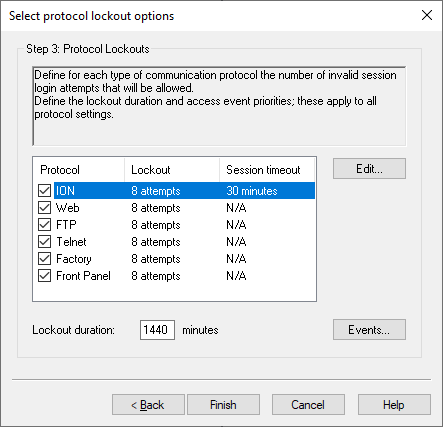
- Click Next to navigate to the Select protocol lockout options screen:
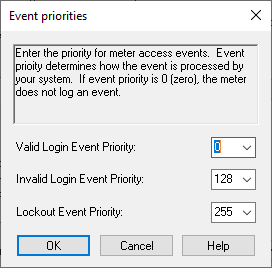
- Click Events. The Event Priorities dialog box opens:
- Leave default values or enter values for each event priority according to your reporting requirements:
Open the security log file to determine the .scf file you want. See Cybersecurity configuration for more information.
| Priority | Description | Value range |
|---|---|---|
| None | Not recorded in the event log. | 0 |
| Info Only | Recorded in the event log. Event log cut-off range. Will not appear in Event Log reports or syslog records. | 1-5 |
| Recorded in the event log. | 6-63 | |
| Low | Recorded in the event log. Produces alarm low alarm. | 64-127 |
| Medium | Recorded in the event log. Produces medium alarm. | 128-191 |
| High | Recorded in the event log. Produces low alarm. Recorded in syslog records. | 192-255 |
- Click OK.
- Click Next.
- Click Finish. A Confirmation message box opens.
- Click Yes. The Save As dialog box opens.
- Save the Security Configuration File (.scf) with a unique file name to avoid overwriting default Security Configuration files.
- Click Exit. The Device Configuration Checklist message box opens.
- Click Exit.