Configuring MQTT using ION Setup
Use advanced mode in ION Setup to:
-
Select the data to publish.
Note: Data comes from linking numeric ION output registers from other modules to the MQTT Export Module's input registers. You cannot link other types of ION registers. For more information,
-
Enter the connection details between the meter and the broker.
-
Check the status of the MQTT connection.
Prerequisites:
-
An understanding of ION architecture.
-
The MQTT broker's IPv4, IPv6, or fully-qualified domain name.
-
Full meter configuration access.
-
You have uploaded a certificate authority (CA) file for the broker. For more information, see Uploading an MQTT certificate authority file.
To configure MQTT:
- Open ION Setup.
-
Open advanced mode for your meter.
If prompted, enter the device credentials.
Tip: To open advanced mode, Ctrl+Select your meter in the Network Viewer.
- Open MQTT Export Modules.
-
If you do not already have an MQTT module:
-
Right-click MQTT Export Modules.
-
Select Insert Module.
MQTT Export 1 is created.
-
- Open MQTT Export 1.
-
Go to Inputs, select the Source that you want to link, and then select Edit.
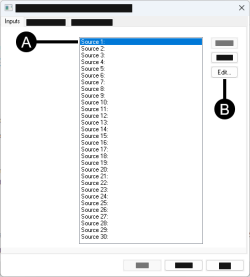
The ION Input Selection screen appears.
- Link the source inputs:
To link one input at a time:
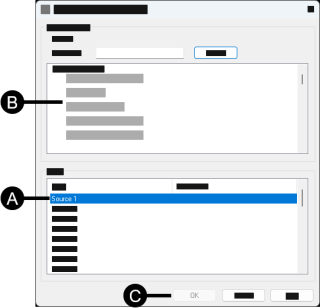
Go to Inputs, and then select the Source of the MQTT module that you want to link.
Go to Output Registers, and then:
Select a module type that has a numeric register.
Select the module that you want to open.
Select the numeric register that you want to link to the selected Source.
Select OK.
Tip: You must select a register for OK to become active.
OR
To link multiple inputs at once:
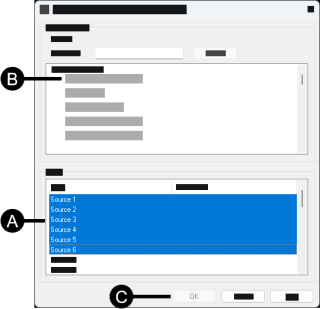
Go to Inputs, select a range of sources from the MQTT module that you want to link using Shift+Select or Ctrl+Select.
Go to Output Registers, and then:
Select a module type that has a numeric register.
Select the module that you want to open.
Select the starting numeric register that you want to link to the Source range.
Tip: ION Setup will automatically link as many available contiguous registers after the starting register.
Select OK.
Tip: You must select a register for OK to become active.
Repeat until all the desired links are created.
- Select Setup Registers.
- Enter your MQTT connection settings.
- Select Send.
- Confirm your MQTT connection.