Editing data recorder inputs
You can edit data recorder inputs. See Downloading data recorder logs before configuring a data recorder; configuration changes will delete all recorded data.
notice
data Loss
Ensure that all important data is recorded before configuring data recording.
Failure to follow these instructions can result in data loss.
Prerequisites
To edit a data recorder input:
- Select Logging > Data Recorders.
- Go to the data recorder that you want to edit.
- Under Actions select
 to open the Select Input menu.
 - Go to the Input that you want to edit.
- Under Actions select
 to edit the parameter.
 - To link a single input:
- Choose the parameter that you want to record and then select Link.
- To link multiple available consecutive inputs:
- Turn on Link Multiple.
- Choose the parameters that you want to record and then select Link.
Note: Link Multiple is only available if there is at least one consecutive available input. For example, if you selected Source 5, and Source 6 and Source 7 were also available, you could turn on Link Multiple and then choose three parameters to link to those inputs.
Tip: Hover over the right side of the Parameters heading and then select
 to search for a specific parameter.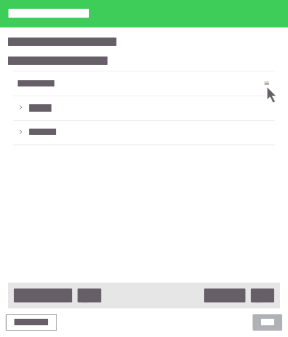
- Select Apply.
- Select Save Working Copy.
- Synchronize changes.