Specify the Connection Parameters for AVEVA PI Server or AVEVA Data Hub
You can optionally configure the AVEVA Historic Data Export driver in Geo SCADA Expert to export historic data to AVEVA PI Server or AVEVA Data Hub (see Specify the Connection Mode). With such a setup, a system administrator should specify the required connection parameters for the AVEVA PI Server or AVEVA Data Hub when that driver is first installed. To do this, display the AVEVA Historic Data Export section of the Global Parameters branch in the Geo SCADA Expert Server Configuration Tool (see Accessing the Geo SCADA Expert Server Configuration Tool). Use the properties within the AVEVA PI Server or AVEVA Data Hub Connection Parameters section to specify the required settings.
You should be able to obtain the values for most of the settings from the AVEVA PI Server or AVEVA Data Hub.
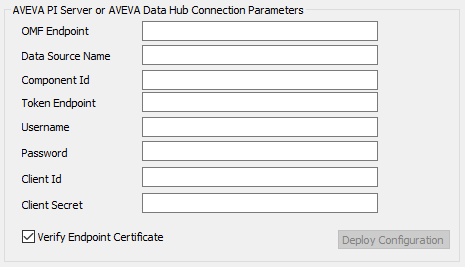
-
OMF Endpoint—Enter the URL of the historian endpoint (the AVEVA PI Web API or AVEVA Data Hub). The endpoint must be an Open Message Format (OMF) endpoint. The URL comprises an http or https endpoint string.
For more information, see the documentation provided with the AVEVA PI Web API or AVEVA Data Hub.
-
Data Source Name—Enter a human readable name to identify the AVEVA Adapter for Historic Data Export. Geo SCADA Expert uses the Adapter to connect to AVEVA PI Server or AVEVA Data Hub.
-
Component Id—Enter a string to identify the data source. This can be any alphanumeric string with the following restrictions:
-
The string can only contain letters and/or numbers.
-
The string cannot contain any leading or trailing spaces.
-
-
Token Endpoint—If required, enter the string that identifies where the AVEVA Adapter retrieves a bearer token. This comprises an http or https endpoint string.
-
Username—If you intend exporting historic data to AVEVA PI Server (or another historian endpoint that requires a username), specify the username of a suitable account that provides the required access to the machine on which that OMF endpoint is running. If the username contains a backslash (\), you must add an escape character (another backslash) immediately before the required backslash.
A Username and Password are typically used when exporting historic data to AVEVA PI Server, rather than to AVEVA Data Hub. Check with your OMF endpoint as to which set of credentials need specifying (Username and Password, or ClientId and Client Secret).
Leave the field blank if username and password credentials are not required.
-
Password—If you intend exporting historic data to AVEVA PI Server (or another historian endpoint that requires a password), specify the password of the above user account.
A Username and Password are typically used when exporting historic data to AVEVA PI Server, rather than to AVEVA Data Hub.
Leave the field blank if username and password credentials are not required.
-
Client Id—If you intend exporting historic data to AVEVA Data Hub (or another historian endpoint that requires a ClientId), specify the Client Id credentials that are required for authentication with that OMF endpoint.
A ClientId and Client Secret are typically used when exporting historic data to AVEVA Data Hub, rather than to AVEVA PI Server. Check with your OMF endpoint as to which set of credentials need specifying (Username and Password, or ClientId and Client Secret).
-
Client Secret—If you intend exporting historic data to AVEVA Data Hub (or another historian endpoint that requires a Client Secret), specify the Client Secret that is required for authentication with that OMF endpoint.
A ClientId and Client Secret are typically used when exporting historic data to AVEVA Data Hub, rather than to AVEVA PI Server.
-
Verify Endpoint Certificate—Use to specify whether the AVEVA Adapter for Historic Data Export is required to verify the certificate of the AVEVA PI Server (the AVEVA Data Hub or AVEVA PI Historian).
Either:
-
Select the check box for the AVEVA Adapter to verify the certificate. This is the default option. We strongly recommend that you select the check box on operational systems.
Or:
-
Clear the check box if the AVEVA Adapter is not required to verify the certificate. We strongly recommend that you only clear the check box on test systems.
-
-
Deploy Configuration—Once you have finished configuring the above settings, select this button to deploy the configuration. The button becomes available for use when a change has been made and saved to the registry.